
As display technology continues to evolve, 4K monitors have become more accessible and affordable than ever. What was once reserved for professional designers and video editors is now within reach of everyday users. But if your daily routine consists mainly of web browsing, checking emails, watching Netflix, or catching up on YouTube, is upgrading to a 4K monitor truly worth it? Or are you paying for pixels you won’t actually benefit from?
The answer isn’t a simple yes or no. It depends on your current setup, viewing habits, hardware capabilities, and expectations. This article breaks down the tangible advantages and potential drawbacks of moving to 4K for light-use scenarios, helping you make an informed decision without falling for marketing hype.
Understanding 4K: What Does It Actually Mean?
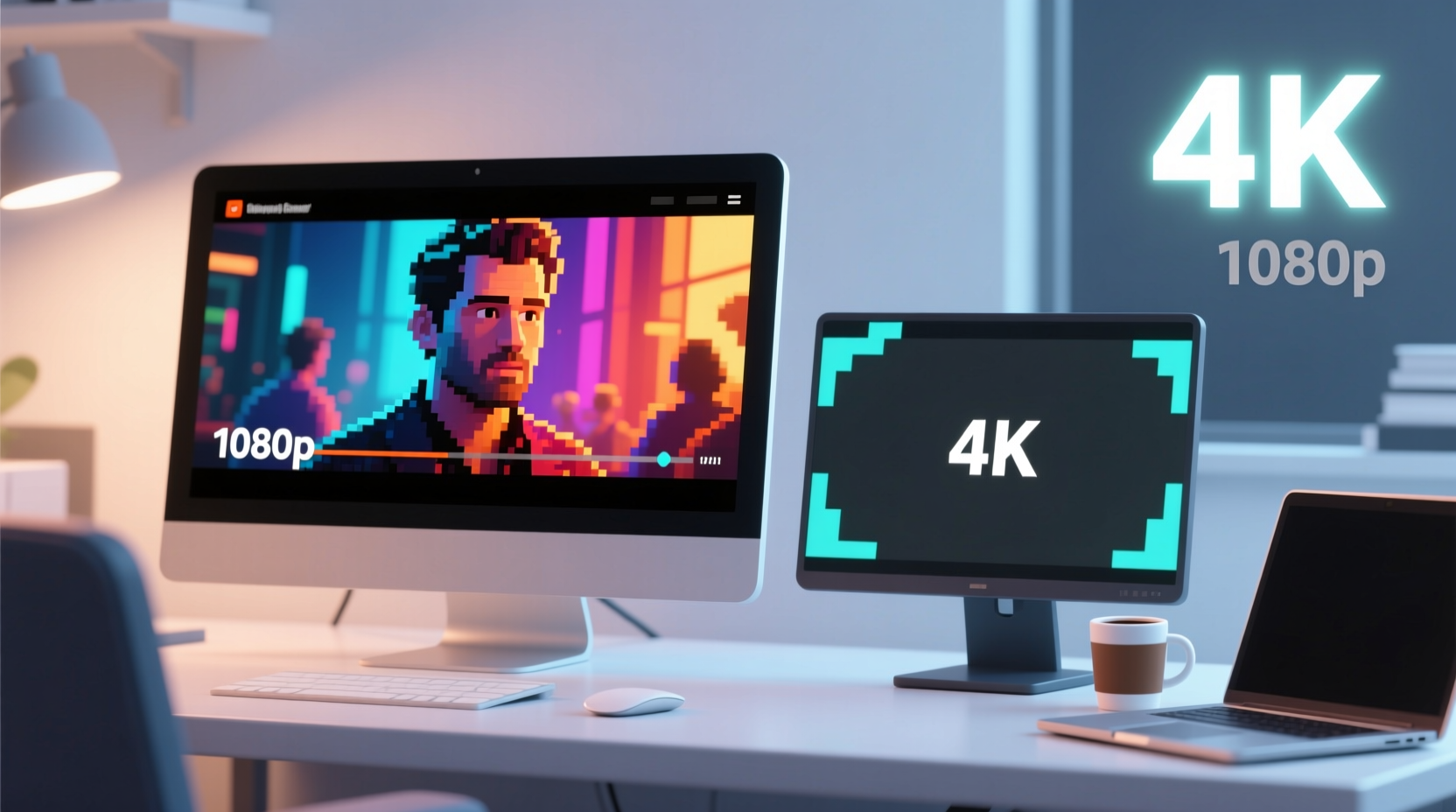
4K refers to a resolution of approximately 3840 x 2160 pixels—four times the number found in standard 1080p Full HD displays. That means significantly more detail, sharper text, and crisper images. However, higher resolution doesn’t automatically translate to better experience, especially when the content you consume isn’t optimized for it.
For example, most websites are still designed with 1080p in mind. Text and buttons scale well, but they don’t inherently \"look better\" at 4K unless the site uses high-resolution assets. Similarly, while major streaming platforms like Netflix, YouTube, and Disney+ offer 4K content, not all shows or videos are available in that resolution—and your internet speed must support consistent 4K streaming to avoid buffering.
When 4K Adds Real Value for Casual Use
There are specific situations where upgrading to a 4K monitor genuinely enhances the casual user experience:
- Larger screens (27 inches and above): On bigger displays, pixel density matters. A 1080p image stretched across a 32-inch screen can appear soft or pixelated. 4K fills that space with clarity, making everything from browser tabs to movie subtitles look crisp.
- Higher-quality streaming content: If you frequently watch native 4K HDR content from services like YouTube, Apple TV+, or Blu-ray rips, a 4K monitor unlocks the full visual fidelity intended by creators.
- Multi-tasking with windows: Even for browsing, having extra screen real estate lets you keep multiple browser windows, a video player, and messaging apps open side-by-side without constant tab switching.
- Future-proofing: As more websites adopt high-DPI designs and streaming services expand 4K libraries, owning a 4K display ensures you’re ready for the next few years of digital evolution.
“Resolution becomes meaningful when it matches both content capability and viewing distance. For large screens used at typical desk distances, 4K offers a noticeable leap in sharpness.” — Dr. Alan Zhou, Display Technology Researcher at MIT Media Lab
Where 4K Falls Short for Light Users
Despite its appeal, 4K isn’t always the right fit. Here’s where the upgrade might disappoint:
First, **content limitations** remain a bottleneck. According to recent data from Netflix, less than 30% of its catalog is available in true 4K, and even fewer titles include HDR. Many YouTube videos are uploaded in 1080p or lower, meaning your 4K monitor will upscale rather than display native resolution.
Second, **hardware demands** can catch users off guard. While modern integrated graphics (like Intel Iris Xe or AMD Radeon Vega) can handle 4K video playback, driving a 4K desktop interface smoothly requires sufficient GPU power. Older systems may struggle with window animations, browser rendering, or even basic scrolling in complex web pages.
Third, **scaling issues** arise on high-resolution displays. Operating systems like Windows apply DPI scaling (e.g., 125% or 150%) to prevent text and icons from becoming too small. But not all applications respect these settings, leading to inconsistent sizing, blurry fonts, or misaligned UI elements.
Common Pain Points After Upgrading to 4K
- Misconfigured scaling makes some apps unusable or tiny
- Increased strain on older laptops or office PCs
- No visible improvement when viewing low-res videos or compressed images
- Diminishing returns if sitting farther than 3 feet from the screen
Cost vs. Benefit: Is the Upgrade Justified?
Let’s examine the financial aspect. Entry-level 4K monitors now start around $250–$300, with premium models reaching $800+. Compare that to a reliable 1080p monitor at $120–$180. The price gap has narrowed, but it's still significant—especially when paired with potential upgrades to cables (HDMI 2.0 or DisplayPort 1.4), GPU drivers, or even a new computer.
To determine whether the cost is justified, consider this checklist before purchasing:
- Do you use a screen 27 inches or larger?
- Do you sit within 3 feet of the monitor?
- Does your PC or laptop support 4K output at 60Hz?
- Do you regularly stream or download content in 4K?
- Are you frustrated by blurry text or stretched images on your current display?
However, if your usage centers on social media, email, news sites, and occasional HD video, the marginal gains from 4K may not justify the investment. In fact, many users report that after an initial “wow” factor, the day-to-day difference fades quickly.
Real-World Example: Sarah’s Upgrade Experience
Sarah, a freelance writer in Portland, upgraded her aging 24-inch 1080p monitor to a 32-inch 4K model hoping for a more immersive work and entertainment setup. She primarily browses research articles, watches documentaries on Kanopy, and edits manuscripts in Google Docs.
At first, she loved the clarity of text and the ability to split her screen into four panes. But within days, she noticed issues: her five-year-old laptop struggled with smooth video playback, fonts in her favorite writing app appeared fuzzy due to poor scaling, and most websites looked unchanged. She also realized her internet plan couldn’t consistently stream 4K without pauses.
After two weeks, Sarah returned the monitor and opted for a 27-inch QHD (1440p) display instead. It offered sharper visuals than 1080p without the performance hit or compatibility headaches of 4K. Her experience highlights a crucial point: more resolution isn’t always better—it’s about balance.
Comparison Table: 1080p vs. 4K for Casual Use
| Feature | 1080p Monitor | 4K Monitor |
|---|---|---|
| Average Price | $120–$180 | $250–$800+ |
| Text Clarity (24\" screen) | Good | Excellent |
| Streaming Quality (Native 4K Content) | Upscaled – softer image | Sharp, detailed |
| System Requirements | Low – works with most devices | Moderate to high – needs capable GPU |
| Scaling Consistency | Fully supported | Varies by app and OS |
| Best For | General browsing, HD streaming, small desks | Large screens, multi-tasking, future content |
This table underscores that 4K excels in specific contexts but isn't universally superior. For compact setups or modest hardware, 1080p remains a smart, efficient choice.
Step-by-Step Guide to Evaluating a 4K Upgrade
If you're still unsure, follow this practical evaluation process:
- Assess your current monitor: Is it smaller than 27 inches? Less than 2 years old? If so, upgrading may be premature.
- Check your source content: Review your streaming habits. Do you actively seek out 4K videos? Are you subscribed to services that offer them?
- Test your hardware: Confirm your graphics card supports 4K at 60Hz. Laptops should have HDMI 2.0 or DisplayPort. Integrated GPUs may only support one 4K display.
- Measure your viewing distance: Sit in your usual position. If you're more than 3 feet away, pixel density differences become negligible.
- Try before you buy: Visit an electronics store and view a 4K monitor side-by-side with a 1080p model. Open a webpage and a video—see if the difference feels impactful.
Taking these steps eliminates guesswork and helps you avoid buyer’s remorse.
Frequently Asked Questions
Does 4K make a difference for web browsing?
Only slightly. Websites with high-resolution images or clean typography may look sharper, but most layouts aren’t optimized for 4K. The biggest benefit is increased workspace, allowing you to keep more tabs and tools visible simultaneously.
Can I watch 4K content on a 1080p monitor?
Yes, but it will be downscaled. The video will play, but you won’t see the enhanced detail. Conversely, watching 1080p content on a 4K monitor often looks good due to upscaling, though it won’t match native 4K sharpness.
Do I need special cables for 4K?
Yes. To run 4K at 60Hz, you need HDMI 2.0 or DisplayPort 1.4. Older HDMI 1.4 cables only support 4K at 30Hz, which causes lag and isn’t suitable for general use. Always verify cable specs before connecting.
Conclusion: Making the Right Choice for Your Lifestyle
Upgrading to a 4K monitor for casual browsing and streaming isn’t a necessity, but it can be a worthwhile enhancement under the right conditions. If you use a large screen, value screen real estate, consume high-resolution content, and have compatible hardware, the jump to 4K delivers a cleaner, more immersive experience. However, if your needs are modest and your current setup performs well, the upgrade may offer little beyond bragging rights.
Technology should serve your lifestyle—not complicate it. Before spending hundreds on a new display, ask yourself: Will this change how I interact with my digital world in a meaningful way? If the answer is yes, go for it. If not, there’s no shame in sticking with what works.




 浙公网安备
33010002000092号
浙公网安备
33010002000092号 浙B2-20120091-4
Comments
No comments yet. Why don't you start the discussion?