
Wi-Fi is the backbone of modern home connectivity. From streaming 4K movies to video conferencing and smart home automation, every digital interaction relies on a stable network. When performance drops, the instinctive fix is simple: unplug the router, wait 30 seconds, and plug it back in. Often, this works—briefly. But if problems return within hours or days, the issue may not be temporary glitches. It could be that your router has reached the end of its useful life.
Routers, like any electronic device, degrade over time. Components wear out, firmware support ends, and new technologies make older models obsolete. Recognizing when a router needs replacement—rather than repeated reboots—can save you from ongoing frustration, security risks, and poor performance. This guide outlines the definitive signs your router is past its prime and what to do next.
1. Frequent Disconnections Despite Reboots
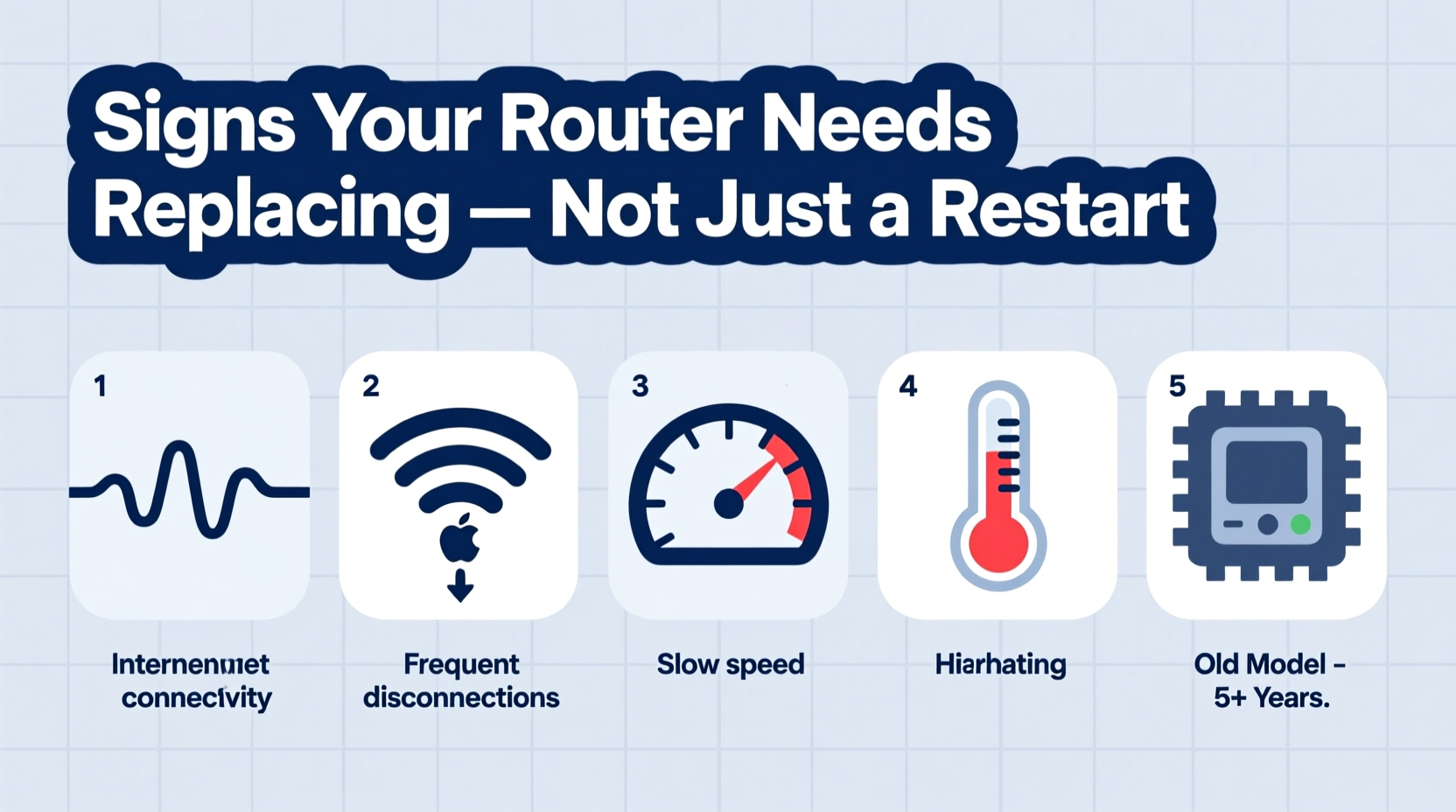
If your internet cuts out multiple times a day—even after restarting the router—it’s a red flag. Occasional dropouts can stem from ISP issues or signal interference, but persistent disconnections point to hardware failure.
Older routers struggle to maintain stable connections due to deteriorating internal components, such as capacitors or power regulators. Over time, heat cycles (daily heating and cooling) cause solder joints to crack and circuitry to weaken. These physical flaws can’t be fixed with software updates or resets.
Also consider the age of your router. Most consumer-grade routers last between 3 to 5 years under regular use. Beyond that window, expect declining reliability regardless of maintenance.
2. Slow Speeds That Don’t Match Your Internet Plan
You pay for 300 Mbps fiber, but speed tests consistently show 50 Mbps on devices close to the router. Before blaming your provider, assess whether your router can handle your plan’s bandwidth.
Many older routers, especially those using Wi-Fi 4 (802.11n), have maximum theoretical speeds far below today’s standard plans. Even under ideal conditions, an 802.11n router maxes out around 150–300 Mbps, and real-world performance is often half that. Add distance, walls, or interference, and throughput plummets.
Newer standards like Wi-Fi 5 (802.11ac) and Wi-Fi 6 (802.11ax) are designed for gigabit speeds and better multi-device handling. If your router predates 2015, it likely lacks the hardware to deliver modern broadband performance.
“We’ve seen a 70% increase in average household bandwidth consumption since 2020. Routers from five years ago simply weren’t built for today’s demands.” — Lisa Tran, Senior Network Engineer at NetSecure Labs
3. Overheating and Physical Wear
Touch your router. If it’s consistently hot to the touch—even after being off for 10 minutes—it may be overheating. While some warmth is normal, excessive heat shortens component lifespan and triggers thermal throttling, reducing performance.
Poor ventilation, dust buildup, or failing internal fans (in high-end models) contribute to overheating. But if cleaning and relocating the router don’t help, the issue is likely internal degradation.
Other physical signs include:
- Flickering or unusual LED patterns (not related to known ISP outages)
- Burning smell or discoloration on the casing
- Intermittent power failures (unit turns off randomly)
These symptoms suggest hardware failure. No amount of rebooting will resolve them permanently.
4. Inability to Support Modern Devices and Security Standards
Smart homes now include doorbells, cameras, thermostats, lights, and voice assistants—all competing for bandwidth. Older routers lack the processing power and memory to manage dozens of connected devices efficiently.
You might notice:
- Devices dropping offline when others join the network
- Delays in smart home commands (e.g., “Turn on lights” takes 10 seconds)
- Inability to create separate guest networks or prioritize traffic (QoS)
Security is another critical factor. Routers released before 2018 often lack support for WPA3 encryption, leaving networks vulnerable to brute-force attacks and KRACK exploits. Many also no longer receive firmware updates, making them easy targets for malware like VPNFilter.
| Feature | Modern Router (Wi-Fi 6+) | Outdated Router (Wi-Fi 4 or older) |
|---|---|---|
| Max Theoretical Speed | 9.6 Gbps (Wi-Fi 6E) | 600 Mbps (Wi-Fi 4) |
| Device Capacity | 100+ devices with OFDMA | 15–25 devices, frequent drops |
| Encryption Standard | WPA3 supported | WPA2 only, no WPA3 |
| Firmware Updates | Regular, multi-year support | Discontinued or rare |
| Beamforming | Yes – focuses signal to devices | No – broadcasts in all directions |
If your router doesn’t support basic features like parental controls, device prioritization, or app-based management, upgrading will dramatically improve usability and safety.
5. Real-World Example: The Home Office That Couldn’t Stay Connected
Consider Mark, a freelance graphic designer working from his suburban home. He upgraded to a 500 Mbps internet plan to handle large file uploads and client video calls. Within weeks, he experienced dropped Zoom meetings, lag during cloud backups, and inconsistent speeds.
His initial troubleshooting included:
- Restarting the router daily
- Moving devices closer to the router
- Changing Wi-Fi channels
- Contacting his ISP (who confirmed line stability)
Nothing helped long-term. A technician discovered Mark was using a 2012 ISP-provided router—technically Wi-Fi 4, with outdated firmware and no QoS settings. The router couldn’t sustain high-throughput tasks while managing background devices like smart TVs and phones.
After replacing it with a Wi-Fi 6 mesh system, his speeds stabilized at 480+ Mbps, Zoom calls remained uninterrupted, and upload consistency improved. The fix wasn’t configuration—it was hardware obsolescence.
Step-by-Step: How to Determine If You Need a New Router
Follow this timeline to diagnose your router’s health objectively:
- Check the age: Locate the model number and search online. If manufactured before 2018, it’s likely outdated.
- Run a baseline speed test: Use a wired Ethernet connection from your computer to the modem (bypassing the router). Record download/upload speeds.
- Test through the router: Connect the same device via Wi-Fi to your router and run the test again. A drop of more than 30% suggests routing inefficiency.
- Count connected devices: Access your router’s admin panel (usually via 192.168.1.1) and check how many devices are active. Over 20 may overwhelm older hardware.
- Inspect firmware status: Look for available updates. If none exist or the interface looks outdated, the manufacturer may have discontinued support.
- Monitor stability over 72 hours: Note disconnection frequency, slow periods, and device behavior. Persistent issues indicate hardware decline.
- Compare with current models: Research Wi-Fi 6 or Wi-Fi 6E routers in your budget. Assess feature gaps (e.g., mesh capability, app control).
If steps 3–6 reveal consistent shortcomings, replacement—not resetting—is the logical next step.
Checklist: When to Replace Your Router
Use this checklist to make a confident decision:
- ✅ Router is more than 4 years old
- ✅ Frequent disconnections persist after reboots
- ✅ Wi-Fi speeds are less than half your paid plan
- ✅ Overheating or physical damage present
- ✅ Doesn’t support WPA3 or latest security patches
- ✅ Struggles with 15+ connected devices
- ✅ No firmware updates in over a year
- ✅ Lacks essential features (guest network, QoS, parental controls)
- ✅ Interferes with new devices (smart home gear, gaming consoles)
- ✅ You’ve upgraded your internet plan recently
Hitting three or more of these points strongly indicates it’s time for a new router.
FAQ: Common Questions About Router Replacement
Can a router suddenly stop working?
Yes. While gradual decline is common, routers can fail suddenly due to power surges, capacitor blowouts, or firmware corruption. Sudden silence (no lights, no response) usually means hardware death. A surge protector can help prevent this.
Will a new router improve my internet speed?
It will improve your *experienced* speed—especially if your current router bottlenecks your connection. A new router won’t increase your ISP plan’s cap, but it ensures you get the speeds you’re paying for, particularly on Wi-Fi. Upgrading to Wi-Fi 6 can double or triple real-world throughput in congested environments.
Do I need a mesh system or is a single router enough?
For homes under 1,500 sq ft with open layouts, a modern single-band or dual-band router may suffice. For larger homes, multiple floors, or thick walls, a mesh system (like Eero, Nest Wifi, or TP-Link Deco) provides seamless coverage without dead zones. Mesh systems also offer unified network names (SSIDs) and automatic device handoff.
Conclusion: Stop Restarting, Start Replacing
Rebooting your router is a useful first step—but it’s not a cure-all. When slowdowns, disconnections, and instability become routine, the root cause is likely hardware aging. Technology evolves quickly, and routers from even five years ago can’t keep pace with today’s connected lifestyles.
Replacing an outdated router isn’t an indulgence; it’s an investment in productivity, security, and digital comfort. Modern routers offer faster speeds, better range, enhanced security, and smarter management tools. The improvement is immediate and lasting.




 浙公网安备
33010002000092号
浙公网安备
33010002000092号 浙B2-20120091-4
Comments
No comments yet. Why don't you start the discussion?