
Imagine trying to turn off your phone before bed, only to realize the power button is stuck, unresponsive, or physically damaged. It’s a frustrating situation, but it doesn’t mean you’re stuck with a perpetually running device. Whether due to wear, water damage, or manufacturing defects, a broken power button is more common than you might think. The good news: modern smartphones come with built-in workarounds and alternative shutdown methods. You don’t need technical skills or expensive repairs to regain control.
This guide outlines practical, tested solutions that work across major brands like Apple, Samsung, Google, and others. From software-based options to emergency protocols, these techniques ensure you can safely power down your device—without touching the power button.
Use Built-In Software Shortcuts
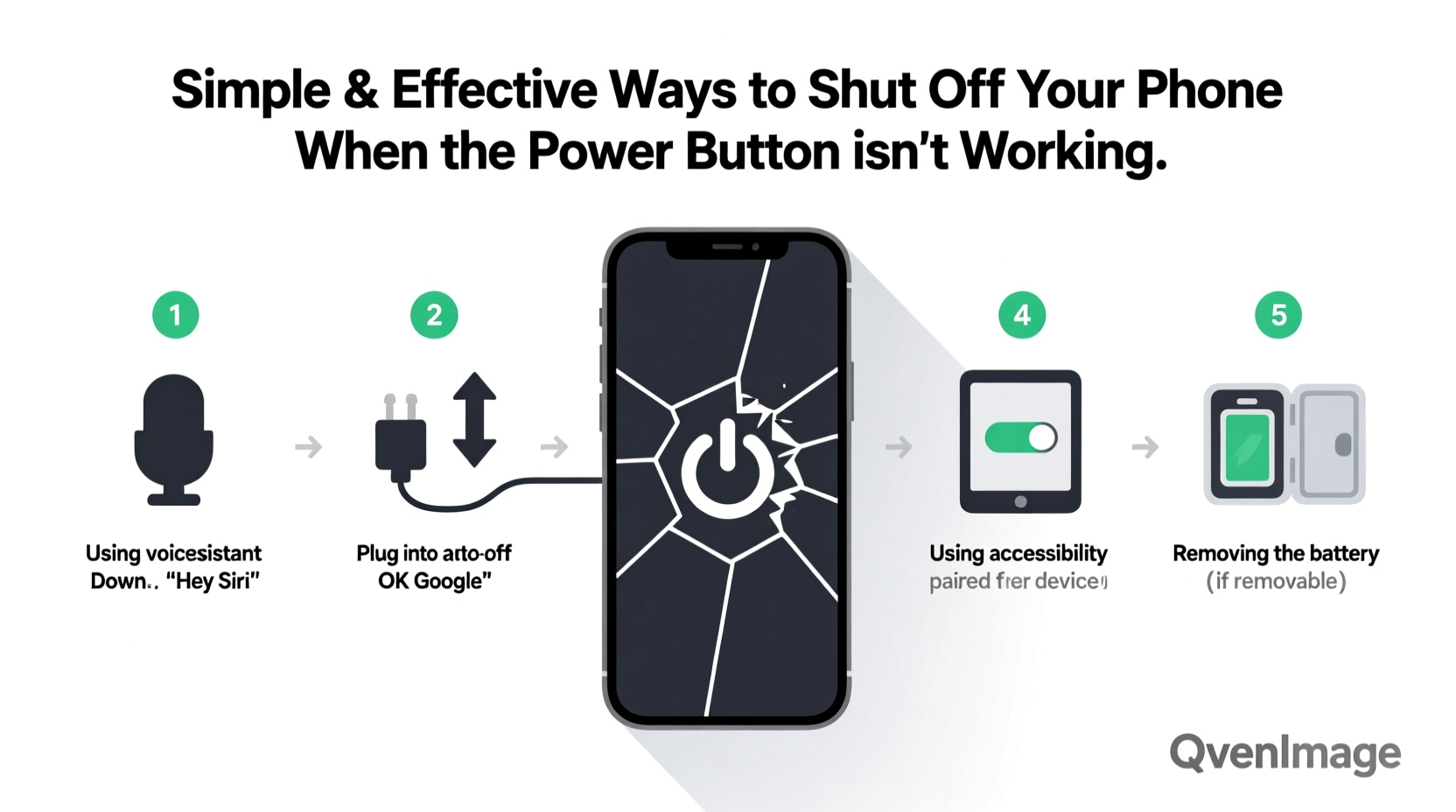
Most modern smartphones include accessibility features designed for situations exactly like this. These functions allow you to trigger actions—including powering off—using on-screen menus or voice commands.
For Android Devices:
Android has offered an “Accessibility Menu” for years, which can be activated to simulate hardware button presses. To set it up:
- Navigate to Settings > Accessibility > Accessibility Menu.
- Enable the toggle to activate the floating icon.
- Tap the icon on your screen, then select “Device Controls.”
- From there, choose “Power” to access the shutdown option.
This menu also allows volume control, rotation lock, and notifications—all without pressing physical buttons.
For iPhones:
Apple provides the “AssistiveTouch” feature, originally designed for users with motor challenges. Once enabled, it creates a customizable on-screen button that replicates hardware functions.
- Go to Settings > Accessibility > Touch > AssistiveTouch.
- Turn on AssistiveTouch and customize the top-level menu.
- Add “Device” and then “Lock Screen” to bring up the power-off slider.
Tap the floating icon, select “Lock Screen,” and swipe to power off just as if you’d pressed the side button.
Leverage Voice Assistants for Hands-Free Control
Voice assistants like Google Assistant, Siri, and Bixby can perform system-level tasks, including initiating shutdown sequences—provided they’re properly configured.
On compatible Android phones, say: “Hey Google, restart my phone.” While full shutdown may not be supported directly, restarting often achieves the same goal. Some custom launchers or rooted devices even allow full shutdown via voice through automation apps like Tasker.
On iPhone, Siri cannot directly shut down the device for security reasons. However, you can use Siri to open the Accessibility Shortcut (if assigned) or trigger a Shortcut routine that guides you to the power-down screen.
“Voice-enabled controls are no longer just convenience features—they’re essential accessibility tools when hardware fails.” — Dr. Lena Torres, Human-Computer Interaction Researcher at MIT
Use Scheduled Power On/Off Features
Many smartphones include a scheduled power feature, typically found under battery or system settings. This function automatically turns the phone off and on at set times—a useful workaround if manual shutdown isn’t possible.
| Brand | Feature Name | How to Access |
|---|---|---|
| Samsung | Scheduled Power On/Off | Settings > Device Care > Battery > More Settings > Schedule |
| Xiaomi / Redmi | Automatic Turn Off | Settings > Battery & Performance > Auto Shutdown |
| Google Pixel | No native option | Requires third-party app (e.g., “Automate”) |
| iPhone | Not available | Use Focus modes with screen time limits as partial substitute |
This method won’t help if you need to shut down immediately, but it’s excellent for managing device usage during sleep hours or conserving battery when repairs are pending.
Force Restart: A Controlled Shutdown Alternative
When the power button is completely unresponsive, a force restart can effectively shut down and reboot your phone. Though not a graceful shutdown, it clears active processes and resets system stability—especially helpful if the device is frozen.
Step-by-Step Guide to Force Restart by Brand
- iPhone 8 and later: Press and release Volume Up, then Volume Down. Then press and hold the Side Button until the Apple logo appears (about 10–15 seconds).
- iPhone 7/7 Plus: Press and hold Volume Down + Sleep/Wake (Side) button until the screen goes black and logo returns.
- iPhone 6s and earlier: Hold Home + Sleep/Wake button until the screen shuts off and restarts.
- Samsung Galaxy (S8 and newer): Press and hold Volume Down + Side Power button for 10+ seconds.
- Google Pixel (all models): Hold the Side Button for up to 30 seconds; some models require Volume Down + Side Button.
- OnePlus, Xiaomi, etc.: Typically Volume Down + Power button held for 10–15 seconds.
While this doesn’t offer a clean shutdown, it stops all operations and powers the device off temporarily. Use this method sparingly, as abrupt interruptions can occasionally lead to data corruption in rare cases.
Real-Life Scenario: When a Broken Button Almost Missed a Flight
Julie, a travel blogger, was rushing through airport security when her Samsung Galaxy S21 froze. She couldn’t turn it off for the flight, and the power button had been flaky for weeks. Panicked, she remembered reading about the Assistive Menu. Using one-handed gestures, she opened the Accessibility button, navigated to Device Controls, and powered down successfully—just in time to board.
Her experience highlights how preparing in advance can prevent real-world stress. She now keeps both Assistive Menu and emergency shutdown routines enabled on all her devices.
Checklist: What to Do When Your Power Button Fails
- ✅ Check if the device responds to charging or vibrations (confirm it’s not fully dead).
- ✅ Enable Accessibility Menu (Android) or AssistiveTouch (iOS) immediately.
- ✅ Set up voice assistant commands for device control.
- ✅ Program a scheduled shutdown if your model supports it.
- ✅ Learn your phone’s force-restart combination.
- ✅ Back up data regularly in case sudden shutdowns cause file issues.
- ✅ Consider professional repair if software fixes are temporary.
Frequently Asked Questions
Can I permanently disable the power button requirement?
No—but you can minimize reliance on it. Features like tap-to-wake, scheduled brightness, and always-on displays reduce the need to wake the phone manually. However, the power button remains a core hardware component for security and system interrupts.
Will using software shutdown methods harm my phone?
No. Using Accessibility features or scheduled shutdowns is safe and officially supported. These are designed by manufacturers to ensure usability even when hardware fails.
What if none of these methods work?
If your phone is completely frozen and unresponsive to force restarts, try letting the battery drain completely. Once off, charge it and attempt recovery mode. If problems persist, contact the manufacturer or a certified repair service.
Final Thoughts: Stay in Control, Even Without the Button
A malfunctioning power button doesn’t have to leave you powerless. With thoughtful preparation and knowledge of built-in alternatives, you can maintain full control over your device. These strategies aren’t just stopgaps—they reflect the evolving intelligence of modern smartphones, where software can compensate for hardware limitations.
Don’t wait until your button fails completely. Take five minutes today to enable AssistiveTouch or schedule a nightly shutdown. That small step could save you significant frustration tomorrow.




 浙公网安备
33010002000092号
浙公网安备
33010002000092号 浙B2-20120091-4
Comments
No comments yet. Why don't you start the discussion?