
YouTube is one of the most widely used platforms in the world, with billions of users accessing videos daily across smartphones, tablets, laptops, and smart TVs. While logging in offers personalized recommendations and saved watch history, staying logged in on shared or public devices can pose privacy and security risks. Whether you're using a friend’s phone, a work computer, or a hotel smart TV, knowing how to securely log out of YouTube is essential. Unlike some apps, YouTube doesn’t always make logout options obvious, especially on non-browser platforms. This guide provides clear, reliable methods to log off YouTube on any device, ensuring your account stays protected.
Why Logging Out Matters
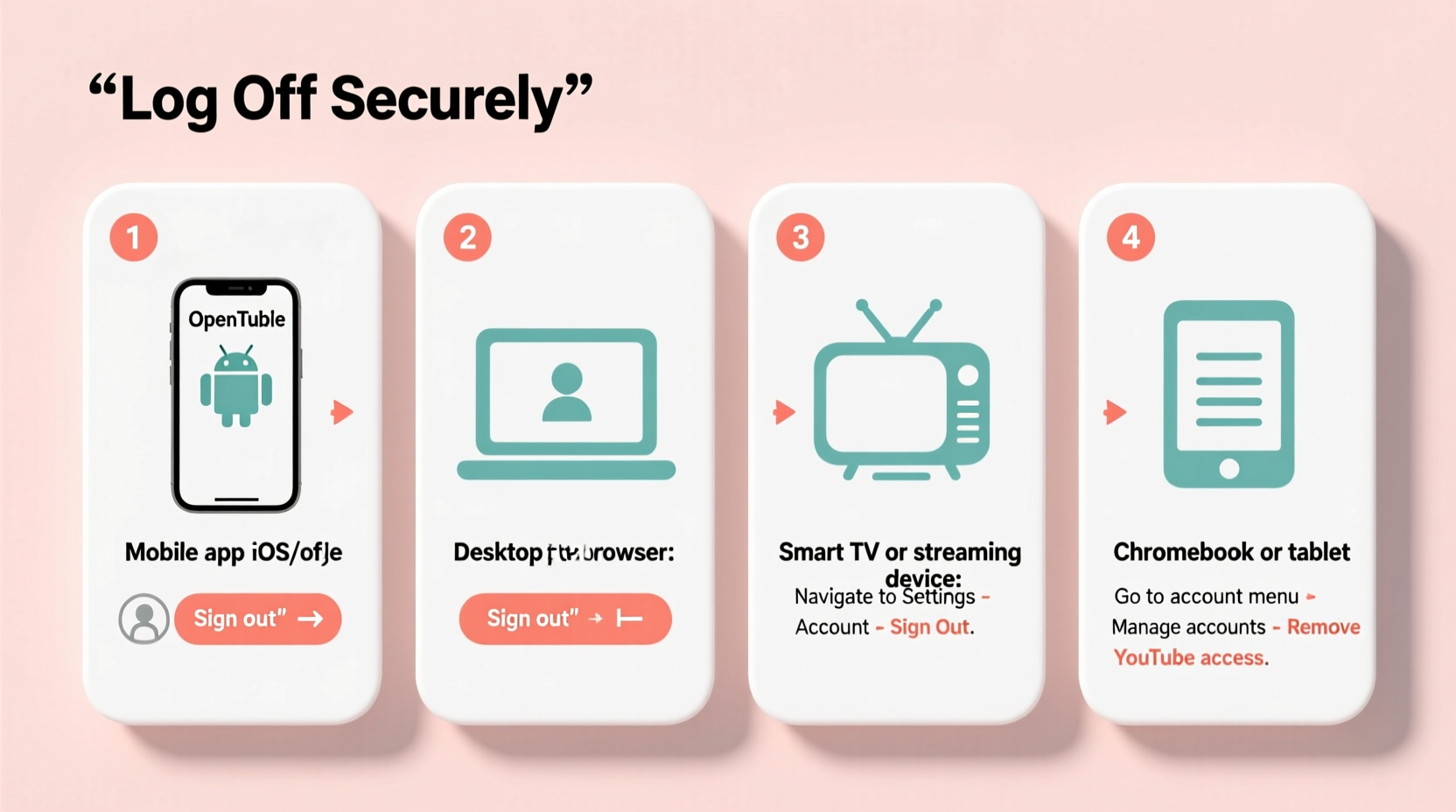
Remaining logged into YouTube—even on personal devices—can lead to unintended consequences. If your phone is lost or stolen, anyone who finds it can access your viewing history, subscriptions, liked videos, and even comment under your name. On shared devices like library computers or family tablets, staying signed in exposes your data to others. Additionally, YouTube uses login status to track watch behavior for ad targeting. Logging out occasionally helps limit persistent tracking and resets algorithmic suggestions.
“Users often overlook logout options, assuming auto-logout is guaranteed. But unless explicitly signed out, accounts may remain active for days—even weeks.” — Lena Patel, Cybersecurity Analyst at Digital Trust Labs
Step-by-Step: How to Log Off YouTube by Device
The process for logging out varies significantly depending on the platform. Below are detailed instructions for the most common devices.
On Android Phones and Tablets
- Open the YouTube app.
- Tap your profile picture in the top-right corner.
- Select “Manage accounts on this device.”
- Tap the three-dot menu next to your Google account.
- Choose “Remove account.”
This removes the account from the app entirely. You won’t be able to browse as that user until you log back in. Note: Removing the account here does not delete your Google account—it only signs you out of YouTube on that device.
On iPhones and iPads (iOS)
- Launch the YouTube app.
- Tap your profile icon in the upper right.
- Go to “Switch account” > “Manage accounts on this device.”
- Swipe left on your account or tap the three dots.
- Select “Remove from device.”
iOS handles Google account integration differently than Android. Removing the account from the app does not affect your Google sign-in elsewhere on the device unless you manually remove it from Settings > Passwords & Accounts.
On Windows or Mac Computers (Web Browser)
- Go to youtube.com.
- Click your profile picture in the top-right corner.
- Select “Sign out.”
This logs you out of YouTube and often signs you out of other Google services (Gmail, Drive, etc.) in the same browser. To stay signed into Gmail but log out of YouTube specifically, use an incognito window for YouTube sessions.
On Smart TVs and Streaming Devices
Smart TVs (Samsung, LG, Android TV), Roku, Apple TV, and Fire Stick run YouTube through dedicated apps, which rarely display a visible logout button.
- Android TV: Go to Settings > Apps > YouTube > Clear Data and Clear Cache. Then reopen the app.
- Roku: Press the Star button on your remote while in the YouTube app > Select “Sign out.”
- Apple TV: Navigate to Settings > Users and Accounts > YouTube > Sign Out.
- Amazon Fire Stick: Go to Settings > Applications > Manage Installed Apps > YouTube > Clear Data.
- Samsung/LG TVs: Uninstall the YouTube app or clear its data via the TV’s settings menu.
These actions effectively terminate the session and require re-login upon next use.
Alternative Methods for Enhanced Security
Sometimes, simply logging out isn’t enough—especially if you suspect unauthorized access or have used a public machine.
Use Your Google Account Dashboard
You can remotely sign out of YouTube (and all Google services) from any device by visiting your Google Account settings:
- Go to myaccount.google.com on any browser.
- Click “Security” in the left sidebar.
- Under “Your devices,” click “Manage devices.”
- Locate the device you want to log out from.
- Click the three-dot menu and select “Sign out.”
This revokes access instantly and invalidates the session, even if the device remains powered on.
Change Your Password for Immediate Logout Everywhere
If you believe your account has been compromised, changing your Google password immediately logs you out of all devices across all services—including YouTube.
“Password reset is the fastest way to regain control if you’ve logged in on a suspicious network or forgotten to log out.” — Marcus Tran, Google Security Outreach Team (via public webinar)
Do’s and Don’ts When Logging Out of YouTube
| Do | Don’t |
|---|---|
| Always check that your profile icon disappears after logout. | Assume closing the app fully logs you out. |
| Use incognito or guest modes on shared devices. | Save passwords on public computers. |
| Regularly review active devices in your Google Account. | Ignore unfamiliar devices listed under “Security.” |
| Clear app data on smart TVs when done. | Leave your account active on hotel or rental devices. |
Real-World Example: The Shared Tablet Incident
A college student, Mia, borrowed her roommate’s tablet to watch a tutorial video on YouTube. She logged in using her Google account to save the video to a playlist. After finishing, she closed the app and returned the tablet. Two days later, she noticed strange video recommendations—fitness content and cooking shows her roommate regularly watched. Upon checking, she realized she had never logged out. Her roommate had unknowingly browsed YouTube while Mia was still signed in, mixing their histories. Worse, Mia received notifications about new subscriptions she didn’t make. She quickly went to her Google Account dashboard, signed out of the tablet remotely, and changed her password. Since then, she uses incognito mode on shared devices and double-checks her logout status every time.
Frequently Asked Questions
Does closing the YouTube app automatically log me out?
No. Closing the app only suspends it. Your account remains signed in, and your data stays accessible if someone opens the app again. Always manually remove the account or sign out via settings.
Can I be logged into YouTube without being logged into Google?
No. YouTube uses Google authentication. If you're signed into YouTube, you're signed into your Google account in that environment (browser or app). Logging out of one typically affects the other.
Will clearing YouTube app data delete my videos or playlists?
No. Clearing app data only removes cached files and login sessions from the device. Your uploaded videos, playlists, likes, and subscriptions are stored in the cloud and will reappear once you log back in.
Checklist: Secure Your YouTube Sessions
- ✅ Always manually log out after using a shared or public device.
- ✅ Use incognito or guest browsing when possible.
- ✅ Regularly review active devices in your Google Security settings.
- ✅ Remove accounts from mobile apps instead of just switching profiles.
- ✅ Clear app data on smart TVs and streaming sticks after use.
- ✅ Enable 2FA to protect against unauthorized access.
- ✅ Change your password immediately if you forget to log out.
Stay in Control of Your Digital Footprint
Logging out of YouTube might seem like a minor action, but it plays a crucial role in protecting your privacy and maintaining control over your digital identity. With so many devices connected to a single Google account, it's easy to leave traces behind—on a friend’s iPad, a coworker’s laptop, or a vacation rental’s smart TV. By adopting consistent logout habits and using the tools Google provides, you reduce the risk of unwanted exposure and keep your viewing experience truly personal. Take a moment after your next video session to verify you’re signed out. That small step today could prevent a privacy issue tomorrow.




 浙公网安备
33010002000092号
浙公网安备
33010002000092号 浙B2-20120091-4
Comments
No comments yet. Why don't you start the discussion?