
The Google Play Store is the official app marketplace for Android devices, offering millions of apps, games, books, movies, and music. Whether you're using a smartphone, tablet, or even a Chromebook, accessing and navigating the Play Store should be intuitive. Yet, many users—especially newcomers—face confusion when trying to locate features, manage downloads, or troubleshoot access issues. This guide walks through the essential steps to get into the Play Store, explore its interface, and use it efficiently across different devices.
Step-by-Step: Accessing the Google Play Store
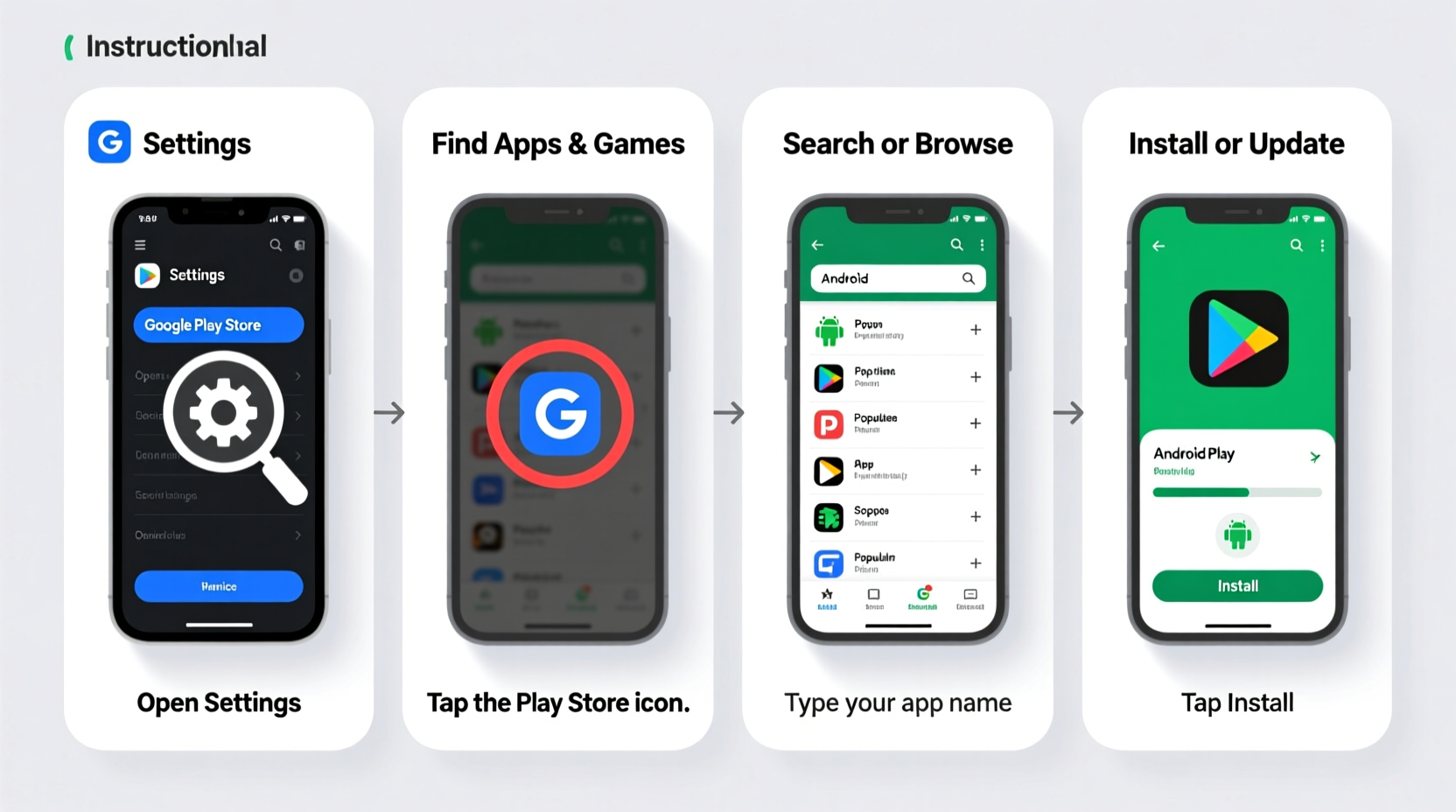
Getting into the Google Play Store starts with a few basic prerequisites. Ensure your device meets these conditions before proceeding:
- You have a working internet connection (Wi-Fi or mobile data).
- Your device runs on Android 4.1 (Jelly Bean) or higher, or supports Google Play Services.
- You’re signed in with a Google Account.
Once these are confirmed, follow these steps:
- Locate the Play Store app on your home screen or app drawer. It has a colorful triangle icon resembling a play button.
- Tap the icon to open the app. If prompted, sign in with your Google Account.
- Allow a moment for the app to load. The homepage will display personalized recommendations, trending apps, and featured content.
If the app isn’t visible, swipe up from the home screen to view the app drawer, or use the search bar at the top to type “Play Store.” On some devices, especially budget models or region-specific variants, Google Play Services may not be pre-installed. In such cases, consider downloading the APK from a trusted source or contacting your device manufacturer.
Navigating the Interface: Key Sections Explained
The Play Store’s layout is designed for ease of use. Once inside, you’ll notice several main navigation tabs at the bottom (on most Android devices):
- Home – Personalized app suggestions, new releases, and curated collections.
- Apps – Browse or search all available applications.
- Games – Dedicated section for games, including live streams and leaderboards.
- Movies & TV – Rent or buy films and shows.
- Books – E-books and audiobooks library.
- Subscriptions – Manage recurring payments for apps and services.
At the top right, a circular profile icon gives access to account settings, payment methods, download history, and family controls. Tapping this opens a menu where you can switch accounts, enable parental restrictions, or check installed apps across all linked devices.
Use the search bar at the top to find specific apps. As you type, the Play Store suggests results and displays categories like “Top Apps,” “In-App Purchases,” or “Developer” pages.
Pro Tips for Smarter Navigation
- Swipe down on the homepage to refresh content and update recommendations.
- Long-press an app icon on the home screen and select “Info” to jump directly to its Play Store page.
- Enable “Dark Theme” in system settings to reduce eye strain during extended browsing sessions.
Using the Play Store on Non-Traditional Devices
While smartphones dominate Play Store usage, Google has expanded access to other platforms:
Tablets
On tablets, the Play Store adapts to larger screens with a two-panel layout. Categories appear on the left, detailed descriptions on the right. Many apps are optimized for tablets, but if not, they run in compatibility mode—sometimes appearing smaller or letterboxed.
Chromebooks
Most modern Chromebooks support Android apps via the Google Play Store. To enable it:
- Click the Settings gear in the lower-right corner.
- Go to Apps > Google Play Store.
- Select “Turn On” and accept the terms.
- Wait for installation, then browse and install apps as on a phone.
Note: Some Chromebooks disable Play Store access due to hardware limitations. Check your model’s compatibility on Google’s official support site.
Smart TVs and Streaming Devices
Google TV and Android TV devices include a version of the Play Store, though limited to TV-optimized apps. Navigate using a remote control, and expect a simplified interface focused on large text and easy selection.
“Cross-device continuity is one of Google’s strongest advantages. Once you set up your account, your preferences, downloads, and subscriptions follow you seamlessly.” — David Lin, Mobile Ecosystem Analyst
Essential Checklist for First-Time Users
Before diving into downloads, complete this quick setup checklist:
- ✅ Sign in with a valid Google Account.
- ✅ Connect to Wi-Fi to avoid data overages.
- ✅ Review and update payment methods under \"Payments & Subscriptions.\"
- ✅ Enable “Auto-update apps” in settings for security and performance.
- ✅ Set parental controls if children will use the device.
- ✅ Verify app permissions before installing (e.g., location, camera access).
Common Issues and How to Fix Them
Even with proper setup, users occasionally encounter problems. Here’s a breakdown of frequent issues and solutions:
| Issue | Possible Cause | Solution |
|---|---|---|
| Play Store won’t open | Cache corruption or outdated app | Clear cache: Settings > Apps > Google Play Store > Storage > Clear Cache |
| \"Authentication is required\" | Google Account not properly synced | Remove and re-add account in Settings > Accounts |
| App installs fail | Insufficient storage or network error | Free up space or restart router; retry installation |
| Can't find the Play Store app | Device lacks Google certification | Check if device is certified at Google's Certified Devices List |
Mini Case Study: Maria’s First Android Tablet
Maria, a retired teacher, received her first Android tablet from her grandson. Excited to try video calls and reading apps, she struggled to find the Play Store. After checking every folder, she used the search bar and typed “Play.” The app appeared, but tapping it showed “Authentication Required.” Confused, she called her grandson, who guided her to add her Gmail account under Settings > Accounts. Once logged in, the Play Store loaded instantly. She downloaded WhatsApp, Kindle, and a puzzle game—all within ten minutes. With basic guidance, Maria transitioned from frustration to confidence, proving that small fixes make a big difference.
Frequently Asked Questions
Can I use the Play Store without a Google Account?
No. A Google Account is mandatory to browse, download, or manage content. However, you can create a free account at accounts.google.com in minutes.
Why are some apps not available in my country?
App availability depends on regional licensing, legal restrictions, or developer preferences. While using a VPN might bypass this, it violates Google’s Terms of Service and could result in account suspension.
How do I stop automatic updates?
Go to the Play Store > tap your profile > Network Preferences > Auto-update apps. Choose “Don’t auto-update apps” or limit updates to Wi-Fi only.
Mastering the Basics for Long-Term Use
Understanding how to access and move through the Google Play Store empowers you to make the most of your device. Beyond downloading apps, the Play Store serves as a hub for digital content management, security updates, and personalized discovery. Regularly reviewing your subscriptions, clearing cached data, and keeping your OS updated ensures smooth performance over time.
As new features roll out—like app bundles, instant apps, and enhanced privacy labels—staying informed helps you navigate changes confidently. The Play Store isn’t just a tool; it’s a gateway to productivity, entertainment, and connectivity.




 浙公网安备
33010002000092号
浙公网安备
33010002000092号 浙B2-20120091-4
Comments
No comments yet. Why don't you start the discussion?