
Mobile data is the backbone of modern smartphone use. Whether you're checking email, navigating with GPS, or streaming music on the go, a stable mobile data connection keeps you connected when Wi-Fi isn’t available. Yet, many users struggle with turning it on, managing usage, or troubleshooting slowdowns. Understanding how to activate and efficiently manage mobile data ensures seamless performance, avoids unexpected charges, and maximizes your plan’s value.
With just a few taps, you can enable data, control which apps use it, monitor consumption, and even restrict background activity. These actions are consistent across most smartphones, though interface details vary slightly between Android and iOS. This guide walks through practical, actionable steps to help you master mobile data settings—no technical expertise required.
How to Activate Mobile Data
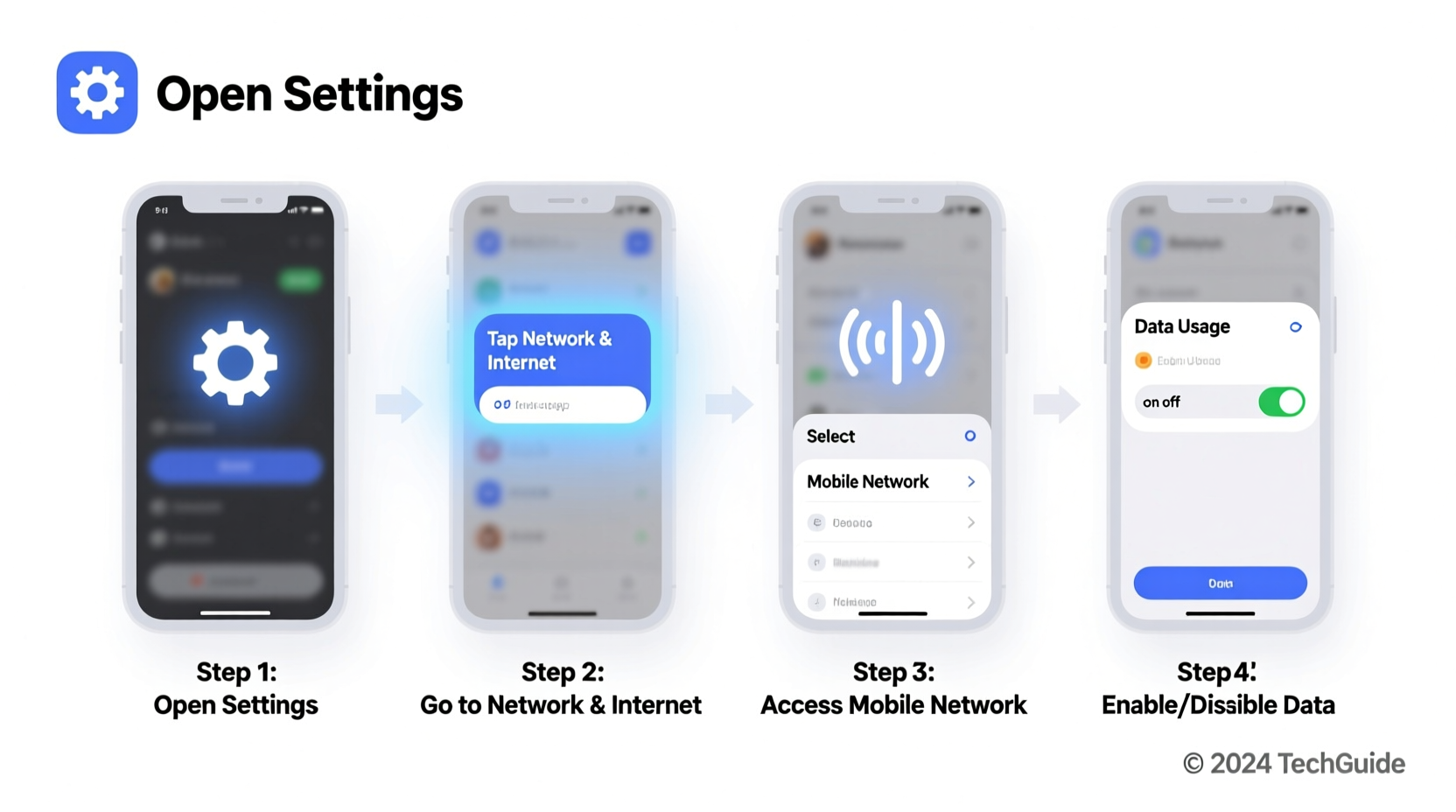
Activating mobile data is the first step toward internet access outside of Wi-Fi networks. The process differs slightly depending on your operating system, but both platforms offer quick access via the Settings app or Control Center/Quick Settings panel.
- On Android: Swipe down from the top of the screen to open Quick Settings. Tap the \"Mobile data\" or \"Data\" icon (usually represented by an arrow symbol). Alternatively, go to Settings > Network & Internet > Mobile Network and toggle \"Mobile data\" on.
- On iPhone: Swipe down from the top-right corner (or up from the bottom on older models) to access Control Center. Tap the cellular data icon (looks like radiating bars). Or navigate to Settings > Cellular and ensure \"Cellular Data\" is enabled.
Once activated, your phone will connect automatically to your carrier’s network. You’ll see a signal indicator—such as LTE, 5G, or H+—in the status bar, confirming the connection.
Managing Data Usage and Avoiding Overages
Unmonitored data usage can lead to overage fees or throttled speeds once your monthly limit is reached. Proactive management helps prevent these issues and extends your data allowance throughout the billing cycle.
- Set a monthly data limit to receive alerts or disable connectivity when exceeded.
- Track usage per app to identify data-heavy programs like video streaming or social media.
- Use built-in tools to schedule resets aligned with your billing date.
On Android, go to Settings > Network & Internet > Data Usage. Here, you can view total consumption, set warnings, and cap usage. iPhones offer similar functionality under Settings > Cellular > Cellular Data Usage, where you can reset statistics and review individual app consumption.
| Platform | Usage Tracker Location | Limit Setting Option |
|---|---|---|
| Android (Samsung) | Settings > Connections > Data Usage | Yes – Set warning and limit |
| Android (Pixel) | Settings > Network & Internet > Data Usage | Yes – Adaptive alerts and caps |
| iOS (iPhone) | Settings > Cellular | Limited – Reset tracking, no auto-disable |
Optimizing Background Data Consumption
Many apps continue using data in the background—even when not actively opened. While some functions, like message syncing or location updates, are essential, others may drain your allowance unnecessarily.
To restrict background data:
- Android: Go to Settings > Apps, select an app, then choose \"Mobile data.\" Toggle off \"Background data.\" For newer versions, use Settings > Network & Internet > Data Usage > App Data Usage to control background restrictions.
- iOS: Navigate to Settings > General > Background App Refresh. Disable it entirely or selectively per app. Note that disabling this may delay notifications or content updates.
Consider keeping background access enabled only for critical apps like messaging services, email, or navigation tools. Streaming platforms such as YouTube or Spotify should typically be restricted unless needed.
“Over 60% of mobile data consumed monthly occurs in the background. Managing app permissions can extend your plan by up to two weeks.” — Lena Patel, Senior Network Analyst at ConnectMetrics Inc.
Troubleshooting Common Mobile Data Issues
Even after activation, mobile data may fail due to misconfigurations, network problems, or software glitches. Below is a timeline of diagnostic steps to resolve common connectivity issues.
Step-by-Step Troubleshooting Guide
- Check signal strength: Ensure you have at least one bar of service. Move to a different location if indoors or in basements.
- Toggle Airplane Mode: Turn Airplane Mode on for 10 seconds, then off. This resets all wireless connections.
- Restart your device: A reboot clears temporary errors affecting network services.
- Verify APN settings: On Android, go to Settings > Network & Internet > Mobile Network > Access Point Names. Confirm settings match your carrier’s configuration (available on their support site).
- Update carrier settings: On iPhone, go to Settings > General > About. If an update is available, a prompt will appear.
- Contact your provider: If no solution works, verify your account status and check for regional outages.
Real-World Example: Maria’s Travel Dilemma
Maria traveled to a rural town for a weekend retreat. Upon arrival, she noticed her maps app wouldn’t load directions, despite having mobile data enabled. She assumed poor signal was the issue—but after trying several spots, the problem persisted.
She followed basic troubleshooting: restarted her phone, toggled airplane mode, and confirmed her data plan was active. Still no success. Then, she checked her APN settings and discovered they had been reset during a recent software update. After re-entering the correct APN provided by her carrier’s website, her mobile data resumed instantly.
This case highlights how overlooked settings can disrupt connectivity—even when everything appears to be working correctly. Regular maintenance and awareness of backend configurations can prevent extended downtime.
Data Management Checklist
Use this checklist monthly to maintain optimal mobile data performance:
- ✅ Confirm mobile data is enabled when Wi-Fi is unavailable
- ✅ Review data usage against your plan limit
- ✅ Identify and restrict high-consumption apps
- ✅ Disable background data for non-essential apps
- ✅ Reset usage statistics at the start of each billing cycle
- ✅ Verify carrier settings are up to date
- ✅ Enable data-saving modes if available (e.g., Android’s Data Saver)
Frequently Asked Questions
Why does my phone show 'No Service' even with mobile data on?
This usually indicates a lack of network coverage or a SIM card issue. Try restarting your phone, ensuring the SIM is properly inserted, or contacting your carrier to confirm account status. In rare cases, the SIM may need replacement.
Can I use mobile data while traveling internationally?
Yes, but roaming charges can be extremely high. To avoid bill shocks, enable \"Data Roaming\" only if you’ve purchased an international plan. Otherwise, rely on Wi-Fi and consider using offline maps and downloaded content before departure.
Does turning off mobile data save battery?
Yes. When mobile data is active, your phone constantly searches for and maintains a network connection, which consumes power. Disabling it in low-signal areas or when unused reduces strain on the battery.
Take Control of Your Connection
Mastering mobile data settings empowers you to stay connected without surprises. From simple activation to intelligent usage controls, these steps put you in charge of performance, cost, and efficiency. Small adjustments—like limiting background activity or monitoring app usage—can significantly extend your data plan and improve device reliability.
Start today by reviewing your current settings, setting up usage alerts, and applying the tips outlined here. Share your own strategies with friends or in the comments to help others make smarter choices about their mobile connectivity.




 浙公网安备
33010002000092号
浙公网安备
33010002000092号 浙B2-20120091-4
Comments
No comments yet. Why don't you start the discussion?