
In today’s connected world, unsolicited calls and spam messages are more than just a nuisance—they can be intrusive, stressful, and even pose security risks. If you're using a Windows Mobile device, you may feel limited in options compared to Android or iOS users when it comes to managing unwanted callers. However, with the right approach, you can effectively block bothersome numbers and protect your personal space. This guide walks you through practical, proven methods to stop spam calls and take back control—without relying on third-party apps that may compromise your data.
Understanding Call Management on Windows Mobile
Windows Mobile, while no longer actively developed by Microsoft, still powers a number of legacy devices used in enterprise and niche markets. Unlike mainstream platforms, it doesn’t come with a built-in call-blocking feature in its default Phone app. However, this doesn’t mean you’re defenseless. The operating system supports integration with carrier services, enterprise policies, and selective third-party tools that allow for effective call filtering.
The key is knowing where to look and how to leverage available features without compromising device stability or privacy. Most blocking solutions for Windows Mobile rely on one of three approaches: carrier-based call filtering, manual contact management, or enterprise-level policy enforcement (common in business environments).
Step-by-Step Guide to Blocking Unwanted Numbers
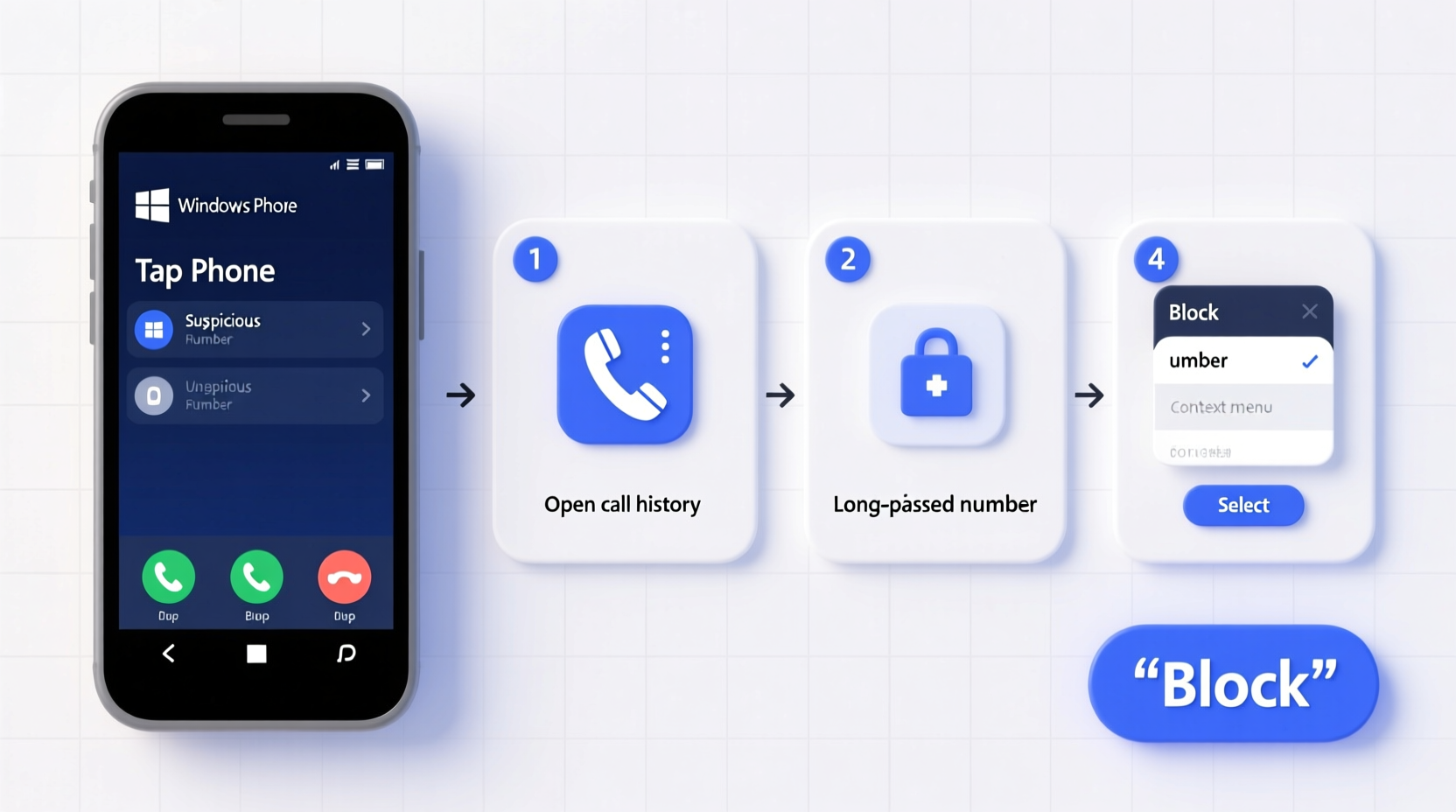
Follow these clear, sequential actions to block an unwanted caller on your Windows Mobile device:
- Open the Phone app and go to your recent call log.
- Locate the number you wish to block and tap and hold it.
- Select “View contact” or “Add to contacts” if the number isn’t saved.
- If not already in your contacts, save the number under a recognizable name (e.g., “Spam Call 555”)
- Once saved, open the People app and find the contact.
- Tap and hold the contact, then select “Block” or “Mark as junk” if available.
- Confirm the action when prompted.
Note: Not all versions of Windows Mobile support direct contact blocking. If the option is missing, proceed to carrier-level solutions or use the workarounds described below.
Alternative Method: Using Carrier Services
Many mobile carriers provide call-filtering tools that integrate directly with your device. For example, AT&T offers Call Protect, T-Mobile has Scam ID and Scam Block, and Verizon provides Call Filter. These services often work across platforms, including Windows Mobile, because they operate at the network level—not the device level.
To enable carrier-based blocking:
- Visit your carrier’s website or customer portal.
- Log in to your account and navigate to the “Manage Devices” or “Security & Privacy” section.
- Activate call filtering and configure automatic blocking for suspected spam numbers.
- Add specific numbers manually to your block list.
Once enabled, blocked calls are intercepted before they reach your device, reducing interruptions and data usage.
Using Enterprise Policies (For Business Devices)
If your Windows Mobile device is managed by an organization via Microsoft Intune or another MDM (Mobile Device Management) solution, administrators can enforce call restrictions. While individual users typically cannot access these settings, IT departments can create rules to block inbound calls from specific numbers or ranges.
This method is especially useful in professional environments where employees receive harassing or phishing calls targeting company information.
“Network-level filtering is far more reliable than app-based solutions, especially on legacy platforms like Windows Mobile.” — Rajiv Mehta, Network Security Analyst at TelcoShield Inc.
Do’s and Don’ts of Call Blocking on Windows Mobile
| Do’s | Don’ts |
|---|---|
| Use your carrier’s built-in spam protection | Install unknown third-party call blocker apps |
| Save suspicious numbers before blocking | Share your block lists publicly online |
| Regularly update your device firmware | Rely solely on unverified forums for advice |
| Contact your carrier for advanced filtering | Assume all blocked calls are permanently stopped |
Real Example: How Maria Reduced Spam Calls by 90%
Maria, a small business consultant in Austin, Texas, relied on her Lumia 950 for client communication. Over six months, she noticed a sharp increase in scam calls—sometimes up to 15 per day. Many mimicked local area codes and claimed to be from her bank or tax office.
Frustrated and concerned about missing real calls, she contacted her provider, T-Mobile. After activating Scam Block through the T-Mobile app on her desktop, she configured automatic rejection of flagged numbers and manually added three persistent spammers. Within 48 hours, her daily spam dropped to fewer than two calls. She also enabled voicemail transcription, allowing her to screen messages without answering.
Though her device didn’t support native blocking, leveraging carrier tools gave her the protection she needed—without switching phones or downloading risky software.
Checklist: Secure Your Windows Mobile Device Against Unwanted Calls
- ✅ Confirm your carrier offers spam filtering services
- ✅ Activate network-level call blocking (e.g., Scam ID, Call Protect)
- ✅ Save suspicious numbers to contacts before blocking
- ✅ Use the People app to mark or block known spam numbers
- ✅ Avoid downloading unofficial call-blocking apps from untrusted sources
- ✅ Regularly check for firmware updates that may enhance security features
- ✅ Report persistent spam to the FTC or FCC if necessary
Frequently Asked Questions
Can I block text messages on Windows Mobile?
Yes, but indirectly. Open the Messaging app, open the conversation from the unwanted number, tap the sender’s number, and choose “Block contact” if the option appears. If not available, use your carrier’s spam reporting tool to flag the number for filtering.
Will blocked numbers still leave voicemails?
It depends on your carrier. Some services silence both calls and voicemails from blocked numbers, while others allow voicemails to be delivered but won’t notify you. Check your carrier’s documentation for specifics.
Is there a way to unblock a number later?
Absolutely. Go to your carrier’s online portal or app, locate the “Blocked Numbers” section, and remove the entry. If you blocked it locally via contacts, open the contact card and disable the block setting if visible.
Conclusion: Take Control of Your Communication
Just because Windows Mobile lacks some modern conveniences doesn’t mean you have to endure endless spam calls. By combining smart contact management, carrier-powered tools, and awareness of enterprise capabilities, you can significantly reduce unwanted interruptions. The strategies outlined here don’t require technical expertise—just a few deliberate actions to safeguard your time and attention.




 浙公网安备
33010002000092号
浙公网安备
33010002000092号 浙B2-20120091-4
Comments
No comments yet. Why don't you start the discussion?