
In today’s digital world, your mobile phone’s screen is your primary gateway to communication, productivity, and entertainment. Yet most users never take the time to optimize their display settings beyond brightness adjustments. A poorly configured screen can cause eye strain, reduce readability in sunlight, and even drain your battery faster. The good news? With a few simple tweaks, you can transform your viewing experience—making it clearer, more comfortable, and energy-efficient. This guide walks you through practical, step-by-step actions to customize your screen display based on your needs and environment.
Adjust Brightness for Comfort and Efficiency
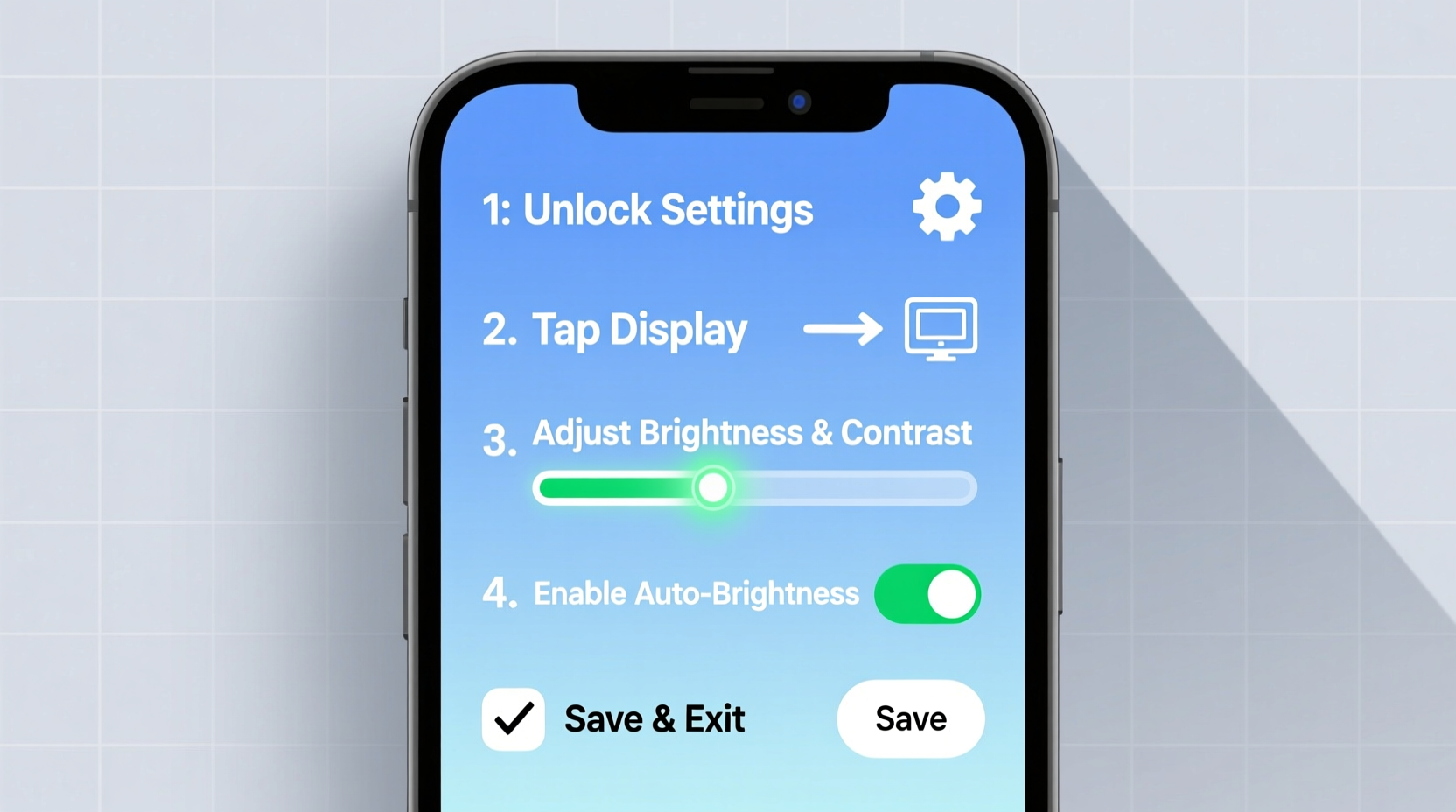
Brightness is the most noticeable display setting, but it's often left on auto or maxed out unnecessarily. Too much brightness indoors causes glare and fatigue; too little makes content hard to read outdoors.
Modern smartphones feature ambient light sensors that adjust brightness dynamically. While convenient, automatic settings aren’t always accurate. Manually fine-tuning brightness ensures optimal clarity without overworking your eyes or battery.
- Open Settings > Display (or Screen & Brightness).
- Turn off Adaptive Brightness temporarily to assess current levels.
- Slide the brightness bar until text appears sharp without glare.
- Test in different lighting—near a window, in dim rooms—to confirm consistency.
- Re-enable adaptive mode if preferred, but recalibrate using manual adjustment as a baseline.
Choose the Right Color Mode and Temperature
Your screen’s color output significantly affects visual comfort. Some phones default to oversaturated colors that look flashy but distort reality and tire the eyes over time. Adjusting color mode and temperature aligns your display with natural vision patterns.
Many Android devices offer multiple color profiles such as Natural, Vivid, and Skin Tone. iPhones allow subtle shifts via Color Filters and Display Accommodations.
| Color Mode | Best For | Drawbacks |
|---|---|---|
| Natural | Daily reading, long-term use | May appear less vibrant initially |
| Vivid | Media consumption, photos | Causes eye fatigue over time |
| Warm (Red-shifted) | Nighttime use | Less accurate color representation |
To access these settings:
- Android: Settings > Display > Advanced > Color Mode or Night Light (for warmth).
- iOS: Settings > Display & Brightness > Color Filters (enable and adjust hue/contrast).
“Warmer screens at night help regulate melatonin production, improving sleep quality.” — Dr. Lena Torres, Sleep Health Researcher, National Institute of Circadian Sciences
Optimize Text Size and Screen Layout
Small fonts force squinting, especially for extended reading. Large fonts waste screen space. Finding the right balance improves usability across apps and reduces physical strain.
Most smartphones let you scale both font size and overall interface density independently. This means you can keep icons compact while enlarging only the text—or vice versa.
Step-by-Step: Customize Text and Layout
- Navigate to Settings > Accessibility > Display & Text Size.
- Select Font Size and drag the slider until body text in messages or articles feels effortless to read.
- For layout control, go to Display > Home Screen & App Icons (on some Android models) or use launcher settings.
- Reduce grid size (e.g., from 5x6 to 4x5) for larger app icons and easier tapping.
- On Samsung and Pixel devices, explore Fullscreen Gestures to eliminate navigation bars and maximize usable area.
Use Dark Mode Strategically
Dark Mode isn't just a trend—it’s a functional tool. On OLED and AMOLED screens, black pixels are turned off completely, reducing power consumption and emitting less blue light.
However, Dark Mode isn’t universally better. In bright environments, high-contrast white text on black backgrounds can create halos for some users, particularly those with astigmatism. Use context-aware scheduling for best results.
Mini Case Study: Maria’s Evening Routine
Maria, a freelance writer in Seattle, used to suffer headaches after evening work sessions on her phone. She switched to Dark Mode at sunset using her phone’s built-in scheduler. Within a week, she reported reduced eye discomfort and improved focus. She later added a warm color filter during the same hours, which also helped her fall asleep faster. Her total screen time remained unchanged—what shifted was how her display worked with her circadian rhythm.
To schedule Dark Mode:
- iPhone: Settings > Display & Brightness > Options > Automatic (set custom sunrise/sunset times).
- Android: Settings > Display > Dark Theme > Schedule (choose sunset to sunrise or custom hours).
Calibrate Touch Sensitivity and Screen Timeout
While not directly related to visuals, touch responsiveness and screen timeout influence how efficiently you interact with your display.
Some phones—especially waterproof models—have overly conservative touch sensitivity to prevent pocket activation. This can make swiping sluggish, particularly with wet fingers or thin gloves. Similarly, a short timeout forces repeated unlocking; too long drains battery.
- Touch Sensitivity:
- Available on Samsung under Settings > Advanced Features > Touch Sensitivity. Enable for better response on cold days or when wearing gloves.
- Screen Timeout:
- Go to Settings > Display > Sleep / Screen Timeout. Choose 30 seconds for balance between convenience and battery savings. Extend to 2 minutes only if frequently reading long articles.
- ✅ Adjust brightness manually for indoor comfort
- ✅ Select Natural or Warm color mode
- ✅ Increase font size for easy reading
- ✅ Enable Dark Mode at night
- ✅ Set screen timeout to 30 seconds
- ✅ Calibrate touch sensitivity if needed
- ✅ Test settings in real-world conditions (sunlight, low light)
Frequently Asked Questions
Does Dark Mode really save battery?
Yes—but only on OLED, AMOLED, or LTPO displays. These screens turn off individual pixels when showing black. On older LCD panels, the backlight remains active regardless of color, so power savings are minimal.
Why does my screen look yellow after adjustments?
A yellowish tint usually comes from enabled Night Light or Blue Light Filter modes, designed to reduce eye strain at night. You can disable it temporarily or adjust the intensity under Display settings. It’s not a defect—it’s intentional protection for your eyes.
Can I automate all these settings?
Yes. Both iOS and Android support automation via built-in schedulers or third-party apps like Bixby Routines (Samsung), Shortcuts (iPhone), or Tasker (Android). For example, create a rule: “At sunset → Enable Dark Mode + Warm Filter + Reduce Brightness by 20%.”
Conclusion
Your mobile phone’s screen doesn’t have to be a source of strain or inefficiency. With thoughtful configuration, it becomes an extension of your daily rhythm—clearer in daylight, gentler at night, and perfectly scaled to your preferences. These adjustments take less than ten minutes but deliver lasting benefits in comfort, accessibility, and device longevity. Don’t accept factory defaults when personalization is just a few taps away.




 浙公网安备
33010002000092号
浙公网安备
33010002000092号 浙B2-20120091-4
Comments
No comments yet. Why don't you start the discussion?