
Signing out of your email on an Android device may seem straightforward, but many users assume logging out means complete disconnection. In reality, Android often retains account access through system-level integrations, especially when using Gmail or Google Workspace accounts. This can leave your personal data exposed—particularly on shared or public devices. Understanding how to fully sign out ensures your privacy, secures sensitive information, and gives you control over where your email remains active.
Why Fully Signing Out Matters
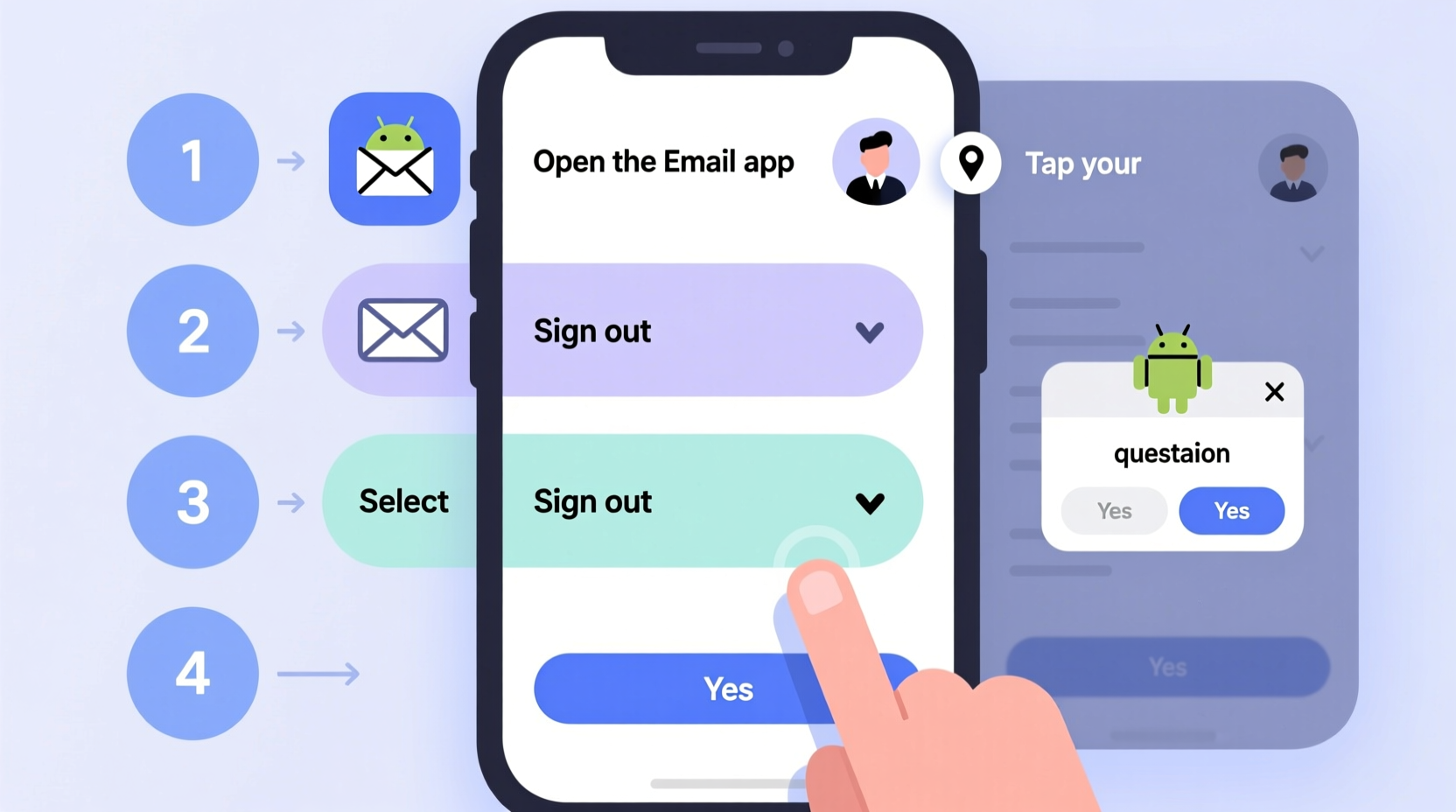
Unlike desktop environments, Android treats email accounts as integrated components of the operating system. When you add a Google account, it enables syncing across apps like Calendar, Contacts, Drive, and even third-party services. Simply closing the email app does not sever this connection. Remaining signed in can pose risks, including unauthorized access, data leaks, and unwanted notifications.
For example, if you're switching phones, selling your device, or lending it to someone, residual account access could allow others to view messages, track location, or make purchases via linked services. A true sign-out removes these permissions at both the app and system level.
“Many users don’t realize that signing out within an email app doesn’t always remove the underlying account from the device. Full disconnection requires navigating system settings.” — Lena Patel, Mobile Security Analyst at Digital Trust Labs
Step-by-Step Guide to Fully Sign Out of Email on Android
The process varies slightly depending on whether you're using a Gmail account (integrated with Google Services) or a third-party email provider like Outlook, Yahoo, or iCloud. Below is a comprehensive guide for both scenarios.
For Gmail and Google Accounts
Gmail is deeply embedded in Android’s ecosystem. To fully sign out, follow these steps:
- Open the Settings app on your Android device.
- Scroll down and tap on Accounts (may also appear as “Passwords & Accounts” or “Users & Accounts” depending on your device).
- Select your Google account (usually listed under “Google” with your email address).
- Tap the three-dot menu (⋮) or the gear icon, then choose Remove Account.
- Confirm the action when prompted. This will disconnect your Gmail and all synced Google services.
This step removes the account from the device entirely, stopping background sync for Mail, Calendar, Drive, Photos, and more. Note: On some devices, you may need to enter your device PIN, pattern, or password to authorize removal.
For Third-Party Email Accounts (Outlook, Yahoo, etc.)
If you use non-Google email providers, the removal process typically occurs within the email app itself:
- Open the email application (e.g., Outlook, Yahoo Mail).
- Navigate to the app’s Settings or profile section.
- Select the email account you wish to sign out from.
- Look for an option labeled Sign Out, Remove Account, or Delete Account.
- Confirm the action. The account will no longer receive emails or sync data.
Some apps, like Microsoft Outlook, allow multiple accounts. Ensure you select the correct one before proceeding.
Do’s and Don’ts When Signing Out of Email
| Do’s | Don’ts |
|---|---|
| Back up important emails or contacts before signing out. | Assume closing the app equals being signed out. |
| Use device Settings to remove Google accounts—not just the Gmail app. | Forget to check connected apps that might still have access. |
| Verify account removal by checking the Accounts section in Settings. | Leave your device unattended after signing out without locking it. |
| Clear app cache if you plan to reinstall the email client later. | Ignore two-factor authentication prompts during re-login attempts. |
Real Example: Securing a Device Before Repair
Sarah needed to send her Samsung Galaxy S22 to a repair center due to screen damage. She opened the Gmail app and tapped her profile picture, selecting “Sign out,” believing she was protected. However, when she accessed her Google Dashboard remotely, she noticed the device was still active and syncing location data.
After consulting a tech support forum, she learned she hadn’t removed the Google account from the device settings. Once she went into Settings > Accounts > Google and removed the account, her phone disappeared from her active devices list. This experience emphasized the importance of full account removal—not just app-level logout—for real security.
Checklist: Ensure Complete Email Sign-Out
- ✅ Closed the email app completely
- ✅ Signed out within the email app interface
- ✅ Removed the account from Android Settings > Accounts
- ✅ Verified no background sync is active (check battery usage or sync settings)
- ✅ Restarted the device to clear residual sessions
- ✅ Checked your account security page (e.g., Google Account > Security) to confirm device removal
- ✅ Enabled remote wipe if the device will be out of your possession
Frequently Asked Questions
Can I sign out of Gmail without removing the entire Google account?
No—on most Android devices, Gmail is tied directly to the Google account. You cannot fully log out of Gmail alone without removing the account from the system. However, you can disable Gmail sync while keeping other services active.
Will removing my email account delete my emails?
No. Removing an account from your Android device only disconnects it locally. All emails remain stored on the server and can be accessed later from another device. Just ensure you’re not relying solely on local downloads for critical messages.
What if I can’t find the ‘Remove Account’ option?
Some work-managed or school-owned devices restrict account removal for security reasons. If you’re unable to remove the account, contact your IT administrator. For personal devices, ensure you’re logged in with the primary user account and not a guest profile.
Protecting Your Privacy Beyond Sign-Out
Signing out is just one part of maintaining digital hygiene. Consider enabling automatic sign-out features in apps that support them. Use app lock tools or biometric authentication to prevent unauthorized access. Regularly review active sessions through your email provider’s security dashboard.
For Google accounts, visit myaccount.google.com/device-login to see which devices are currently signed in. You can manually sign out remotely if needed. Similarly, Outlook users can visit account.microsoft.com/devices to manage access.
Conclusion
Signing out of your email on an Android device isn’t just about closing an app—it’s about reclaiming control over your digital footprint. By following the correct procedures, you ensure your messages, contacts, and personal data aren’t left vulnerable. Whether you're troubleshooting, transferring devices, or simply prioritizing privacy, taking the time to fully remove your email account is a small step with significant impact.




 浙公网安备
33010002000092号
浙公网安备
33010002000092号 浙B2-20120091-4
Comments
No comments yet. Why don't you start the discussion?