
Your Fitbit watch is designed to simplify your health and fitness tracking, but it only works at its best when properly configured. One of the most fundamental settings—yet often overlooked—is ensuring the correct time display. Whether you’ve just unboxed your device, traveled across time zones, or noticed a drift in accuracy, knowing how to manually set or sync the time ensures reliable data logging, timely notifications, and consistent sleep tracking.
Unlike traditional watches, Fitbit devices rely heavily on smartphone connectivity to maintain accurate time. However, there are scenarios where automatic syncing fails or manual adjustments become necessary. This guide walks you through every method available to keep your Fitbit’s clock precise, troubleshoot common issues, and understand how time settings affect overall functionality.
How Fitbit Watches Handle Time by Default
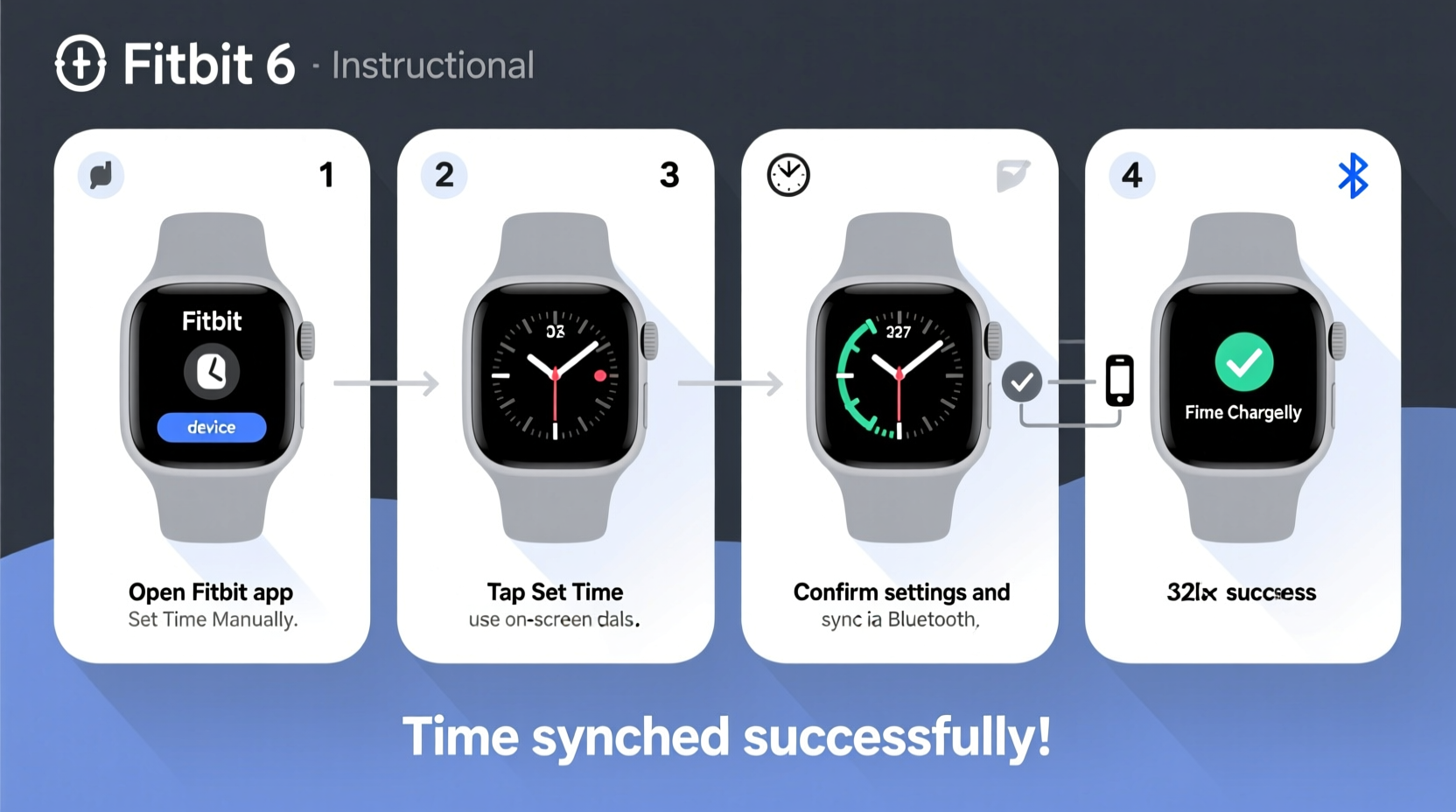
Most Fitbit models—including the Charge, Inspire, Versa, Sense, and Luxe series—automatically sync their time with your paired smartphone via Bluetooth. When connected, the watch pulls time zone and daylight saving information directly from your phone’s system settings. This means if your phone updates correctly after a flight or software change, your Fitbit should follow suit within minutes.
The process happens in the background through the Fitbit app. Once synced, the device uses this time reference for all tracked activities: workouts, heart rate logs, sleep stages, and even menstrual cycle predictions. An incorrect time setting can misalign these records, making it harder to analyze trends accurately.
“Time accuracy isn’t just about convenience—it's foundational to meaningful health insights.” — Dr. Lena Patel, Digital Health Systems Analyst
Step-by-Step Guide to Syncing Your Fitbit Automatically
Before attempting manual changes, always try syncing your device first. Automatic synchronization resolves most timing discrepancies without user intervention.
- Ensure Bluetooth is enabled on your smartphone.
- Open the Fitbit app and wait for the device icon to appear on the dashboard.
- If not already synced, tap your device image and select “Sync Now.”
- Wait until the sync completes (indicated by updated stats like step count).
- Check your watch face—the time should now reflect your current local time.
If the time remains incorrect after syncing, verify that your phone’s date and time settings are set to automatic. On iOS, go to Settings > General > Date & Time > Set Automatically. On Android, navigate to Settings > System > Date & Time > Use network-provided time.
Manually Adjusting Time on Select Fitbit Models
While most modern Fitbits do not support direct manual time entry (to prevent errors), some older or specialized models allow limited adjustments. For example, Fitbit Surge and certain Alta HR units offer access to time settings under restricted menus.
To attempt a manual adjustment:
- Press and hold the main button(s) to access the settings menu.
- Navigate to “Clock” or “Time Zone” using swipe gestures or side buttons. <3>If available, select “Set Time Manually” and adjust hours/minutes using touch controls.
- Confirm changes and exit the menu.
Note: This option may be grayed out if automatic sync is active. Disabling auto-sync temporarily might enable manual input, but it's generally discouraged due to risk of desynchronization.
Troubleshooting Common Time Sync Issues
Even with proper setup, users occasionally encounter persistent time mismatches. Below are frequent causes and targeted fixes.
| Issue | Possible Cause | Solution |
|---|---|---|
| Watch shows wrong time after travel | Phone didn’t update time zone automatically | Enable airplane mode briefly, then disable to force refresh |
| Time lags behind real-time | Infrequent syncing or weak Bluetooth connection | Sync daily; keep phone within 20 feet of watch |
| Device stuck in 12-hour format | Phone display settings override watch | Change time format in phone’s Fitbit app settings |
| No sync despite Bluetooth being on | App permissions disabled | Re-grant location and background refresh permissions |
In rare cases, corrupted firmware can disrupt time functions. Performing a restart or factory reset—after backing up data—can restore normal behavior.
Mini Case Study: Fixing Persistent Time Drift
Sarah, a nurse working rotating shifts in Chicago, noticed her Fitbit Charge 6 recorded sleep sessions two hours late. Despite nightly syncing, the timeline never matched her actual bedtime. After checking her phone settings, she discovered her work tablet had overridden network time during a Wi-Fi switch. She corrected the tablet’s time source, reconnected her Fitbit, and performed a full sync. Within minutes, historical logs realigned, and new entries reflected accurate timestamps. The fix took less than ten minutes but significantly improved her sleep pattern analysis.
Best Practices for Maintaining Accurate Time
Prevention beats correction. Follow these habits to avoid future time-related glitches.
- Keep your Fitbit app updated to the latest version.
- Allow background app refresh and location access for seamless syncing.
- Avoid toggling between multiple devices linked to the same account.
- Restart your watch weekly to clear minor software hiccups.
- Double-check time zone settings after international travel.
Checklist: Ensuring Your Fitbit Time Is Always Correct
- ✅ Confirm your smartphone’s time is set to automatic
- ✅ Verify Bluetooth is active and trusted
- ✅ Open the Fitbit app and initiate a manual sync
- ✅ Check that time zone matches your current location
- ✅ Restart both phone and watch if anomalies persist
- ✅ Review recent activity logs for timestamp consistency
Frequently Asked Questions
Why does my Fitbit show a different time than my phone?
This typically occurs when the Fitbit app hasn’t synced recently or your phone’s system time is incorrect. Ensure both devices are connected via Bluetooth and that automatic time settings are enabled on your phone.
Can I change the time format from 12-hour to 24-hour?
Yes, but not directly on the watch. Go to the Fitbit app, tap your profile, select your device, then choose “Clock Face” or “Display Settings” to switch formats based on your phone’s regional preferences.
Does daylight saving time affect my Fitbit automatically?
Yes. As long as your phone adjusts for daylight saving time and remains synced with your Fitbit, the transition will occur seamlessly. No action is required from the user.
Conclusion: Take Control of Your Device’s Accuracy
Your Fitbit watch is only as reliable as its underlying settings. While designed for hands-off operation, occasional attention to time synchronization ensures precision across all health metrics. By understanding how automatic syncing works, recognizing signs of drift, and applying proven troubleshooting techniques, you maintain confidence in your data.
Don’t wait for inaccuracies to distort weeks of progress. Apply these steps today—sync your device, verify settings, and establish a quick weekly check. Small efforts now lead to more insightful, trustworthy tracking over time.




 浙公网安备
33010002000092号
浙公网安备
33010002000092号 浙B2-20120091-4
Comments
No comments yet. Why don't you start the discussion?