
Finding and sharing a YouTube video link may seem straightforward, but many users still struggle with outdated methods, incorrect URLs, or privacy settings that block access. Whether you're sending a tutorial to a colleague, sharing a funny clip with friends, or embedding content for a presentation, knowing how to locate and distribute the correct link efficiently saves time and avoids frustration. This guide breaks down the process into practical, repeatable steps that work across devices and account types.
Step 1: Locate the Exact Video You Want to Share
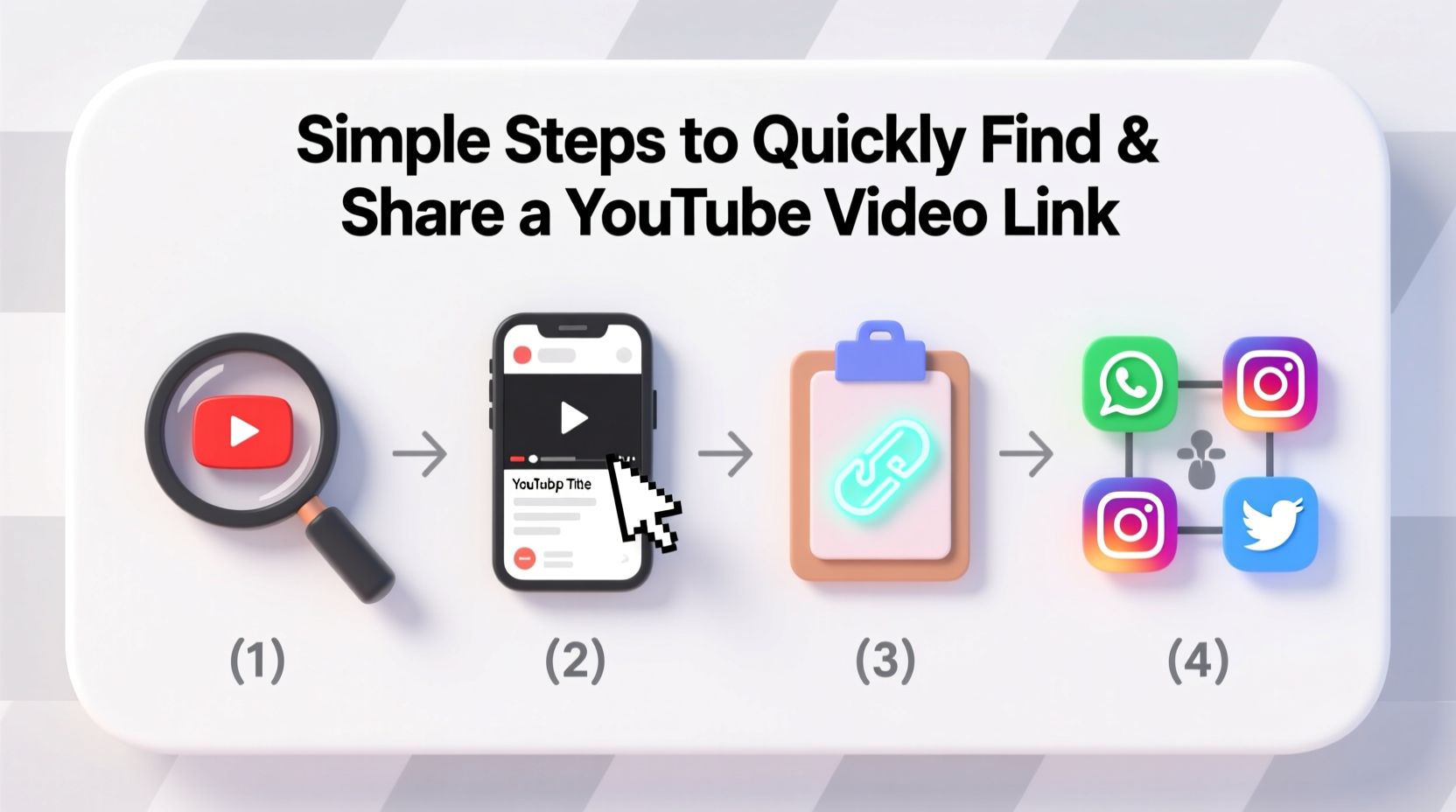
The first hurdle in sharing a YouTube video is ensuring you’ve found the right one. With billions of videos on the platform, even small search inaccuracies can lead to the wrong result. Begin by using precise keywords in the YouTube search bar. Include specifics like the creator’s name, year of upload, or key phrases from the video title.
Once results appear, verify the video by checking the channel name, upload date, view count, and comments. Clicking on a video opens its dedicated page, where the full URL appears in your browser’s address bar. This is the primary source of the link you’ll share.
Step 2: Copy the Correct Link Format
YouTube generates several types of URLs, but not all are suitable for sharing. The standard video URL follows this format:
https://www.youtube.com/watch?v=VIDEO_ID
This is the most widely compatible format and works across email, messaging apps, social media, and websites. However, some users might see shortened links like youtu.be/VIDEO_ID, which are also valid but less descriptive.
To copy the link:
- Open the desired video on YouTube.
- Click the “Share” button below the video player.
- Select “Copy” next to the default link.
Avoid copying URLs from the browser bar if they contain extra parameters like &t=30s or &list=, unless you specifically want to include start times or playlist context.
Step 3: Customize the Start Time (Optional but Useful)
Sometimes, you don’t need to share the entire video—just a specific segment. YouTube allows you to generate a link that starts playback at a chosen timestamp. This improves relevance and viewer experience.
To create a timed link:
- Play the video and pause at the desired starting point.
- Right-click the progress bar and select “Copy video URL at current time.”
- Paste the link—it will include a
&t=parameter indicating seconds or minutes.
Alternatively, manually add &t=1m30s to the end of any YouTube URL to start at 1 minute and 30 seconds.
Step 4: Use the Share Button Features Wisely
The YouTube “Share” button offers more than just link copying. It includes options for embedding, social sharing, and generating QR codes. Understanding these tools expands your ability to distribute content effectively.
| Feature | Use Case | Best For |
|---|---|---|
| Copy Link | Direct sharing via text or email | Quick personal messages |
| Start At Timestamp | Sharing specific moments | Tutorials, quotes, highlights |
| Embed | Adding video to a website or blog | Content creators, educators |
| QR Code | Offline sharing (print, presentations) | Events, classrooms, posters |
If you’re managing a team or classroom, the QR code feature lets others scan and instantly access the video without typing long URLs. Just click “Share,” then “QR Code,” and display it on screen or print it out.
Step 5: Verify Accessibility Before Sharing
Not every YouTube link will work for everyone. Videos set to “Unlisted” or “Private” have restrictions:
- Public: Anyone with the link can view.
- Unlisted: Anyone with the link can view, but it won’t appear in search results.
- Private: Only approved users can access it.
Before sending a link, test it in an incognito browser or on another device to ensure it's accessible. If the video fails to load, check its privacy settings—especially if you uploaded it yourself.
“Over 30% of failed YouTube shares stem from unlisted or region-restricted videos. Always verify permissions before distribution.” — David Lin, Digital Media Consultant
Mini Case Study: Sharing a Training Video Across Departments
A mid-sized tech company needed to roll out a new software tool. The training manager recorded a 12-minute walkthrough and uploaded it to the company’s official YouTube channel as an unlisted video. She generated a timed link starting at the login section and shared it via internal email with a QR code attached for mobile access.
Because the video was unlisted, only employees with the link could view it—maintaining security without requiring logins. The timed start ensured users skipped the introduction when rewatching. Within two days, 95% of staff confirmed completion, citing the ease of access as a major factor in engagement.
Checklist: How to Quickly Find and Share a YouTube Video Link
- ✅ Search using precise keywords or exact titles in quotes
- ✅ Confirm the correct video by checking uploader and upload date
- ✅ Click “Share” and copy the clean URL (avoid extra parameters unless needed)
- ✅ Add a timestamp if sharing a specific segment
- ✅ Test the link in an incognito window to confirm accessibility
- ✅ Choose the right format: direct link, embed, or QR code based on use case
- ✅ Double-check privacy settings—ensure it’s public or unlisted as intended
Common Mistakes to Avoid
Even experienced users make errors when sharing YouTube links. Here are frequent pitfalls:
- Copying the homepage URL instead of the video link: Happens when users forget to open the video fully.
- Using playlist links instead of individual video links: Sends viewers to the wrong starting point.
- Ignoring regional restrictions: Some videos are blocked in certain countries due to licensing.
- Forgetting mobile optimization: Long URLs are error-prone when typed manually—always use copy/paste or QR codes.
FAQ
Can I share a YouTube video that isn’t mine?
Yes, as long as the video is publicly available. Avoid downloading or re-uploading content without permission, but sharing the original link is allowed and encouraged under fair use principles.
Why does my shared link say 'Video Not Available'?
This usually means the video was deleted, set to private, or restricted by region. Contact the uploader or try accessing it through a different network or location.
Is it safe to share YouTube links?
Generally, yes. YouTube links are secure and monitored. However, never share links to harmful, misleading, or inappropriate content. Always verify the video’s legitimacy before distributing.
Conclusion
Mastering the art of finding and sharing YouTube links is a small skill with outsized impact. From improving workplace communication to enhancing personal connections, the ability to deliver the right video at the right time strengthens how we learn, collaborate, and entertain. By following these simple, proven steps—verifying content, using the correct format, customizing start times, and testing accessibility—you ensure your shares are always effective and professional.




 浙公网安备
33010002000092号
浙公网安备
33010002000092号 浙B2-20120091-4
Comments
No comments yet. Why don't you start the discussion?