
If your Chromebook has started to feel sluggish—taking forever to boot, freezing during browsing, or struggling with basic tasks—you’re not alone. Many users experience performance drops over time, even on relatively new devices. The good news? Most slowdowns aren’t permanent hardware issues. In fact, with a few smart adjustments, you can restore snappy responsiveness in under 10 minutes. Unlike traditional laptops, Chromebooks rely heavily on cloud integration and browser efficiency, which means optimization is often simpler and faster. This guide delivers actionable steps that target the root causes of lag: bloated memory usage, outdated software, background clutter, and inefficient settings.
Clear Browser Cache and Reset Tabs
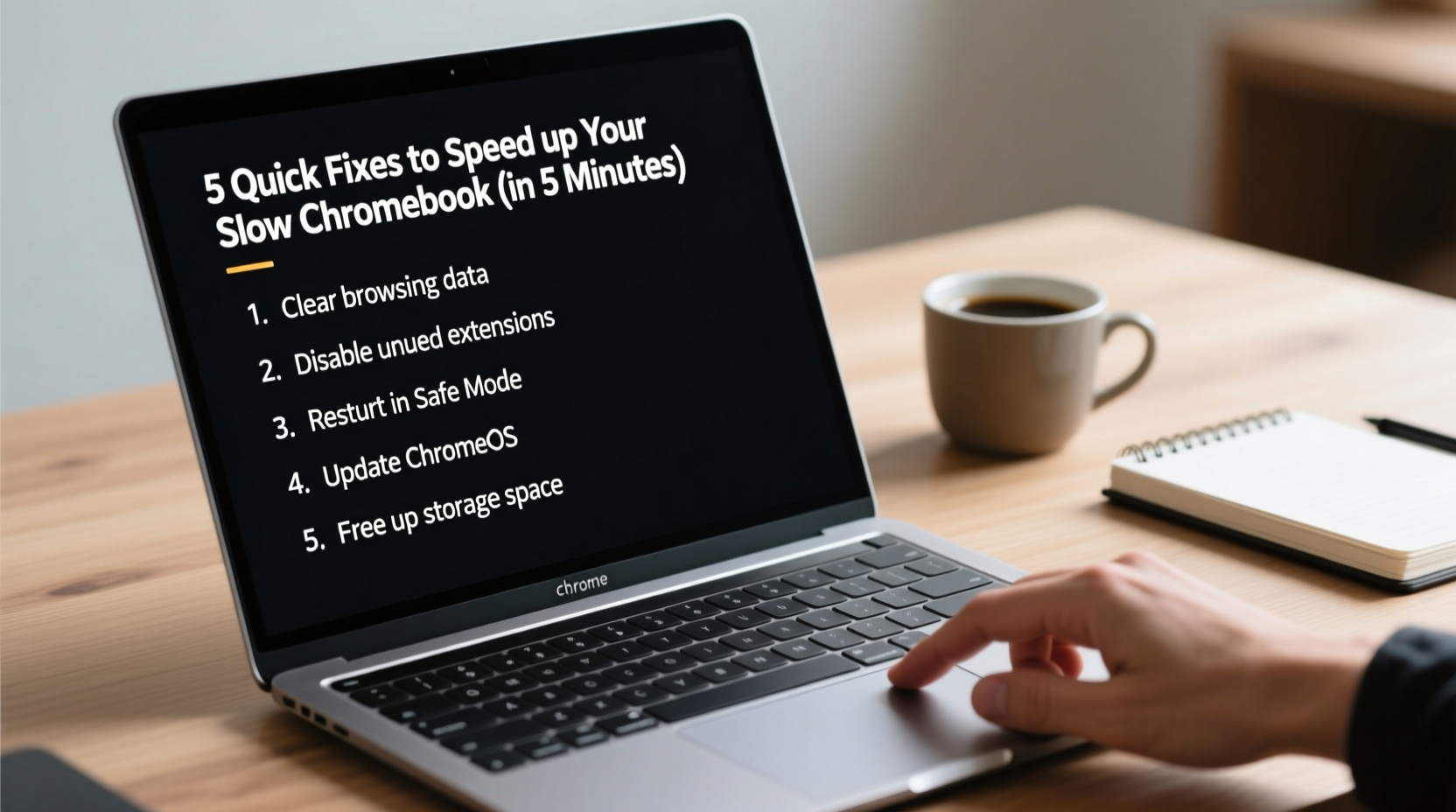
One of the most common culprits behind a slow Chromebook is an overloaded Chrome browser. Over time, cached images, cookies, and open tabs consume system resources, especially on models with limited RAM (4GB or less). Clearing this digital clutter can yield immediate improvements.
To begin, open Chrome and press Ctrl + Shift + Delete. This brings up the \"Clear browsing data\" window. Select “All time” as the time range and check all boxes: Browsing history, Cookies, Cached images and files, and Hosted app data. Click “Clear data.” This process removes gigabytes of hidden junk that may be slowing down page loads and tab switching.
After clearing the cache, restart Chrome. You’ll likely notice faster startup times and smoother navigation. For added benefit, consider using tab suspender extensions like “The Marvellous Suspender” (available in the Chrome Web Store) to automatically pause inactive tabs and free up memory.
Manage Startup Apps and Background Processes
Many users unknowingly allow apps and extensions to launch automatically when the Chromebook starts. These background processes eat up CPU cycles and delay login times. Disabling unnecessary auto-launch items is a fast way to improve boot speed and overall fluidity.
Navigate to Settings > Advanced > Managed devices > Startup. Here, review which apps are set to run at startup. Disable any non-essential tools—especially third-party utilities or games you rarely use. Next, open Chrome and go to chrome://extensions. Disable or remove extensions you don’t actively need. Common offenders include ad blockers with heavy filtering rules, grammar checkers, and social media enhancers.
“Over 70% of Chromebook slowdowns stem from unmanaged extensions and background sync services.” — James Lin, Chrome OS Systems Analyst
You can also monitor real-time resource usage by pressing Shift + Esc to open the Chrome Task Manager. Sort by “Memory” or “CPU” to identify which tabs or apps are hogging resources. End any suspicious or frozen processes with a single click.
Free Up Storage Space
Chromebooks typically come with limited internal storage—often 32GB or 64GB. When storage drops below 10% free, performance tanks. The system struggles to write temporary files, cache data, or update apps efficiently. Freeing up space isn’t just about decluttering; it’s essential for maintaining optimal operation.
Start by opening the Files app. Look through Downloads, Documents, and any external SD cards. Delete duplicate files, old screenshots, unused PDFs, and large video downloads. Empty the trash afterward—deleted files still occupy space until permanently removed.
Next, offload photos and videos to Google Drive. Right-click any file in the Files app and select “Move to Drive.” Enable “Smart Storage” in Google Drive settings to automatically remove local copies of files when space is low, while keeping them accessible online.
| Storage Level | Impact on Performance | Action Required |
|---|---|---|
| Below 10% free | Severe slowdowns, failed updates | Delete files, move to cloud |
| 10–20% free | Mild lag, delayed responses | Review downloads, clear cache |
| Above 20% free | Optimal performance | Maintain current habits |
Update System Software and Powerwash When Necessary
Outdated software can introduce bugs and compatibility issues that degrade performance. Chrome OS updates regularly, often including performance patches and security fixes. Ensuring your device is current is a critical step.
Go to Settings > About ChromeOS > Check for updates. If an update is available, install it immediately. The process usually takes 5–10 minutes and requires a reboot. After updating, test your Chromebook’s responsiveness—many users report noticeable improvements post-update.
If your Chromebook remains slow despite trying all other fixes, a Powerwash (factory reset) may be necessary. This wipes all local data and restores the system to its original state. Before proceeding, back up important files to Google Drive or an external drive.
- Open Settings > Advanced > Reset settings.
- Click “Powerwash” > “Restart”.
- Follow the prompts to confirm.
- After rebooting, sign in and restore only essential apps and files.
This should be a last resort, but it’s remarkably effective. A clean system eliminates deep-seated clutter, corrupted preferences, and lingering software conflicts. Many older Chromebooks regain near-new performance after a Powerwash.
Optimize Display and Power Settings
Visual effects and power management can subtly impact performance, especially on entry-level models. Reducing screen brightness, disabling animations, and adjusting power modes help conserve both battery and processing power.
In Settings, navigate to Device > Display. Lower brightness to 70% or less if you're in a well-lit environment. High brightness forces the GPU and CPU to work harder, particularly on older LCD panels.
Also, go to Settings > Device > Power and ensure “Battery Saver” is enabled when charging is low. Under “Advanced,” disable “Auto-brightness” if you find it inconsistent—it can cause fluctuating performance as sensors adjust.
- Turn off “Desktop wallpaper slideshow” (Settings > Wallpaper).
- Disable “Continue running background apps when Chrome is closed” (Settings > System).
- Switch to dark mode—it reduces strain on OLED screens and slightly lowers energy use.
These tweaks may seem minor, but collectively they reduce system overhead and free up resources for active tasks like video conferencing or document editing.
Real-World Example: Reviving a Lagging Classroom Chromebook
Ms. Rivera, a middle school teacher in Portland, noticed her classroom Chromebooks were taking over two minutes to boot each morning. Students couldn’t start lessons on time, and frequent freezes disrupted online quizzes. She suspected the issue was software-related since the devices were only two years old.
She began by clearing browser data across all units using remote management tools via Google Admin Console. Then, she disabled non-essential extensions—particularly game add-ons students had installed. She also enforced a policy limiting downloaded files to 100MB unless saved to Drive.
The results were dramatic. Boot times dropped to under 30 seconds, and tab switching became smooth again. By implementing automatic monthly cache clears and restricting startup apps, Ms. Rivera restored reliable performance without needing replacements. Her experience shows that consistent maintenance beats costly hardware upgrades.
Quick Checklist for Immediate Speed Boost
Use this checklist whenever your Chromebook feels slow. Completing these steps should take less than 10 minutes:
- ✅ Clear browsing data
- Delete cache, cookies, and history in Chrome.
- ✅ Close unnecessary tabs and apps
- Keep only essential tabs open; use task manager to end stuck processes.
- ✅ Disable unused extensions
- Remove or turn off add-ons you don’t actively use.
- ✅ Free up storage space
- Delete old downloads and move files to Google Drive.
- ✅ Check for OS updates
- Install the latest ChromeOS version.
- ✅ Restart the device
- A full reboot clears RAM and resets system services.
Frequently Asked Questions
Will closing background apps save battery and improve speed?
Yes. Background apps continue using memory and CPU even when minimized. Closing them reduces resource competition and extends battery life. You can manage them via the task manager (Shift + Esc) or by restarting the device daily.
Is it safe to Powerwash my Chromebook?
Yes, Powerwash is a secure, built-in feature designed for routine maintenance. As long as your files are backed up to Google Drive or another cloud service, no data will be permanently lost. It’s recommended every 6–12 months for heavily used devices.
Can too many Google accounts logged in slow down my Chromebook?
Possibly. Each synced account runs background services for Gmail, Drive, and Calendar. If you have more than three accounts signed in, consider removing inactive ones under Settings > Manage accounts. Sync only what you need.
Final Thoughts: Small Changes, Big Results
A slow Chromebook doesn’t mean it’s time to replace it. In most cases, performance issues stem from manageable software and usage habits—not failing hardware. The strategies outlined here—clearing cache, managing extensions, freeing storage, updating software, and optimizing settings—are proven to deliver quick, lasting improvements. What makes Chromebooks powerful is their simplicity; when tuned correctly, they remain efficient tools for education, work, and everyday browsing.




 浙公网安备
33010002000092号
浙公网安备
33010002000092号 浙B2-20120091-4
Comments
No comments yet. Why don't you start the discussion?