
Finding your own phone number might sound like something you should already know, but it’s surprisingly common to forget—especially if you’ve recently switched carriers, use an eSIM, or rely on a secondary line. Unlike older phones where the number was often printed on the SIM tray or visible at startup, modern iPhones don’t always make this information immediately obvious. The good news is that Apple has several built-in methods to retrieve your number in seconds. Whether you’re setting up a new device, verifying your identity, or just double-checking before giving someone your digits, these reliable techniques will save time and eliminate guesswork.
Check Your iPhone Number in Settings
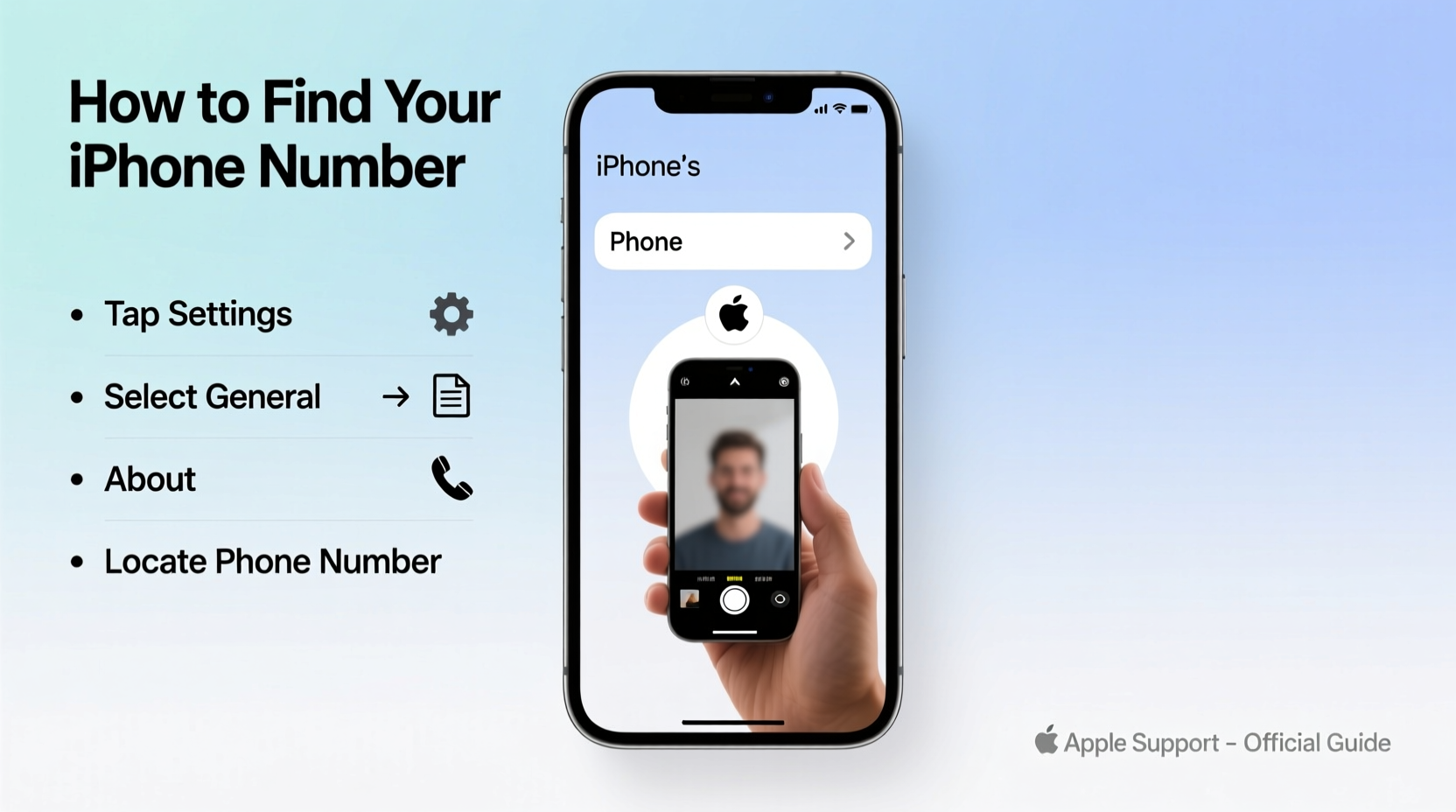
The most straightforward way to locate your phone number is through the Settings app. This method works across all iPhone models running iOS 10 and later, including the latest iOS versions.
- Open the Settings app from your home screen.
- Tap on your name at the top of the menu (this leads to your Apple ID profile).
- Select Phone from the list.
- Look under “My Number” to see your primary phone number clearly displayed.
If you're using an iPhone with dual SIM capability (such as the iPhone 14 or newer models in regions supporting dual SIM), you’ll see both numbers listed—labeled as “Primary” and “Secondary.” Each line will show its respective number along with carrier details.
Use the Phone App Dialer Method
A lesser-known trick involves using the Phone app itself. While it won’t display your number directly, calling a service that reads back your caller ID can confirm what number others see when you call them.
Some businesses and automated systems—including banks, customer service lines, or even voice assistants—will state your incoming number aloud during verification steps. For example:
- Dial your voicemail by tapping the “Voicemail” tab in the Phone app. Some carriers display your number on the callback confirmation screen.
- Call a friend or family member and ask them to read back the number that appears on their screen.
- Use services like Google Voice, Skype, or third-party apps that show outgoing caller ID.
This method is especially useful if your number doesn’t appear in Settings—often due to carrier syncing delays or temporary glitches.
Access via Contacts or Messages
Your iPhone automatically associates your personal contact card with your phone number, assuming it's been set up correctly. Here’s how to access it:
- Open the Contacts app.
- Find and tap on your own name (usually labeled “My Card”).
- Your phone number should be listed under “Mobile,” “iPhone,” or another label depending on how you’ve tagged it.
To ensure this works, go to Settings > Contacts > My Card and assign your contact entry as your personal card. Once linked, any app that pulls contact data—including Messages, Mail, and FaceTime—can reference your correct number.
| Method | Speed | Reliability | Best For |
|---|---|---|---|
| Settings > Phone | Fast (10 sec) | High | Immediate access, no external help needed |
| Contacts App | Medium (20 sec) | Medium | When number is manually saved in your card |
| Dialer + Caller ID | Variable | High | Situations where Settings fails |
| iCloud.com | Fast (with internet) | Very High | Remote access from any browser |
Why Your Number Might Not Appear
There are several reasons why your number may not show up in Settings or Contacts:
- Carrier delay: After activating a new SIM or switching providers, it can take minutes to hours for the number to sync.
- eSIM issues: Improper setup or download failure can prevent number recognition.
- Incorrect My Card assignment: If your contact isn’t designated as “My Info,” the system won’t link your identity.
- Software bugs: Rare iOS glitches may hide or mislabel the number until a restart or update.
“We recommend users verify their phone number after any SIM change or iOS update. It ensures seamless functionality across iMessage, FaceTime, and emergency services.” — Lisa Tran, Senior Support Technician at Apple Authorized Service Provider
Retrieve Your Number Using iCloud.com
If your iPhone is unavailable, lost, or unresponsive, you can still find your number remotely using iCloud. This method requires prior setup with Find My iPhone enabled.
- On any computer or device, go to icloud.com.
- Sign in with your Apple ID credentials.
- Click on Find iPhone (or “Find” in newer interfaces).
- Select your device from the list.
- Click Info — your phone number will appear if stored by the carrier and synced with Apple’s servers.
Note: This only works if your number was previously synced and visible in your device settings before going offline. Devices without a linked number in Find My will not display it here.
Mini Case Study: Recovering a Number After Carrier Switch
Mark, a freelance designer in Austin, recently switched from AT&T to T-Mobile and activated his eSIM remotely. When asked for his number during a client video call setup, he realized he didn’t have it memorized—and it wasn’t showing in Settings.
He first checked Settings > Phone, but the field was blank. A quick reboot didn’t help. Then he opened Contacts, found his own card, and saw the old AT&T number still listed. Realizing the issue, he edited the contact, added his new T-Mobile number, and saved it. Immediately afterward, he returned to Settings—and this time, the updated number appeared under “My Number.”
The fix? Updating his personal contact card prompted iOS to refresh the association between his identity and active line. Within seconds, the system recognized the new number.
Quick Checklist: How to Find Your iPhone Number Fast
- ✅ Open Settings > tap your name > Phone > view “My Number”
- ✅ Confirm your contact is set as “My Card” in Settings > Contacts
- ✅ Use Contacts app to view your saved entry
- ✅ Call a friend or automated service to check caller ID
- ✅ Access iCloud.com/find to view number remotely
- ✅ Restart iPhone if number fails to load initially
- ✅ Contact carrier if number remains missing after 24 hours
Frequently Asked Questions
Why doesn’t my phone number show up in Settings?
This usually happens right after activating a new SIM or eSIM. Wait a few minutes and restart your iPhone. If it still doesn’t appear, ensure your carrier plan is active and contact their support for assistance.
Can I see my number without a SIM card?
No. Without a physical or embedded SIM, the iPhone cannot associate with a cellular number. Wi-Fi-only functions will work, but phone number identification requires carrier registration.
Does changing my number update it automatically in Settings?
Not always. Carriers typically handle the backend update, but iOS may retain the old number in Contacts or Messages until manually corrected. Always verify and edit your personal contact card after a number change.
Final Thoughts and Action Steps
Knowing how to quickly retrieve your iPhone number isn’t just convenient—it’s essential for smooth communication, account verifications, and staying connected. The process should never require guesswork or frustration. By mastering these built-in tools and understanding how iOS manages identity, you gain full control over one of your most important digital details.
Take a moment today to verify your number in Settings, update your personal contact card, and test remote access via iCloud. These small actions prevent future hassles and ensure you’re always ready—whether sharing your number with a new contact or recovering access after a device switch.




 浙公网安备
33010002000092号
浙公网安备
33010002000092号 浙B2-20120091-4
Comments
No comments yet. Why don't you start the discussion?