
In The Sims, sleep is a core need—just like hunger or hygiene. When Sims aren’t sleeping properly, their moodlets plummet, performance at work or school suffers, and their overall gameplay experience becomes frustrating. If your Sims are tossing and turning, refusing to climb into bed, or waking up prematurely, you're not alone. Many players encounter the “Sims not sleeping” issue across different versions of the game, especially after updates or mod installations. This guide provides actionable, tested solutions to restore peaceful nights and keep your household running smoothly.
Understanding Why Sims Won’t Sleep
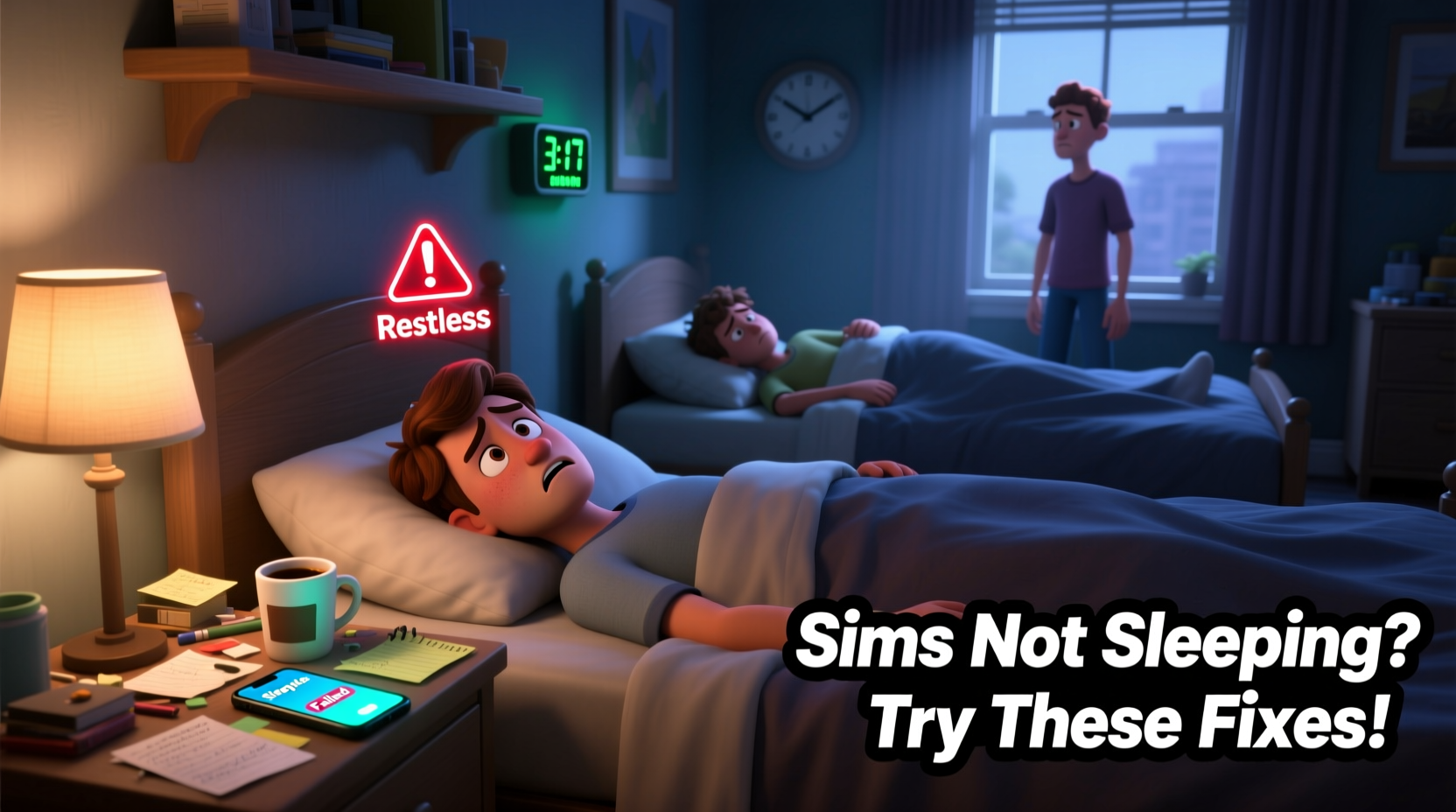
Sleep disruptions in The Sims can stem from environmental, mechanical, or technical causes. While it may seem like a minor glitch, unresolved sleep issues can cascade into broader problems: low energy leads to poor job performance, strained relationships, and even premature death from exhaustion. Identifying the root cause is the first step toward resolution.
Common triggers include:
- Broken or misaligned beds
- Insufficient room comfort or lighting
- Conflicting autonomous behaviors (e.g., a Sim deciding to eat instead of sleep)
- Mod or custom content interference
- Game bugs introduced by patches or expansions
- Pathfinding errors blocking access to the bed
Before jumping into complex fixes, rule out simple environmental factors. A well-designed bedroom doesn't just look good—it functions seamlessly within the game’s AI logic.
Step-by-Step Troubleshooting Guide
Follow this structured approach to diagnose and resolve sleep issues systematically. Each step builds on the previous one, ensuring no potential fix is overlooked.
- Verify Bed Functionality: Click on the bed and check if the \"Sleep\" option appears. If not, the bed may be corrupted or improperly placed.
- Check for Obstructions: Ensure there’s a clear path to the bed. Objects like rugs, decorations, or misplaced walls can interfere with pathfinding.
- Test in a New Household: Create a test family in a fresh lot. If they sleep normally, the issue is likely tied to your original save file or custom content.
- Remove Recently Added Mods: Disable any recently installed mods or CC, then restart the game. Re-enable them one by one to identify the culprit.
- Repair the Bed via Buy Mode: Remove the problematic bed and replace it with a default model from the base game.
- Reset the Sim: Use the cheat command
resetSim [First Name] [Last Name]to clear stuck interactions. - Update Game and Expansions: Ensure all game components are up to date. Developers often release patches addressing known behavior bugs.
This sequence prioritizes non-invasive fixes before resorting to deeper system resets, minimizing risk to your save data.
Do’s and Don’ts of Bedroom Design
The layout and contents of a bedroom significantly influence whether a Sim will autonomously choose to sleep. The game evaluates room score based on objects, cleanliness, and spatial design.
| Do’s | Don’ts |
|---|---|
| Use a minimum of one high-comfort object (e.g., nightstand, lamp) | Overcrowd the room with decorative items |
| Ensure the bed has at least two open sides for access | Place the bed flush against a wall with no clearance |
| Keep lighting soft and warm (mood-enhancing) | Use bright, harsh lights late at night |
| Maintain cleanliness and repair broken appliances | Leave dirty dishes or trash nearby |
| Add a dresser or mirror for room quality | Install electronics like TVs or computers in the bedroom |
A well-balanced bedroom encourages autonomous sleep behavior. Sims are more likely to go to bed on their own when the environment supports relaxation.
Real Example: Fixing a Chronic Insomniac Sim
Lena, a career-driven Sim in a bustling city apartment, began exhibiting erratic sleep patterns. Despite being exhausted, she’d stand by her bed, receive the “Unable to Reach” message, and eventually give up. Her energy dropped to red, affecting her promotions and mental health.
The player inspected the scene and noticed that a small rug had been placed slightly under the bed’s footboard, creating a pathfinding block. After shifting the rug outward, the “Sleep” interaction became available. Additionally, the player used the resetSim Lena Green command to clear her current action queue. From that night onward, Lena resumed normal sleep cycles, and her mood and job performance improved within 48 hours.
This case illustrates how minor environmental details—often invisible to the player—can disrupt core gameplay mechanics.
“Many sleep issues aren’t about the Sim, but about the space they inhabit. Clean paths, proper object placement, and updated content make all the difference.” — Jordan Hale, Senior Gameplay Analyst at ModTheSims Forum
Essential Checklist: Restore Your Sim’s Sleep Routine
Use this checklist as a quick reference when troubleshooting sleep problems:
- ✅ Confirm the bed is functional and selectable
- ✅ Clear all obstructions around the bed
- ✅ Check for conflicting autonomous actions (e.g., eating, chatting)
- ✅ Replace the bed with a default model temporarily
- ✅ Run the
resetSimcommand on the affected Sim - ✅ Disable custom content and mods one by one
- ✅ Update The Sims game and all expansion packs
- ✅ Verify time settings—ensure it’s actually nighttime in-game
- ✅ Monitor for error messages during interaction attempts
- ✅ Test sleep behavior with a new Sim in the same bed
Going through each item methodically increases the likelihood of identifying the exact cause without unnecessary changes to your game setup.
Frequently Asked Questions
Why does my Sim try to sleep but then cancel the action?
This usually indicates a pathfinding issue or an interrupted interaction queue. It can also happen if another Sim owns the bed and hasn’t released it. Try resetting the Sim using the cheat console or moving the bed to a new location.
Can too many mods cause sleep bugs?
Yes. While mods enhance gameplay, poorly coded or outdated ones can interfere with core mechanics like sleep animations or interaction logic. Always download content from trusted sources and ensure compatibility with your current game version.
Does room size affect a Sim’s ability to sleep?
Room size itself isn’t the issue, but overcrowding or poor layout can block movement. A tiny room with efficient design works better than a large one cluttered with obstacles. Focus on accessibility and comfort rather than square footage.
Final Thoughts and Action Plan
Sleep is non-negotiable in The Sims—both for gameplay balance and narrative realism. When your Sims lose the ability to rest, the entire household dynamic unravels. The solutions outlined here address both surface-level glitches and deeper systemic issues, empowering you to take control of your virtual home’s rhythm.
Start with environmental checks, move to technical resets, and finally audit your mods. Most sleep problems are fixable without starting over. The key is patience and precision. By applying these strategies, you’re not just fixing a bug—you’re restoring the natural flow of life in your Sims’ world.




 浙公网安备
33010002000092号
浙公网安备
33010002000092号 浙B2-20120091-4
Comments
No comments yet. Why don't you start the discussion?