
A slow Ethernet connection can be frustrating—especially when you're relying on a stable, high-speed wired network for work, streaming, or gaming. Unlike Wi-Fi, Ethernet is supposed to deliver consistent, low-latency performance. When it doesn’t, the issue often lies in overlooked hardware, configuration errors, or environmental factors. The good news is that most causes of sluggish Ethernet speeds are fixable with systematic troubleshooting.
This guide walks through real-world diagnostics and solutions that network technicians and IT professionals use to restore optimal performance. Whether you’re dealing with subpar download speeds or intermittent connectivity, these actionable steps will help you identify the root cause and implement effective fixes.
Check Your Network Hardware
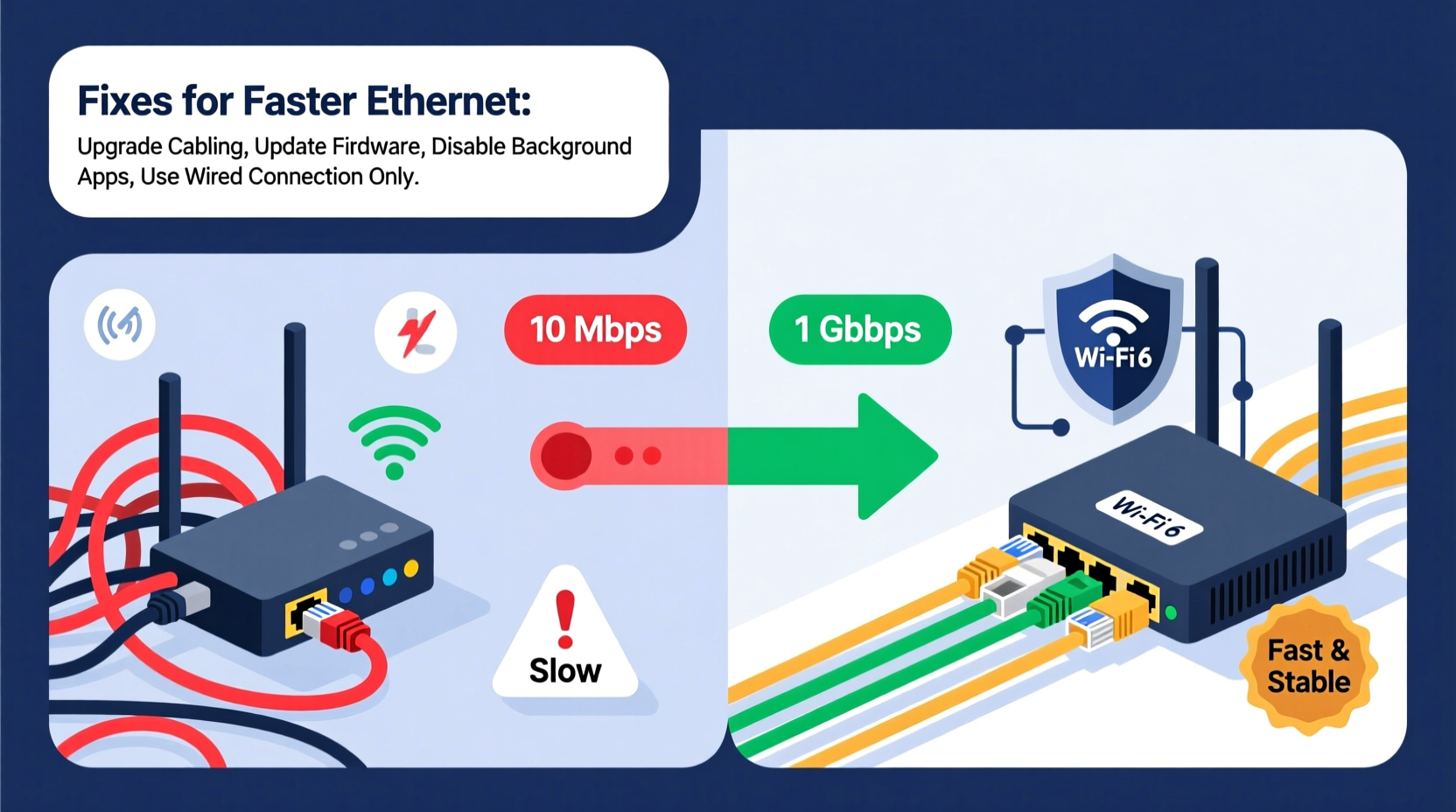
The first step in diagnosing slow Ethernet speeds is evaluating your physical equipment. Outdated or faulty hardware is one of the most common culprits behind poor performance.
- Ethernet cables: Older Cat 5 cables support only up to 100 Mbps, while Cat 6 or higher is required for Gigabit (1000 Mbps) speeds. Inspect your cable for damage and ensure it’s rated for your desired bandwidth.
- Router and switch ports: Not all Ethernet ports support Gigabit speeds. Check your router’s specifications and confirm that the port being used supports 10/100/1000 Mbps auto-negotiation.
- Network Interface Card (NIC): On older computers or laptops, the built-in NIC may cap at 100 Mbps. You can verify this in Device Manager (Windows) or System Information (macOS).
Run a Speed Test and Isolate the Issue
Before making changes, establish a baseline. Use a trusted speed test service like speedtest.net or fast.com while connected via Ethernet. Compare the result with what your Internet Service Provider (ISP) promises.
If speeds are significantly lower than expected, follow this isolation process:
- Test directly from the modem (if separate from the router) using a single device.
- Bypass switches, powerline adapters, or extenders temporarily.
- Try a different computer or laptop to rule out device-specific issues.
- Note whether the problem persists across multiple devices.
If speeds improve when connecting directly to the modem, the issue likely lies within your router or internal network setup.
Verify Link Speed Negotiation
Your device and router must \"negotiate\" a compatible speed and duplex setting. Sometimes, due to interference or hardware faults, this negotiation fails, resulting in a fallback to 10 Mbps or half-duplex mode.
To check link speed on Windows:
- Open Control Panel > Network and Sharing Center.
- Click your Ethernet connection.
- Select Details. Look for “Link speed” — it should read 1.0 Gbps for Gigabit networks.
On macOS:
- Go to Apple Menu > System Settings > Network.
- Select Ethernet and click Detailed….
- Check the “Status” section for current link speed.
If the negotiated speed is below 1 Gbps, try reseating the cable or testing with a known-good replacement.
Update Drivers and Firmware
Outdated drivers for your NIC or obsolete firmware on your router can severely limit performance. Manufacturers regularly release updates that improve compatibility, stability, and throughput.
For your computer:
- Visit the manufacturer’s website (Dell, HP, Lenovo, etc.) and download the latest Ethernet driver.
- Alternatively, use Device Manager to update the driver automatically.
For your router:
- Log into your router’s admin interface (usually via 192.168.1.1 or 192.168.0.1).
- Navigate to the firmware update section.
- Install any available updates—do not interrupt the process.
“Firmware updates often contain critical fixes for packet processing inefficiencies that silently throttle throughput.” — Raj Patel, Senior Network Engineer at NetSecure Systems
Optimize Router and Network Settings
Even with modern hardware, misconfigured settings can bottleneck your connection. Consider the following adjustments:
| Setting | Action | Expected Benefit |
|---|---|---|
| QoS (Quality of Service) | Disable or configure fairly | Prevents bandwidth throttling of certain devices |
| MTU Size | Set to 1500 bytes (standard) | Reduces packet fragmentation |
| DHCP Lease Time | Adjust if IP conflicts occur | Improves connection stability |
| Port Forwarding/Rules | Remove unnecessary rules | Reduces CPU load on router |
In some cases, resetting the router to factory defaults and reconfiguring it can eliminate deep-seated configuration issues.
Mini Case Study: Resolving Persistent Slow Speeds in a Home Office
Mark, a freelance video editor, experienced persistent 12 Mbps speeds despite having a 300 Mbps fiber plan and a Gigabit-capable router. After testing, he found his desktop PC was negotiating at only 100 Mbps. He replaced the Ethernet cable with a certified Cat 6a, but saw no improvement. Further inspection revealed that the motherboard’s integrated NIC had outdated drivers. After downloading and installing the latest version from the manufacturer’s site, the link speed jumped to 1 Gbps, and his actual internet speed reached 290 Mbps. The fix took less than 20 minutes and cost nothing.
Troubleshooting Checklist
Use this checklist to methodically resolve slow Ethernet speeds:
- ✅ Confirm your ISP plan delivers the speed you expect
- ✅ Test speed on a device directly connected to the modem
- ✅ Use a high-quality Cat 6 or better Ethernet cable
- ✅ Ensure both router and device support Gigabit Ethernet
- ✅ Check link speed in system settings
- ✅ Update NIC drivers and router firmware
- ✅ Disable energy-saving features on the NIC (e.g., \"Allow the computer to turn off this device\")
- ✅ Reset router settings if configuration issues are suspected
- ✅ Eliminate network loops or daisy-chained switches
- ✅ Scan for malware that might consume bandwidth
Frequently Asked Questions
Why is my Ethernet slower than Wi-Fi?
This is unusual but possible. Causes include using a low-category cable, outdated NIC drivers, or a router port limited to 100 Mbps. Wi-Fi 6 on a close-range dual-band connection can sometimes outperform a degraded or misconfigured Ethernet link.
Can a bad Ethernet cable cause slow speeds?
Yes. Damaged shielding, kinks, or poor termination can reduce throughput significantly—even if the connection remains active. A cable tester or simple substitution with a known-good cable can confirm this.
Does Ethernet speed depend on router quality?
Absolutely. Routers vary widely in their internal switching capacity, CPU performance, and memory. Budget models may struggle to sustain full Gigabit speeds across multiple ports or under heavy load.
Final Steps and Long-Term Maintenance
Fixing slow Ethernet isn’t just about immediate speed boosts—it’s about building a resilient, future-proof network. Once optimal speeds are restored, maintain them by:
- Scheduling regular firmware updates every 3–6 months.
- Labeling and organizing cables to prevent accidental disconnections or substitutions.
- Monitoring speed monthly using automated tools or scripts.
- Replacing aging hardware before it becomes a bottleneck.
A fast, reliable Ethernet connection should be the foundation of your digital experience. By understanding how each component interacts—from cable grade to driver versions—you gain control over your network’s performance.




 浙公网安备
33010002000092号
浙公网安备
33010002000092号 浙B2-20120091-4
Comments
No comments yet. Why don't you start the discussion?