
When your internet crawls during a video call or buffers endlessly during a movie night, restarting the router might be your go-to fix. While it often helps temporarily, recurring slow Wi-Fi suggests deeper issues. For many households, especially those with multiple connected devices or high-bandwidth needs, simply rebooting isn’t enough. To truly resolve sluggish speeds, you need to understand the root causes and apply targeted solutions. This guide walks through proven, step-by-step strategies that go far beyond pressing the reset button.
Identify the Real Source of Slow Speeds
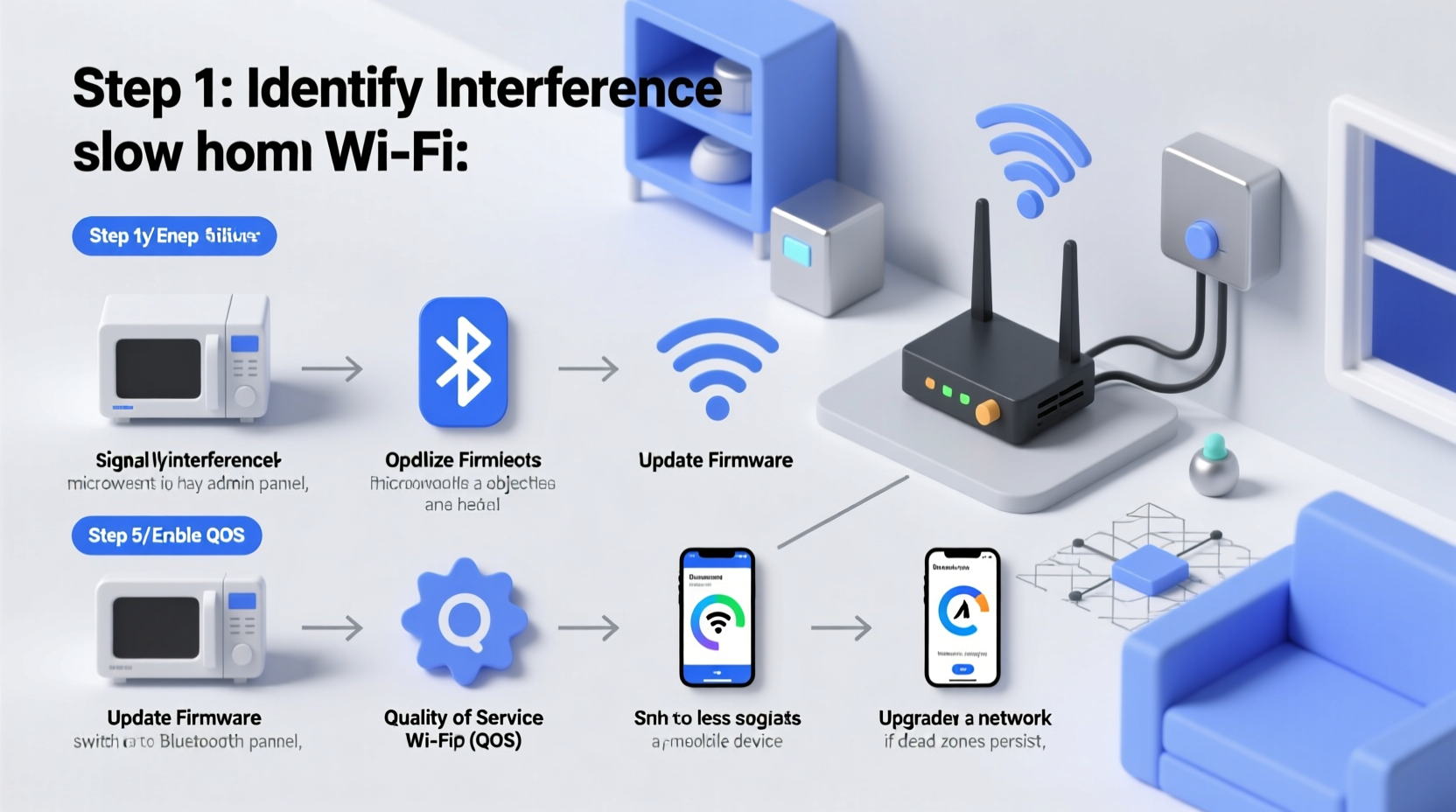
Before diving into fixes, confirm whether the issue is truly your Wi-Fi or something else. Many users assume their wireless network is the culprit when the problem could lie with their internet service provider (ISP), a specific device, or even a bandwidth-heavy application running in the background.
Start by conducting a wired speed test. Connect a laptop or desktop directly to your modem using an Ethernet cable and run a speed test at speedtest.net or a similar service. Compare these results to your advertised internet plan. If wired speeds are close to expected levels, the bottleneck is likely your Wi-Fi setup. If they’re significantly lower, contact your ISP—your modem or line may be faulty.
Check for Bandwidth Hogs
Modern homes host dozens of connected devices—smart TVs, phones, tablets, security cameras, smart speakers, and more. Some of these may silently consume large amounts of data. Cloud backups, automatic updates, or streaming in the background can monopolize bandwidth.
Access your router’s admin interface (usually via 192.168.1.1 or 192.168.0.1) and look for a “Device List” or “Network Map.” Sort devices by bandwidth usage if available. Identify any unknown or unusually active devices. You may discover a forgotten smart appliance updating firmware or a guest device streaming 4K video.
“Over 60% of home Wi-Fi performance issues stem from unmanaged device traffic, not hardware failure.” — Raj Patel, Senior Network Engineer at NetSure Solutions
Optimize Router Placement and Signal Coverage
Wi-Fi signals degrade quickly over distance and are easily obstructed by walls, metal objects, mirrors, and even appliances like microwaves and refrigerators. Poor router placement is one of the most common reasons for weak signal strength and slow speeds—even if your internet plan is fast.
Place your router in a central, elevated location. Avoid basements, closets, or behind entertainment centers. Keep it away from large metal objects and electronic devices that emit interference. A router on a bookshelf in the middle of your home typically performs better than one tucked in a corner of the garage.
Understand Signal Interference
Wi-Fi operates on radio frequencies—primarily 2.4 GHz and 5 GHz. The 2.4 GHz band travels farther but is prone to interference from cordless phones, baby monitors, and neighboring networks. The 5 GHz band is faster and less congested but has shorter range and struggles with walls.
If your devices frequently drop to 2.4 GHz despite being close to the router, interference may be the issue. Use a Wi-Fi analyzer app (like Wi-Fi Analyzer for Android or NetSpot for desktop) to scan nearby networks. If too many routers use the same channel, switch yours to a less crowded one via the admin settings.
Upgrade Hardware When Necessary
Not all routers are created equal. A five-year-old router may lack support for modern Wi-Fi standards like Wi-Fi 5 (802.11ac) or Wi-Fi 6 (802.11ax), limiting your maximum speeds regardless of your internet plan. Similarly, older devices with outdated Wi-Fi adapters can drag down the entire network.
Consider upgrading if:
- Your router is more than 3–4 years old.
- It only supports up to 802.11n (Wi-Fi 4).
- You have more than 10 connected devices.
- It lacks Quality of Service (QoS) settings.
For larger homes, mesh Wi-Fi systems (like Google Nest Wifi, Eero, or TP-Link Deco) eliminate dead zones by distributing signal across multiple nodes. Unlike traditional extenders, which often halve bandwidth, mesh systems use dedicated backhaul channels to maintain speed.
| Router Type | Best For | Limits |
|---|---|---|
| Single-Band (2.4 GHz) | Small spaces, basic browsing | High interference, slow speeds |
| Dual-Band (2.4 + 5 GHz) | Average homes, mixed usage | Limited range on 5 GHz |
| Tri-Band Mesh System | Large homes, heavy usage | Higher cost, complex setup |
Configure Advanced Router Settings
Most users never touch their router’s settings beyond initial setup. But fine-tuning key features can dramatically improve performance.
Enable Quality of Service (QoS)
QoS lets you prioritize certain devices or activities. For example, you can give higher priority to your home office laptop during work hours or your living room TV during movie nights. This prevents one device (like a file download) from hogging bandwidth and slowing everything else.
To enable QoS:
- Log into your router’s admin panel.
- Navigate to “QoS” or “Traffic Control.”
- Select devices or applications to prioritize.
- Set time-based rules if supported (e.g., prioritize Zoom from 9 AM to 5 PM).
Update Firmware Regularly
Router manufacturers release firmware updates to fix bugs, patch security flaws, and improve performance. An outdated router may suffer from known issues affecting stability and speed.
Check for updates monthly under “Administration” or “Firmware Update” in your router settings. Some newer models support automatic updates—enable this if available.
Change DNS Servers
Your ISP’s default DNS servers may be slow or unreliable. Switching to public DNS services like Google DNS (8.8.8.8 and 8.8.4.4) or Cloudflare DNS (1.1.1.1) can reduce latency and improve page load times.
To change DNS:
- In router settings, go to WAN or Internet Setup.
- Switch from “Automatic DNS” to “Manual.”
- Enter preferred DNS addresses.
Real-World Example: Fixing a Family’s Weekend Streaming Woes
The Thompson family in Austin, Texas, experienced unbearable buffering every Friday night. Despite having a 300 Mbps plan and a two-year-old router, Netflix and YouTube constantly stalled. Restarting the router helped briefly, but the issue returned within hours.
A technician discovered three main problems:
- The router was placed in a cabinet next to a microwave.
- Two smart TVs were downloading 4K updates in the background.
- All devices used the congested 2.4 GHz band.
Solutions applied:
- Moved the router to a central shelf.
- Enabled QoS to prioritize the main TV during 6–10 PM.
- Switched streaming devices to 5 GHz and updated firmware.
Result: Streaming resumed without interruption. Average Wi-Fi speeds increased from 45 Mbps to 210 Mbps on nearby devices.
Comprehensive Troubleshooting Checklist
Follow this checklist to systematically address slow Wi-Fi:
- ✅ Run a wired speed test to rule out ISP issues.
- ✅ Check for unauthorized or high-usage devices on your network.
- ✅ Move the router to a central, unobstructed location.
- ✅ Switch to a less crowded Wi-Fi channel using a scanner app.
- ✅ Upgrade to a modern router or mesh system if outdated.
- ✅ Enable QoS and prioritize critical devices or apps.
- ✅ Update router firmware to the latest version.
- ✅ Change DNS to Cloudflare (1.1.1.1) or Google (8.8.8.8).
- ✅ Limit bandwidth-heavy tasks during peak usage times.
- ✅ Consider upgrading your internet plan if usage exceeds capacity.
Frequently Asked Questions
Why is my Wi-Fi slow only at certain times of day?
This is often due to network congestion—either within your home (e.g., everyone streaming after dinner) or from your ISP. Neighborhood usage spikes in the evening can also affect shared infrastructure, especially with cable internet. Enabling QoS and scheduling large downloads for off-peak hours can help.
Can too many devices slow down my Wi-Fi?
Yes. Each connected device consumes a small amount of overhead, and active devices (streaming, gaming, downloading) compete for bandwidth. Routers have limits on how many devices they can handle efficiently. If you have more than 15–20 devices, consider upgrading to a high-capacity mesh system.
Does my phone's Wi-Fi signal strength affect other devices?
No. A single weak device doesn’t slow others—but if it’s actively transferring large files or buffering constantly, it uses bandwidth that could go to other devices. Also, older phones with slow Wi-Fi adapters may force the router to operate at lower speeds for compatibility.
Take Control of Your Home Network
Slow Wi-Fi doesn’t have to be a daily frustration. By moving beyond the simple router restart and applying strategic fixes—from optimizing placement to upgrading hardware—you can achieve faster, more reliable connectivity. The key is diagnosing the real cause rather than treating symptoms. Most improvements require minimal cost and effort but deliver lasting benefits. Whether you're working remotely, learning online, or enjoying entertainment, a well-tuned network makes all the difference.




 浙公网安备
33010002000092号
浙公网安备
33010002000092号 浙B2-20120091-4
Comments
No comments yet. Why don't you start the discussion?