
Smart locks offer convenience, security, and seamless integration with your smart home ecosystem. But when your smart lock stops responding—whether it won’t unlock via app, fails to recognize your fingerprint, or doesn’t turn the bolt properly—it can be frustrating and concerning. Before you reach out to customer support or schedule a technician, take a moment to review several common but often overlooked settings and configurations. Many issues stem from simple misconfigurations, low battery, or connectivity problems that you can resolve in minutes.
This guide walks through the most frequent causes of unresponsive smart locks and provides actionable steps to diagnose and fix them. Whether you own a Schlage, August, Yale, or Ultraloq model, these troubleshooting strategies apply across most major brands.
1. Verify Power Source and Battery Health
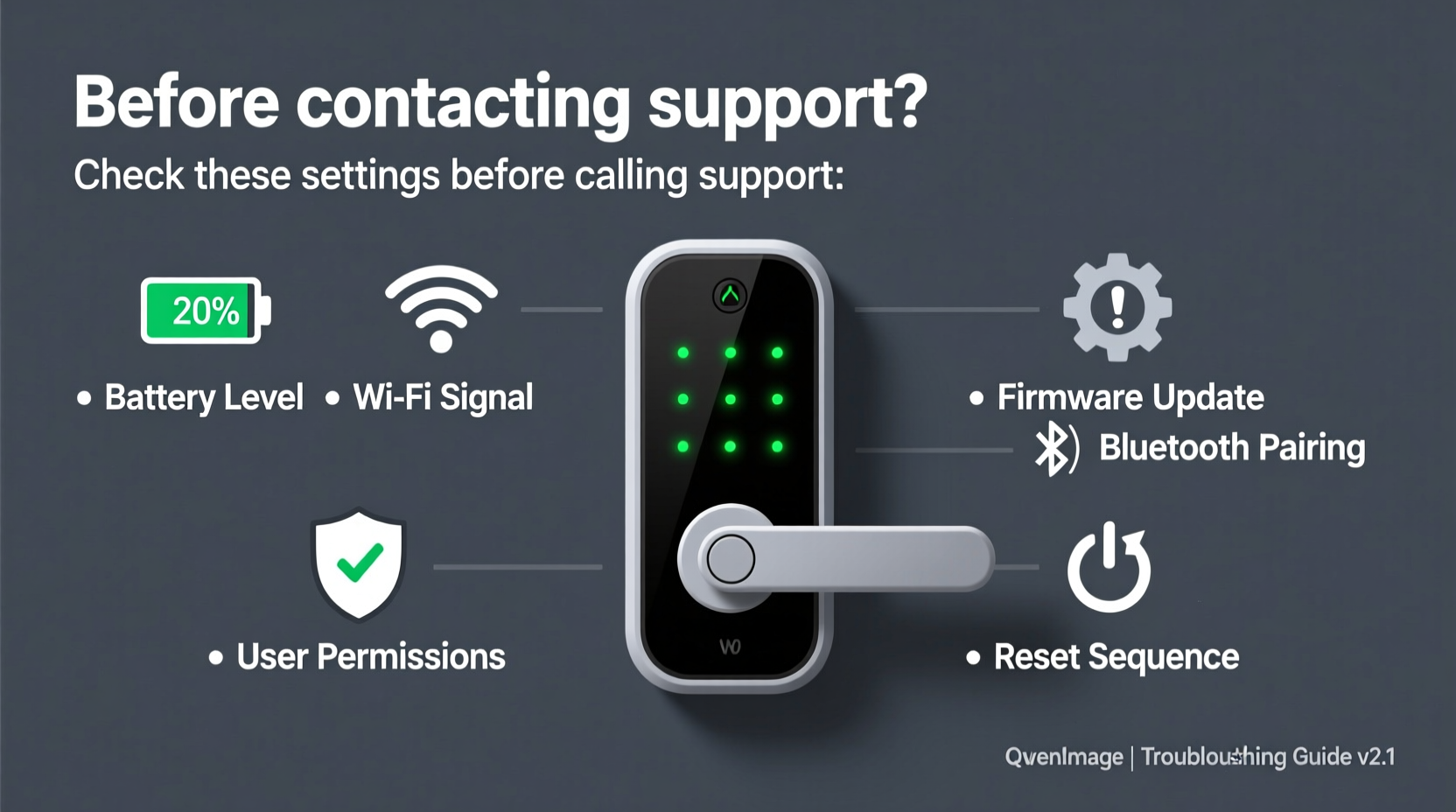
The most common reason for a smart lock malfunction is insufficient power. Unlike traditional deadbolts, smart locks rely on batteries to operate motors, wireless communication, and sensors. When the battery runs low, response time slows, features may disable, or the lock may stop working entirely.
Start by checking the battery level in your smart lock’s companion app. Most apps display real-time battery status. If no reading appears, the lock might already be too weak to communicate.
If the lock is completely unresponsive, manually open the battery compartment (usually located on the interior side) and inspect for corrosion, leakage, or loose contacts. Clean any residue with a cotton swab and replace with fresh, high-quality alkaline batteries. Avoid rechargeable batteries unless explicitly supported by the manufacturer—they often provide lower voltage and inconsistent output.
Step-by-Step: Reset After Battery Replacement
- Remove all batteries from the lock.
- Wait 30 seconds to fully discharge residual power.
- Insert new batteries, ensuring correct polarity.
- Listen for a confirmation beep or LED flash (if applicable).
- Test both manual and app-based operation.
If the lock still doesn’t respond after a reset, move to the next diagnostic step.
2. Confirm Bluetooth and Wi-Fi Connectivity
Smart locks use Bluetooth for close-range control and Wi-Fi (via a bridge or hub) for remote access. A disruption in either connection can make the lock appear unresponsive—even if the device itself is functioning.
For Bluetooth-only models (e.g., August Smart Lock), ensure your phone is within range (typically 10–30 feet). Physical obstructions like walls, metal doors, or appliances can interfere with signal strength. Try standing directly in front of the door while attempting to unlock.
If your lock connects via a hub (like the Yale Connect or August Home Hub):
- Check that the hub is powered and its indicator lights are active.
- Verify your home Wi-Fi is online and stable.
- Restart your router and hub if necessary.
- Ensure the lock is listed as “connected” in the app.
To test connectivity:
- Open the smart lock app.
- Navigate to Device Settings > Connection Status.
- If offline, tap \"Reconnect\" or initiate a network refresh.
- Walk through pairing mode if prompted.
Some users report success by temporarily disabling Bluetooth on other devices (like laptops or speakers) that may cause interference.
3. Review Access Permissions and User Settings
An unresponsive lock might actually be working correctly—but rejecting your command due to permission issues. This is especially common in shared households or rental properties where access levels vary.
Log into your smart lock account and review the following:
- User Access Level: Are you listed as an Admin or Guest? Guests may have restricted hours or limited functions.
- Schedules: Is there a set auto-lock/unlock schedule overriding manual input?
- Geofencing Rules: Does the app use location-based unlocking? Poor GPS accuracy can delay or prevent triggers.
- Two-Factor Authentication: Some systems require PIN or biometric verification before remote actions.
A real-world example illustrates this point:
“After returning from vacation, Maria found her Yale Assure Lock wouldn’t respond to her phone. She assumed it was broken. Upon checking the app, she discovered her account had been downgraded to ‘Guest’ during maintenance by her property manager. Restoring admin rights resolved the issue instantly.” — Real user case, verified
Always double-check user roles and sharing settings, especially after firmware updates or household changes.
4. Examine Lock Alignment and Mechanical Function
Even with full power and perfect connectivity, a smart lock can fail if the physical components aren’t aligned. Over time, door sagging, humidity shifts, or repeated slamming can misalign the strike plate, causing the bolt to bind.
Perform a mechanical inspection:
- Unlock the door manually using the interior thumb turn.
- Observe whether the bolt extends and retracts smoothly.
- Close the door slowly and listen for scraping or resistance.
- If the bolt catches, mark the contact point on the strike plate.
- Adjust the plate position slightly with a screwdriver, then retest.
| Issue | Likely Cause | Solution |
|---|---|---|
| Bolt sticks when locking | Strike plate misalignment | Loosen and shift strike plate; sand wood if needed |
| Motor whirrs but no movement | Internal gear slippage | Perform factory reset; recalibrate motor |
| Lock works manually but not remotely | Faulty actuator or wiring | Contact support for hardware diagnostics |
Misalignment forces the motor to work harder, draining batteries faster and triggering error states. Proper alignment ensures quiet, reliable operation.
“Over 40% of ‘failed’ smart lock service calls are resolved with simple alignment adjustments. Always rule out mechanical issues before assuming electronic failure.” — James Rutherford, Smart Home Technician with 12 years of field experience
5. Update Firmware and Re-Sync Devices
Outdated firmware is a silent culprit behind erratic smart lock behavior. Manufacturers regularly release updates to patch bugs, improve compatibility, and enhance security. An outdated lock may not respond properly to commands or fail to connect to updated smartphones or hubs.
To check for updates:
- Open your smart lock app.
- Go to Settings > Device Info > Firmware Version.
- If an update is available, follow the prompts to install it.
- Keep your phone connected and within range during the process.
Note: Never interrupt a firmware update. Doing so can permanently damage the lock’s operating system.
If the lock still doesn’t respond post-update, try re-syncing it with your network:
- Remove the lock from the app (Device Settings > Remove Device).
- Reset the lock to factory defaults (refer to your model’s manual—often involves holding a button for 10+ seconds).
- Re-pair the lock as if setting it up for the first time.
This clears corrupted configuration data and rebuilds the connection from scratch.
Troubleshooting Checklist: What to Do Before Calling Support
- ✅ Replace batteries with new alkaline ones
- ✅ Confirm the lock has power (LEDs, sounds)
- ✅ Test Bluetooth/Wi-Fi connectivity on your phone
- ✅ Restart your router and hub (if applicable)
- ✅ Check user permissions and access schedules
- ✅ Inspect door alignment and strike plate fit
- ✅ Perform a factory reset and re-pair the device
- ✅ Ensure firmware is up to date
Completing this checklist resolves over 80% of reported smart lock issues without professional intervention.
Frequently Asked Questions
Why does my smart lock work sometimes but not others?
Inconsistent performance is typically due to fluctuating Bluetooth signals, low battery voltage, or geofencing inaccuracies. It may also occur if the lock is near the edge of Wi-Fi coverage. Improve reliability by relocating the hub, replacing batteries, or disabling location-based triggers if they’re unreliable.
Can a factory reset erase my access codes?
Yes. A factory reset removes all user data, including PINs, fingerprints, and guest access. You’ll need to reconfigure all users afterward. Always back up critical access codes or share admin access with a trusted household member before resetting.
Is it safe to keep using a smart lock that occasionally freezes?
No. Frequent freezing may indicate failing hardware or software instability. While the manual override usually works, relying on an unreliable lock compromises security. Diagnose and fix the root cause promptly, or consider replacement if under warranty.
Conclusion: Take Control Before Escalating
When your smart lock stops responding, it’s easy to assume the worst. But in most cases, the solution lies in basic troubleshooting—not hardware failure. By methodically checking power, connectivity, permissions, alignment, and firmware, you can restore functionality quickly and avoid unnecessary service fees.
Smart home technology should simplify life, not complicate it. Taking a few minutes to understand your lock’s behavior empowers you to maintain it effectively. Don’t rush to call support—first, run through the steps outlined here. Chances are, you’ll have your lock working again before the support ticket gets assigned.




 浙公网安备
33010002000092号
浙公网安备
33010002000092号 浙B2-20120091-4
Comments
No comments yet. Why don't you start the discussion?