
In an age where digital data moves at lightning speed, the humble USB flash drive remains a surprisingly common tool for transferring files, storing backups, or carrying sensitive information. Despite their convenience, these small devices are easily misplaced, stolen, or compromised. A lost drive can mean more than just hardware loss—it could expose personal photos, confidential work documents, or financial records. The good news is that with smart habits and proactive measures, you can significantly reduce the risk of losing your USB drive—or at least minimize the damage if it happens.
1. Choose the Right Physical Design
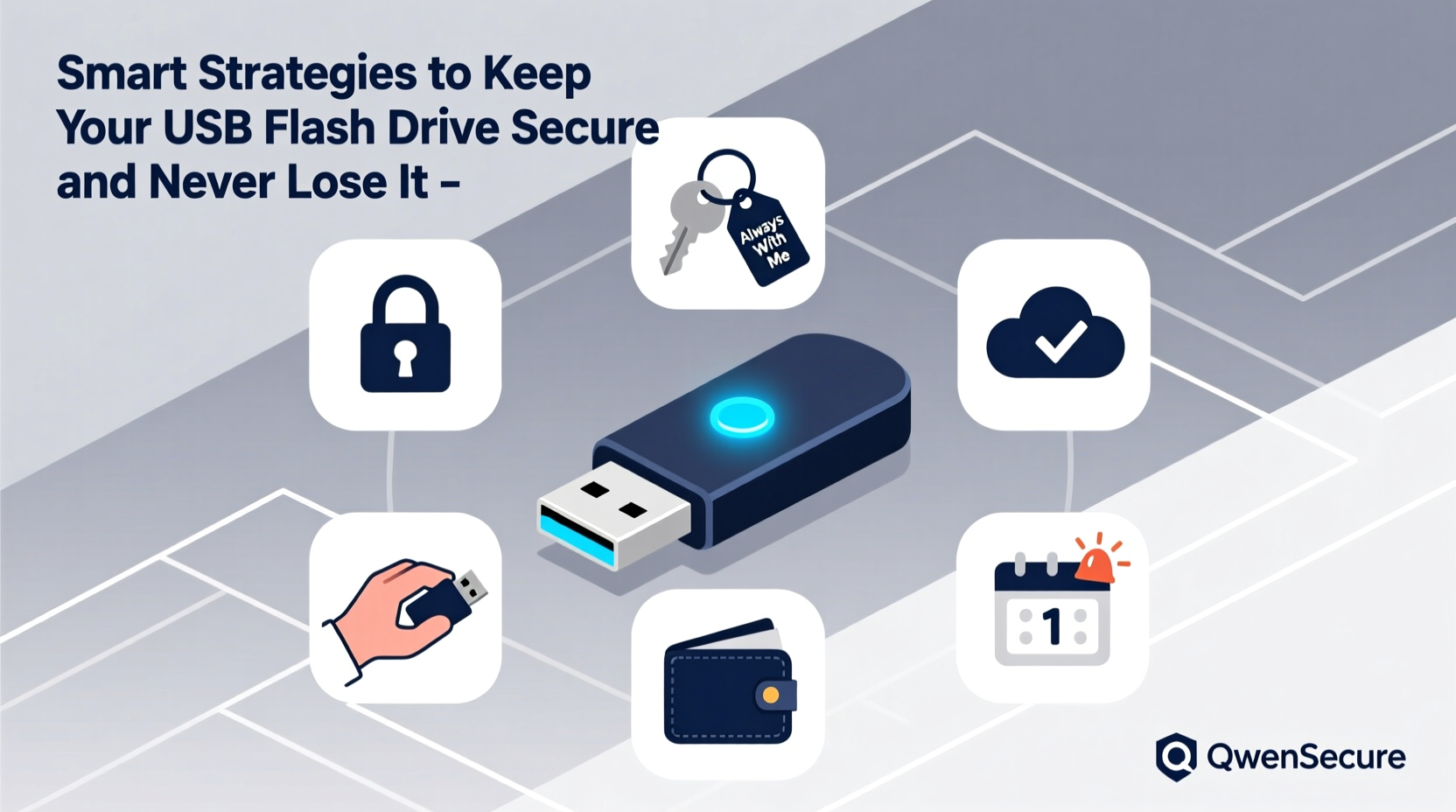
The first line of defense starts with the physical design of the USB drive itself. Many people overlook how much the shape, size, and durability impact the likelihood of loss.
Drives shaped like keychains or designed to attach to lanyards are far less likely to slip out of pockets or get left behind in public places. Rugged models with rubberized coatings or metal casings also resist damage from drops, moisture, and everyday wear.
Some advanced models even include built-in retractable connectors or sliding covers to protect against port damage. Avoid ultra-slim \"capless\" drives unless they have a secure attachment point; their sleekness often makes them easy to misplace.
2. Encrypt Your Data Proactively
Losing a USB drive doesn’t have to mean losing control of your data. Encryption ensures that even if someone finds your drive, they can’t access its contents without the correct password.
Most modern operating systems support full-drive encryption. On Windows, BitLocker To Go allows you to encrypt portable drives with AES 128-bit or 256-bit encryption. macOS users can use Disk Utility to create encrypted disk images or enable FileVault for external volumes. Linux distributions typically offer LUKS (Linux Unified Key Setup) for robust encryption.
“Encryption transforms your USB into a vault. Without the key, the data is useless—even to tech-savvy finders.” — Dr. Lena Patel, Cybersecurity Researcher at SecureData Labs
For cross-platform compatibility, consider using open-source tools like VeraCrypt. It supports creating encrypted containers that work across Windows, macOS, and Linux, giving you flexibility without sacrificing security.
Step-by-Step Guide: Encrypting a USB Drive Using BitLocker (Windows)
- Insert your USB drive into the computer.
- Open File Explorer and locate the drive under “This PC”.
- Right-click the drive and select “Turn on BitLocker”.
- Choose “Use a password to unlock the drive” and set a strong, unique password.
- Select “Save the recovery key to a file” and store it securely (e.g., in a password manager).
- Choose “Encrypt the entire drive” for maximum protection.
- Click “Start Encrypting” and wait for the process to complete.
3. Implement a Backup and Sync Strategy
No matter how careful you are, hardware fails and items go missing. That’s why treating your USB drive as a temporary carrier—not the only copy—is essential.
Sync critical files to cloud storage services like Google Drive, Dropbox, or OneDrive before transferring them via USB. This way, if the drive is lost, the data isn’t gone forever. For highly sensitive files that shouldn’t be stored online, maintain a second encrypted backup on another physical device stored in a separate location.
4. Use Tracking and Remote Wipe Features
While most USB drives don’t come with GPS, some high-end secure models include remote tracking or wipe capabilities through companion software. For example, certain Kingston IronKey drives offer cloud-based management dashboards that log access attempts and allow administrators to remotely lock or erase data.
If your drive lacks built-in tracking, consider labeling it digitally. Tools like Prey Anti-Theft or even simple text files named “REWARD_IF_FOUND.txt” with your email or phone number can increase the chances of recovery—without exposing sensitive details publicly.
| Feature | Benefit | Limitation |
|---|---|---|
| Hardware Encryption | Protects data even if drive is physically accessed | Requires compatible software and user discipline |
| Remote Wipe | Eliminates risk after loss | Only works if drive connects to internet-enabled device |
| Digital Labeling | Increases chance of return | Relies on honesty of finder |
| Cloud Sync | Ensures data redundancy | Not suitable for classified or private data |
5. Adopt Smart Usage Habits
Human behavior plays a bigger role in USB loss than most realize. Developing consistent routines dramatically reduces the odds of misplacement.
- Always unplug safely: Use the “Eject” function to avoid corruption and build the habit of acknowledging the drive before removal.
- Designate a home spot: Keep your USB in the same pocket, bag compartment, or attached to your keys every time.
- Avoid public computers: If you must use one, double-check that you’ve removed the drive before leaving.
- Label visibly: Use colored tape or a custom tag to make your drive stand out from others.
Mini Case Study: The Forgotten Conference Drive
Jamal, a marketing consultant, attended a client workshop and used his USB to present slides on the venue’s laptop. After the session, he rushed to catch a flight and left the drive plugged into the machine. Two days later, he realized it was missing. The drive contained unreleased campaign materials and internal strategy notes. Fortunately, Jamal had used BitLocker encryption and maintained a synced copy in his company’s SharePoint. He remotely informed IT, who flagged the serial number and issued a warning. Though the drive was never recovered, no data breach occurred thanks to preparation.
Checklist: How to Keep Your USB Drive Secure and Accounted For
- ✅ Attach the drive to your keys or daily carry item
- ✅ Enable full-disk encryption (BitLocker, FileVault, or VeraCrypt)
- ✅ Create a backup of all files before travel
- ✅ Label the drive with contact info (digitally, not visibly)
- ✅ Use a rugged, durable model resistant to damage
- ✅ Eject properly and verify removal each time
- ✅ Audit the drive’s contents monthly and delete outdated files
Frequently Asked Questions
Can someone recover data from a lost USB even if it’s formatted?
Yes. Simple formatting doesn’t erase data permanently. Specialized software can recover files unless the drive has been securely wiped using tools like DBAN or built-in secure erase functions. Always encrypt sensitive data rather than relying on deletion alone.
Is it safe to use public computers with my USB drive?
It carries risks. Public machines may have malware designed to copy files or install keyloggers. If you must use one, avoid accessing passwords from the drive, scan the device afterward, and consider using a write-protected USB if available.
What’s better: cloud storage or USB drives?
Each has strengths. Cloud storage offers accessibility and automatic backup but depends on internet and raises privacy concerns. USB drives provide offline access and full control but are prone to loss and physical failure. Use both strategically: transfer via USB, back up to the cloud (if appropriate), and encrypt everything sensitive.
Conclusion
Your USB flash drive may be small, but the consequences of losing it can be enormous. By combining smart physical choices, strong encryption, disciplined usage habits, and reliable backups, you transform a vulnerable piece of hardware into a secure extension of your digital life. Don’t wait until a drive goes missing to act—implement these strategies today. Whether you're carrying family memories, academic research, or business proposals, taking control now means peace of mind later.




 浙公网安备
33010002000092号
浙公网安备
33010002000092号 浙B2-20120091-4
Comments
No comments yet. Why don't you start the discussion?