
The Snipping Tool is one of the most relied-upon utilities in Windows for capturing screenshots quickly. Whether you're documenting an error message, sharing a visual guide, or saving information from a website, a malfunctioning Snipping Tool can bring your workflow to a halt. Users across Windows 10 and 11 have reported issues ranging from the app failing to launch, disappearing entirely, freezing during use, or losing annotation features. While these problems are frustrating, most can be resolved with targeted troubleshooting. This guide walks through the most frequent causes and their practical solutions, ensuring you regain full control of this essential tool.
Common Symptoms of Snipping Tool Issues
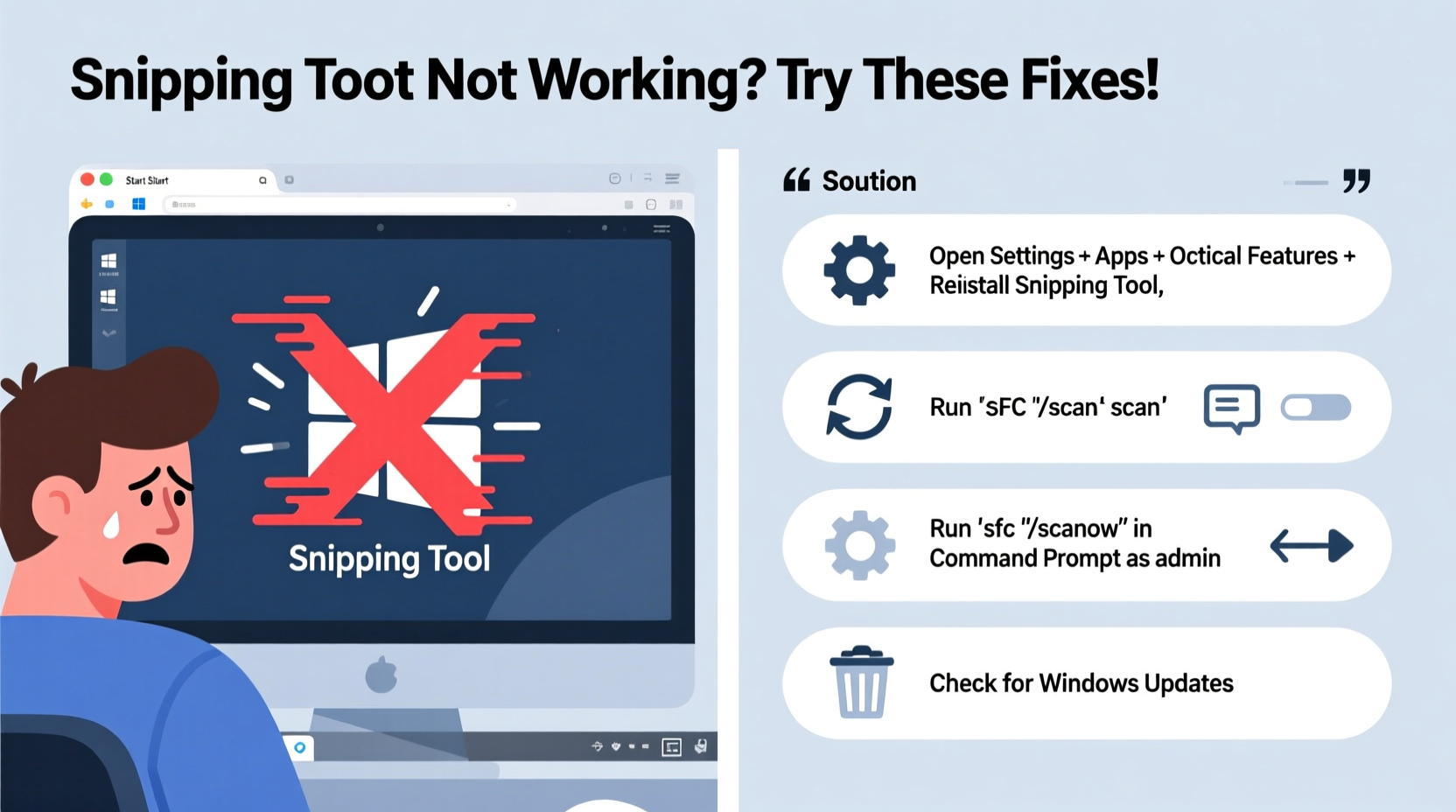
Before diving into fixes, it's important to identify the exact nature of the problem. The Snipping Tool may exhibit one or more of the following behaviors:
- Fails to open when launched from Start menu or search
- Crashes immediately upon startup
- Freezes during screenshot capture
- Missing delay options or pen/highlighter tools
- Error messages such as “Something went wrong” or “App needs repair”
- Snipping Tool replaced by Snip & Sketch without user input
These symptoms often stem from corrupted system files, permission conflicts, incorrect app associations, or incomplete Windows updates. Addressing them systematically increases the likelihood of a permanent fix.
Step-by-Step Fixes for Snipping Tool Problems
Follow this structured sequence to diagnose and correct Snipping Tool malfunctions. Begin with basic checks and progress to deeper system repairs only if needed.
- Restart Your Computer – A temporary glitch may prevent proper app loading. Rebooting clears memory and resets background processes.
- Use Keyboard Shortcut (Win + Shift + S) – This bypasses the app interface and launches the modern snipping bar directly.
- Check for Windows Updates – Go to Settings > Update & Security > Windows Update and install any pending patches. Microsoft frequently releases fixes for built-in apps.
- Run the Windows Store Apps Troubleshooter – Navigate to Settings > System > Troubleshoot > Other troubleshooters, then run “Windows Store Apps.” Though Snipping Tool isn’t a Store app per se, this utility can repair underlying component dependencies.
- Re-register the Snipping Tool via PowerShell – Open PowerShell as Administrator and enter:
Get-AppxPackage *Microsoft.ScreenSketch* | Foreach {Add-AppxPackage -DisableDevelopmentMode -Register \"$($_.InstallLocation)\\AppXManifest.xml\"}This command refreshes the Snip & Sketch package, which now powers the Snipping Tool in recent Windows versions.
Repair Corrupted System Files
If the Snipping Tool still fails to respond, system file corruption might be the culprit. Use built-in Windows tools to scan and repair core components.
- Open Command Prompt as Administrator.
- Type
sfc /scannowand press Enter. This scans for and replaces corrupted system files. - After completion, run
DISM /Online /Cleanup-Image /RestoreHealthto repair the Windows image itself. - Restart your PC and test the Snipping Tool again.
These commands are among the most effective for resolving deep-seated OS issues affecting native applications.
Do’s and Don’ts When Fixing Snipping Tool Errors
| Do’s | Don’ts |
|---|---|
| Always run troubleshooting tools as Administrator | Ignore pending Windows updates |
| Use Win + Shift + S as a reliable alternative | Delete or rename SnippingTool.exe manually |
| Back up your system before making major changes | Download third-party \"fixer\" tools from untrusted sites |
| Clear Temp files regularly to reduce app conflicts | Assume the app is permanently broken without testing alternatives |
Real Example: Recovering a Non-Responsive Snipping Tool
Sarah, a technical trainer based in Austin, found her Snipping Tool wouldn't open during a live session. She tried searching for it repeatedly, but clicking the result did nothing. Initially concerned, she first attempted the Win + Shift + S shortcut—and was relieved to see the snipping bar appear. This confirmed that the underlying functionality was intact, but the app launcher was broken.
She opened PowerShell as Administrator and re-registered the ScreenSketch package. After a restart, the Snipping Tool appeared normally in Start and responded instantly. Sarah later discovered a failed update had partially corrupted the app registration. Her experience highlights the importance of isolating whether the issue lies in the interface or the engine behind it.
“Many users assume the Snipping Tool is gone forever when it’s just misregistered. The modern Windows diagnostic tools make recovery faster than reinstalling third-party software.” — David Lin, Microsoft Support Engineer
Checklist: Restore Snipping Tool Functionality
Use this checklist to methodically restore the Snipping Tool:
- ✅ Restart your computer
- ✅ Test Win + Shift + S shortcut
- ✅ Check for and install Windows updates
- ✅ Run Windows Store Apps Troubleshooter
- ✅ Re-register ScreenSketch via PowerShell
- ✅ Run sfc /scannow and DISM commands
- ✅ Create a new user profile to rule out account-specific corruption
- ✅ Reset or reinstall the Snip & Sketch app via Settings > Apps > Installed apps
If all else fails, consider using the legacy version. Open Run (Win + R), type snippingtool, and press Enter. This bypasses the modern UI and uses the classic executable.
Frequently Asked Questions
Why does the Snipping Tool keep crashing on startup?
Crashes are often caused by corrupted app data or conflicting permissions. Try resetting the Snip & Sketch app via Settings > Apps > Installed apps > Snip & Sketch > Advanced options > Reset. Also ensure your user account has administrative privileges when required.
Where did my Snipping Tool go in Windows 11?
In Windows 11, Microsoft merged the classic Snipping Tool with Snip & Sketch. Search for “Snipping Tool” as usual—it now includes both legacy and modern features, including delayed snips and cloud sync. If missing, reinstall it from the Microsoft Store by searching for “Snip & Sketch.”
Can I use the Snipping Tool offline?
Yes. Unlike some cloud-dependent tools, the Snipping Tool works fully offline. Screenshots are saved locally unless you manually choose to share them. No internet connection is required for capture or editing.
Conclusion
The Snipping Tool remains a vital part of daily computing, and its failure doesn’t have to disrupt productivity. Most issues stem from manageable system inconsistencies rather than hardware or irreversible damage. By applying verified methods—from simple shortcuts to system-level repairs—you can restore functionality efficiently and avoid resorting to external tools. Regular maintenance, like installing updates and clearing system clutter, also prevents recurrence.




 浙公网安备
33010002000092号
浙公网安备
33010002000092号 浙B2-20120091-4
Comments
No comments yet. Why don't you start the discussion?