
For 3D printing enthusiasts, choosing the right control interface can significantly impact workflow efficiency, print monitoring, and overall experience. Two popular options have emerged: the open-source Raspberry Pi running OctoPrint and the newer, purpose-built Sonic Pad. While both serve as touchscreen controllers for 3D printers, they differ fundamentally in design philosophy, cost, and functionality. This article breaks down their key differences, evaluates real-world performance, and helps you determine whether the Sonic Pad justifies its premium price over a well-configured Raspberry Pi setup.
Understanding the Core Differences
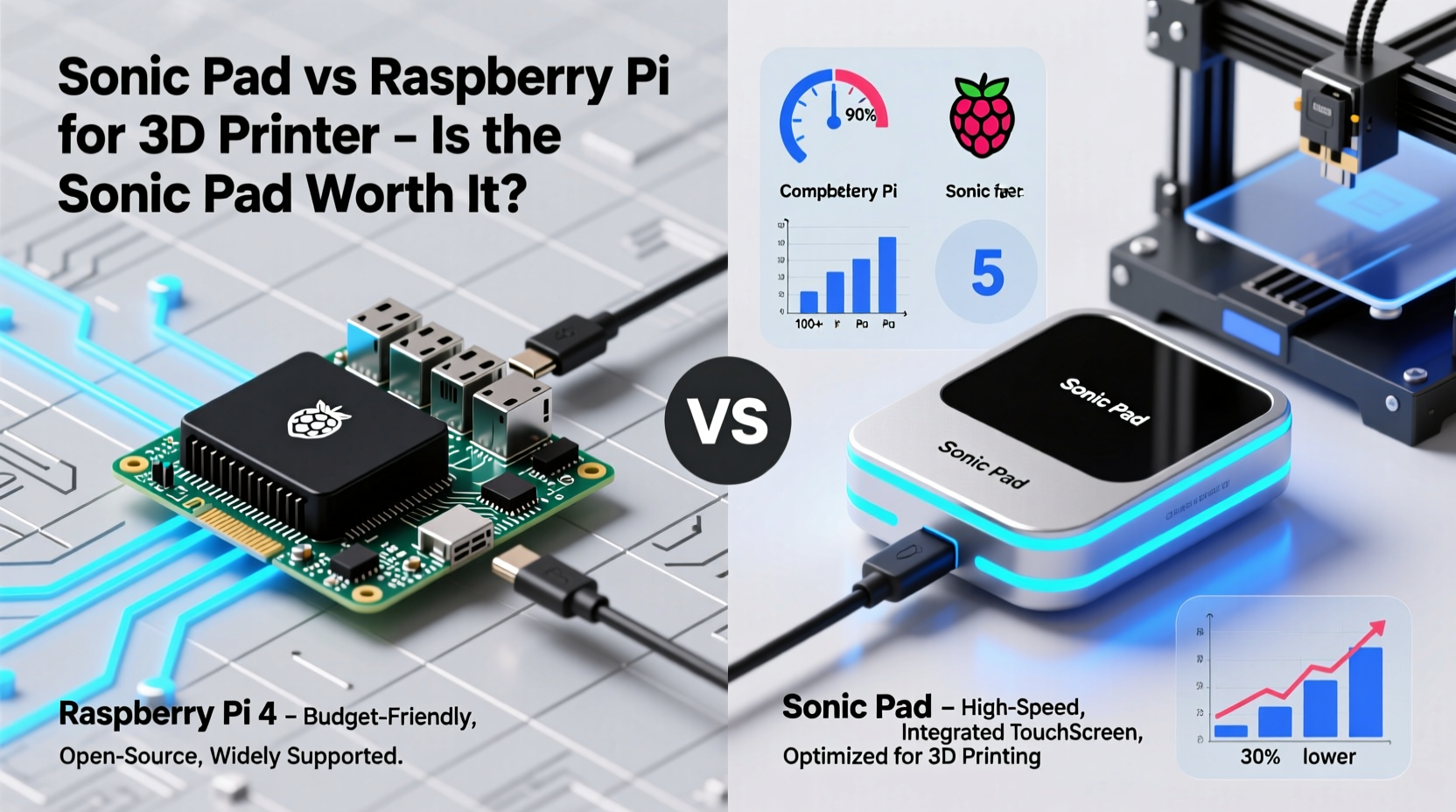
The Raspberry Pi has long been the go-to solution for DIY 3D printer interfaces. Paired with OctoPrint, an open-source host software, it enables remote print management, webcam streaming, and G-code file handling via a web browser. Users typically connect a Pi to their printer via USB, set up Wi-Fi, and access the interface from any device on the same network. With community support and extensive plugins, it’s highly customizable—but requires technical know-how to configure and maintain.
In contrast, the Sonic Pad is a commercial product designed specifically for 3D printing. It runs a custom Android-based OS optimized for printer control, featuring a responsive touchscreen, built-in power delivery, and plug-and-play compatibility with major printer brands like Creality, Bambu Lab, and Anycubic. No server setup or command-line configuration is needed. From unboxing to first print, setup takes minutes rather than hours.
Performance and User Experience Comparison
On paper, both devices enable core functions: starting prints, monitoring progress, adjusting settings mid-print, and viewing camera feeds. However, user experience diverges sharply.
The Raspberry Pi + OctoPrint combo offers deep control. You can install plugins for filament runout detection, AI failure detection (e.g., PrintPal), time-lapse creation, and even integrate with voice assistants. The web interface works across smartphones, tablets, and desktops. But performance depends heavily on your hardware choice—older Pi models may struggle with HD video streaming or multitasking. Latency, occasional crashes, and SD card corruption are known pain points if not properly maintained.
The Sonic Pad, by comparison, delivers a polished UI with near-instant response times. Its 7-inch capacitive touchscreen feels modern and intuitive. Menus are simplified, with large icons and real-time feedback such as nozzle temperature graphs and layer progress bars. It supports dual-band Wi-Fi, Bluetooth, and direct USB-C passthrough power to the printer, reducing cable clutter. Most importantly, firmware updates are handled automatically, eliminating the need for manual system maintenance.
“User experience matters just as much as functionality. For many hobbyists, a reliable, no-fuss interface is more valuable than endless customization.” — Jordan Lee, 3D Printing Tech Reviewer at Maker Monthly
Detailed Feature Comparison
| Feature | Raspberry Pi + OctoPrint | Sonic Pad |
|---|---|---|
| Setup Time | 30–90 minutes (OS flash, config, plugin install) | 5–10 minutes (plug and play) |
| Operating System | Linux (Raspbian) with OctoPrint | Custom Android-based OS |
| Touchscreen Support | Requires separate purchase and calibration | Built-in 7\" 1024x600 display |
| Web Interface Access | Yes (from any device) | Limited (app-only remote view) |
| Plugin Ecosystem | Extensive (200+ community plugins) | None (closed system) |
| Price (approx.) | $60–$100 (Pi 4 + case + SD + screen) | $179 |
| Maintenance | Manual updates, risk of SD corruption | Automatic OTA updates |
| Printer Compatibility | Universal (via USB serial) | Limited to supported models (Creality, Bambu, etc.) |
Real-World Example: A Hobbyist’s Upgrade Journey
Mark, a part-time 3D printing enthusiast from Portland, used a Raspberry Pi 3 with a generic 5-inch touchscreen for two years. While functional, he often faced lag during print starts, frequent disconnections, and had to reflash the SD card every few months. After purchasing a Sonic Pad for his Ender 3 S1, he reported immediate improvements: faster boot time, smoother touch response, and zero connectivity issues. “I used to dread setting up my Pi after a power outage,” he said. “Now I just flip the switch and start printing. It’s not flashy, but reliability is everything when you’re printing overnight.”
However, Mark also missed some OctoPrint features, particularly the ability to use third-party tools like OctoDash or integrate with Home Assistant. He now uses the Sonic Pad for daily operation but keeps his Pi setup as a backup for advanced tasks.
When the Raspberry Pi Still Makes Sense
The Sonic Pad excels in simplicity and polish, but it’s not the best choice for everyone. The Raspberry Pi remains the superior option for users who:
- Want full control over their software environment
- Use non-supported printers (e.g., older or niche models)
- Need integration with home automation systems
- Prefer using multiple devices to monitor prints simultaneously
- Are on a tight budget and already own a Pi
Additionally, the open-source nature of OctoPrint means users can troubleshoot, modify code, and contribute to development—something impossible with the closed Sonic Pad ecosystem.
Step-by-Step: Choosing the Right Option for You
- Assess your technical comfort level. If you dislike tinkering with Linux commands or configuring networks, lean toward Sonic Pad.
- List your must-have features. Need webcam timelapses or voice alerts? Raspberry Pi wins. Want a clean, always-on display? Sonic Pad leads.
- Check printer compatibility. Visit the Sonic Pad website to confirm your model is supported before purchasing.
- Compare total costs. Factor in the price of a case, power supply, SD card, and touchscreen if building a Pi setup.
- Consider long-term maintenance. Are you willing to manage updates and backups? If not, Sonic Pad’s automatic updates are a major advantage.
Frequently Asked Questions
Can the Sonic Pad replace OctoPrint entirely?
For basic to intermediate users, yes—it handles print control, monitoring, and file management effectively. However, advanced users relying on plugins or remote access from multiple devices may still need OctoPrint alongside or instead.
Is the Sonic Pad compatible with non-Creality printers?
Yes, but selectively. It officially supports Bambu Lab X1C, A1, and A1 Mini, plus select Anycubic and Artillery models. Always verify compatibility on the manufacturer’s site before buying.
Can I use the Sonic Pad as a standalone device without a computer?
Absolutely. Once configured, it operates independently. All G-code files are stored on its internal storage, and it powers and communicates directly with the printer.
Final Verdict: Is the Sonic Pad Worth It?
The answer depends on your priorities. If you value convenience, reliability, and a refined user experience, the Sonic Pad is absolutely worth the $179 price tag. It eliminates the common frustrations of DIY setups—SD card failures, Wi-Fi drops, and complex configurations—and delivers a professional-grade interface out of the box.
However, if you thrive on customization, work with unsupported hardware, or operate on a strict budget, the Raspberry Pi remains a powerful, flexible alternative. It may require more effort, but that effort buys you control and adaptability the Sonic Pad cannot match.
In essence, the Sonic Pad isn’t better than the Raspberry Pi in every way—it’s different. It represents a shift from DIY hacking to consumer-ready usability. For many modern 3D printer owners, especially those using mainstream machines, that trade-off is not only acceptable but welcome.




 浙公网安备
33010002000092号
浙公网安备
33010002000092号 浙B2-20120091-4
Comments
No comments yet. Why don't you start the discussion?