
Sony headphones are known for their superior sound quality, noise cancellation, and sleek design. However, even the most advanced wireless audio devices can run into connectivity issues. If your Sony headphones won’t connect to your phone, tablet, laptop, or other devices, you're not alone. Many users experience Bluetooth pairing failures, intermittent drops, or complete signal loss. The good news is that most of these problems have straightforward fixes. This guide walks through the most effective troubleshooting methods to get your Sony headphones working again—quickly and reliably.
Understanding Common Connection Issues
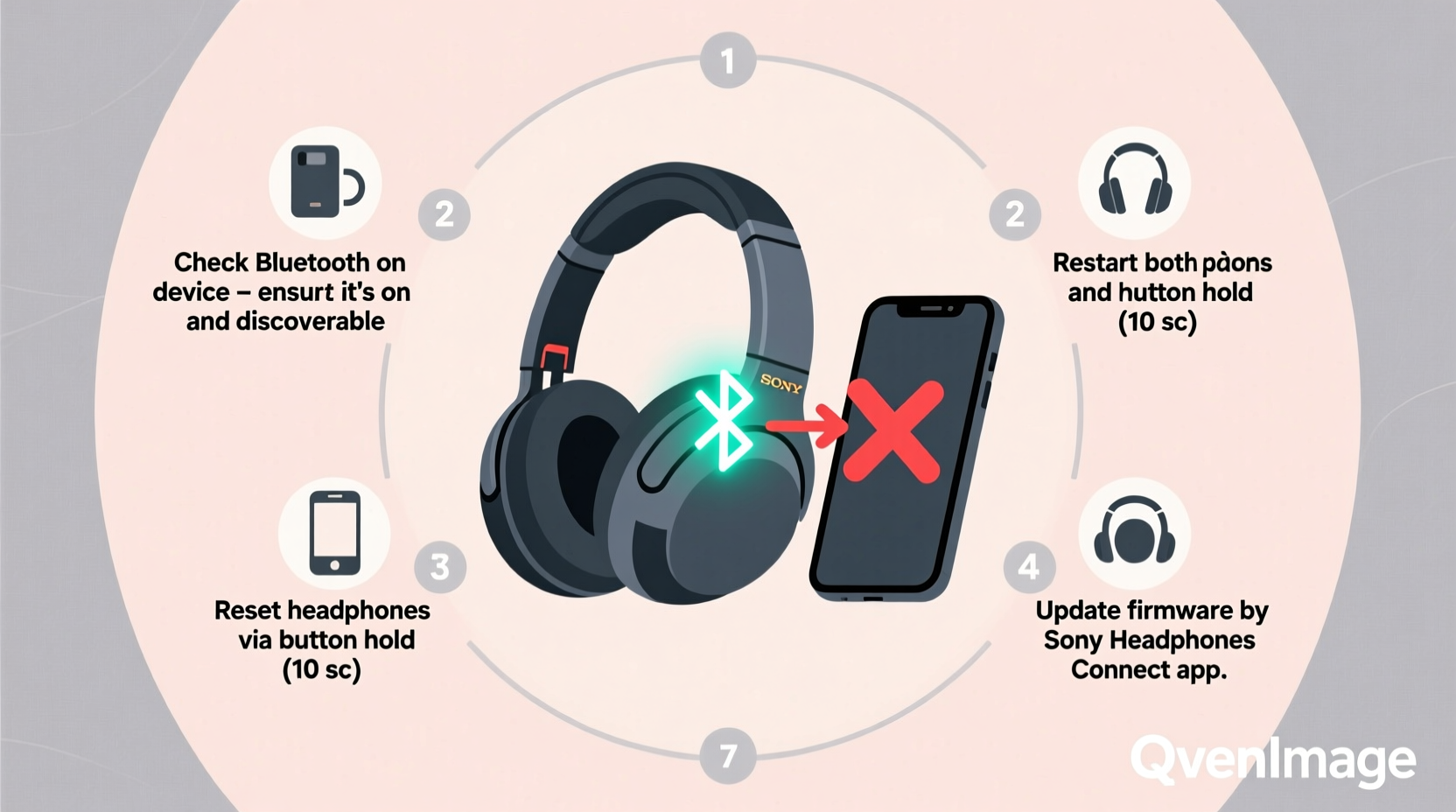
Before diving into fixes, it helps to understand what might be going wrong. Sony headphones typically use Bluetooth 5.0 or higher, which offers stable connections within a 30-foot range. But interference, outdated firmware, incorrect settings, or hardware glitches can disrupt this link. Common symptoms include:
- Headphones appear in device list but fail to pair
- Connection drops after a few seconds
- No sound despite successful pairing
- Only one earbud connects (for true wireless models)
- Device shows “Connected” but no audio output
These issues aren't always due to faulty hardware. Often, they stem from software conflicts or misconfigurations that can be resolved without returning or replacing your headphones.
Step-by-Step Troubleshooting Guide
Follow this logical sequence to isolate and fix the root cause of your connection problem. Start with basic checks and progress to more advanced solutions if needed.
- Check Power and Pairing Mode: Ensure your Sony headphones are charged and in pairing mode. For most models, this means holding the power button for 7–10 seconds until the LED blinks red and blue.
- Restart Both Devices: Turn off your headphones and the connected device (phone, laptop, etc.), wait 30 seconds, then power them back on.
- Forget the Device: On your smartphone or computer, go to Bluetooth settings, find your Sony headphones, and select “Forget” or “Remove Device.”
- Re-Pair from Scratch: Put headphones back into pairing mode and search for them again in your device’s Bluetooth menu.
- Test with Another Device: Try connecting to a different phone or tablet to determine if the issue lies with your original device.
If the problem persists, move on to deeper diagnostic steps.
Reset Your Sony Headphones to Factory Settings
A factory reset clears all paired devices and restores default settings. This often resolves stubborn pairing errors caused by corrupted data or conflicting configurations.
The reset process varies slightly depending on the model:
| Model Series | Reset Instructions |
|---|---|
| WH-1000XM3 / XM4 / XM5 | Turn off headphones. Press and hold both the power button and NC/Ambient button for 15+ seconds until the indicator light flashes orange four times. |
| WF-1000XM4 / XM5 (True Wireless) | Place earbuds in case, open lid. Press and hold the button on the case for 10 seconds until the LED flashes red twice. |
| WF-C500 / C700N | With earbuds in case, press and hold the button for 15 seconds until LED flashes white seven times. |
| WI-1000X / XB Series | Hold power button for 15+ seconds until lights flash, indicating reset. |
After resetting, attempt to pair again as if setting up a new device.
“Many Bluetooth issues are not hardware-related. A clean reset eliminates stored pairing conflicts and gives the connection a fresh start.” — David Lin, Senior Audio Engineer at SoundSync Labs
Firmware Updates and App Integration
Sony regularly releases firmware updates that improve stability, compatibility, and performance. Outdated firmware can cause connection instability, especially after your phone or OS updates.
To update your Sony headphones:
- Download the Sony | Headphones Connect app (available on iOS and Android).
- Pair your headphones with your phone via Bluetooth.
- Open the app and navigate to the device settings section.
- If an update is available, follow the on-screen instructions to install it.
Note: Keep your headphones charged above 50% during the update and avoid using them until the process completes.
Environmental and Interference Factors
Bluetooth signals are sensitive to physical obstructions and electromagnetic interference. Common culprits include:
- Wi-Fi routers operating on 2.4 GHz band
- Microwaves, cordless phones, or USB 3.0 devices
- Thick walls or metal structures between devices
- Overcrowded Bluetooth environments (e.g., offices, gyms)
Mitigation strategies:
- Move closer to your audio source
- Turn off unused Bluetooth devices nearby
- Switch your Wi-Fi router to 5 GHz if possible
- Avoid placing phones in metal cases that block signals
Mini Case Study: WF-1000XM4 Intermittent Dropouts
A user reported frequent disconnections when walking through their home office. The headphones worked fine near the desk but dropped out near the kitchen. After testing, the issue was traced to a smart speaker on the same counter emitting strong 2.4 GHz interference. Relocating the speaker restored stable connectivity. This illustrates how environmental factors—not device flaws—can be the real cause.
Troubleshooting Checklist
Use this checklist to methodically resolve connection issues:
- ✅ Charge both headphones and source device
- ✅ Confirm headphones are in pairing mode (blinking LED)
- ✅ Restart Bluetooth on your phone/laptop
- ✅ Remove old pairing and re-pair from scratch
- ✅ Test with another device to isolate the problem
- ✅ Reset headphones to factory defaults
- ✅ Update firmware via Sony Headphones Connect app
- ✅ Minimize interference from other electronics
- ✅ Check for OS updates on your connected device
- ✅ Ensure Bluetooth is not blocked by third-party apps or battery savers
Frequently Asked Questions
Why do my Sony headphones show as connected but produce no sound?
This often happens when the audio output isn’t properly routed. On Android, check the “Media” toggle under Bluetooth settings. On Windows, right-click the speaker icon, select “Sounds,” go to “Playback,” and set your Sony headphones as the default device.
Can I use Sony headphones with non-Sony devices?
Yes. Sony headphones are compatible with any Bluetooth-enabled device, including iPhones, Samsung phones, MacBooks, and Windows PCs. However, some features like LDAC or DSEE Extreme may only work fully within the Sony ecosystem.
How do I know if my Sony headphones need repair?
If you’ve tried all troubleshooting steps—including reset, firmware update, and multiple device tests—and still experience no connection, there may be a hardware fault. Contact Sony Support or visit an authorized service center for diagnostics.
Final Steps and When to Seek Help
Most Sony headphone connection issues are resolvable with the steps outlined above. Begin with simple fixes like restarting devices and re-pairing, then escalate to resets and firmware updates if necessary. Pay attention to environmental factors and ensure your devices are updated.
If none of these solutions work, it may be time to reach out to Sony customer support. Provide them with your model number, firmware version, and a clear description of the steps you've already taken. This speeds up diagnosis and increases the chance of a quick resolution.




 浙公网安备
33010002000092号
浙公网安备
33010002000092号 浙B2-20120091-4
Comments
No comments yet. Why don't you start the discussion?