
Sudden silence from your computer speakers can be frustrating—whether you're in the middle of a video call, trying to enjoy music, or watching a tutorial. Audio problems are common but rarely require professional repair. Most issues stem from simple misconfigurations, outdated drivers, or hardware glitches that can be resolved in under 15 minutes. This guide walks through practical, step-by-step solutions to diagnose and fix no sound issues across Windows and macOS systems.
Check Basic Audio Settings First
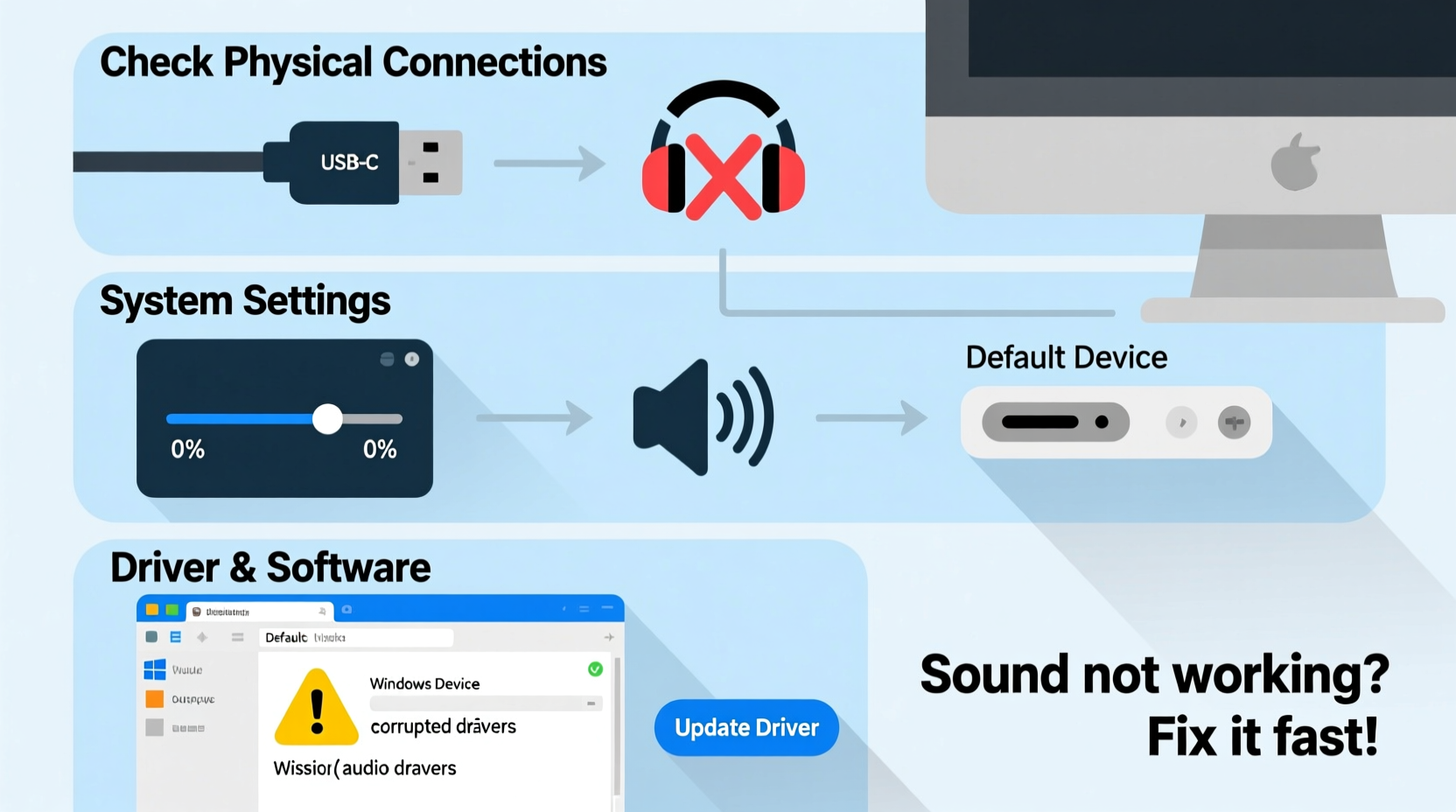
Before diving into complex fixes, rule out the most obvious causes. Many audio problems result from accidental muting, incorrect output selection, or volume set too low.
- Ensure your speakers or headphones are properly plugged in (for wired devices).
- Verify the volume is turned up on both the application and system level.
- Check that the correct playback device is selected as the default.
- Look for a mute button on your keyboard or external speaker and ensure it’s off.
On Windows:
- Right-click the speaker icon in the system tray.
- Select Open Sound settings.
- Under Output, confirm the correct device is chosen.
- Click Test to verify sound plays through the selected device.
On macOS:
- Go to System Settings > Sound > Output.
- Select the desired output device (e.g., Internal Speakers, Headphones).
- Adjust the volume slider and listen for changes.
If no sound occurs during testing, proceed to deeper diagnostics.
Restart and Reconnect Hardware
A surprising number of audio failures resolve after a simple reboot. Restarting resets software conflicts and reloads audio drivers automatically.
“Over 60% of transient audio issues disappear after a full system restart.” — David Lin, Senior Desktop Support Engineer at TechCare Solutions
In addition to restarting:
- Unplug and reconnect any external audio devices.
- Try a different USB port or audio jack if using external speakers or headphones.
- Test your headphones on another device to confirm they’re functional.
Update or Reinstall Audio Drivers (Windows)
Outdated or corrupted audio drivers are among the top causes of silent systems. Updating them often restores functionality.
Step-by-Step Guide to Update Audio Drivers:
- Press Win + X and select Device Manager.
- Expand the Sound, video and game controllers section.
- Right-click your audio device (e.g., Realtek High Definition Audio) and choose Update driver.
- Select Search automatically for updated driver software.
- Follow the prompts and restart your PC after installation.
If updating doesn't help, try uninstalling and reinstalling the driver:
- In Device Manager, right-click the audio device and select Uninstall device.
- Restart your computer. Windows will automatically reinstall the default driver.
For advanced users: Visit your motherboard or laptop manufacturer’s website and download the latest audio driver manually.
Run the Built-in Audio Troubleshooter
Both major operating systems include diagnostic tools that detect and fix common audio problems.
Windows Audio Troubleshooter:
- Go to Settings > System > Sound.
- Scroll down and click Input > Troubleshoot (also available under Output).
- Follow the on-screen instructions. The tool may detect issues like disabled devices or driver errors.
macOS First Aid:
While macOS lacks a dedicated audio troubleshooter, resetting the core audio daemon can help:
- Open Terminal (found in Applications > Utilities).
- Type:
sudo killall coreaudiod - Press Enter and enter your password when prompted.
- The system will restart the audio process automatically.
Common Causes and Fixes – Quick Reference Table
| Issue | Likely Cause | Solution |
|---|---|---|
| No sound from any app | Muted output, wrong device selected | Check volume settings and default playback device |
| Sound only works in some apps | App-specific audio settings | Check volume inside the app; set correct output in app preferences |
| Distorted or crackling sound | Driver conflict or sample rate mismatch | Update drivers; change audio format in Sound Settings > Properties |
| Headphones not detected | Loose connection, dirty jack, or driver issue | Clean port, test on other device, reinstall driver |
| Bluetooth audio delay or disconnects | Interference or outdated firmware | Keep devices close, update Bluetooth drivers, remove/re-pair |
Mini Case Study: Resolving Intermittent Audio on a Work Laptop
Sarah, a remote project manager, noticed her Zoom calls frequently lost audio mid-meeting. Her internal speakers would cut out, though headphones worked sporadically. Initial checks showed volume was fine and no muting occurred.
She followed these steps:
- Ran the Windows Audio Troubleshooter — found no issues.
- Updated her Realtek audio driver manually via the laptop manufacturer’s support page.
- Discovered the problem persisted only when using battery power.
- Checked Power Options and found “Allow the computer to turn off this device to save power” was enabled for the audio controller.
- Disabled the option in Device Manager > Properties > Power Management.
Result: Audio remained stable across all power modes. The root cause was an aggressive power-saving feature interfering with consistent audio output.
Prevent Future Audio Problems – Pro Checklist
Stay ahead of audio failures with routine maintenance and smart habits.
- ✅ Reboot your computer weekly to clear temporary glitches.
- ✅ Keep your OS and drivers updated automatically.
- ✅ Avoid installing third-party audio enhancement software unless necessary.
- ✅ Label and organize audio devices in system settings for quick switching.
- ✅ Use high-quality cables and avoid forcing plugs into jacks.
- ✅ Clean headphone jacks gently with compressed air every few months.
Frequently Asked Questions
Why does my computer show audio is playing but I hear nothing?
This usually means the signal is being sent to the wrong output device. Check your system’s sound settings and ensure the correct speaker or headset is selected. Also, verify that physical volume controls on external devices are turned up.
Can a virus cause sound issues?
While rare, malware can interfere with system processes, including audio services. If troubleshooting fails and performance is otherwise sluggish, run a full antivirus scan. However, most sound problems are hardware or configuration-related.
How do I know if my computer’s audio jack is broken?
Test the jack with multiple known-working headphones or speakers. If none are detected, inspect the port for debris or damage. Gently insert and wiggle the plug—if sound cuts in and out, the jack may be loose or damaged internally.
Conclusion: Silence Doesn’t Have to Last
No sound on your computer isn’t a dead end—it’s a solvable puzzle. By systematically checking connections, settings, drivers, and built-in tools, most users restore audio within minutes. The key is starting simple and progressing logically. Don’t jump to hardware replacement until you’ve ruled out software and configuration causes.




 浙公网安备
33010002000092号
浙公网安备
33010002000092号 浙B2-20120091-4
Comments
No comments yet. Why don't you start the discussion?