
If you’ve ever opened Spotify, tapped on “Liked Songs,” and found the list empty or incomplete, you’re not alone. Thousands of users report issues with their saved tracks failing to appear—either partially missing, delayed, or entirely gone from view. While this can be alarming, especially if you rely on this playlist for daily listening, most cases stem from technical glitches rather than actual data loss. The good news: in nearly all situations, your liked songs are still in your library. They just aren’t displaying correctly due to syncing errors, app bugs, or account issues.
This guide walks through the most effective troubleshooting steps to fix the “Spotify liked songs not showing” problem. Whether you're using iOS, Android, or desktop, these solutions address root causes and help restore access to your music collection quickly and reliably.
Understanding the Problem
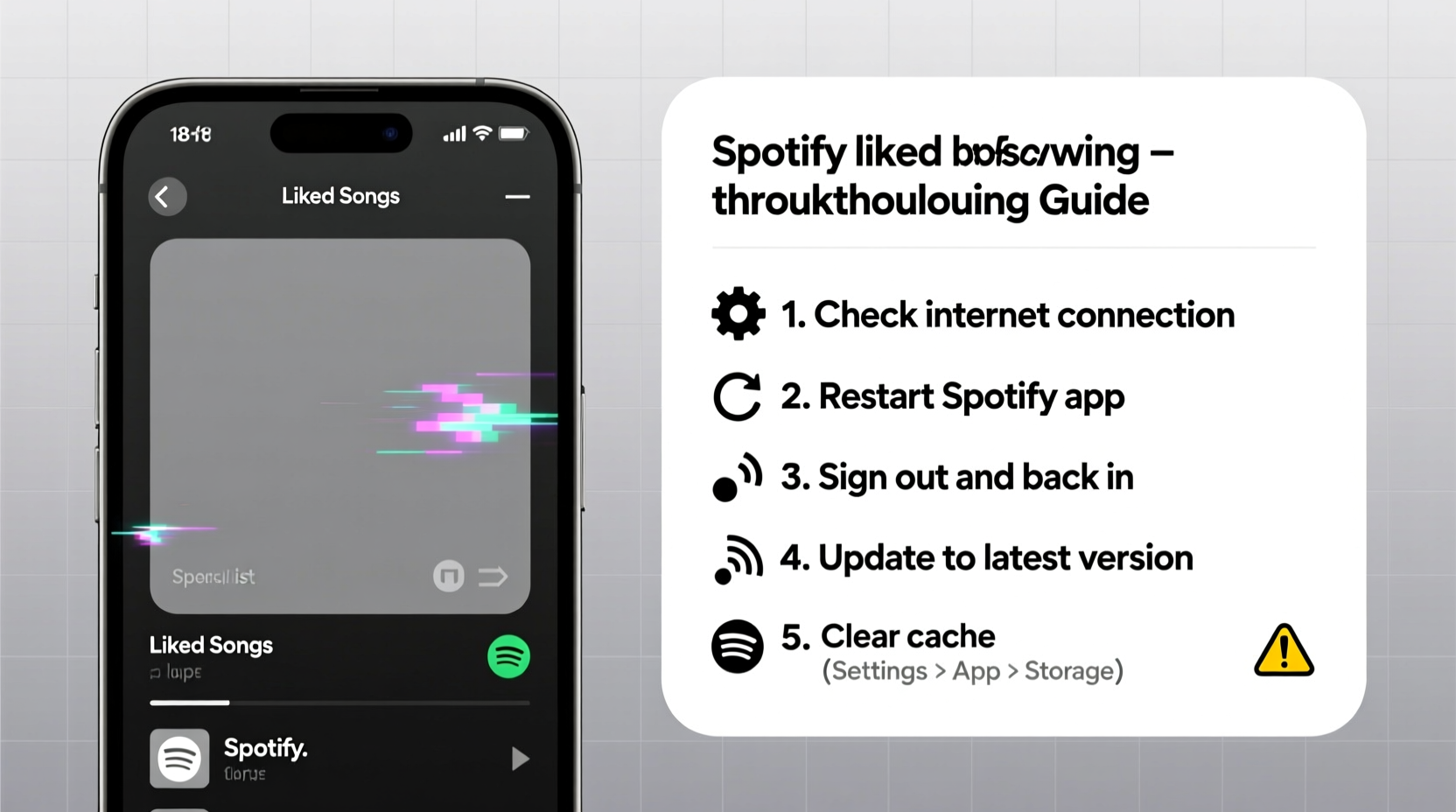
“Liked Songs” is a dynamic, automatically generated playlist that includes every track you’ve ever hearted in Spotify. Unlike regular playlists, it’s managed by the platform and cannot be manually edited. Because it syncs across devices via your account, any disruption in connectivity, caching, or authorization can cause display issues.
Common symptoms include:
- Liked songs appearing on one device but not another
- Blank or loading screen when opening Liked Songs
- Only recently liked tracks visible
- Error messages like “Unable to load playlist”
Before assuming your songs are lost, understand that Spotify stores your likes server-side. Unless you actively removed them, they’re likely intact—just temporarily inaccessible.
Step-by-Step Troubleshooting Guide
Follow this structured sequence to identify and resolve the issue efficiently. Start with basic checks before moving to advanced resets.
- Check Your Internet Connection
A weak or unstable connection prevents Spotify from fetching your library. Switch between Wi-Fi and mobile data to test. If other apps load content normally, the network isn’t the primary culprit—but poor signal can delay syncing. - Force-Close and Reopen Spotify
On mobile, swipe the app away from recent apps. On desktop, fully quit the application (via Task Manager or Activity Monitor if needed), then relaunch. This clears temporary memory glitches that may block playlist rendering. - Log Out and Back In
Go to Settings > Log Out. Restart the app, then log in again with your credentials. This refreshes your session token and forces a full library sync. It resolves authentication hiccups that prevent access to personal data. - Clear App Cache (Mobile Only)
For Android: Settings > Apps > Spotify > Storage > Clear Cache.
For iOS: Offload the app (Settings > General > iPhone Storage > Spotify > Offload App), then reinstall.
Note: Clearing cache does not delete your data but removes temporary files that might be corrupted. - Update the Spotify App
Outdated versions may have known bugs affecting playlist visibility. Visit your device’s app store and ensure you’re running the latest release. Developers frequently patch sync-related issues in updates.
Advanced Fixes for Persistent Issues
If basic steps fail, deeper intervention may be required. These methods target underlying software conflicts and account-level inconsistencies.
Reinstall the Spotify App
Uninstall Spotify completely, restart your device, then download and install the latest version from the official app store. This eliminates deeply embedded cache corruption and ensures a clean environment. Upon reinstallation, log in and allow time for full synchronization.
Check Offline Mode Settings
Accidentally enabled Offline Mode can restrict access to cloud-stored content. Navigate to Settings > Playback > Offline. If toggled on, disable it, restart the app, and check Liked Songs. When Offline Mode is active, only downloaded playlists are accessible.
Verify Account Type and Sync Status
Free accounts occasionally experience sync delays. Premium users enjoy priority syncing. To check sync status:
- Open Settings
- Look for “Sync Library” option
- Ensure it’s enabled
If disabled, turn it on and wait several minutes. You should see a progress indicator as your library reloads.
Use Web Player as Diagnostic Tool
Visit open.spotify.com and log in. Open your Liked Songs there. If tracks appear on the web but not the app, the issue is device-specific. Focus troubleshooting on that particular app installation.
“Over 70% of ‘missing liked songs’ reports are resolved by reauthorization and cache clearing. The data almost always remains safe on our servers.” — Spotify Community Support Team, via official forums
Troubleshooting Checklist
Use this checklist to methodically rule out common causes:
| Action | Status (✓/✗) |
|---|---|
| Check internet connection | |
| Force-close and reopen Spotify | |
| Log out and back in | |
| Clear app cache | |
| Update to latest app version | |
| Disable Offline Mode | |
| Reinstall Spotify app | |
| Test on web player | |
| Verify Sync Library is enabled |
Real Example: Maria’s Missing Playlist
Maria, a college student and daily Spotify user, noticed her Liked Songs playlist was empty on her Android phone. She panicked—over 5,000 tracks had vanished. However, she remembered liking a song earlier that day, and it played fine in her “Recently Played” list.
She followed these steps:
- Checked her Wi-Fi: strong signal.
- Forced close: no change.
- Logged out and back in: same issue.
- Cleared cache: still blank.
- Updated the app: already up to date.
- Tested on web browser: all songs visible.
The discrepancy between mobile and web pointed to a local app issue. She uninstalled Spotify, restarted her phone, and reinstalled. After logging in, her Liked Songs reappeared within two minutes. The root cause? A corrupted local database file preventing proper sync initialization.
Frequently Asked Questions
Are my liked songs really gone if I can’t see them?
No. Spotify stores your likes on its servers, not locally. As long as you haven’t deleted them manually or deactivated your account, they remain in your library. Display issues are typically temporary and fixable.
Why do my liked songs show up on one device but not another?
This usually indicates a sync failure on the affected device. Differences in app versions, outdated cache, or offline settings can cause desynchronization. Ensure all devices are updated and logged into the same account with Sync Library enabled.
Can reinstalling Spotify delete my liked songs?
No. Reinstalling only removes the app and its local cache. Your liked songs are tied to your account and will reappear once the app reconnects to Spotify’s servers and syncs your library.
Preventing Future Issues
To minimize recurrence:
- Keep Spotify updated automatically via your app store.
- Avoid toggling Offline Mode unless necessary.
- Restart the app periodically, especially after major system updates.
- Use strong, stable internet when accessing large playlists.
- Regularly check that Sync Library is enabled in Settings.
Conclusion
The frustration of not seeing your liked songs on Spotify is understandable, but rarely permanent. By following systematic troubleshooting—from simple restarts to full reinstalls—you can recover access in most cases. Remember, your music preferences are securely stored in the cloud; what’s broken is the connection between your device and that data.
Start with the basics, use the checklist, and don’t hesitate to test on the web player for quick diagnosis. Most importantly, act calmly. Rushing to delete and recreate playlists can create unnecessary complications. With patience and the right steps, your full library will return.




 浙公网安备
33010002000092号
浙公网安备
33010002000092号 浙B2-20120091-4
Comments
No comments yet. Why don't you start the discussion?