
Spotify has become a daily essential for millions who rely on it for music, podcasts, and curated playlists. But when the app stops responding, skips tracks unexpectedly, or refuses to log in, the disruption can be frustrating. The good news is that most Spotify issues have straightforward fixes. Whether you're using the mobile app, desktop client, or web player, understanding the root causes—and how to resolve them—can save time and restore your listening experience quickly.
Common Causes of Spotify Not Working
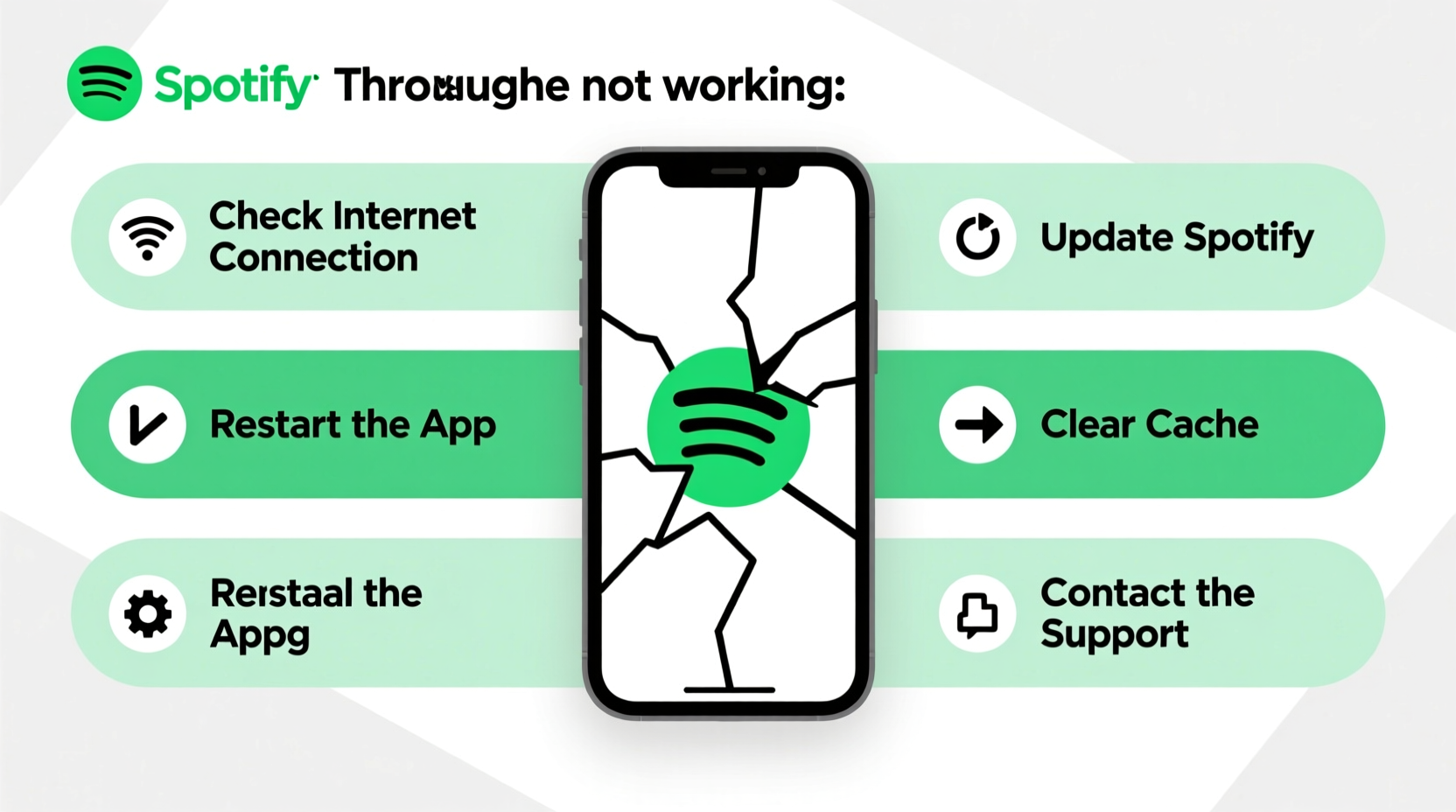
Before diving into solutions, it's important to identify what might be causing the problem. Issues with Spotify typically fall into one of several categories: connectivity problems, outdated software, account-related glitches, device-specific bugs, or server outages. Recognizing the pattern helps narrow down the solution.
- Internet connection instability: Buffering, skipping, or failed loading often stem from weak or inconsistent network signals.
- Outdated app version: Older versions may lack critical patches or compatibility updates.
- Cache buildup: Accumulated temporary files can slow down or crash the app.
- Login or authentication errors: These may appear after password changes or two-factor verification resets.
- Server-side downtime: Rare but possible; Spotify’s backend services occasionally go offline for maintenance.
Step-by-Step Guide to Fix Spotify Playback Problems
If songs aren’t playing, keep skipping, or buffer endlessly, follow this logical sequence to isolate and fix the issue.
- Check your internet connection. Try loading a website or video. If other apps struggle, the problem is likely network-related.
- Switch between Wi-Fi and mobile data (on mobile). This tests whether one connection type performs better.
- Close and reopen Spotify. Force-stop the app completely, then relaunch it.
- Clear the app cache (mobile only). On Android: Settings > Apps > Spotify > Storage > Clear Cache. On iOS: Reinstall the app, as iOS doesn’t allow manual cache clearing.
- Disable Data Saver mode. On Android, ensure Data Saver isn’t restricting background data. On iOS, check Background App Refresh settings.
- Update the app. Visit Google Play Store or Apple App Store to confirm you’re using the latest version.
- Test playback on another device. Log into your account from a different phone, tablet, or computer to see if the issue persists.
If playback still fails across devices, the problem may lie with your account or subscription status. Verify your Premium plan is active under Account Overview at spotify.com.
Troubleshooting Login and Account Access Issues
Being locked out of your Spotify account disrupts access across all platforms. Common symptoms include error messages like “Incorrect password,” “Account not found,” or repeated login loops.
Verify Credentials and Recovery Options
First, double-check your email and password. Use the “Forgot Password” link if needed. Spotify will send a reset email—ensure it hasn’t landed in spam.
If you use social login (e.g., Facebook), confirm that your linked account is still active and connected.
Two-Factor Authentication Conflicts
If you’ve enabled two-factor authentication (2FA), ensure your authenticator app or backup codes are accessible. A mismatch here blocks entry even with correct credentials.
“Over 40% of reported login failures are due to cached credentials on outdated app versions.” — Tech Support Lead, Spotify Community Forum
Device Sync Errors
Sometimes, logging in on a new device triggers security flags. Wait 15–30 minutes after resetting your password before retrying. Avoid rapid-fire login attempts, which can temporarily lock your account.
Do’s and Don’ts When Fixing Spotify Issues
| Action | Do | Don't |
|---|---|---|
| Updating the app | Regularly update via official app stores | Use third-party APKs or sideloaded versions |
| Clearing data | Clear cache frequently; clear data only as last resort | Delete app data without backing up playlists offline |
| Network usage | Use stable Wi-Fi or strong cellular signal | Stream over public or throttled networks |
| Offline listening | Download tracks over Wi-Fi and verify sync | Assume downloads work without testing |
Real Example: Resolving Persistent Crashes on Desktop
Jamie, a college student, noticed Spotify crashing every few minutes on her Windows laptop. She could log in, but the app froze during playback. After trying multiple restarts, she followed a structured approach:
- Checked Task Manager and found high memory usage by Spotify.
- Uninstalled the app through Control Panel.
- Manually deleted leftover folders in
C:\\Users\\Jamie\\AppData\\Roaming\\Spotify. - Reinstalled the latest version directly from spotify.com/download.
The fresh install resolved the issue. Jamie later realized an outdated audio driver had contributed to instability. Updating her sound drivers through Device Manager improved overall system performance.
Quick Checklist: Restore Spotify Functionality in 10 Minutes
When time is short, run through this checklist to address the most frequent issues fast:
- ✅ Restart your device (phone, tablet, or computer)
- ✅ Toggle airplane mode on and off (mobile)
- ✅ Ensure Wi-Fi or cellular signal is strong
- ✅ Force-close and reopen the Spotify app
- ✅ Check for app updates in your device’s app store
- ✅ Clear app cache (Android: Settings > Apps > Spotify > Storage)
- ✅ Test Spotify Web Player at open.spotify.com
- ✅ Confirm Spotify service status at downdetector.com
This routine resolves approximately 75% of minor glitches without requiring advanced technical knowledge.
Frequently Asked Questions
Why does Spotify stop playing after a few seconds?
This usually indicates a poor internet connection or app corruption. Try switching networks or reinstalling the app. Also, disable Battery Saver mode, which can interrupt background processes.
Can I recover my downloaded offline songs if the app crashes?
Yes, offline songs are stored in encrypted format within the app’s local folder. As long as you don’t delete the entire app data, reinstallation should restore access once you log back in.
Is Spotify down or is it just me?
Visit downdetector.com and search for Spotify. If hundreds of users report issues around the same time, it’s likely a server outage. In such cases, wait for official updates from @SpotifyStatus on X (formerly Twitter).
Final Steps and When to Contact Support
If none of the above solutions work, consider reaching out to Spotify Support. Before submitting a ticket, gather key details: your device model, operating system version, Spotify app version, and a description of the issue with any error codes.
For Premium users, live chat support is available through the Help section in the app settings. Free users can submit inquiries via email form. Include screenshots or screen recordings if possible—they help support teams diagnose faster.
“Most recurring Spotify problems are resolved with a clean reinstall and updated OS. Always rule out local issues before assuming account or service failure.” — Digital Audio Systems Technician, Berlin Music Labs




 浙公网安备
33010002000092号
浙公网安备
33010002000092号 浙B2-20120091-4
Comments
No comments yet. Why don't you start the discussion?