
If your music stops mid-chorus, skips tracks unexpectedly, or stutters during playback, you're not alone. Millions of Spotify users encounter playback disruptions that break the rhythm—literally. While Spotify is one of the most reliable streaming platforms, technical hiccups can still occur due to network instability, app bugs, or device-specific issues. The good news: most problems are fixable with a few targeted steps. This guide walks you through diagnosing and eliminating Spotify skipping across devices, from smartphones to desktops and smart speakers.
Understanding Why Spotify Skips
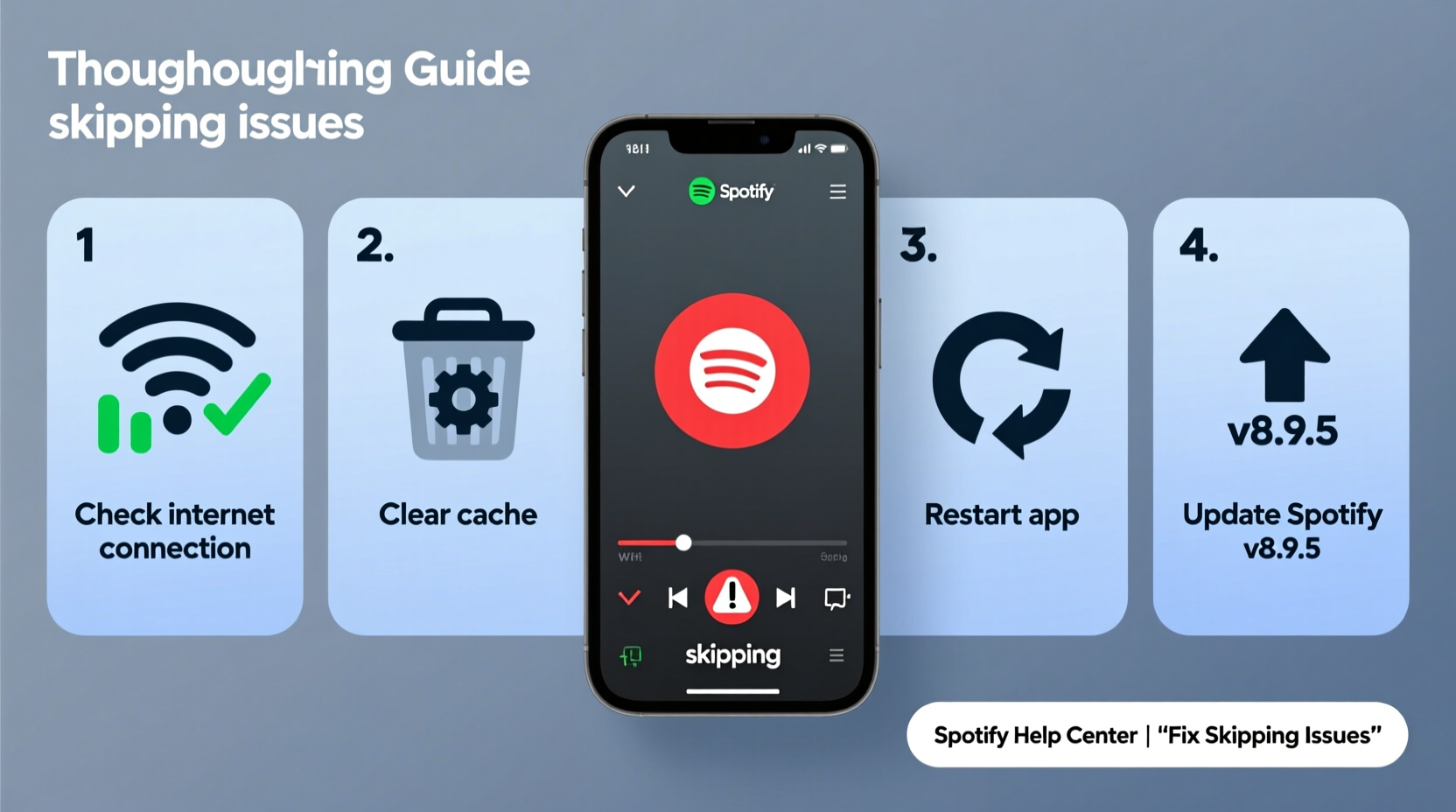
Spotify skipping isn’t always caused by the same issue. It could stem from poor internet connectivity, outdated software, corrupted cache, or even hardware limitations. Identifying the root cause is essential before applying fixes.
Common triggers include:
- Unstable Wi-Fi or cellular data connection
- Low bandwidth due to multiple connected devices
- Outdated Spotify app version
- Built-up cache interfering with performance
- Background apps consuming system resources
- Bluetooth interference (for wireless headphones)
- Server-side outages (rare but possible)
“Most skipping issues originate from local network conditions rather than Spotify’s infrastructure.” — David Lin, Senior Audio Engineer at SoundTech Labs
Step-by-Step Troubleshooting Guide
Follow this logical sequence to isolate and resolve the source of skipping:
- Check Your Internet Connection
Test your speed using a tool like Fast.com or Speedtest.net. For smooth streaming, you need at least 0.5 Mbps for low quality and 2 Mbps for high quality. If speeds are below this, restart your router or switch to a stronger network. - Switch Between Wi-Fi and Data
On mobile devices, toggle between Wi-Fi and cellular data to see if one performs better. Sometimes, crowded public networks or weak signals cause intermittent drops. - Restart the Spotify App
Close the app completely—swipe it away from recent apps on mobile or force quit via Task Manager on desktop—then relaunch it. - Reboot Your Device
A full restart clears temporary glitches in memory and connectivity that may affect audio playback stability. - Update the Spotify App
Go to your device’s app store and ensure you’re running the latest version. Developers regularly patch bugs affecting playback. - Clear the App Cache (Mobile Only)
On Android: Settings > Apps > Spotify > Storage > Clear Cache.
On iOS: Offload the app (Settings > General > iPhone Storage > Spotify > Offload App), then reinstall. - Disable Hardware Acceleration (Desktop)
In Spotify settings, turn off “Enable Hardware Acceleration” if enabled. Some graphics drivers conflict with this feature. - Test Playback on Another Device
Log into Spotify on a different phone, tablet, or computer. If skipping persists, the issue may be account-wide or related to your network.
Do’s and Don’ts When Fixing Spotify Skips
| Action | Do | Don't |
|---|---|---|
| Network Usage | Stream on a dedicated connection; limit other downloads | Download large files while listening |
| App Maintenance | Update Spotify monthly | Ignore update notifications |
| Device Performance | Close unused apps to free RAM | Run multiple media apps simultaneously |
| Audio Output | Use wired headphones for testing | Assume Bluetooth issues are Spotify's fault |
| Account Access | Try guest login to test functionality | Reset password unnecessarily |
Real-World Example: Commuter’s Streaming Fix
Sarah, a daily commuter in Chicago, experienced constant track skips on her 30-minute train ride. She assumed it was due to tunnel coverage gaps. After trying several fixes without success, she tested Spotify on her laptop using the same phone’s hotspot. The problem disappeared—pointing to her phone’s app state, not the network.
She cleared the Spotify cache, disabled battery optimization for the app (which was throttling background processes), and updated to the latest version. Since then, her morning playlists play uninterrupted—even underground.
This case illustrates how symptoms can mislead. What seems like a network issue might actually be device-level restrictions or software clutter.
Advanced Fixes for Persistent Skipping
If basic troubleshooting fails, consider these deeper interventions:
- Reinstall Spotify Completely
Delete the app entirely, restart your device, then download a fresh copy from the official store. - Change Audio Quality Settings
Lower the streaming quality temporarily: Settings > Music Quality > choose “Normal” instead of “Very High.” This reduces data load and may prevent buffering. - Check Router QoS Settings
If you control your router, enable Quality of Service (QoS) to prioritize media traffic. Assign higher bandwidth to your listening device during peak hours. - Disable IPv6
Some users report improved stability after disabling IPv6 in router settings. While modern networks support it, misconfigurations can cause packet loss. - Use Ethernet Over Wi-Fi (Desktop)
For desktop users, a wired connection eliminates wireless interference and latency spikes common on congested 2.4 GHz bands.
FAQ: Common Questions About Spotify Skipping
Why does Spotify skip only on my phone but work fine on my laptop?
This typically indicates a mobile-specific issue such as outdated app version, aggressive battery-saving settings, or cache corruption. Try clearing the cache or reinstalling the app first.
Does offline mode prevent skipping?
Yes—when songs are downloaded for offline use, they bypass streaming entirely. If offline tracks play smoothly but online ones skip, the culprit is almost certainly your internet connection or bandwidth limits.
Can too many devices on Spotify cause skipping?
Only if they're all using the same network. Multiple devices drawing bandwidth simultaneously—like tablets streaming video or phones on calls—can saturate your connection. Limit active devices during critical listening times.
Final Checklist: Stop Spotify Skipping for Good
- ✅ Test internet speed (minimum 2 Mbps recommended)
- ✅ Restart router and listening device
- ✅ Update Spotify to the latest version
- ✅ Clear app cache or reinstall if needed
- ✅ Switch to wired headphones for testing
- ✅ Lower audio quality temporarily to assess improvement
- ✅ Disable battery optimization for Spotify (mobile)
- ✅ Try offline playback to isolate network issues
- ✅ Monitor for known outages at status.spotify.com
Conclusion: Regain Control of Your Listening Experience
Spotify skipping doesn’t have to ruin your favorite playlist. With methodical troubleshooting, most interruptions can be eliminated in under 20 minutes. Start with simple fixes—restart, update, reconnect—then move to advanced options if needed. Pay attention to patterns: does skipping happen at the same time each day? On specific networks? These clues help pinpoint causes faster.
Your music should flow seamlessly, not stutter and stop. Take charge today by applying these solutions. Once resolved, maintain performance with regular updates and mindful usage habits.




 浙公网安备
33010002000092号
浙公网安备
33010002000092号 浙B2-20120091-4
Comments
No comments yet. Why don't you start the discussion?