
The handheld PC gaming market has exploded in recent years, with Valve’s Steam Deck and ASUS’s ROG Ally leading the charge. Both devices promise full access to your Steam library and beyond, but real-world performance—especially in battery life and game compatibility—can make or break the experience. For gamers deciding between these two powerhouses, understanding how they stack up in critical areas is essential. This detailed comparison cuts through marketing claims to deliver a clear picture of where each device excels and where it falls short.
Battery Life: Real-World Endurance Tested
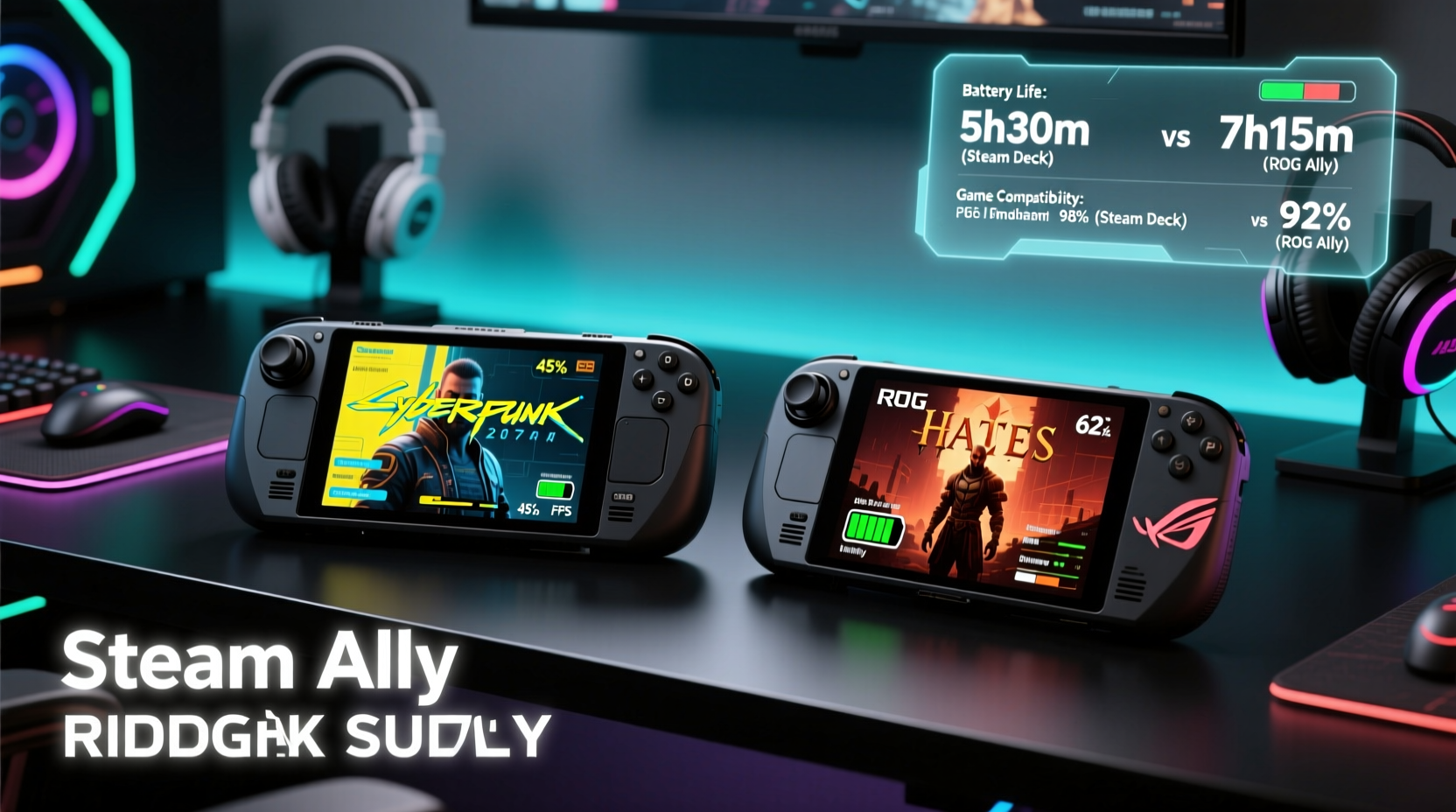
Battery life is a decisive factor for portable gaming. No one wants their session cut short by a dying device. The Steam Deck and ROG Ally use different hardware architectures, resulting in significant differences in power efficiency and longevity.
The Steam Deck uses a custom AMD APU based on Zen 2 CPU cores and RDNA 2 graphics, optimized specifically for low power consumption. In contrast, the ROG Ally features a more powerful AMD Ryzen Z1 Extreme chip with Zen 4 architecture and RDNA 3 graphics—more capable, but also more power-hungry.
In practical use, the Steam Deck consistently delivers longer battery life across most titles. Light indie games like *Hades* or *Dead Cells* can run for 6–8 hours. AAA titles such as *Elden Ring* or *Cyberpunk 2077* typically last 2–3 hours, depending on settings. The 50Wh battery, combined with aggressive power management and lower TDP (up to 15W), contributes to this endurance.
The ROG Ally, equipped with a slightly larger 50.9Wh battery, struggles to match that runtime due to its higher base power draw. In demanding games, battery life often dips below 2 hours at native resolution and max settings. However, using performance modes like “Balanced” or lowering resolution via FSR can extend playtime to 3–4 hours in less intensive titles.
Game Compatibility: How Well Do They Run Your Library?
Compatibility determines whether your favorite games actually work—and work well. While both devices run Windows-based or Proton-compatible games, their implementation varies significantly.
The Steam Deck runs SteamOS, a Linux-based operating system using Proton (Valve’s compatibility layer) to run Windows games. Over 90% of the top 100 Steam games are verified or playable, thanks to ongoing optimization from Valve. The verification program ensures developers test and patch titles for Deck performance, offering users confidence before launching a game.
On the other hand, the ROG Ally ships with full Windows 11 Home, giving direct access to any Windows application, including Epic Games Store, Xbox Game Pass, and GeForce Now. There's no need for compatibility layers—games run natively. This means better support for anti-cheat systems like Easy Anti-Cheat or BattlEye, which historically caused issues on early Linux/Proton setups.
However, native Windows comes with trade-offs. Background processes, updates, and bloatware consume resources that could otherwise go to gaming. Additionally, without a centralized verification system like Steam’s, users must rely on community reports or trial-and-error to determine if a title runs smoothly.
“Steam’s hands-on approach to compatibility has raised the bar for handhelds. The Deck isn’t just powerful—it’s predictable.” — James Chen, Senior Editor at PC Gamer
Performance Modes and Optimization Tools
Both devices offer multiple performance profiles, but their effectiveness differs due to underlying software design.
The Steam Deck includes four built-in performance presets accessible via the Quick Access menu: Auto, Balanced, Performance, and Manual. These allow fine-tuning of CPU/GPU clocks and fan speed. The system dynamically adjusts power based on thermal load, helping maintain stable framerates without overheating.
Additionally, SteamOS provides per-game configurations. Users can set default resolution scaling, frame rate caps, and controller layouts for individual titles, ensuring consistent behavior every time a game launches.
The ROG Ally uses Armoury Crate software to manage performance. It offers similar modes—Silent, Performance, and Turbo—but requires navigating a heavier UI. While powerful, Armoury Crate has received criticism for being resource-intensive and occasionally unstable. Some users report unexpected profile switches or input lag when background services interfere.
ASUS introduced GameVisual and noise reduction features, but these are secondary to core gaming needs. The lack of system-level game-specific profiles means users must manually adjust settings each time unless third-party tools are used.
Detailed Comparison Table: Battery & Compatibility
| Feature | Steam Deck | ROG Ally |
|---|---|---|
| Battery Capacity | 50 Wh | 50.9 Wh |
| Typical AAA Game Runtime | 2–3 hours | 1.5–2.5 hours |
| Indie/Light Game Runtime | 6–8 hours | 4–6 hours |
| Operating System | SteamOS (Linux-based) | Windows 11 Home |
| Game Compatibility Layer | Proton (with Steam Play) | N/A (native Windows) |
| Anti-Cheat Support | Most supported via Proton updates | Full native support |
| Verified Game Library | Yes (Steam Verified Program) | No official program |
| Per-Game Settings | Yes (built-in OS feature) | Limited (manual or third-party) |
Real-World Example: Playing Cyberpunk 2077
Consider a user trying to play *Cyberpunk 2077* on both devices. On the Steam Deck, the game is labeled “Playable” in the Steam database. With a few tweaks—downscaling to 1280x720, setting FSR to Quality mode, and capping FPS at 30—the game runs at a steady 28–30 fps. Load times are acceptable, and after a BIOS update, thermal throttling is minimized. Total play session lasts about 2 hours and 20 minutes on a full charge.
On the ROG Ally, the same game launches natively via Steam under Windows. At native 1080p with medium settings, performance averages 40–45 fps. However, temperatures climb quickly, and the fan becomes noticeably loud. Battery drains faster—only 1 hour and 45 minutes of gameplay before shutdown. Switching to 720p with FSR improves battery life to around 2 hours 10 minutes, but the advantage over the Deck is marginal despite superior raw specs.
This example illustrates a key insight: higher hardware capability doesn’t always translate to better user experience. Efficiency, optimization, and software integration matter just as much as teraflops.
Actionable Tips for Maximizing Performance
- Enable Auto-Suspend: Both devices benefit from suspending when closed. Ensure this is enabled in system settings to prevent battery drain.
- Use Frame Rate Capping: Limiting to 30 or 40 fps stabilizes performance and extends battery life significantly.
- Prefer Cloud Saves: Sync saves across platforms so you can switch devices seamlessly if one runs out of juice.
- Manage Background Apps: On the ROG Ally, disable unnecessary startup programs via Task Manager to free up RAM and reduce power usage.
- Update Firmware Regularly: Valve and ASUS frequently release optimizations. Don’t skip system updates—they often include battery or compatibility fixes.
Checklist: Choosing the Right Device for You
- ✅ Do you prioritize long battery life over peak performance? → Lean toward Steam Deck
- ✅ Are you invested in non-Steam platforms like Xbox Game Pass or EA App? → ROG Ally may suit you better
- ✅ Do you play competitive online games with strict anti-cheat? → ROG Ally offers fewer compatibility risks
- ✅ Do you value plug-and-play reliability over customization? → Steam Deck’s Verified system wins
- ✅ Will you connect to external displays or docks frequently? → Both support DisplayPort over USB-C, but ROG Ally handles 4K@120Hz more reliably
Frequently Asked Questions
Can the ROG Ally run all Steam games?
Yes, since it runs full Windows, the ROG Ally can install and run any Steam game that supports Windows. However, performance depends on hardware limitations and optimization. Some older titles may require patches or compatibility modes.
Does the Steam Deck struggle with anti-cheat games?
Historically, yes—but Valve has made major strides. Most modern anti-cheat systems now work via Proton updates. Titles like *Destiny 2*, *Apex Legends*, and *Fortnite* are fully functional on the latest SteamOS versions.
Which device is better for emulation?
The ROG Ally generally performs better in high-demand emulation (e.g., PS2, GameCube, Wii) due to its stronger CPU and full Windows environment, allowing easy installation of tools like RPCS3 or Dolphin. That said, the Steam Deck can emulate up to seventh-gen consoles effectively, especially with overclocking in desktop mode.
Final Verdict: Purpose Over Power
The ROG Ally boasts superior hardware on paper: faster CPU, newer GPU architecture, higher resolution screen, and broader peripheral support. Yet, when it comes to daily usability, the Steam Deck often feels more polished. Its tightly integrated ecosystem, intelligent power management, and curated compatibility give it an edge for most mainstream gamers.
The ROG Ally shines for power users who want full control over their system, plan to dock frequently, or rely on Windows-exclusive services. But that flexibility comes at the cost of shorter battery life and a steeper learning curve for optimization.
Ultimately, the choice isn’t about which device is “better,” but which aligns with your priorities. If you value seamless gameplay and extended sessions away from outlets, the Steam Deck remains the gold standard. If you demand maximum performance and full Windows functionality—even at the expense of runtime—the ROG Ally delivers.




 浙公网安备
33010002000092号
浙公网安备
33010002000092号 浙B2-20120091-4
Comments
No comments yet. Why don't you start the discussion?