
Managing digital purchases on Android devices often starts with a simple tap in the Google Play Store. Behind every app download, in-app purchase, or subscription renewal is a payment method stored in your Google account. Over time, credit cards expire, financial priorities shift, or you may simply want to switch to a more secure option. Updating your payment information ensures uninterrupted access to your favorite services and keeps your transactions safe. This comprehensive guide walks you through the process of changing your Google Play payment method across different devices and platforms, with expert-backed tips and real-world examples to help you avoid common pitfalls.
Why Updating Your Payment Method Matters
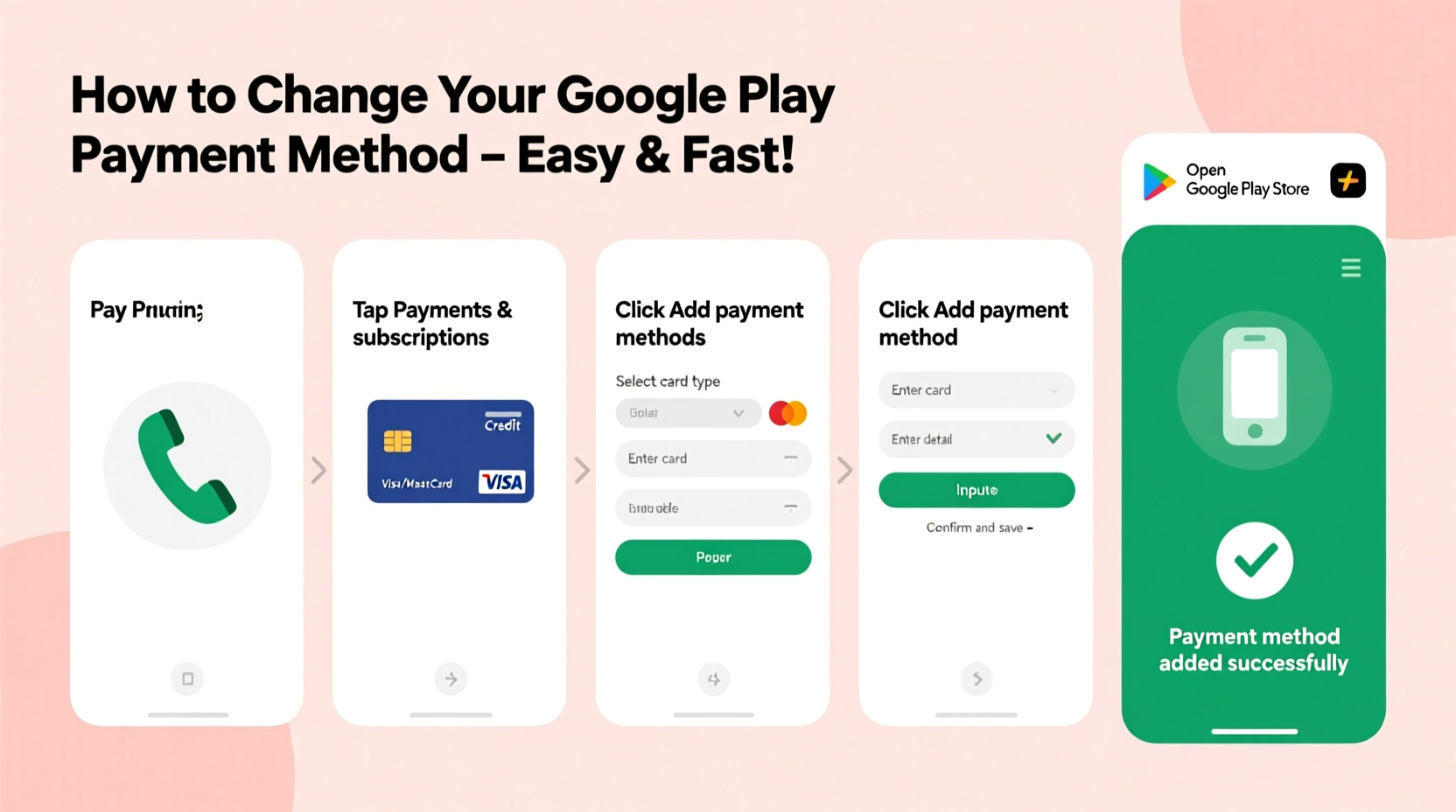
Your Google Play account links directly to your Google account, meaning any purchase—whether it’s a $0.99 game or a $15 monthly streaming subscription—is tied to the default payment method on file. When that card expires or gets canceled, subscriptions can fail, downloads may halt, and you might lose access to premium features. Worse, outdated information can lead to declined transactions and service interruptions without warning.
Changing your payment method proactively helps maintain seamless access to digital content. It also enhances security. If you’ve recently reported a lost card or suspect fraud, removing compromised details quickly reduces risk. Additionally, using Google Pay instead of direct card entry adds an extra layer of encryption and tokenization, protecting your actual card number during transactions.
“Keeping your digital payment methods current isn’t just about convenience—it’s a fundamental part of digital hygiene.” — Lena Patel, Cybersecurity Analyst at DigitalTrust Labs
Step-by-Step Guide: How to Change Your Payment Method on Android
The most common way users manage Google Play payments is through their Android device. Follow these steps carefully to update your default payment option:
- Open the Google Play Store app on your Android phone or tablet.
- Tap your profile icon in the top-right corner of the screen.
- Select “Payments & subscriptions” from the menu that appears.
- Choose “Payment methods” to view all currently saved options.
- If prompted, sign in to your Google account for verification.
- To add a new payment method, tap “Add payment method” and choose between credit/debit card, PayPal, carrier billing, or gift cards.
- Enter the required details (card number, expiration date, CVV, etc.) and confirm.
- To change the default method, return to the “Payment methods” screen, find the one you want to use, and tap “Set as default.”
- To remove an old or expired card, swipe left on the card or tap the three-dot menu next to it and select “Remove.”
How to Update Payment Info via Web Browser
If you're not near your Android device or prefer managing settings from a computer, you can update your Google Play payment method directly from a web browser. This method gives you a clearer overview and easier input for long card numbers.
Navigate to payments.google.com and log in with the same Google account linked to your Play Store. Once inside:
- Click on “Settings” in the left sidebar.
- Under “Payment methods,” click “+ Add payment method.”
- Fill in your card details or link a PayPal account.
- To edit existing info, hover over the card and click the pencil icon.
- To delete a method, click the trash icon after selecting it.
This web-based dashboard also shows recent transactions, active subscriptions, and security alerts, giving you greater control over your digital spending habits.
Checklist: Securely Managing Your Google Play Payments
Before finalizing changes to your payment setup, run through this essential checklist to ensure everything is handled correctly and securely:
- ✅ Verify your Google account is signed in on the correct device or browser.
- ✅ Confirm your new card has sufficient funds or credit limit.
- ✅ Ensure the billing address matches the one associated with the card.
- ✅ Set the new method as default to avoid failed transactions.
- ✅ Remove outdated or expired cards to reduce clutter and risk.
- ✅ Test the new method with a small purchase or subscription renewal.
- ✅ Enable two-factor authentication on your Google account for added protection.
Common Issues and How to Fix Them
Even when following instructions precisely, some users encounter errors when updating payment methods. Here are frequent problems and their solutions:
| Issue | Possible Cause | Solution |
|---|---|---|
| “Payment method not accepted” | Card issuer restrictions or regional settings mismatch | Contact your bank; verify country settings match account region |
| “Unable to save card” | Incomplete form or invalid CVV | Re-enter details carefully; check expiration date format |
| Old card still used for subscriptions | Default method not updated | Manually set new card as default under Payment Methods |
| Google Pay won’t load | Outdated app or disabled service | Update Google Play Services; enable Google Pay in settings |
Real Example: Maria’s Subscription Recovery
Maria had been using a debit card linked to her college bank account for years. After graduation, she closed the account and switched banks but forgot to update her Google Play settings. A month later, her meditation app subscription failed, locking her out of premium content she relied on daily.
When she opened the Play Store, she saw a notification: “Payment issue – update your method to continue.” Confused at first, she followed the in-app prompt to add her new card. Within minutes, her subscription reactivated, and access was restored. She now reviews her payment methods every six months and uses Google’s subscription reminder emails to stay ahead of renewals.
Maria’s experience highlights how easy it is to overlook digital housekeeping—and how quickly a few minutes of maintenance can resolve disruptions.
Frequently Asked Questions
Can I use multiple payment methods on Google Play?
Yes, you can store multiple cards, PayPal accounts, and other options. However, only one can be set as the default for automatic renewals and purchases unless you manually select another at checkout.
Will changing my payment method affect active subscriptions?
Not if done correctly. As long as a valid payment method is set as default before the renewal date, your subscriptions will continue uninterrupted. Always confirm the change takes effect prior to the billing cycle.
Is it safe to save my card on Google Play?
Google uses advanced encryption and tokenization to protect your data. Your actual card number is not shared with developers or third parties during transactions. For added security, consider using Google Pay as an intermediary rather than entering card details directly.
Final Thoughts: Take Control of Your Digital Finances
Updating your Google Play payment method is a small action with significant benefits. It prevents service lapses, strengthens account security, and gives you better oversight of recurring expenses. Whether you're switching to a new card, adding PayPal, or cleaning up old entries, the process is straightforward once you know where to look.




 浙公网安备
33010002000092号
浙公网安备
33010002000092号 浙B2-20120091-4
Comments
No comments yet. Why don't you start the discussion?