
Setting up a reliable and secure home network starts with correctly connecting and configuring your router. A poorly configured router can lead to slow speeds, dropped connections, and even security vulnerabilities. Whether you're replacing an old device or setting up internet for the first time, following a structured approach ensures optimal performance and protection. This guide walks through each phase—from unboxing to advanced settings—with practical advice to maximize speed, coverage, and safety.
1. Gather Equipment and Check Compatibility
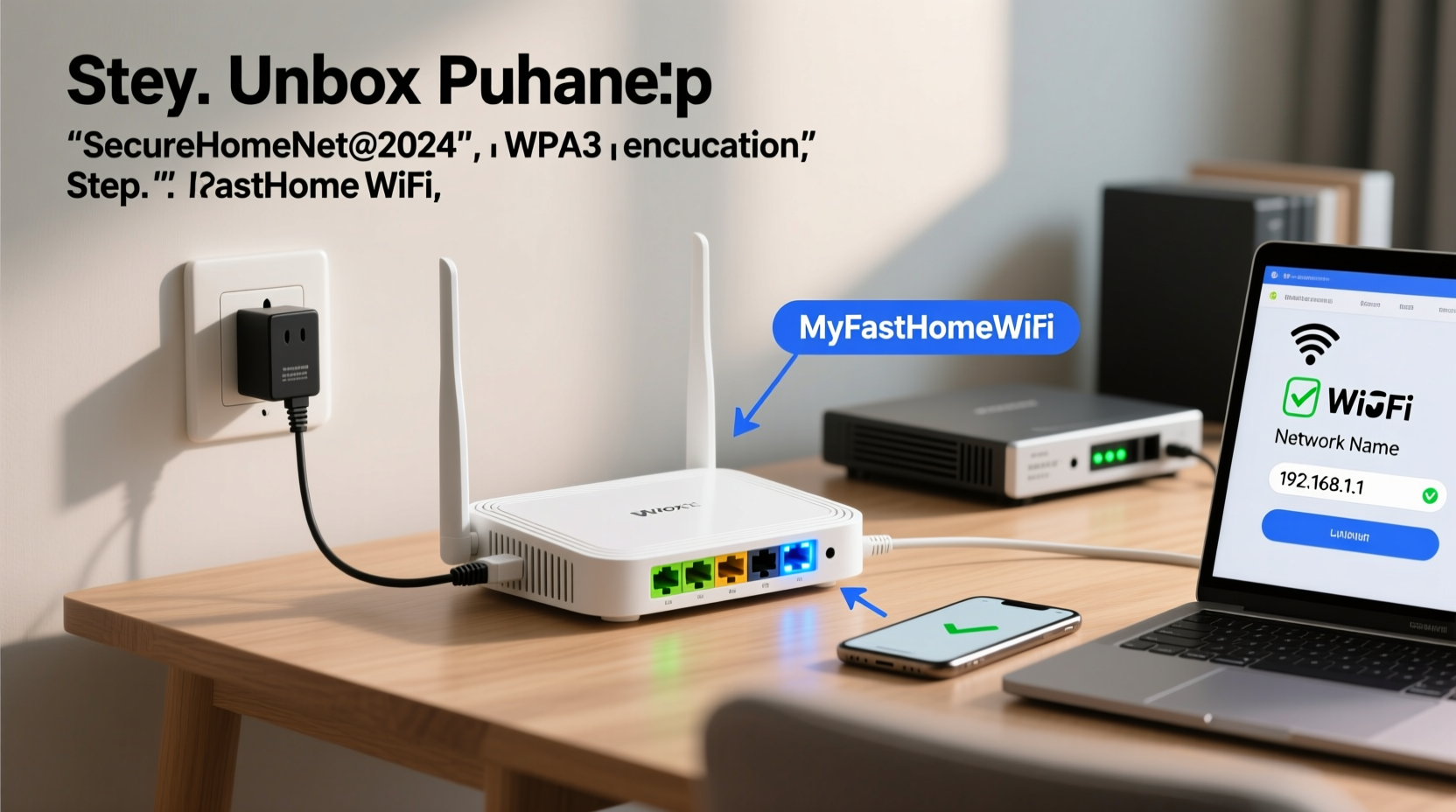
Before connecting any cables, verify that all components are present and compatible. Most internet service providers (ISPs) supply a modem-router combo, but using a standalone router often delivers better performance and control.
- Router: Ensure it supports your internet plan’s speed (e.g., Wi-Fi 5 for up to 500 Mbps, Wi-Fi 6 for 1 Gbps+).
- Modem: Must be compatible with your ISP (check approved models on their website).
- Ethernet cables: Use Cat 6 or higher for wired connections.
- Power adapters: Confirm both modem and router have correct power supplies.
- ISP credentials: Note down login details if PPPoE or username/password authentication is required.
2. Physical Connection Setup
Follow this sequence to establish a stable physical connection between your devices:
- Connect the coaxial cable (for cable internet) or fiber terminal (for fiber) to your modem.
- Power on the modem and wait 2–3 minutes for all lights to stabilize (usually “Online,” “Internet,” or “DS/US” lit solid).
- Use an Ethernet cable to connect the modem’s LAN port to the router’s WAN port (often labeled “Internet” and colored differently).
- Plug the router into power and turn it on. Wait 2 minutes for boot-up.
- Connect a computer via Ethernet to one of the router’s LAN ports or join the default Wi-Fi network (SSID and password are typically on a sticker on the router).
At this stage, your router should obtain a public IP address from your ISP and begin broadcasting a wireless signal. If no internet access appears, double-check cable connections and consult your ISP’s setup guide.
3. Access Router Settings and Configure Network
To customize your network, log in to the router’s admin interface:
- Open a web browser and enter the router’s IP address (commonly
192.168.1.1or192.168.0.1—check manual or label). - Enter the default username and password (often “admin/admin” or “admin/password”).
- Navigate to the wireless settings section.
| Setting | Action | Recommendation |
|---|---|---|
| Network Name (SSID) | Customize | Avoid personal identifiers; use something generic like “HomeNetwork_5G” |
| Security Mode | Select encryption type | Choose WPA3 if available; otherwise WPA2-Personal (AES) |
| Password | Set strong passphrase | At least 12 characters with mix of letters, numbers, symbols |
| Wi-Fi Bands | Enable dual-band | Separate 2.4 GHz (range) and 5 GHz (speed) networks if possible |
After saving changes, the router will reboot. Reconnect devices using the new SSID and password.
“Over 60% of home routers still use default passwords or outdated security protocols. Changing these basics cuts attack risk dramatically.” — David Lin, Senior Network Security Analyst at NetShield Labs
4. Optimize Performance and Security
Basic setup gets you online, but fine-tuning enhances reliability and protection.
Update Firmware
Manufacturers release firmware updates to patch vulnerabilities and improve stability. In the admin panel, check for updates under “Administration” or “Firmware.” Enable automatic updates if available.
Change Default Admin Credentials
Using “admin/admin” leaves your router exposed. Navigate to the system settings and create a unique, strong username and password for admin access.
Enable Guest Network
Offer visitors internet access without exposing your main network. Set a separate password and limit bandwidth if needed.
Use Quality of Service (QoS)
If multiple users stream, game, or work from home, prioritize critical devices. QoS lets you assign higher bandwidth to laptops or gaming consoles during peak hours.
Assign Static IPs for Key Devices
For smart home hubs, printers, or NAS drives, assign static local IPs via DHCP reservation. This prevents IP changes and improves accessibility.
5. Real-World Example: Improving a Lagging Home Office
Sarah, a freelance graphic designer in Austin, struggled with video call drops and slow file uploads despite having a 300 Mbps plan. Her router was tucked behind a bookshelf near the kitchen, creating dead zones in her office.
She followed these steps:
- Moved the router to a central hallway shelf.
- Updated firmware and switched from WPA2-TKIP (insecure) to WPA3.
- Enabled QoS to prioritize her desktop and VoIP phone.
- Connected her workstation via Ethernet for full-speed stability.
Result: Upload speeds increased from 12 Mbps to 45 Mbps, and Zoom calls became consistently clear. Her overall network responsiveness improved within 20 minutes of reconfiguration.
Quick Setup Checklist
Use this checklist to ensure no step is missed:
- ✅ Verify modem is online before connecting router
- ✅ Use Ethernet to link modem (LAN) to router (WAN)
- ✅ Log in to router admin page and change default credentials
- ✅ Set strong Wi-Fi password using WPA2/WPA3 encryption
- ✅ Update router firmware immediately
- ✅ Position router centrally, elevated, and unobstructed
- ✅ Enable guest network for visitors
- ✅ Test speed from multiple locations using tools like Fast.com or Speedtest.net
Frequently Asked Questions
Why is my internet slow after connecting the router?
Slow speeds can stem from poor placement, outdated firmware, interference, or ISP throttling. First, test speed via Ethernet—if fast, the issue is Wi-Fi related. Reposition the router, switch Wi-Fi channels, or upgrade equipment if necessary.
Do I need both a modem and a router?
Yes. The modem connects to your ISP and brings internet into your home. The router distributes that connection wirelessly or via Ethernet to multiple devices. Some devices combine both functions (gateway), but standalone units offer better performance and flexibility.
Can someone hack my router if it's not secured?
Yes. Unsecured routers are common targets for DNS hijacking, malware injection, and eavesdropping. Always enable strong encryption, disable WPS (which is vulnerable), and change default login details.
Final Steps and Long-Term Maintenance
Your router isn’t “set and forget.” Regular maintenance keeps your network fast and secure. Reboot the router every few weeks to clear memory leaks. Monitor connected devices monthly for unknown entries. Consider upgrading hardware every 3–5 years to support evolving standards like Wi-Fi 6E or enhanced IoT security.
A well-configured router transforms your internet experience—supporting seamless streaming, lag-free gaming, and secure remote work. By investing just 30 minutes in proper setup, you gain years of reliable connectivity.




 浙公网安备
33010002000092号
浙公网安备
33010002000092号 浙B2-20120091-4
Comments
No comments yet. Why don't you start the discussion?