
Streaming entertainment has evolved beyond traditional setups. With devices like the KingBox—a powerful Android TV box—you can access a vast library of content on your television. But what if you want to extend that experience to your mobile phone? Whether you're mirroring content, managing playback remotely, or using your phone as a controller, connecting your KingBox to your mobile device unlocks greater convenience and control.
This guide walks through every essential step to establish a reliable connection between your KingBox and smartphone. From network setup to app integration and troubleshooting, you'll learn how to create a seamless streaming ecosystem in your home.
Understanding the KingBox and Mobile Integration
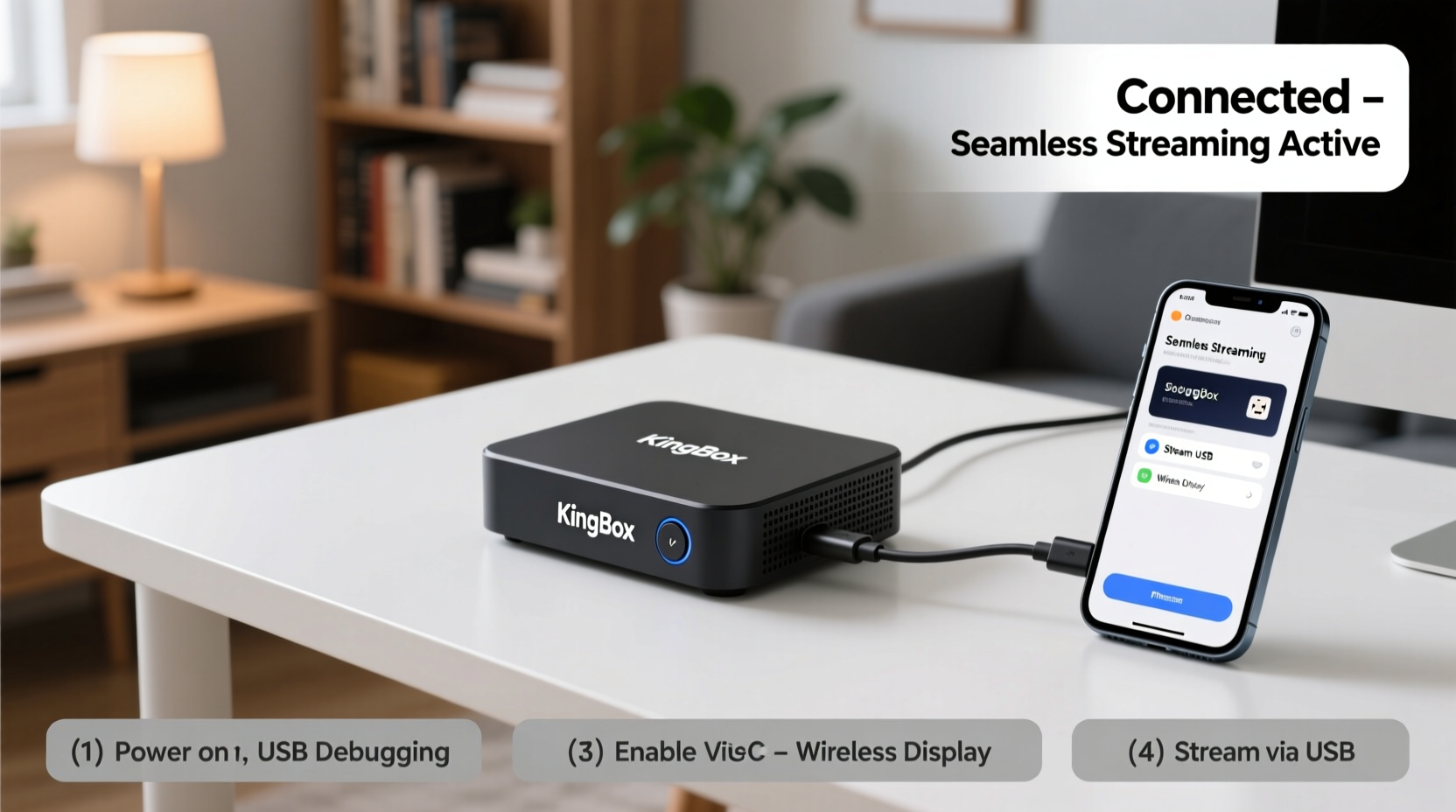
The KingBox runs on Android TV OS, giving it the flexibility to support third-party apps, remote access tools, and wireless protocols such as Miracast, Chromecast, and DLNA. While the device is designed for TV output, pairing it with your mobile phone enhances usability—especially when navigating menus, typing search queries, or casting personal media.
There are three primary ways to connect your KingBox to a mobile phone:
- Wi-Fi Direct/Mirroring: Cast your phone screen directly to the KingBox.
- Remote Control Apps: Use your phone as a touchpad or keyboard.
- Media Server Streaming: Share videos, photos, or music from your phone via local network apps.
Each method serves different needs. For example, mirroring is ideal for sharing social media clips, while remote control apps simplify navigation. Choose based on your use case.
Step-by-Step Guide to Connecting Your KingBox to a Mobile Phone
Step 1: Prepare Both Devices
- Power on your KingBox and ensure it’s running the latest firmware (Settings > Device Preferences > About > System Update).
- On your mobile phone, update the operating system and clear unnecessary background apps.
- Connect both devices to the same 2.4 GHz or 5 GHz Wi-Fi band. If possible, use 5 GHz for lower latency and faster speeds.
Step 2: Enable Screen Mirroring on KingBox
- Navigate to Settings on your KingBox.
- Select Display & Sound > Screen Mirroring.
- Turn on the feature and set visibility to “Visible to all devices” temporarily.
Step 3: Mirror from Your Mobile Phone
For Android Phones:
- Open Quick Settings panel (swipe down twice).
- Tap Smart View, Cast, or Screen Sharing (varies by brand).
- Select your KingBox from the list of available devices.
- Confirm connection on both screens.
For iPhones:
- Swipe up from the bottom (or down from top-right on newer models) to open Control Center.
- Tap Screen Mirroring.
- Choose your KingBox (may appear as “KingBox” or its model number).
- Enter the PIN displayed on the TV if prompted.
Step 4: Install Remote Control Apps (Optional)
Download a compatible remote app such as:
- Android TV Remote Control (Google Play Store / Apple App Store)
- Unified Remote
- AirMouse
Open the app, connect to the same network, and enter the IP address of your KingBox when prompted. These apps turn your phone into a keyboard, touchpad, and voice input tool.
Step 5: Stream Personal Media via Local Network
- Install a media server app like Kodi or Plex on your KingBox.
- Use the companion app on your phone (e.g., Plex Mobile) to link accounts.
- Add your phone’s photo/video folders as media sources within the app settings.
- Browse and stream directly from your phone to the KingBox over Wi-Fi.
“Wireless screen mirroring reduces clutter and gives users intuitive control over their home entertainment systems.” — Raj Mehta, Senior Home Theater Systems Engineer at AVTech Labs
Optimization Tips for Seamless Performance
Even after successful connection, poor performance can disrupt the experience. Follow these best practices to maintain smooth streaming:
- Reduce Interference: Keep routers and devices away from microwaves, cordless phones, and thick walls.
- Limit Bandwidth-Hungry Devices: Pause large downloads or cloud backups during streaming.
- Use Static IP (Advanced): Assign a fixed IP address to your KingBox in router settings to prevent disconnections.
- Enable Hardware Acceleration: In Kodi or MX Player settings, activate hardware decoding to reduce lag.
Do’s and Don’ts When Connecting KingBox to Mobile
| Do’s | Don’ts |
|---|---|
| Keep both devices updated with the latest software. | Try to mirror over Bluetooth—screen casting requires Wi-Fi. |
| Use strong Wi-Fi signal; consider a mesh network if needed. | Stream 4K video over a congested 2.4 GHz network. |
| Test connection with short clips before full movies. | Leave screen mirroring on when not in use—it drains battery and network. |
| Secure your network with WPA3 encryption to prevent eavesdropping. | Share sensitive content via mirroring in public networks. |
Real-World Example: Streaming Family Photos on TV
Sarah wanted to show her vacation photos to relatives gathered in the living room. Instead of passing around her phone, she connected her iPhone to her KingBox via AirPlay. After ensuring both devices were on the same Wi-Fi, she opened Control Center, tapped Screen Mirroring, and selected “KingBox-K9.” Within seconds, her photo album appeared on the big screen. She navigated through slideshows and even played travel videos without lag. The entire family enjoyed the presentation, and Sarah avoided the hassle of transferring files manually.
Frequently Asked Questions
Can I connect my KingBox to multiple phones at once?
Most KingBox models support only one active screen mirroring session at a time. However, multiple phones can access shared media libraries (e.g., via Plex) simultaneously. Remote control apps may allow concurrent connections, but only one typically has input priority.
Why does my screen mirroring keep disconnecting?
Common causes include weak Wi-Fi signal, network congestion, or power-saving modes on either device. Disable auto-sleep on your phone, restart the router, and check for interference from other electronics. Updating both devices’ firmware often resolves instability.
Is it safe to stream personal content wirelessly?
Yes, as long as your home network uses strong encryption (WPA2/WPA3). Avoid using public Wi-Fi for mirroring, as unsecured networks can expose your data. For added security, disable screen sharing when not in use and enable firewall settings on your router.
Final Checklist Before You Start
- ✅ Confirm both KingBox and phone are on the same Wi-Fi network.
- ✅ Enable screen mirroring or remote access on the KingBox.
- ✅ Update apps and OS versions on both devices.
- ✅ Test with a short video or image first.
- ✅ Position router centrally for maximum signal strength.
- ✅ Install a trusted remote app if needed.
Take Control of Your Streaming Experience
Connecting your KingBox to a mobile phone isn't just about convenience—it's about transforming how you interact with your home entertainment system. With the right setup, you gain instant access to personal media, intuitive controls, and a more dynamic viewing experience. Whether you're hosting guests, browsing content, or simply relaxing, this integration puts everything at your fingertips.




 浙公网安备
33010002000092号
浙公网安备
33010002000092号 浙B2-20120091-4
Comments
No comments yet. Why don't you start the discussion?