
A transparent logo is essential for modern branding. Whether you're designing for websites, social media, merchandise, or presentations, a logo with a transparent background ensures seamless integration across any visual context. Unlike logos with solid white or colored backgrounds, transparent logos adapt effortlessly to dark, textured, or dynamic backdrops. The good news? You don’t need expensive software or advanced design skills to create one. With the right approach and accessible tools, anyone can produce a polished, professional-looking transparent logo in under an hour.
Why Transparency Matters in Logo Design
Transparency in logos isn't just a technical detail—it's a strategic advantage. A transparent background allows your brand mark to remain consistent and recognizable regardless of where it’s placed. Imagine your logo on a business card with a navy blue background, then on a website hero section with a gradient overlay. Without transparency, edges appear boxed-in or artificially cut off, undermining professionalism.
Moreover, digital platforms—from email signatures to mobile apps—expect assets that blend naturally. Transparent logos maintain visual harmony and reduce the need for multiple versions tailored to different contexts.
“Branding consistency starts with asset flexibility. A transparent logo is non-negotiable in today’s multi-channel world.” — Jordan Lee, Brand Identity Consultant
Tools You Can Use (Free & Paid)
You don’t need Adobe Photoshop or Illustrator to create a transparent logo. Several user-friendly tools offer powerful features without a steep learning curve or subscription cost.
| Tool | Best For | Transparent Export? | Cost |
|---|---|---|---|
| Canva | Beginners, quick designs | Yes (PNG with transparency) | Free / Pro $12.99/mo |
| GIMP | Advanced editing, full control | Yes (via PNG export) | Free |
| Inkscape | Vector-based scalable logos | Yes (SVG/PNG export) | Free |
| Adobe Express | Brand-aligned templates | Yes | Free / Premium options |
| Figma | Collaborative design workflows | Yes (PNG/SVG) | Free / Team plans |
For most users, Canva or Inkscape strikes the ideal balance between ease of use and functionality. If you’re working with existing raster images (like JPEGs), GIMP provides precise layer control. For scalable vector output—ideal for printing and responsive design—Inkscape is the top free choice.
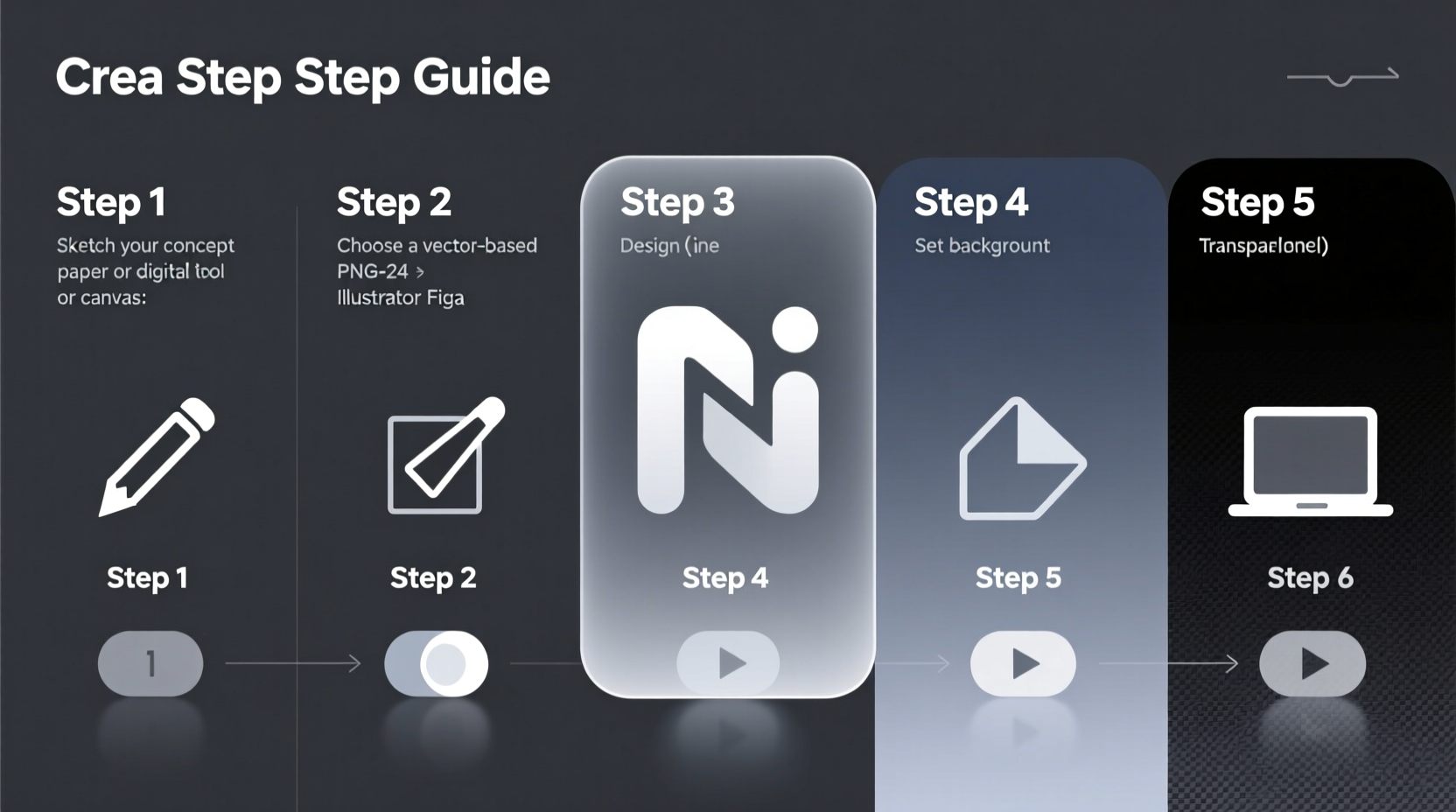
Step-by-Step Process to Create a Transparent Logo
Follow this structured workflow to build a clean, transparent logo from scratch or modify an existing one.
- Define Your Brand Elements
Create a simple sketch or mental image of your logo: typography, icon, color scheme, and layout. Simplicity enhances scalability and recognition. - Choose a Design Tool
Select one of the tools listed above. For beginners, start with Canva. Open a new design project and set custom dimensions (e.g., 500x500 pixels). - Design the Logo
Add text using branded fonts. Upload custom icons or choose from built-in graphics. Align elements symmetrically and ensure adequate spacing. Use a single focal point to avoid clutter. - Remove the Background
In Canva: Click “Share” > “Download” > Select “PNG” and toggle “Transparent background.” In GIMP or Inkscape: Delete or hide the background layer before exporting. - Export with Transparency
Save the file as PNG. Double-check by opening it in a viewer over a colored surface. If edges are clean and no white box appears, success!
Refining Existing Logos
If you already have a logo but it has a white or solid background, use background removal tools:
- Remove.bg – Upload a logo image; AI automatically removes the background. Download as PNG.
- Photopea – Free online Photoshop alternative. Use the Magic Wand or Pen Tool to isolate the logo and delete the background.
- Pixlr X – Offers manual masking and eraser tools for precision cleanup.
After removal, inspect the edges. Jagged lines or halos around letters indicate poor masking. Zoom in and refine manually if needed.
Checklist: Finalizing Your Transparent Logo
Before deploying your logo across platforms, verify these key points:
- ✅ Background is fully transparent (test by placing over a black background)
- ✅ File saved as PNG (or SVG for vector versions)
- ✅ No stray pixels or leftover background fragments
- ✅ Text remains legible at small sizes (e.g., favicon scale)
- ✅ Colors match brand guidelines exactly
- ✅ Saved in multiple sizes: 500x500, 1000x1000, and 2000x2000 pixels
- ✅ Backed up original editable file (.canva, .xcf, .svg)
Common Pitfalls and How to Avoid Them
Even experienced designers make mistakes when preparing transparent logos. Here are frequent issues and their solutions:
| Problem | Solution |
|---|---|
| White halo around logo elements | Use anti-aliasing carefully; avoid placing semi-transparent edges over contrasting colors |
| Blurry text after scaling | Design in vector format (SVG) whenever possible |
| Colors shift between screen and print | Stick to standard RGB values and test across devices |
| Logo appears pixelated | Export at high resolution (minimum 1000px on longest side) |
Real Example: From Concept to Deployment
Sophie runs a sustainable candle business called \"Lume Co.\" She designed her initial logo in Canva using a script font and a flame icon on a white rectangle. When she tried placing it on Instagram stories with colorful backgrounds, the white box clashed visually.
She revisited her Canva project, removed the background shape, ensured all layers were properly aligned, and downloaded the logo with the “Transparent background” option enabled. She tested it over a forest photo background—perfect fit. Now, her logo appears cleanly on packaging mockups, Shopify banners, and even embroidered labels where transparency aids in preview accuracy.
The entire fix took 12 minutes and improved her brand’s perceived professionalism overnight.
Frequently Asked Questions
Can I make a transparent logo from a JPEG?
Yes, but not directly. JPEG does not support transparency. You must first remove the background using tools like Remove.bg, Photopea, or GIMP, then export the result as PNG to preserve transparency.
What’s the difference between PNG and SVG for transparent logos?
PNG is a raster format ideal for complex images and solid-color logos. It supports transparency but loses quality when scaled up. SVG is a vector format—infinitely scalable without quality loss—perfect for responsive web design and print. Use SVG when possible; fall back to high-res PNG otherwise.
Why does my transparent logo still show a white box online?
This usually happens if the file was saved incorrectly (e.g., as JPEG or without enabling transparency). Also, some platforms auto-fill transparent areas with white unless explicitly told otherwise. Always check the upload preview and confirm the platform supports transparent images.
Final Steps: Deploy with Confidence
With your transparent logo finalized and tested, distribute it wisely. Store the master files in a secure folder labeled “Brand Assets” with subfolders for formats and sizes. Share only compressed versions externally to prevent misuse.
Integrate the logo into your email signature, website header, social profiles, and marketing materials. Monitor how it performs across devices—especially mobile screens—and adjust spacing or size if readability suffers.
“A great logo disappears into the experience. Transparency helps it do exactly that.” — Lena Patel, UX Design Director
Take Action Today
You now have everything needed to create a professional transparent logo—no design degree required. Whether you're launching a startup, rebranding a side hustle, or updating old materials, clarity and consistency begin with a well-crafted logo. Open your chosen tool, follow the steps, and publish your brand identity with confidence. The digital world rewards those who present themselves clearly and cleanly.




 浙公网安备
33010002000092号
浙公网安备
33010002000092号 浙B2-20120091-4
Comments
No comments yet. Why don't you start the discussion?