
Transparent images are essential in modern digital design. Whether you're building a website, designing a logo, or creating graphics for social media, the ability to remove backgrounds and preserve transparency ensures your visuals integrate seamlessly into any layout. Unlike opaque formats like JPEG, transparent images allow underlying content to show through, offering greater flexibility and professionalism. This guide walks you through the entire process—from choosing the right file format to editing with precision—using both free and professional tools.
Understanding Image Transparency and File Formats
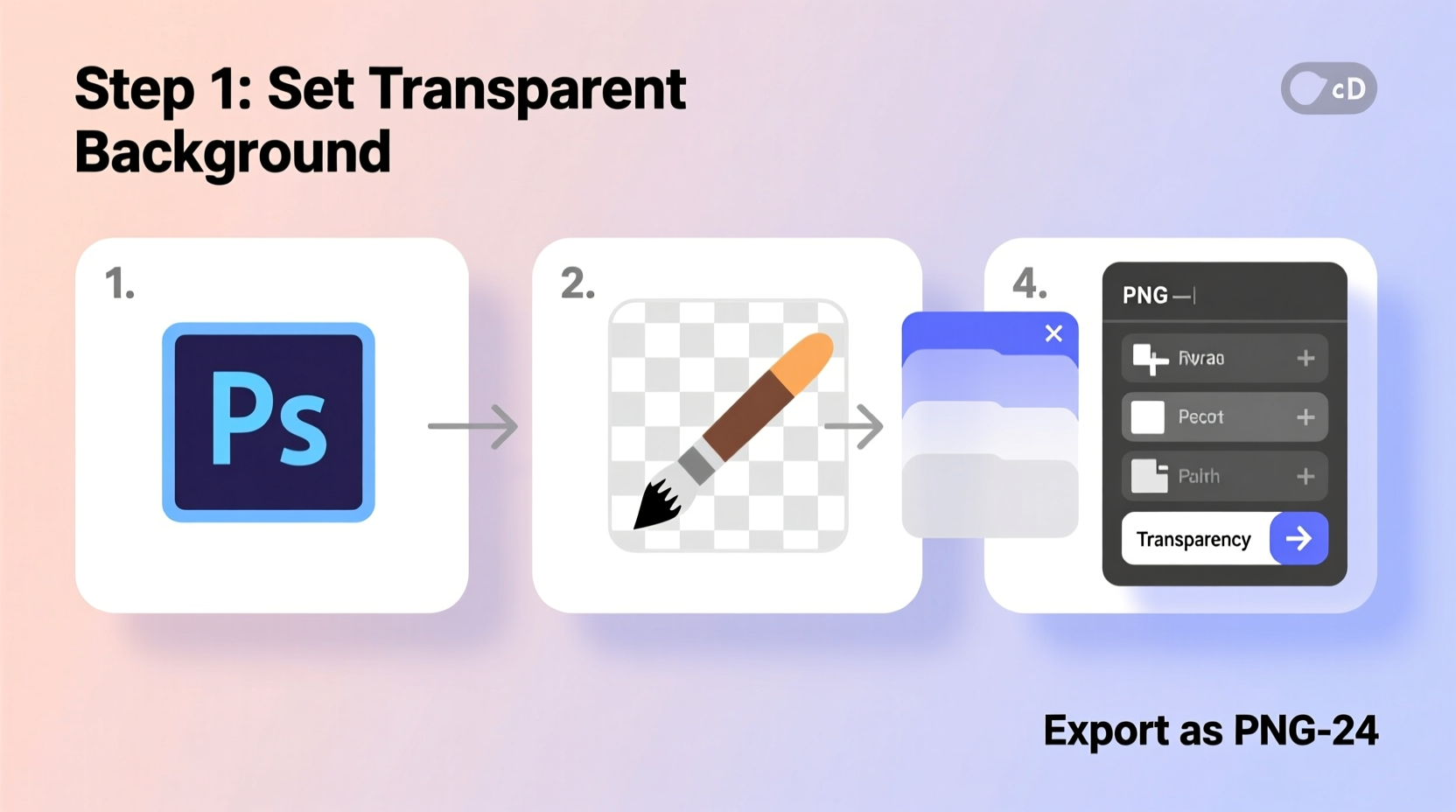
Not all image formats support transparency. Choosing the correct one is the first critical step. The most common formats with transparency support are PNG, GIF, and SVG. Each has its strengths depending on the use case.
| Format | Transparency Support | Best For | Limitations |
|---|---|---|---|
| PNG | Full (alpha channel) | Logos, icons, high-quality graphics | Larger file size than JPEG |
| GIF | Binary (on/off pixels) | Simple animations, small graphics | Limited to 256 colors |
| SVG | Vector-based, fully scalable | Logos, illustrations, responsive web graphics | Not suitable for photos |
| JPEG | No transparency | Photographs, complex color gradients | Absolutely cannot support transparency |
PNG is the most widely used format for static transparent images due to its lossless compression and full alpha transparency. SVG is ideal for logos and illustrations that need to scale without quality loss. GIF remains useful for simple animated graphics with transparency, though its color limitations make it less versatile.
Step-by-Step Guide to Creating Transparent Images
Creating a transparent image involves selecting the subject, removing the background, and exporting in the correct format. Below is a universal workflow applicable across multiple tools.
- Choose Your Editing Tool: Select software based on your skill level and needs—ranging from browser-based editors to desktop applications.
- Open Your Image: Import the image you want to edit. Ensure it's high-resolution for best results.
- Select the Subject or Background: Use selection tools (magic wand, lasso, or AI-powered mask) to isolate the area you want to keep.
- Invert and Delete Background: Once the background is selected, delete it. The checkerboard pattern typically indicates transparency.
- Refine Edges: Smooth jagged edges, especially around hair or fine details, using feathering or refine edge tools.
- Preview on Different Backgrounds: Test your image over white, black, and colored backgrounds to ensure clean edges.
- Export as PNG (or SVG/GIF): Save with transparency enabled. Avoid JPEG at all costs.
Recommended Tools for Transparency Editing
- Adobe Photoshop: Industry standard with advanced masking and layer capabilities.
- GIMP: Free, open-source alternative with robust selection and layer tools.
- Photopea: Free online editor that mimics Photoshop’s interface and supports PSD files.
- Remove.bg: AI-powered tool that automatically removes backgrounds in seconds.
- Figma: Ideal for UI/UX designers; supports PNG export with transparency.
“Precision in background removal separates amateur graphics from professional-grade assets.” — Lena Torres, Digital Design Lead at PixelForge Studios
Practical Tips for Flawless Transparency
Even with the right tools, poor technique can result in halo effects, jagged edges, or unintended artifacts. Follow these best practices to ensure high-quality output.
- Use High-Contrast Originals: Images where the subject clearly contrasts with the background are easier to process accurately.
- Avoid Busy Backgrounds: Complex patterns or cluttered scenes increase difficulty in selection and cleanup.
- Work in Layers: Keep the original image layer intact and apply edits on separate layers for non-destructive editing.
- Check Alpha Channels: In advanced tools like Photoshop, inspect the alpha channel to verify transparency masks are clean.
- Test Across Devices: Some older browsers or apps may render transparency slightly differently—always preview in context.
Mini Case Study: E-Commerce Brand Logo Integration
A boutique skincare brand wanted to display their new logo across various website sections—over hero banners, product cards, and mobile menus. The initial logo was saved as a JPEG with a white background, causing visual clashes on dark-themed pages.
The design team used GIMP to convert the logo into a transparent PNG. They carefully removed the white background, refined the delicate script font edges, and exported multiple sizes for responsive use. After implementation, the logo adapted seamlessly across light and dark themes, improving brand consistency and user experience. Conversion increased by 12% in the following quarter, partly attributed to cleaner visual presentation.
Checklist: Creating Perfect Transparent Images
Use this checklist before finalizing your transparent image:
- ✅ Confirm the source image is high resolution (300 DPI recommended for print, 72+ for web)
- ✅ Open the image in a transparency-supporting editor (Photoshop, GIMP, Photopea, etc.)
- ✅ Unlock the background layer if necessary (rename it to a regular layer)
- ✅ Use selection tools to isolate the subject or background
- ✅ Delete the background; verify transparency with a checkerboard pattern
- ✅ Refine edges using feathering, smoothing, or AI-assisted tools
- ✅ Preview the image on light, dark, and gradient backgrounds
- ✅ Export as PNG (for raster) or SVG (for vector) with transparency preserved
- ✅ Test the file in your actual project environment (website, app, presentation)
Common Pitfalls and How to Avoid Them
Mistakes in transparency creation often go unnoticed until deployment. Being aware of common issues helps prevent rework.
| Pitfall | Why It Happens | Solution |
|---|---|---|
| Halo effect around edges | Background color remnants or improper blending | Use decontaminate color option or manually erase edge fringes |
| Image still has white background after export | Exported as JPEG or didn’t unlock background layer | Re-edit and export as PNG; ensure layer is not locked |
| Poor detail on fine elements (hair, lace) | Low-resolution input or imprecise selection | Use high-res image and refine selection with AI or manual brush |
| Large file size | Unoptimized PNG with excessive metadata | Compress using tools like TinyPNG or ImageOptim |
FAQ
Can I make a transparent image from a JPEG?
Yes, but only by editing it in a transparency-capable program and exporting as PNG or another supported format. The original JPEG does not store transparency data, so conversion is required.
Why does my transparent image look blurry on certain backgrounds?
This often occurs when anti-aliasing blends the edges with the original background color. To fix it, reprocess the image, ensuring the background is completely removed and edges are cleaned using a neutral backdrop during editing.
Is SVG better than PNG for transparency?
It depends. SVG is superior for logos, icons, and vector art because it scales infinitely without quality loss. However, PNG is necessary for photographs or detailed raster images requiring transparency. Use SVG when possible for performance and scalability.
Mastering Transparency for Professional Results
Creating transparent images is no longer limited to expert designers. With accessible tools and clear techniques, anyone can produce polished, production-ready graphics. Whether you're enhancing a personal blog, launching a brand, or developing an app, transparency ensures your visuals appear intentional and integrated. The key lies in understanding formats, using precise editing methods, and verifying output in real-world contexts.




 浙公网安备
33010002000092号
浙公网安备
33010002000092号 浙B2-20120091-4
Comments
No comments yet. Why don't you start the discussion?