
Downloading and installing apps on your iPhone is a fundamental part of making the most of your device. Whether you're setting up a new phone or simply expanding what your current one can do, navigating the App Store and managing downloads doesn’t have to be confusing. With a clear understanding of the process, security settings, and troubleshooting techniques, you can confidently install any app with ease.
The App Store is Apple’s official marketplace for iOS applications, offering millions of apps ranging from productivity tools to entertainment platforms. While the interface is intuitive, users—especially those new to iOS—can sometimes feel uncertain about permissions, updates, or why an app won’t install. This guide walks through every stage of the process, highlights common pitfalls, and shares expert-backed strategies to keep your experience smooth and secure.
Understanding the App Store Interface
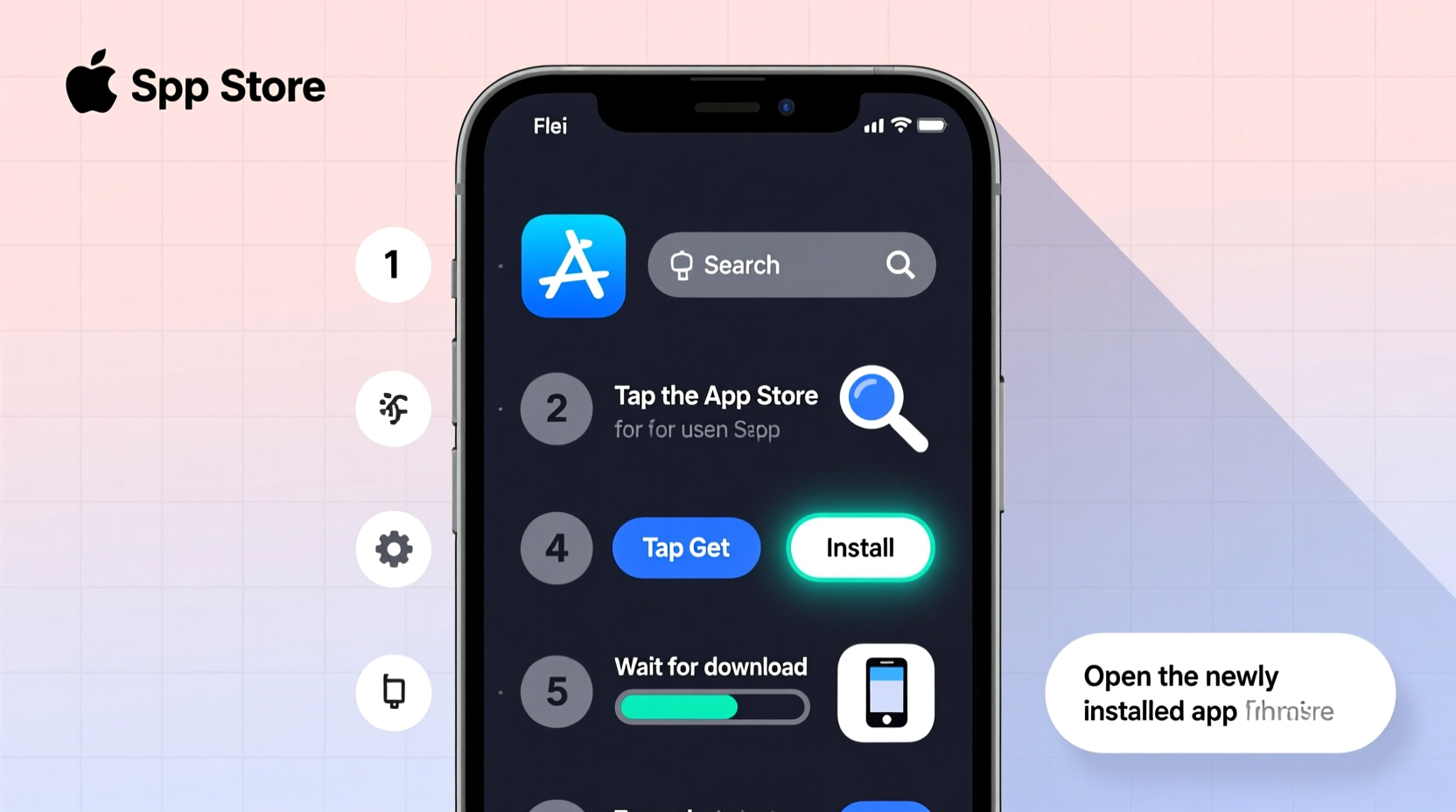
Before downloading anything, it's essential to familiarize yourself with the layout of the App Store. Open the blue icon with an uppercase \"A\" on a white background, typically found on your home screen. The main tabs at the bottom include:
- Today: Curated app features, stories, and recommendations.
- Games: Dedicated section for game discoveries and rankings.
- Apps: General-purpose apps across categories like business, education, and lifestyle.
- Search: Allows you to look up specific apps by name or function.
- Updates: Shows available updates for installed apps and allows re-downloading previously purchased apps.
Navigating these sections helps you discover high-quality apps tailored to your needs. However, always verify developer names and read reviews before installation to avoid counterfeit or malicious software.
Step-by-Step Guide to Downloading and Installing Apps
- Open the App Store from your iPhone’s home screen.
- Use the Search tab (magnifying glass icon) to type the name of the app you want, such as “Spotify” or “Google Maps.”
- Select the correct app from the results. Check the developer name and user ratings to confirm authenticity.
- Tap the cloud icon with a downward arrow (for free apps) or the price button (for paid apps).
- Authenticate using Face ID, Touch ID, or your Apple ID password when prompted.
- Wait for the app to download and install. A progress circle appears over the app icon on your home screen.
- Once complete, tap the app icon to open and begin setup.
This process works consistently across all modern iPhones running iOS 14 or later. If an app isn’t downloading, check your internet connection or storage space—common culprits behind failed installations.
Managing App Permissions and Privacy Settings
After installation, many apps request access to features like your camera, microphone, location, or contacts. These permissions are critical for functionality but should be granted thoughtfully.
When an app first launches, it may prompt you with alerts such as “Allow Photos to access your location?” You can choose “Allow While Using App,” “Allow Once,” or “Don’t Allow.” Choosing the least permissive option that still enables core functions enhances privacy.
To review or change permissions later:
- Go to Settings > Privacy & Security.
- Select the type of data (e.g., Location Services, Camera).
- Find the app in the list and adjust its access level.
“Apple’s permission model gives users control, but too many blindly accept all requests. Always consider whether an app truly needs the access it’s asking for.” — David Lin, Mobile Security Analyst
| App Type | Common Permissions Needed | Be Cautious If… |
|---|---|---|
| Navigation (e.g., Google Maps) | Location (always or while using) | Requests contact or photo access |
| Social Media (e.g., Instagram) | Camera, microphone, photos | Asks for motion or health data |
| Note-Taking (e.g., Evernote) | Photos (optional), microphone (voice notes) | Demands location tracking |
| Flashlight Tools | None typically needed | Requests ANY permissions |
Real Example: Setting Up a Fitness Tracker
Sophia recently bought an iPhone 15 and wanted to track her daily steps and workouts. She searched for “Fitbit” in the App Store, confirmed the developer was “Fitbit, Inc.,” and downloaded the app. After installation, she opened it and was asked to allow notifications, health data syncing, and location services.
She allowed Health access because Fitbit uses heart rate and activity data. She denied constant location tracking since she only wanted GPS during outdoor runs. By customizing permissions, Sophia ensured both functionality and privacy. The app now syncs seamlessly with her wearable device and provides accurate insights without unnecessary data sharing.
Troubleshooting Common Installation Issues
Even with a stable connection, some users encounter problems when downloading apps. Here are frequent issues and their solutions:
- App won’t download: Check Wi-Fi or cellular signal strength. Restart the App Store or your iPhone if frozen.
- \"Waiting\" or stuck progress: Force close the App Store via the app switcher and reopen it.
- Requires Apple ID password repeatedly: Go to Settings > [Your Name] > Media & Purchases and sign in again.
- “Not Enough Storage” error: Delete unused apps or media. Go to Settings > General > iPhone Storage to see recommendations.
- Incompatible with this iPhone: Older devices may not support newer app versions. Check the app’s compatibility under its description in the App Store.
If none of these work, try signing out of your Apple ID and back in under Settings > [Your Name]. This often resolves authentication glitches.
Checklist: Before Installing Any New App
- ✅ Verify the developer name matches the official company.
- ✅ Read recent user reviews and check the average rating.
- ✅ Confirm the app doesn’t require excessive permissions.
- ✅ Ensure your iPhone has enough free storage.
- ✅ Connect to a reliable internet network (Wi-Fi recommended).
- ✅ Back up your device regularly to prevent data loss.
Frequently Asked Questions
Can I download apps without using the App Store?
No. Apple restricts app installations to the App Store for security reasons. Third-party app stores or sideloading are not supported on standard consumer iPhones unless jailbroken—a practice Apple strongly discourages due to risks of malware and voided warranties.
Why does an app disappear after downloading?
This usually happens when the download starts but fails midway due to poor connectivity or low storage. Reopen the App Store and tap the cloud icon again to retry. Also, ensure Background App Refresh is enabled under Settings > General.
Do I need to pay for app updates?
No. Once you purchase or download an app, all future updates are free. Developers release updates to fix bugs, improve performance, or add features at no additional cost.
Conclusion
Downloading and installing apps on your iPhone is designed to be simple, secure, and efficient. By understanding how the App Store works, managing permissions wisely, and knowing how to resolve common issues, you maintain full control over your digital experience. Every app you install adds value—from boosting productivity to enriching leisure time—but only if done thoughtfully.




 浙公网安备
33010002000092号
浙公网安备
33010002000092号 浙B2-20120091-4
Comments
No comments yet. Why don't you start the discussion?