
Shutterfly is one of the most popular platforms for storing, sharing, and printing personal photos. Whether you've uploaded years of family memories or just finished organizing a recent vacation album, there may come a time when you want to back up or transfer those images elsewhere. Downloading your photos from Shutterfly ensures you retain control over your digital memories—even if you decide to switch services or simply want an offline copy.
While Shutterfly doesn’t make bulk downloads immediately obvious, the process is straightforward once you know the right steps. This guide walks you through everything you need to know to retrieve your photos efficiently, avoid common pitfalls, and preserve your image quality.
Why Download Photos from Shutterfly?
There are several compelling reasons to download your photos:
- Data ownership: You own your images, and having local copies gives you full control.
- Service changes: Platforms update policies or pricing—downloading now protects against future access issues.
- Backup strategy: Relying on a single cloud service is risky; diversifying storage reduces data loss risk.
- Editing flexibility: Local files can be edited, shared, or printed without platform restrictions.
Step-by-Step Guide to Downloading Photos from Shutterfly
Follow this clear sequence to retrieve your images from any device:
- Log in to your Shutterfly account
Go to shutterfly.com and sign in using your email and password. Ensure you're accessing the correct account if you have multiple profiles. - Navigate to Your Albums
Click on “My Photos” in the top menu. This displays all your uploaded albums and folders. If you’ve organized photos into specific collections (e.g., “Summer 2023,” “Family Reunion”), locate the one you’d like to download. - Select Photos for Download
Open the desired album. To select individual photos, click the checkbox in the top-left corner of each thumbnail. For bulk selection, use the “Select All” option at the top of the photo grid. Note: Some older accounts may not show “Select All” if the album exceeds 200 images—work in smaller batches if needed. - Initiate the Download
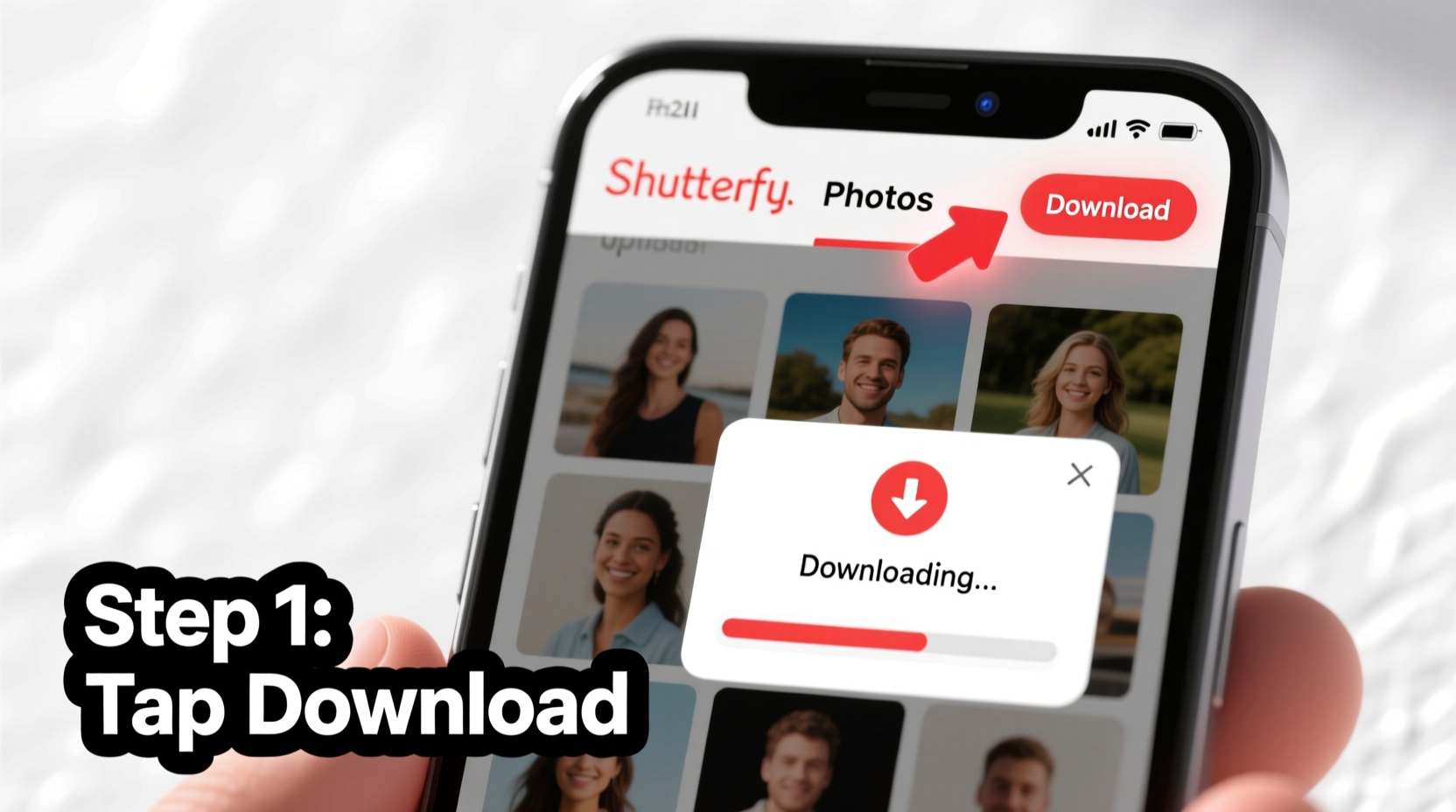
Once photos are selected, click the “Download” button (usually represented by a downward arrow icon). A pop-up will appear asking whether you want to download originals or resized versions. - Choose Image Quality
Select “Original Size” to preserve full resolution and metadata. Choosing “Smaller Size” reduces file size but degrades quality—only use this for quick sharing, not archiving. - Wait for Zip File Generation
Shutterfly packages selected images into a .zip file. Depending on the number and size of photos, this may take anywhere from 30 seconds to several minutes. You’ll receive a notification when it’s ready. - Save the File to Your Device
Click the download link to save the .zip file to your computer or mobile device. On mobile, ensure you have enough storage space and consider transferring files to cloud storage (Google Drive, iCloud) afterward. - Unzip and Organize
Use built-in tools (Windows Explorer, macOS Archive Utility) or third-party software (WinZip, 7-Zip) to extract the files. Rename and organize them into dated folders for long-term clarity.
Troubleshooting Common Download Issues
Despite its user-friendly interface, some users encounter obstacles when downloading from Shutterfly. Here are frequent problems and how to resolve them:
| Issue | Possible Cause | Solution |
|---|---|---|
| “Download” button missing | Not signed in or viewing shared album | Ensure you’re logged into the owner account; shared viewers cannot download unless granted permission. |
| Download fails or stalls | Slow internet or large file size | Try during off-peak hours or break downloads into smaller sets (e.g., 50 photos at a time). |
| Corrupted zip file | Interrupted download or server error | Delete incomplete file and retry. Clear browser cache if issue persists. |
| Photos appear blurry after download | “Smaller Size” option was selected | Re-download using “Original Size” setting. |
“We recommend downloading original-resolution files within six months of upload, as processing pipelines can occasionally compress legacy images during system updates.” — Digital Archiving Team, Cloud Preservation Institute
Best Practices for Managing Downloaded Photos
Downloading is only half the battle—proper organization ensures your memories remain accessible for years.
✅ Photo Management Checklist
- Verify all files opened correctly after extraction
- Create a master folder labeled by year (e.g., “Photos_2023”)
- Subdivide into event-based folders (“Beach Trip,” “Birthday Party”)
- Add descriptive filenames instead of generic ones like “IMG_1234.jpg”
- Back up files to two locations: external hard drive + cloud storage
- Run annual checks to ensure media integrity
Real Example: Recovering a Decade of Memories
Sarah, a longtime Shutterfly user from Portland, realized she hadn’t downloaded her photos in nearly ten years. After receiving an email about upcoming subscription changes, she decided to act. She started by logging in and reviewing her 47 albums. Using the “Select All” function, she downloaded five key albums containing family milestones—her children’s birthdays, holiday gatherings, and a cross-country road trip.
The first attempt failed due to a network timeout with over 1,200 images. She adjusted her approach: breaking downloads into groups of 200, using her home Wi-Fi during low-usage hours, and saving each .zip file directly to an external SSD. Within three days, she had fully backed up 9,000 photos. She then synced copies to Google Photos and labeled each folder chronologically. “I wish I’d done this sooner,” she said. “Now I sleep better knowing my kids’ childhood isn’t trapped behind a login screen.”
Frequently Asked Questions
Can I download all my Shutterfly photos at once?
No, Shutterfly does not offer a one-click “download all” feature. However, you can streamline the process by selecting entire albums at a time. For accounts with many albums, batch processing—downloading 2–3 albums per session—is the most reliable method.
Are downloaded photos high resolution?
Yes—but only if you choose “Original Size” during the download prompt. Shutterfly stores full-resolution versions even if thumbnails appear compressed online. Avoid the “Smaller Size” option if you plan to print or edit photos later.
Does Shutterfly delete inactive accounts?
As of current policy, Shutterfly does not automatically delete photos from inactive accounts. However, they reserve the right to deactivate unused accounts after extended periods (typically 5+ years). Downloading your library eliminates dependency on such policies.
Take Control of Your Digital Legacy Today
Your photos are more than pixels—they’re moments preserved, stories told, and legacies built. While Shutterfly provides a convenient platform for creating keepsakes, true peace of mind comes from owning your data outright. By following the steps outlined here, you can securely retrieve your images, organize them thoughtfully, and protect them for generations.
Don’t wait for a policy change or technical glitch to prompt action. Set aside an hour this week to begin downloading your most important albums. Your future self—and your family—will thank you.




 浙公网安备
33010002000092号
浙公网安备
33010002000092号 浙B2-20120091-4
Comments
No comments yet. Why don't you start the discussion?