
Filling out PDF forms is a routine task for many—whether it’s tax documents, job applications, or medical intake forms. While most people assume they need specialized software like Adobe Acrobat to edit or customize these files, that’s no longer the case. Thanks to modern web tools and built-in browser capabilities, you can complete, modify, and personalize PDF forms quickly and securely without downloading any software.
This guide walks you through practical, accessible methods using only your web browser and trusted online platforms. Whether you're on a work computer with restricted downloads or simply prefer lightweight solutions, these techniques will save time and streamline your workflow.
Why Avoid Software? The Case for Browser-Based Solutions
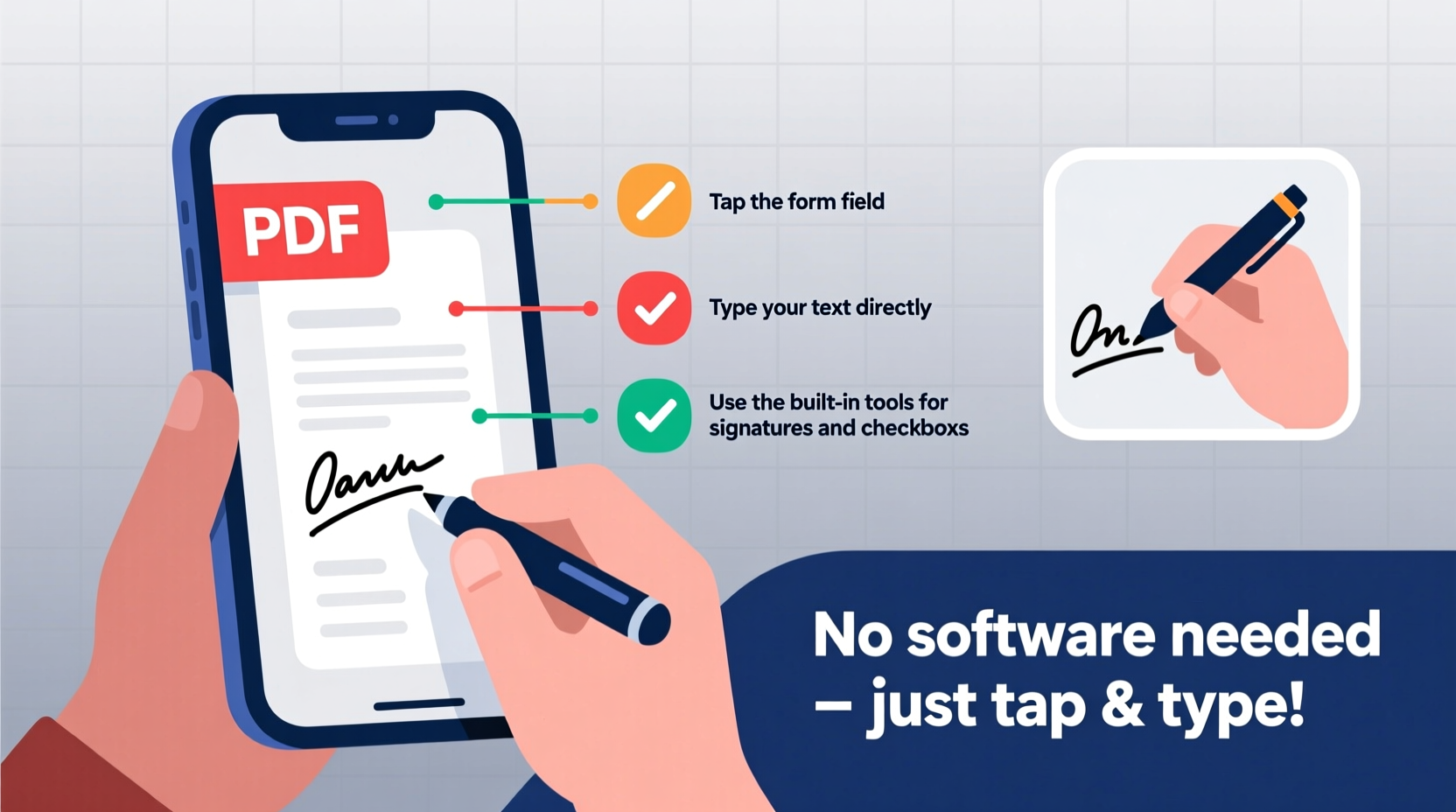
Traditional PDF editing tools often come with steep learning curves, high costs, or installation requirements that aren’t feasible in every environment. Schools, public libraries, shared workstations, and older devices may block software installations. Even when allowed, updates and compatibility issues can disrupt productivity.
Browser-based tools eliminate these barriers. They’re instantly accessible, require no maintenance, and are increasingly powerful. Many offer real-time collaboration, cloud integration, and encryption—all from within Chrome, Firefox, Safari, or Edge.
“Modern web applications have closed the functionality gap between desktop software and online tools. For most everyday PDF tasks, users don’t need anything more than their browser.” — Dr. Lena Patel, Digital Workflow Researcher at MIT Media Lab
Step-by-Step: How to Fill a PDF Form Using Your Browser
You don't need to install anything to fill out a standard fillable PDF. Most current browsers support basic form entry right out of the box.
- Open the PDF in your browser: Drag and drop the file into a new browser tab, or right-click the PDF and select “Open with” > your preferred browser.
- Navigate the form fields: Click inside text boxes, checkmarks, dropdowns, or radio buttons just as you would in a document editor.
- Enter your information: Type responses directly into each field. Use Tab to move between them efficiently.
- Save your completed form: Look for a download or print option. In Chrome, click the printer icon (Ctrl+P), then choose “Save as PDF” under Destination.
- Name and store the file: Save the filled version with a clear filename (e.g., “Application_Form_JohnDoe_Filled.pdf”) to avoid confusion later.
Customizing Non-Fillable PDFs Without Installation
Not all PDFs come with editable fields. If you receive a scanned document or static form, you’ll need to add input areas manually. Here’s how to do it safely and effectively using free online tools.
Recommended Tools (No Sign-Up Required)
- PDFescape.com: Offers full form creation, text insertion, checkboxes, and signature fields.
- Sejda PDF Editor (web version): Allows adding text, images, annotations, and form fields up to 50MB per task.
- DocHub: Integrates with Google Drive and supports typing, drawing, and e-signatures.
Process Overview
- Go to PDFescape.com (or another listed tool).
- Click “Upload PDF” and select your file from your device or cloud storage.
- Wait for processing—this usually takes under 30 seconds.
- Select the “Form Field” tool to insert text boxes, dropdowns, or checkboxes where needed.
- Click anywhere on the page to place a field, then adjust size and label it appropriately (e.g., “Full Name”, “Date”).
- Use the “Text” tool to overlay static labels or instructions if the original scan is low quality.
- Once finished, click “Save” and download the customized PDF to your device.
Comparison of Top Free Online PDF Editors
| Tool | Max File Size | Form Editing | Save Without Account? | Security Features |
|---|---|---|---|---|
| PDFescape | 100 MB | Yes – full form builder | Yes | SSL encryption, auto-delete after 2 hours |
| Sejda Web | 50 MB | Yes – advanced fields | Limited; requires email for larger files | End-to-end encryption, temporary storage |
| DocHub | Unlimited via Google Drive | Yes – intuitive interface | Yes (basic), account recommended | Google-authenticated, encrypted transfer |
| Smallpdf (Free Tier) | 2 files/day up to 2 MB | Basic form filling only | No – sign-up required | Data encryption but limited retention policy |
Avoiding Common Pitfalls When Editing PDFs Online
While browser-based tools are convenient, misuse can lead to lost data, formatting errors, or privacy risks. Follow this checklist to stay safe and efficient.
PDF Customization Safety Checklist
- ✅ Confirm the website uses HTTPS and clearly states its privacy policy.
- ✅ Delete uploaded files from the server after download (if the option exists).
- ✅ Avoid entering sensitive personal data (like SSNs) unless absolutely necessary and on secure connections.
- ✅ Always keep an original copy of the unedited PDF before uploading.
- ✅ Test the final form on another device or browser to verify compatibility.
- ✅ Rename downloaded files immediately to distinguish edited versions.
“Uploading confidential documents to unknown sites is risky. Stick to well-known platforms with transparent data handling policies.” — Mark Tran, Cybersecurity Consultant at TrustEdge Solutions
Real-World Example: Customizing a Rental Application
Sophie, a property manager, receives tenant applications as scanned PDFs with no fillable fields. She used to print each one, handwrite notes, and rescan—but now she uses a faster method.
She uploads the application to PDFescape, adds text fields for “Move-In Date,” “Pet Information,” and “Emergency Contact,” then saves the template. When new applicants send the base form, she reuses her customized version, fills in details digitally, and shares it securely via email. Her process now takes minutes instead of hours, and everything remains organized in digital folders.
This approach improved accuracy, reduced paper waste, and made onboarding smoother for both tenants and staff.
Frequently Asked Questions
Can I edit a PDF on my phone without installing an app?
Yes. Open the PDF in your mobile browser, upload it to a site like PDFescape or DocHub, and use touch controls to add text or form fields. Most tools are mobile-responsive and support pinch-to-zoom for precision.
Are my documents safe when using free online editors?
Reputable services encrypt your file during transfer and delete it from servers shortly after processing. However, never use public Wi-Fi for sensitive documents, and avoid obscure websites without clear privacy terms.
What if the PDF won’t open in my browser?
If the file fails to load, try clearing your browser cache or switching to another browser. Alternatively, right-click the PDF link and choose “Save As” to download it first, then drag it into a new tab.
Final Thoughts: Empower Your Workflow Without Extra Software
The ability to fill and customize PDF forms without installing software isn’t just convenient—it’s essential in today’s flexible, device-diverse world. With just a few clicks, you can transform static documents into interactive tools that save time, reduce errors, and improve communication.
Start small: pick one form you handle regularly, apply these steps, and refine your technique. Over time, you’ll build confidence in managing PDFs entirely through your browser—no licenses, no downloads, no hassle.




 浙公网安备
33010002000092号
浙公网安备
33010002000092号 浙B2-20120091-4
Comments
No comments yet. Why don't you start the discussion?