
Social media platforms like Facebook are filled with personal memories, event photos, and visual content worth keeping. However, not everyone knows the most efficient way to save these images directly to their phone, tablet, or computer. Whether it’s a vacation snapshot, a family reunion, or a friend’s artwork, losing access due to account changes or privacy settings is a real risk. This guide provides reliable, device-agnostic methods to download Facebook photos quickly and securely—without relying on complicated software or violating platform policies.
Why Saving Facebook Photos Matters
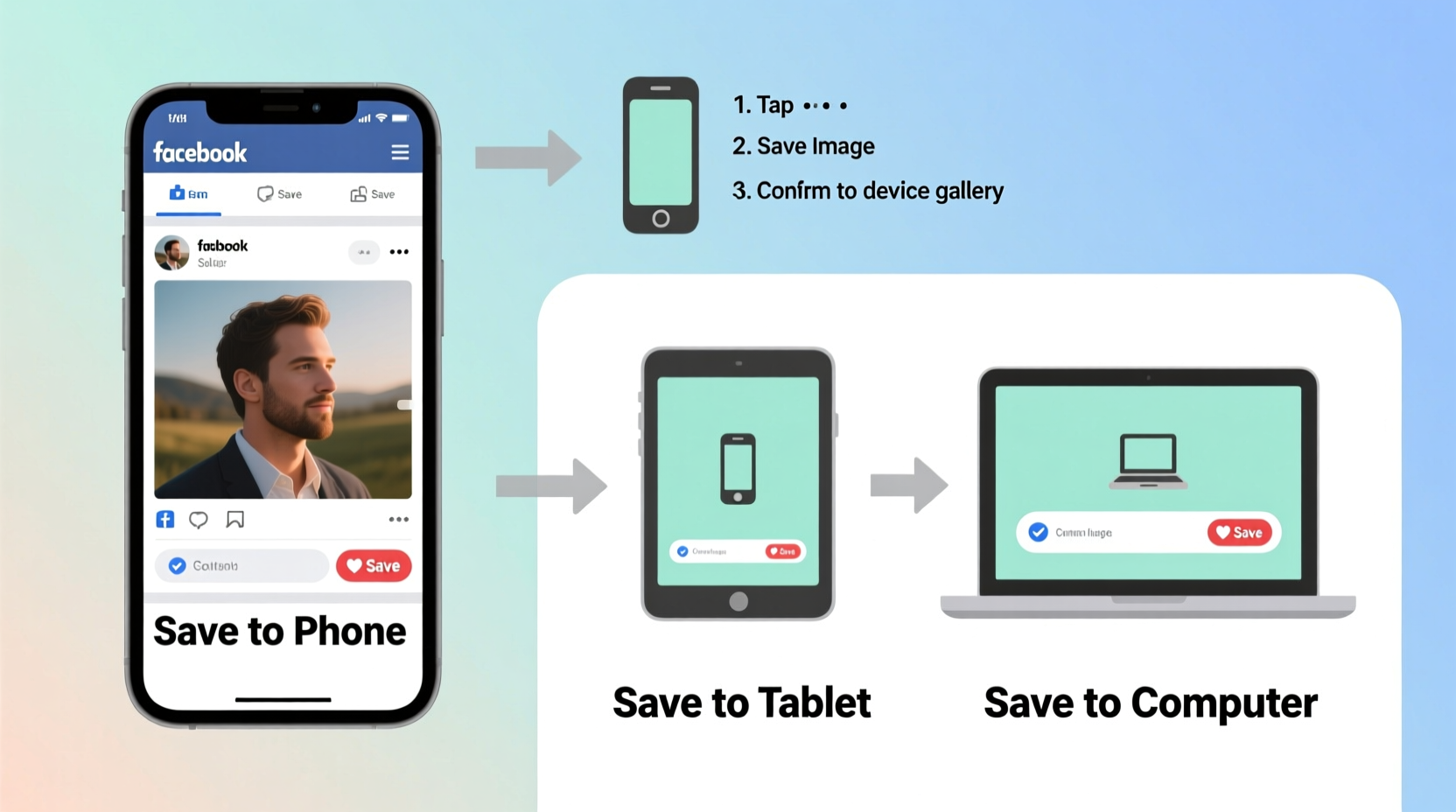
Photos on Facebook are often temporary in nature. Privacy updates, account deactivations, or post removals can make images inaccessible overnight. While Facebook allows users to download their entire data archive, that process is time-consuming and impractical for grabbing a single photo. Knowing how to extract individual images empowers you to preserve meaningful moments independently of the platform.
“Digital memories shouldn’t be held hostage by algorithms or privacy walls. Taking ownership of your visual history starts with simple saving habits.” — Lena Patel, Digital Archivist & Tech Educator
How to Save Facebook Pictures on Any Smartphone (iOS and Android)
Mobile devices are where most people browse Facebook. Fortunately, both iPhone and Android offer straightforward ways to save photos using native tools or lightweight apps.
Method 1: Using the Facebook App (Official Method)
If the photo is posted publicly or shared with you, and the owner has enabled sharing, you may be able to save it directly:
- Open the Facebook app and locate the photo you want to save.
- Tap on the image to open it in full view.
- Tap the three-dot menu (•••) in the top-right corner.
- Select Save Photo or Download if available.
- The image will automatically save to your phone’s gallery or Downloads folder.
Method 2: Using a Browser on Your Phone
This workaround works when the app doesn’t allow saving:
- Open the photo in the Facebook app.
- Tap the three-dot menu and choose Copy Link.
- Open Chrome or Safari and paste the link into the address bar.
- Load the page, then tap and hold the image.
- Select Save Image from the pop-up menu.
This method bypasses app restrictions and often succeeds even when the native save option is grayed out.
How to Save Facebook Photos on a Computer (Windows & Mac)
Desktop browsing offers more flexibility and higher-quality image access. These steps work across Chrome, Firefox, Edge, and Safari.
Step-by-Step: Right-Click and Save (Most Common Method)
- Navigate to the Facebook post containing the photo.
- Click the image to open it in full-screen preview.
- Right-click on the photo.
- Select Save image as… from the context menu.
- Choose a location on your computer (e.g., Desktop, Pictures folder).
- Click Save.
The image will download in its original format, typically JPG or PNG.
Alternative: Inspect Element (For Protected Images)
Sometimes, right-clicking is disabled. In such cases, use the browser’s developer tools:
- Right-click near the image (not on it) and select Inspect or Inspect Element.
- In the code panel, search for
.jpgor.pngby pressing Ctrl+F (Cmd+F on Mac). - Look for a URL starting with
https://scontentfollowed by Facebook’s server path. - Copy the full image URL.
- Paste it into a new browser tab and press Enter.
- Right-click and save the standalone image.
Third-Party Tools: When Built-In Methods Fall Short
Some situations require external help—especially when downloading multiple photos or albums. Several trusted tools simplify batch downloads.
| Tool | Platform | Best For | Security Note |
|---|---|---|---|
| DownAlbum for Facebook | Android | Downloading entire albums | Requires login; use strong password |
| FB Downloader (Chrome Extension) | Windows/Mac | One-click saves from browser | Only install from Chrome Web Store |
| SnapSave.app | Cross-platform (web-based) | Saving stories and reels | No installation; avoid entering passwords |
Always verify the legitimacy of third-party tools. Avoid services asking for your Facebook username and password—these can compromise your account.
Mini Case Study: Preserving Family Memories
Sarah, a teacher from Portland, wanted to compile photos from her cousin’s wedding album on Facebook into a printed scrapbook. The album had 87 images, and the host had set it to “Friends Only.” Rather than requesting each photo individually, Sarah used the browser method on her laptop: she opened each image, right-clicked, and saved them to a dedicated folder named “Wedding_Memories.” Within 20 minutes, she had all the high-resolution images backed up locally. She later created a digital slideshow for the couple’s anniversary—proving that small technical skills can lead to meaningful personal projects.
Checklist: How to Successfully Save Facebook Photos
- ✅ Confirm you have permission to save the photo (especially for private posts)
- ✅ Use the Facebook app’s built-in “Save Photo” option when available
- ✅ Copy the post link and open it in a browser if the app blocks saving
- ✅ On desktop, right-click and “Save image as…” for quick downloads
- ✅ Use browser developer tools for images with disabled right-click
- ✅ For bulk downloads, use reputable third-party apps or web tools
- ✅ Organize saved photos in labeled folders (e.g., Events, People, Screenshots)
- ✅ Regularly back up important images to cloud storage or external drives
Frequently Asked Questions
Can I get in trouble for saving someone else’s Facebook photo?
It depends on usage. Saving a photo for personal use—like keeping a memory of a friend’s travel—is generally acceptable. However, redistributing, editing, or selling the image without consent may violate copyright or privacy laws. Always credit the original creator if sharing.
Why can’t I save some Facebook photos?
The uploader may have restricted sharing or downloading via privacy settings. Additionally, some businesses or public figures disable right-click functions using scripts. In such cases, using a different browser or incognito mode might help bypass restrictions.
Are downloaded Facebook photos high quality?
Yes, when saved correctly. Facebook compresses images upon upload, but the version served in full view is usually the highest available resolution. Downloading directly from the full-size preview ensures minimal quality loss.
Final Tips for Long-Term Photo Preservation
Saving a photo is just the first step. To ensure long-term access:
- Name files descriptively (e.g., “Anna_Birthday_Party_2024.jpg” instead of “IMG_1234.jpg”).
- Create yearly folders (e.g., “2024_Photos”) and subfolders by event or month.
- Use cloud backups (Google Drive, iCloud, OneDrive) to protect against device failure.
- Avoid storing everything only on social media—platforms change policies and accessibility over time.
“Your digital life should outlast your social media accounts. Start building your own archive today.” — Marcus Tran, Data Preservation Advocate
Conclusion
Saving pictures from Facebook doesn’t require technical expertise—just the right approach for your device and situation. Whether you’re using a smartphone or desktop, official features or browser tricks, the key is consistency and awareness of permissions. With the methods outlined here, you can confidently preserve the moments that matter, free from platform limitations.




 浙公网安备
33010002000092号
浙公网安备
33010002000092号 浙B2-20120091-4
Comments
No comments yet. Why don't you start the discussion?