
WhatsApp has become one of the most widely used messaging platforms in the world, connecting over two billion users across more than 180 countries. Its simplicity, end-to-end encryption, and rich feature set make it ideal for staying in touch with friends, family, and colleagues. Whether you're using an Android or iPhone, signing up is straightforward — if you know the right steps. This guide walks you through every phase of creating your account, verifying your number, setting up your profile, and sending your first message.
What You’ll Need Before Starting
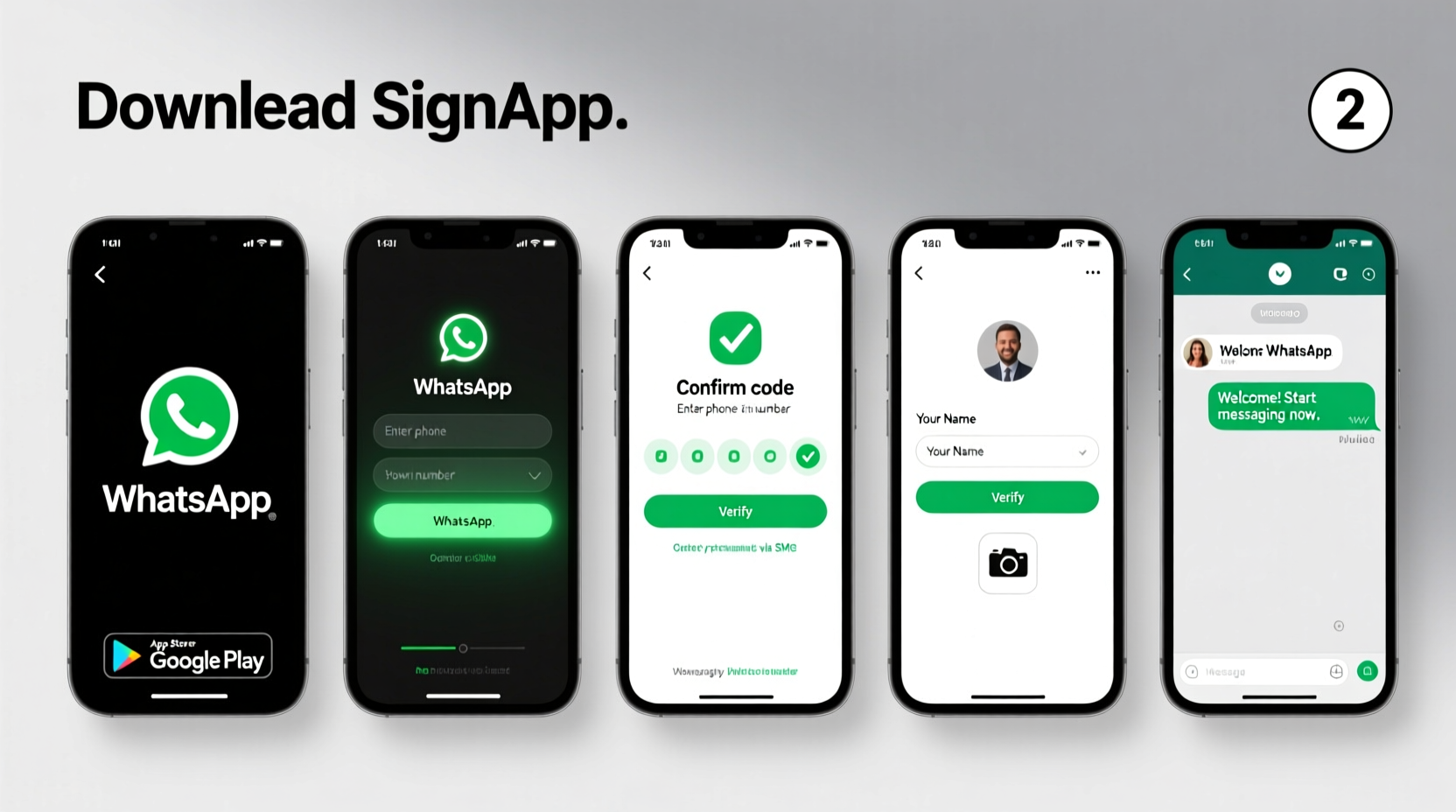
Before diving into the sign-up process, ensure you have the following:
- A smartphone (Android or iOS)
- An active phone number with SMS and data access
- Stable internet connection (Wi-Fi or mobile data)
- About 5–10 minutes of uninterrupted time
Unlike traditional social media platforms, WhatsApp does not require an email address. Your phone number serves as your unique identifier on the app. It's important that this number is accessible to you during registration, as you'll need to receive a verification code via SMS or call.
Step-by-Step Guide to Signing Up for WhatsApp
The registration process is nearly identical across both major operating systems. Follow these steps carefully to complete setup without issues.
- Download the App: Open Google Play Store (Android) or App Store (iPhone) and search for “WhatsApp Messenger.” Download and install the official app developed by Meta Platforms, Inc.
- Open WhatsApp: Tap the green-and-white icon to launch the app. You'll see a welcome screen with options in multiple languages.
- Agree to Terms: Tap “Agree and Continue” after reviewing the Terms of Service and Privacy Policy. Skipping this isn’t possible — acceptance is required.
- Select Your Country: Choose the country where your phone number is registered from the dropdown list. This ensures correct formatting when entering your number.
- Enter Your Phone Number: Type your full mobile number without any prefixes like ‘+’ or ‘00’ unless prompted. For example, a U.S. number would be entered as 1234567890.
- Verify via SMS or Call: WhatsApp will automatically attempt to send a 6-digit verification code via SMS. If it doesn’t arrive within a few minutes, tap “Call me” to receive the code via automated voice call.
- Confirm Verification Code: Enter the received code into the app. On some devices, the code may auto-fill if permission was granted for message access.
- Set Up Your Profile: Add your name (visible to contacts who have your number) and optionally upload a profile photo.
- Restore Backups (Optional): If you’ve used WhatsApp before on another device and backed up chats to Google Drive (Android) or iCloud (iOS), you’ll be prompted to restore them now.
- Grant Permissions: Allow notifications, microphone, camera, and storage access so you can send messages, photos, videos, and make calls.
Once completed, you’ll be taken to the main chat screen. Your account is now active, and WhatsApp begins syncing your saved contacts who also use the service.
Common Issues During Registration and How to Fix Them
While most sign-ups go smoothly, occasional hiccups occur. Here are frequent problems and their solutions:
| Issue | Possible Cause | Solution |
|---|---|---|
| No verification code received | Network delay, incorrect number entry, blocked SMS | Wait 5 minutes; double-check number; request a call instead |
| “This number is already linked to another account” | Previously used on a different device | Tap “Continue” to verify ownership and overwrite old session |
| App crashes during setup | Outdated OS, corrupted download | Update your phone’s software or reinstall WhatsApp |
| Can’t restore chat history | Backup not found or cloud login mismatch | Ensure same Google/iCloud account used previously; check backup date |
Setting Up for Success: Best Practices After Sign-Up
After successfully registering, take a few moments to optimize your experience.
Customize Privacy Settings
Navigate to Settings > Account > Privacy to control who sees your last seen status, profile photo, about info, and read receipts. You can restrict visibility to “My Contacts” or “Nobody” depending on your preference.
Enable Two-Step Verification
For added security, set up a two-step verification PIN under Settings > Account > Two-step verification. This prevents unauthorized reactivation of your number even if someone obtains your SIM card.
Add a Descriptive About Section
Your “About” line appears beneath your name. Use it wisely — update it with current information like “Available after 6 PM” or “Work inquiries only.” Avoid sharing sensitive details.
Start a New Chat Efficiently
To message someone not in your contacts, go to the Chats tab, tap the new chat icon, then select “New Contact” and enter their full international number including country code.
“We recommend enabling two-factor authentication immediately after registration. It significantly reduces the risk of account hijacking.” — David Chen, Cybersecurity Analyst at SecureComms Lab
Real Example: Maria’s First Time Using WhatsApp Abroad
Maria moved from Spain to Canada for work and wanted to stay connected with her family. She bought a local Canadian SIM but kept her Spanish number active for WhatsApp. Initially confused about which number to register, she followed the sign-up steps using her original Spanish number. When the SMS didn’t come through due to roaming restrictions, she opted for the automated call option. Within minutes, she verified her identity and restored her chat history from Google Drive. Now, she uses WhatsApp daily to video call her parents and share updates with ease.
This scenario highlights how understanding the verification process — especially alternatives like voice calls — can save frustration when changing locations or carriers.
Frequently Asked Questions
Can I use WhatsApp without a smartphone?
No, WhatsApp requires either an Android or iOS device. While WhatsApp Web and Desktop exist, they function only as extensions of a mobile app and cannot operate independently.
Is my personal data safe on WhatsApp?
Yes. All messages, calls, photos, and videos are protected with end-to-end encryption. Not even WhatsApp can access the content of your communications. However, metadata such as contact lists and usage patterns may still be collected under its privacy policy.
What happens if I change my phone number?
You can update your number in WhatsApp via Settings > Account > Change Number. The app will notify your contacts (if chosen) and transfer your account info, groups, and settings to the new number while preserving chat history.
Final Checklist: Ensure a Smooth Setup
Before closing this guide, run through this quick checklist to confirm everything is in place:
- ✅ Installed the official WhatsApp app from trusted store
- ✅ Entered correct phone number with country code
- ✅ Completed SMS or voice verification successfully
- ✅ Set up profile name and photo
- ✅ Reviewed and adjusted privacy settings
- ✅ Enabled two-step verification for extra security
- ✅ Restored previous chat history (if applicable)
Conclusion
Signing up for WhatsApp is fast, free, and opens the door to instant global communication. With just a phone number and internet connection, you can begin texting, calling, and sharing moments in seconds. By following the steps outlined here — from downloading the app to securing your account — you ensure a smooth and secure onboarding experience. Millions rely on WhatsApp every day for both casual conversations and critical coordination. Now that you’re equipped with the knowledge to get started confidently, it’s time to connect.




 浙公网安备
33010002000092号
浙公网安备
33010002000092号 浙B2-20120091-4
Comments
No comments yet. Why don't you start the discussion?