
Google Meet has become one of the most widely used platforms for virtual meetings, whether for work, school, or personal catch-ups. While joining from a computer is straightforward, many users rely on their smartphones for convenience and mobility. Knowing how to access a Google Meet session quickly and efficiently on your phone can save time, reduce stress, and ensure you never miss an important call.
This guide walks you through every step of joining a Google Meet on your Android or iPhone, including tips for troubleshooting common issues, optimizing audio and video, and using the app effectively. Whether you're new to video conferencing or just want to streamline your process, this comprehensive walkthrough will help you connect with confidence.
Why Use Google Meet on Your Phone?
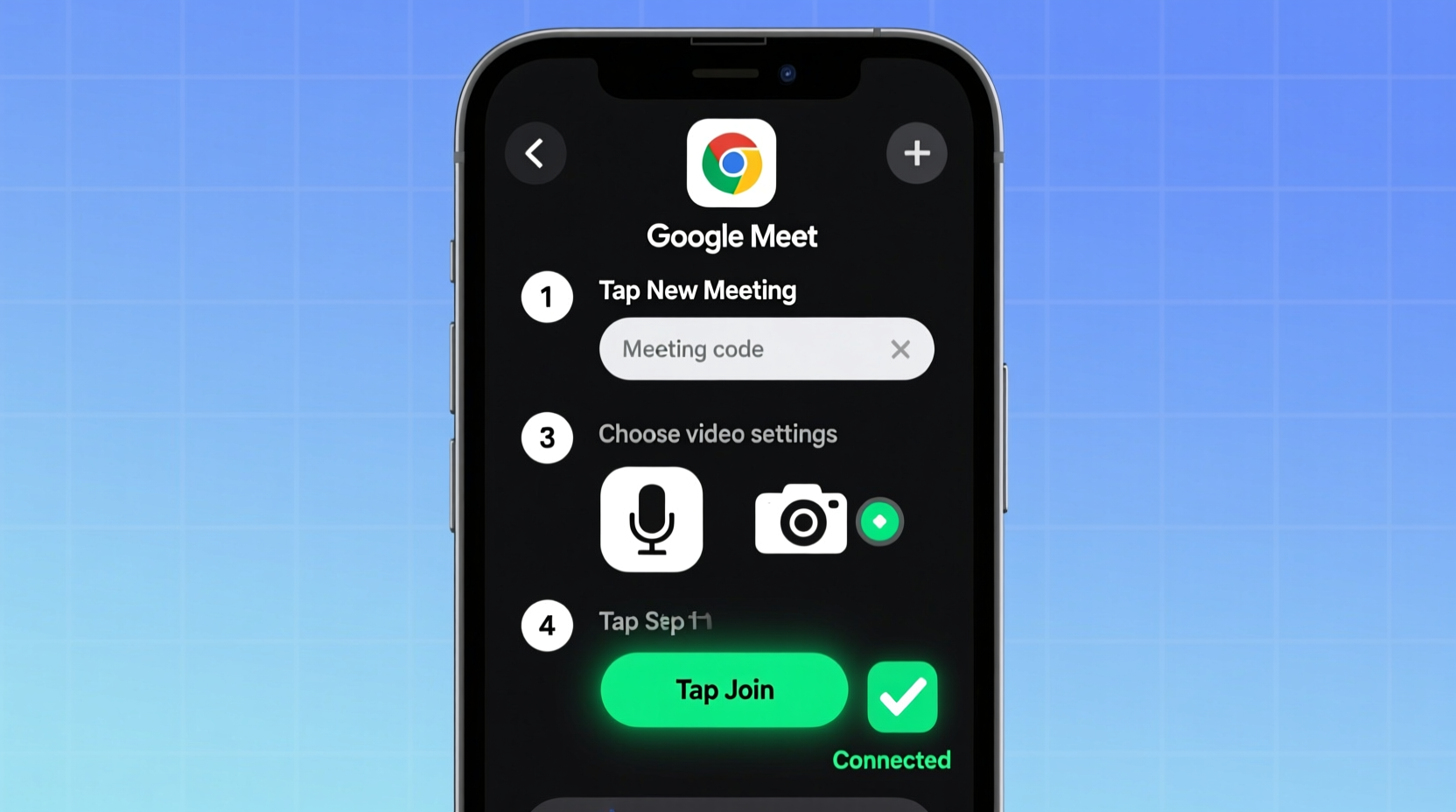
Your smartphone offers unmatched portability and connectivity. Unlike desktops or laptops, phones are always within reach, making them ideal for last-minute meetings or impromptu check-ins. The Google Meet app is optimized for mobile devices, delivering smooth performance even on moderate internet connections.
Additionally, mobile access allows you to participate in meetings while commuting, traveling, or away from your desk—without sacrificing functionality. Features like screen sharing (limited on mobile), chat, captions, and real-time reactions are all available directly from your device.
Step-by-Step Guide to Joining a Google Meet on Your Phone
Follow this detailed sequence to enter any Google Meet session from your smartphone—no matter how you receive the invite.
- Install the Google Meet App
If you haven’t already, download the official \"Google Meet\" app from the Google Play Store (Android) or App Store (iOS). Search “Google Meet” and install it. It’s free and regularly updated for security and performance. - Open the App or Access via Browser
Launch the app after installation. Alternatively, you can use your phone’s browser (Chrome, Safari, etc.) to go tomeet.google.com, though the app provides a smoother experience. - Sign In to Your Google Account
Tap “Continue” and sign in with the Google account associated with your meetings. Most users are already logged in if they use Gmail or YouTube on the device. - Enter the Meeting Code or Link
You may receive a meeting invitation via email, text, calendar event, or direct message. It usually includes either:- A clickable link (e.g.,
https://meet.google.com/abc-defg-hij) - A 10-letter meeting code (e.g., abc-defg-hij)
- A clickable link (e.g.,
- Check Audio and Video Settings Before Joining
Before entering, the app shows preview screens for your camera and microphone. Ensure your face is visible and well-lit. Toggle the microphone and camera icons if you prefer to join muted or with video off (common in professional settings). - Tap 'Join Now'
Once ready, tap the large green “Join now” button. You’ll enter the meeting instantly. Wait for the host to admit you if the meeting uses a lobby system. - Participate During the Call
After joining, control your experience using on-screen buttons:- Mute/unmute microphone
- Turn camera on/off
- Send messages via chat
- React with emojis (tap “Hands up” or “Thumbs up”)
- Leave the meeting (red phone icon)
Troubleshooting Tips During Entry
Sometimes, technical hiccups occur. Here’s what to do if you encounter problems:
- Can't open the link? Copy and paste it into Chrome or Safari manually.
- Meeting not found? Double-check spelling; codes are case-insensitive but must be exact.
- No sound? Check phone volume, ensure headphones aren’t connected, and verify mic permissions in settings.
- Camera not working? Restart the app or reboot your phone. Clear app cache if needed.
Essential Checklist Before Every Meeting
To avoid delays or embarrassment, run through this quick checklist before joining any Google Meet session:
- ✅ Charge your phone or plug it in
- ✅ Connect to stable Wi-Fi or strong cellular data
- ✅ Close unused apps to free up memory
- ✅ Grant camera and microphone permissions to Google Meet
- ✅ Position yourself in a quiet space with good lighting
- ✅ Mute background noise sources (TV, pets, appliances)
- ✅ Review agenda or materials beforehand
Do’s and Don’ts When Joining on Mobile
| Do’s | Don’ts |
|---|---|
| Use headphones for clearer audio and reduced echo | Join from a moving vehicle unless necessary |
| Position your phone securely on a stand or book | Hold the phone throughout the call (causes shakiness) |
| Enable “Do Not Disturb” mode to block interruptions | Allow notifications to pop up during sensitive discussions |
| Test connection speed using Speedtest or similar tools | Assume 4G/LTE is always sufficient—check upload speed |
| Join a few minutes early to troubleshoot issues | Wait until the last second to start setup |
Real-Life Example: Maria Joins Her Team Call on Time
Maria, a project manager at a remote-first company, received a last-minute request to join a client review meeting. She was out running errands and didn’t have her laptop. Using her iPhone, she opened the Google Calendar notification, tapped the Meet link, and joined within 45 seconds.
She muted herself upon entry, checked her surroundings for noise, and propped her phone against a water bottle at eye level. Though outdoors, she found a shaded bench with reliable Wi-Fi from a nearby café. Her team noted her clear audio and steady video, and the meeting proceeded without disruption. This small preparation made a big difference in professionalism and effectiveness.
“Mobile accessibility isn’t just convenient—it’s essential for modern collaboration. Employees who master quick entry on smartphones report higher engagement and punctuality.” — Dr. Alan Reyes, Digital Workplace Researcher, Stanford University
Frequently Asked Questions
Can I join a Google Meet without creating an account?
Yes, but only if the meeting organizer allows external participants. You’ll need to provide your name and may require approval to enter. However, full features like chat history or recording access typically require a signed-in Google account.
Is screen sharing possible on the mobile app?
Limited screen sharing is available on Android and iOS, but only for certain apps (e.g., presenting slides from Google Slides). Full desktop-style screen mirroring isn’t supported yet. For detailed presentations, consider joining from a computer instead.
What should I do if I get disconnected during a call?
Reopen the app immediately and rejoin using the same link or code. Most meetings allow re-entry without approval once admitted initially. Inform others in the chat afterward if you missed critical updates.
Final Tips for Consistent Success
Becoming proficient at joining Google Meet sessions on your phone takes practice, but these habits will make it second nature:
- Add Google Meet to your home screen for instant access.
- Save frequent meeting links in Notes or Contacts.
- Use voice assistants: Say “Hey Google, join my next meeting” to launch upcoming calendar events automatically.
- Regularly update the app to benefit from bug fixes and new features.




 浙公网安备
33010002000092号
浙公网安备
33010002000092号 浙B2-20120091-4
Comments
No comments yet. Why don't you start the discussion?