
Accessing your Apple TV+ content and synced media library should be seamless, regardless of the device you're using. Whether you’re setting up a new smart TV, switching from an iPhone to a laptop, or helping a family member sign in, knowing exactly how to log in to Apple TV across platforms saves time and frustration. This comprehensive guide walks you through every login scenario with clear, actionable steps—no technical jargon, no confusion.
Understanding Apple ID and Apple TV Access
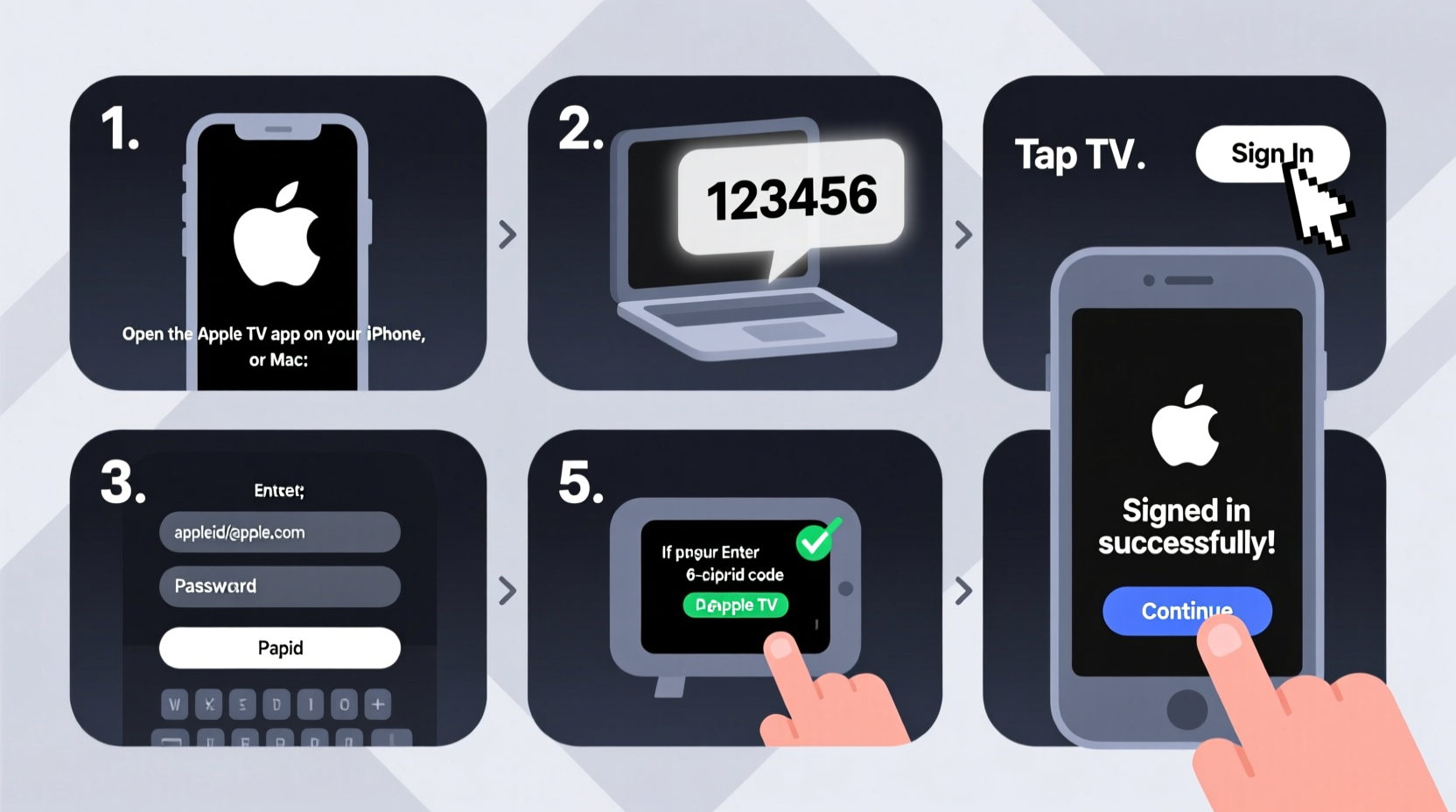
Before diving into device-specific procedures, it’s important to clarify what “logging in to Apple TV” actually means. Unlike standalone apps such as Netflix or Hulu, Apple TV isn’t just a streaming service—it’s both a hardware device (Apple TV box) and a software platform accessible via the Apple TV app on multiple devices.
To access your content, you need an Apple ID. This single account unlocks:
- Your Apple TV+ subscription
- Purchased or rented movies and shows
- Subscriptions like Paramount+, Starz, or HBO Max managed through Apple
- Synchronized watchlists and progress across devices
The Apple ID is the key. Without it, you can browse limited free content, but full functionality requires authentication.
“Your Apple ID is the backbone of your entire Apple media ecosystem. One secure login gives you unified access across phones, tablets, computers, and TVs.” — David Lin, Senior Support Analyst at Apple Authorized Service Provider
How to Log In on iPhone or iPad
The Apple TV app comes preinstalled on all iOS and iPadOS devices. Logging in here ensures your viewing history, subscriptions, and purchases sync automatically.
- Open the Apple TV app (icon features a white play triangle on a solid color background).
- Navigate to the Library tab at the bottom right.
- If not already signed in, tap your profile picture or the silhouette icon in the top-left corner.
- Select Sign In.
- Enter your Apple ID email address and tap Next.
- Input your password.
- If two-factor authentication is enabled, approve the login request on another trusted device or enter the verification code sent to your phone.
Once logged in, your Watchlist, Up Next queue, and subscriptions appear instantly. Any rentals or purchases made on other devices will also show up here.
Signing In on Mac or Windows PC
Whether you're watching at work or prefer a larger screen, accessing Apple TV on desktop systems is straightforward.
On Mac (macOS Catalina or later)
- Open the TV app from your Dock or Applications folder.
- In the top-right corner, click Sign In.
- Enter your Apple ID and password.
- Approve the two-factor authentication prompt if required.
On Windows PC (via iCloud for Windows)
- Download and install iCloud for Windows from Apple’s official website.
- Launch iCloud and sign in with your Apple ID.
- Check the box next to TV under available services.
- Click Apply. The Apple TV app will now appear in your Start menu.
- Launch the app and sign in again if prompted.
Note: The Windows version supports HD playback and purchases, but some features like SharePlay are not available.
Logging Into Smart TVs and Streaming Devices
Most modern smart TVs and streaming sticks include the Apple TV app. Supported brands include Samsung (2018+ models), LG (webOS 4.0+), Sony Bravia, Roku, Amazon Fire TV, and Google Chromecast with Google TV.
General Login Process on TV Devices
- Using your remote, open the Apple TV app from the home screen.
- Select Sign In when prompted.
- You’ll see a 6- to 7-digit activation code on-screen.
- On a separate device (phone, tablet, or computer), go to tv.apple.com/start.
- Sign in with your Apple ID.
- Enter the displayed code.
- Wait for confirmation—your TV will automatically sign in.
What If the App Isn’t Preinstalled?
Some older or budget TVs don’t have the Apple TV app. In that case:
- Add a streaming device like Roku Express, Amazon Fire Stick, or Chromecast.
- Download the Apple TV app from the device’s app store.
- Follow the same activation process above.
Common Login Issues and How to Fix Them
Even with careful setup, problems can occur. Here’s a quick reference table for common issues and solutions:
| Issue | Possible Cause | Solution |
|---|---|---|
| Login fails repeatedly | Wrong password or locked account | Reset password at iforgot.apple.com; wait 1 hour after too many attempts |
| Activation code not working | Expired code or wrong entry | Refresh the code on your TV and re-enter; ensure caps lock is off |
| Content not syncing | Different Apple ID used | Verify same Apple ID is used across all devices in Settings > [Your Name] |
| Two-factor prompt not arriving | Trusted device offline or number outdated | Update phone number in Apple ID settings; use recovery key if available |
If none of these resolve the issue, restart your router and device, then retry. Persistent problems may require contacting Apple Support directly.
Security Best Practices When Logging In
Protecting your Apple ID is critical. A compromised account can lead to unauthorized purchases, data exposure, or loss of access.
📋 Account Security Checklist:- ✅ Use a strong, unique password (not reused from other sites)
- ✅ Enable two-factor authentication
- ✅ Regularly review devices signed in under your Apple ID at appleid.apple.com
- ✅ Remove unknown or unused devices immediately
- ✅ Avoid logging in on public or shared computers unless absolutely necessary
For households sharing an Apple ID, consider setting up Family Sharing instead of giving out credentials. Each member keeps their own device preferences while still accessing shared purchases and subscriptions.
Real-World Example: Setting Up Apple TV for a Parent
John wanted his parents to watch Apple TV+ shows on their Samsung Smart TV but live hours away. He shipped them a Roku Streaming Stick and called to walk them through setup.
The TV prompted for an activation code. John had his mom read it aloud, then visited tv.apple.com/start on his iPhone, signed in with her Apple ID (which he’d helped create earlier), and entered the code. Within seconds, the Roku was authenticated.
He reminded her never to share the login details with anyone and showed her how to use the Up Next list to continue watching her favorite series. Thanks to clear instructions and remote support, she was streaming within 15 minutes.
Frequently Asked Questions
Can I use different Apple IDs on the same Apple TV device?
Yes. While only one user can be signed in to the Apple TV app at a time, you can switch accounts by signing out and logging in with another Apple ID. This is useful for families who don’t share a subscription.
Why does my Apple TV app ask me to sign in again?
This usually happens after a software update, network change, or due to session expiration. It can also occur if your Apple ID password was recently changed. Simply re-enter your credentials to restore access.
Is there a way to stay signed in permanently?
Yes, provided you don’t manually sign out or trigger a security reset. Devices like iPhones and Macs typically stay logged in unless the system detects suspicious activity or you remove the device from your Apple ID settings.
Final Steps: Enjoy Your Content Securely
Logging in to Apple TV across devices doesn’t have to be complicated. With the right Apple ID, a stable internet connection, and this guide, you can access your favorite shows, movies, and subscriptions anywhere—from your morning commute on an iPad to a movie night on the big screen.
Take a moment today to verify your login status on each device, update passwords if needed, and ensure two-factor authentication is active. A few minutes now prevents headaches later.




 浙公网安备
33010002000092号
浙公网安备
33010002000092号 浙B2-20120091-4
Comments
No comments yet. Why don't you start the discussion?