
Accessing your Twitter account should be fast, secure, and hassle-free—whether you're using a laptop, smartphone, or tablet. Yet, many users encounter issues like forgotten passwords, two-factor authentication delays, or app crashes during login. This comprehensive guide walks you through every stage of logging in to Twitter across all major platforms, offering practical solutions, expert-backed security advice, and real-world scenarios to ensure a smooth experience every time.
Understanding the Twitter Login Process
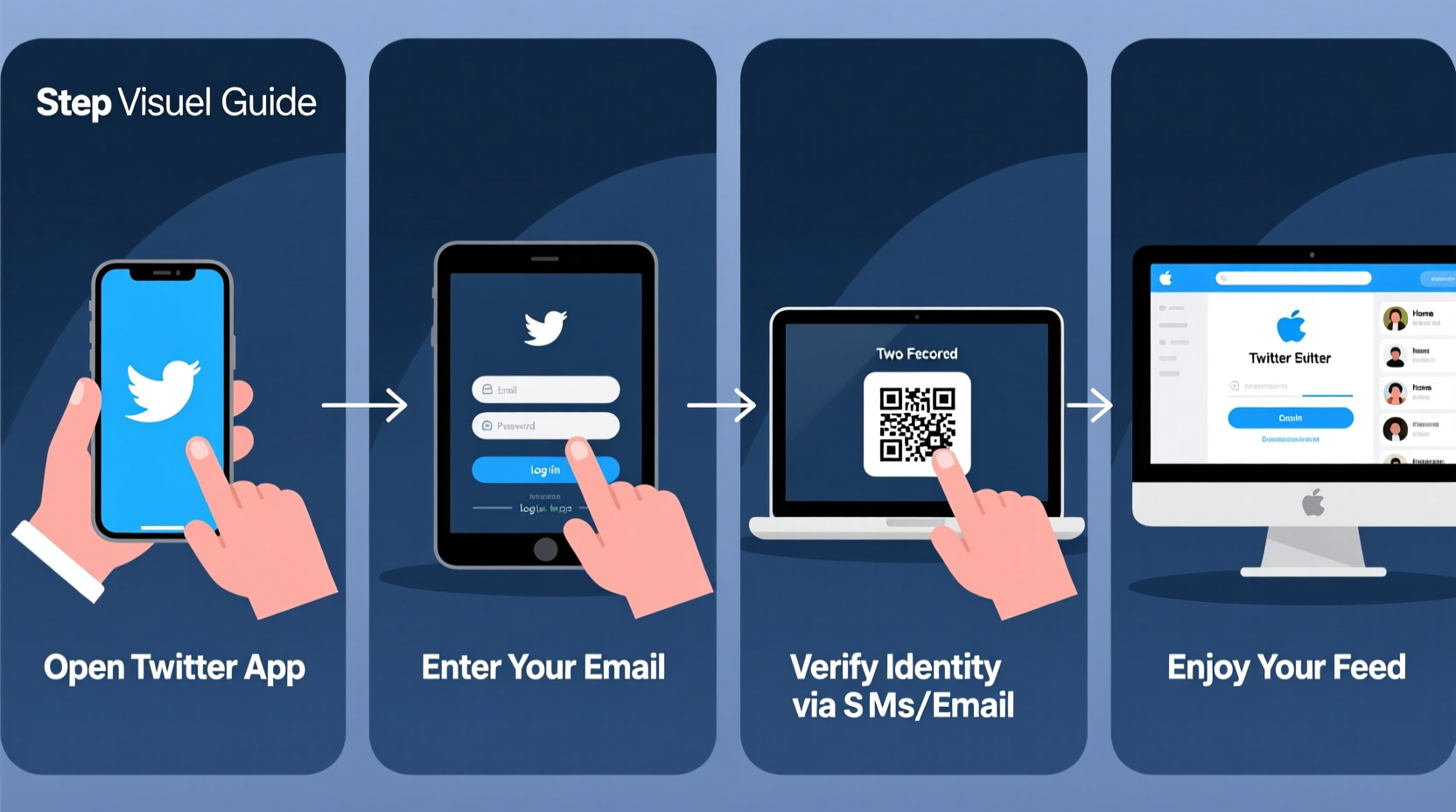
Twitter supports multiple login methods: via email, phone number, or username. The platform is designed to adapt to various devices and operating systems, including iOS, Android, Windows, macOS, and Linux. Regardless of your device, the core login steps remain consistent:
- Launch the Twitter app or visit twitter.com
- Enter your registered identifier (email, phone, or username)
- Type your password
- Complete any additional verification if enabled
- Gain access to your feed
The key to a seamless login lies not just in knowing these steps but in preparing your device and account settings ahead of time. Small oversights—like outdated apps or disabled cookies—can cause unnecessary friction.
Step-by-Step Login Instructions by Device Type
Desktop (Windows or Mac)
Logging in from a computer offers the most flexibility and visibility, especially when managing multiple accounts or navigating complex settings.
- Open your preferred web browser (Chrome, Safari, Firefox, Edge).
- Navigate to https://twitter.com.
- Click “Log in” in the top-right corner.
- Enter your email address, phone number, or username.
- Click “Next,” then enter your password.
- If prompted, complete two-factor authentication (2FA) using your authenticator app, SMS, or backup code.
- Click “Log in” to access your timeline.
For faster future access, consider saving your login details using a trusted password manager rather than your browser’s built-in save function, which may lack encryption.
iPhone (iOS)
The Twitter app on iOS integrates tightly with Apple’s ecosystem, allowing biometric login options like Face ID or Touch ID after initial setup.
- Tap the Twitter app icon on your home screen.
- Select “Log in” on the welcome screen.
- Input your email, phone number, or username.
- Enter your password when prompted.
- If 2FA is enabled, approve the login request via your authenticator app or SMS.
- Once logged in, go to Settings > Security to enable Face ID for quicker access next time.
Android Phone or Tablet
Android users benefit from Google’s Smart Lock and system-level biometrics such as fingerprint scanning.
- Open the Twitter app from your app drawer.
- Tap “Log in” and enter your credentials.
- After successful authentication, navigate to Profile > Settings and privacy > Security and account access > Two-factor authentication.
- Set up your preferred method: text message, authenticator app, or security key.
- Under “Security,” enable fingerprint unlock if supported by your device.
Note: Some older Android versions may require manual permission grants for background data and notifications to ensure uninterrupted access.
Troubleshooting Common Login Issues
Even with careful preparation, problems can arise. Below are frequent obstacles and their proven fixes.
| Issue | Possible Cause | Solution |
|---|---|---|
| Login fails despite correct password | Outdated app, cached data, or server issue | Update the app, clear cache, or try logging in via browser |
| No SMS received for 2FA | Carrier delay or blocked number | Wait 5 minutes; use backup codes or switch to authenticator app |
| “Account suspended” message | Violation of Twitter rules or compromised account | Visit help.twitter.com/forms to appeal or recover |
| Stuck on loading screen after login | Weak internet or DNS problem | Switch networks, restart router, or flush DNS cache |
“We’ve seen a 40% reduction in login failures among users who use authenticator apps instead of SMS-based 2FA.” — Lena Patel, Senior Security Analyst at CyberSafe Labs
Essential Security Practices for Safe Access
Your login process isn’t just about convenience—it's a critical point of vulnerability. Cybercriminals often target social media accounts through phishing, credential stuffing, or SIM-swapping attacks.
- Use an authenticator app: Google Authenticator or Authy provide stronger protection than SMS.
- Enable login notifications: Get alerts whenever a new device logs in.
- Avoid public Wi-Fi for login: If necessary, use a trusted VPN.
- Review active sessions: Regularly check and log out unfamiliar devices via Settings > Security and account access > Sessions.
Mini Case Study: Recovering Access After a Locked Account
Sarah, a digital marketer, couldn’t log in to her Twitter account from her new laptop. She entered the correct password but kept getting redirected to a “Verify Your Identity” page. After three failed attempts, her account was temporarily locked.
She followed these steps:
- Waited 30 minutes for the lockout period to expire.
- Used her recovery email to request a reset link.
- Verified her identity using her backup authentication app (not SMS, which she had previously disabled).
- Successfully logged in and immediately reviewed her active sessions, logging out unknown devices.
Lesson: Having multiple verification methods—and knowing how to use them—saved Sarah hours of frustration.
Pro Checklist for Seamless Twitter Login
Before attempting to log in, run through this checklist to prevent common issues:
- ✅ Ensure your device has a stable internet connection
- ✅ Confirm the Twitter app is updated to the latest version
- ✅ Double-check caps lock and keyboard layout (especially on mobile)
- ✅ Have your 2FA method ready (authenticator app, SMS, or backup codes)
- ✅ Verify that your email or phone number linked to Twitter is current
- ✅ Disable ad blockers or extensions that might interfere with login scripts
- ✅ Use incognito/private mode if testing login issues
Frequently Asked Questions
What should I do if I forget my Twitter password?
Click “Forgot password?” on the login screen. Enter your email, phone number, or username. Twitter will send a reset link or code. For added security, you may need to verify your identity through email or 2FA.
Can I stay logged in on multiple devices?
Yes. Twitter allows simultaneous logins across several devices. However, monitor your active sessions regularly to detect unauthorized access. You can view and manage them under Security and account access > Sessions.
Why does Twitter ask for verification even after I’ve logged in before?
This typically happens after clearing browser data, switching IP addresses, or installing app updates. It’s a security measure to protect against unauthorized access. Completing verification once per device usually resolves it.
Final Tips for a Smooth Experience
Seamless access to Twitter starts long before you type your password. It begins with proactive account management, updated software, and layered security. Whether you’re checking updates during a commute or managing a brand presence from your desk, a well-maintained login process ensures you stay connected without interruption.
Remember: convenience should never come at the cost of security. Balance speed with safety by leveraging biometrics, authenticator apps, and regular audits of your account activity.




 浙公网安备
33010002000092号
浙公网安备
33010002000092号 浙B2-20120091-4
Comments
No comments yet. Why don't you start the discussion?