
Creating a bootable USB flash drive for Windows 10 is essential for installing, reinstalling, or repairing your operating system. Whether you're upgrading from an older version of Windows, troubleshooting a corrupted system, or setting up a new PC, having a reliable bootable drive saves time and effort. The process is straightforward when you follow the right steps and use trusted tools. This guide walks you through everything—from choosing the correct software to verifying the final result—so you can create a functional bootable USB with confidence.
Why You Need a Bootable Flash Drive
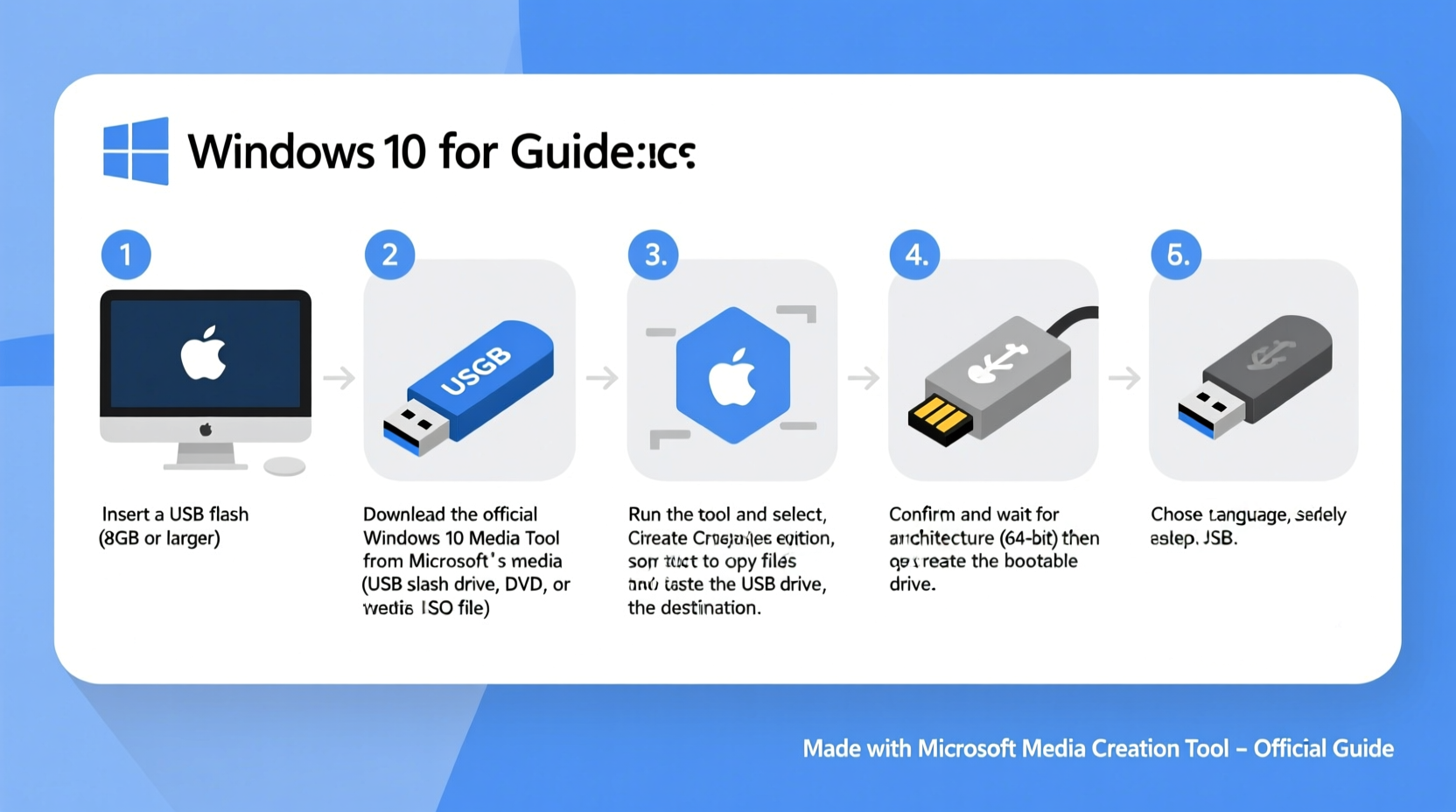
A bootable flash drive acts as a portable installation medium for Windows 10. Unlike DVDs, USB drives are faster, reusable, and compatible with most modern computers, especially laptops that no longer include optical drives. A bootable USB allows you to:
- Install Windows 10 on a new hard drive or SSD
- Repair a non-booting system using recovery options
- Perform a clean install to improve performance
- Upgrade from Windows 7 or 8 without relying on in-place updates
Microsoft recommends using a USB drive of at least 8GB capacity to ensure enough space for all installation files, including drivers and language packs.
Tools You’ll Need
To create a bootable USB, you need three things: a blank USB flash drive (8GB or larger), a working computer with internet access, and a method to prepare the drive. Microsoft provides two official tools, but third-party alternatives also exist.
| Tool | Type | Best For | Download Source |
|---|---|---|---|
| Windows Media Creation Tool | Official Microsoft tool | Most users; simple, guided setup | microsoft.com/software-download/windows10 |
| Rufus | Third-party open-source tool | Advanced users; supports more customization | rufus.ie |
| UNetbootin | Open-source cross-platform tool | Multi-boot environments (less recommended for Windows) | unetbootin.github.io |
“Using Microsoft’s Media Creation Tool eliminates compatibility risks and ensures you get genuine, digitally signed Windows files.” — IT Infrastructure Guide, Microsoft Tech Community
Step-by-Step: Using the Windows Media Creation Tool
This is the safest and easiest way for most users. The tool downloads the latest version of Windows 10 directly from Microsoft and formats the USB correctly.
- Download the Media Creation Tool
Visit https://www.microsoft.com/software-download/windows10 and click “Download tool now.” Save it to your desktop. - Run the Tool as Administrator
Right-click the downloaded file and select “Run as administrator” to avoid permission issues during creation. - Accept License Terms
Click “Accept” when prompted. Do not modify default settings unless you have specific requirements. - Select “Create installation media (USB flash drive, DVD, or ISO file)”
Choose this option even if you only plan to use a USB. Avoid “Upgrade this PC now,” which bypasses USB creation. - Choose Language, Edition, and Architecture
By default, the tool selects your current settings. To maximize compatibility, uncheck “Use the recommended options” and manually choose:- Language: English (or your preferred)
- Edition: Windows 10
- Architecture: Both (creates a dual-architecture drive)
- Select USB Flash Drive
Insert your USB drive (minimum 8GB). The tool will detect it automatically. Select it from the list and proceed. - Wait for Completion
The tool will format the drive, download Windows 10 (if not already cached), and copy all necessary boot files. This may take 15–30 minutes depending on internet speed. - Safely Eject the Drive
Once complete, click “Finish” and remove the USB using the “Safely Remove Hardware” option to prevent corruption.
Alternative Method: Using Rufus for Greater Control
If you prefer more granular control over partition schemes, file systems, or want to use an existing ISO file, Rufus is a powerful alternative.
Steps to Use Rufus:
- Download Rufus from rufus.ie and run the executable (no installation required).
- Insert your USB drive and select it under “Device.”
- Click “SELECT” next to Boot selection and choose either:
- “Windows 10 ISO” (if you’ve downloaded one separately)
- “Download” (Rufus can fetch the latest ISO directly)
- Set the following recommended options:
- Partition scheme: GPT (for UEFI systems) or MBR (for older BIOS-based PCs)
- Target system: UEFI (non-CSM) or BIOS (or UEFI-CSM)
- File system: NTFS
- Cluster size: Default
- Click “START” and confirm the warning about data loss. Rufus will begin writing the bootable image.
- Wait until the progress bar reaches 100% and shows “READY.”
- Close Rufus and eject the drive safely.
“Rufus gives advanced users the flexibility to fine-tune boot parameters, making it ideal for building custom deployment drives.” — David Klein, Systems Deployment Engineer
Troubleshooting Common Issues
Even with careful preparation, problems can arise. Here are frequent issues and their solutions:
- USB not detected during boot: Enter BIOS/UEFI settings (usually by pressing F2, F12, or Del at startup) and enable USB boot priority. Disable Secure Boot temporarily if needed.
- “Missing operating system” error: The drive wasn’t properly formatted. Re-create it using GPT/UEFI or MBR/BIOS mode matching your target PC’s firmware.
- Slow installation or freezing: Use a high-quality USB 3.0+ drive and port. Cheap or counterfeit drives often fail during large file transfers.
- Media Creation Tool fails to launch: Temporarily disable antivirus software or try running in compatibility mode for Windows 8.
Mini Case Study: Recovering a Frozen Laptop
Sarah, a freelance graphic designer, found her laptop stuck on a blue screen after a failed update. She couldn’t access her files or restart normally. With no recovery disc, she used a friend’s computer to download the Media Creation Tool and created a bootable USB. After booting from the drive, she accessed “Startup Repair,” which fixed the corrupted boot configuration. When that didn’t work, she performed a reset while keeping her personal files. Within 45 minutes, her system was restored—without losing client projects stored locally.
This real-world example shows how a simple $10 USB drive and 30 minutes of preparation can prevent costly repairs or data loss.
Checklist: Preparing Your Bootable USB Successfully
Before you begin, go through this checklist to ensure a smooth process:
- ✅ Blank USB drive with at least 8GB capacity
- ✅ Stable internet connection (for downloading Windows)
- ✅ Administrator rights on the host computer
- ✅ Confirmed target PC supports UEFI or BIOS boot (check manufacturer specs)
- ✅ Backup of critical data completed
- ✅ Antivirus temporarily disabled (optional, if tool fails to run)
- ✅ BIOS/UEFI boot settings accessible (know key to enter setup)
FAQ
Can I use the same bootable USB on multiple computers?
Yes. As long as each computer meets Windows 10 system requirements and has a valid license, the same USB can be used for installation across different machines.
Does creating a bootable drive delete everything on my computer?
No—only if you choose to format the system drive during installation. The bootable USB itself doesn’t alter your hard drive until you explicitly start the setup and select “Custom install.”
Can I reuse the USB after making it bootable?
Yes, but you must reformat it to remove boot files and restore full storage capacity. Use Disk Management or Diskpart in Windows to clean and reinitialize the drive.
Final Thoughts and Next Steps
Having a bootable Windows 10 USB drive is like carrying a digital first-aid kit. It empowers you to recover systems, deploy clean installations, and maintain control over your computing environment. The process takes less than half an hour with the right tools, and once done, the drive can sit ready for years. Technology changes fast, but preparedness lasts longer than any single piece of hardware.




 浙公网安备
33010002000092号
浙公网安备
33010002000092号 浙B2-20120091-4
Comments
No comments yet. Why don't you start the discussion?