
Creating a custom GIF on your iPhone doesn’t require third-party applications or complicated software. Apple has quietly equipped iOS with native tools that allow users to capture motion, convert video clips into animated images, and share them instantly—all within the Photos app and Camera features. Whether you're capturing a funny moment, highlighting a product detail, or sending a personalized reaction, turning short videos into GIFs is simpler than most realize. This guide walks through the entire process using only your iPhone’s built-in functionality.
Capture the Right Moment in Live Photo or Video Format
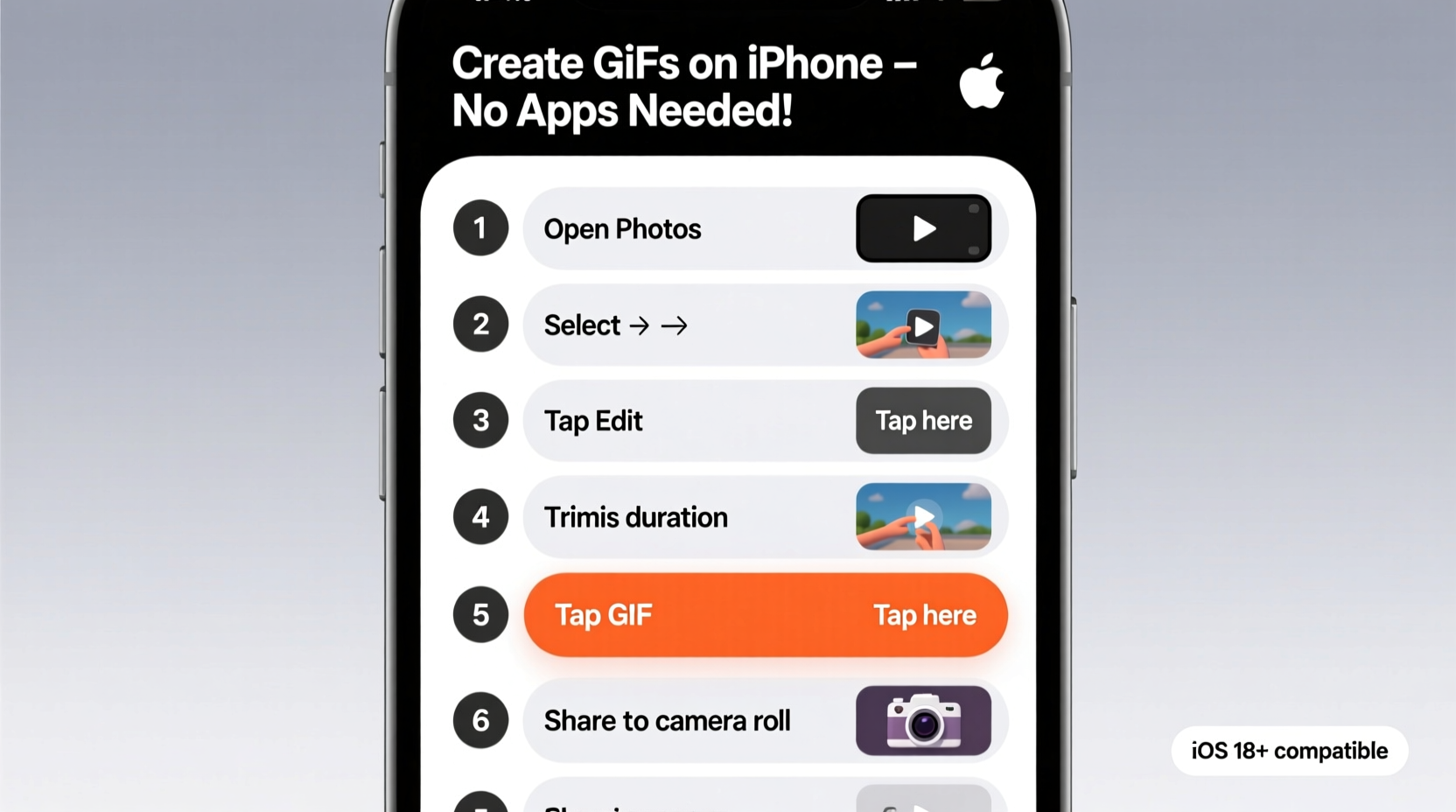
The foundation of any good GIF is the source material. On iPhone, you have two primary options: Live Photos and video recordings. Both can be converted into GIFs, but they serve slightly different purposes.
- Live Photos: Automatically captured when enabled, these record 1.5 seconds before and after a still photo. Ideal for spontaneous moments.
- Short Videos: Use the Camera app’s video mode to record up to 30 seconds of smooth footage—perfect for deliberate actions like dance moves, pet antics, or cooking steps.
To ensure high-quality output, stabilize your phone while recording. A shaky clip translates poorly into a looping animation. Natural lighting also improves clarity, especially if the GIF will be viewed on larger screens.
Convert a Live Photo into a GIF
If you’ve already taken a Live Photo, converting it to a GIF requires no additional downloads. The Photos app includes an export feature that outputs the motion portion as an animated image.
- Open the Photos app and locate the Live Photo you want to convert.
- Tap the photo to open it, then swipe up to reveal effects like \"Loop,\" \"Bounce,\" and \"Long Exposure.\"
- Select Loop—this makes the Live Photo play continuously, mimicking a GIF’s behavior.
- Tap the Share button (the square with an upward arrow).
- Choose Save as Video. This converts the animated loop into a silent MP4 file.
- Reopen the saved video in Photos and share it again.
- Select Copy, then paste it into a message or email. When pasted into certain platforms (like iMessage or Notes), it behaves like a GIF.
While this method technically creates a video file, many messaging services treat short, looping videos identically to GIFs—autoplaying silently in-line. For practical use, the result is nearly identical.
Create a GIF from a Video Clip
For longer or more controlled sequences, start with a video. Here’s how to turn a segment into a portable, animated clip:
- Record a short video (under 30 seconds) using the default Camera app in video mode.
- Open the Photos app and find your video.
- Edit the clip: Tap Edit, drag the yellow brackets to isolate the 3–10 second segment you want to animate.
- Tap Done to save the trimmed version.
- Share the video via the Share Sheet and select Trim if further shortening is needed.
- After finalizing, tap Share again and choose Save to Files or Copy.
- Paste the video into iMessage, Notes, or Mail. On these platforms, short videos function like GIFs—looping automatically without sound.
This approach leverages iOS’s intelligent media handling. Though the file remains in video format, its behavior in conversation threads mirrors that of a traditional GIF.
Why iPhones Don’t Save True GIFs Natively (And What That Means)
Despite advanced camera systems, iPhones do not include a “Save as GIF” option in the Photos app. This is intentional. Apple prioritizes video formats (like HEVC and MP4) over GIFs due to significant technical differences:
| Feature | GIF | iOS Video (MP4/HEVC) |
|---|---|---|
| File Size | Large (no compression) | Small (efficient compression) |
| Color Depth | Limited to 256 colors | Millions of colors |
| Sound Support | No audio | Supports audio |
| Battery Impact | High (due to large files) | Optimized playback |
As noted by mobile UX designer Lena Torres:
“Apple avoids native GIF creation because modern video formats deliver better quality at lower bandwidth. For users, the experience is the same—but performance improves.” — Lena Torres, Mobile Interface Designer
In practice, this means your looping video shared through Messages or Notes will appear animated, load quickly, and preserve color fidelity far better than a compressed GIF ever could.
Real-World Example: Turning a Pet Trick into a Shareable Clip
Sarah, a dog owner in Portland, wanted to send her sister a playful clip of her corgi spinning in circles. She didn’t want to upload an app just for one animation.
She opened her Camera app, switched to video mode, and recorded 8 seconds of her dog obeying the “spin” command. Back in Photos, she trimmed the clip to 4 seconds—just the spin itself. Using the Share Sheet, she copied the video and pasted it into a text message. Her sister received it instantly, and the clip played automatically in the iMessage thread, looping silently like a GIF.
No extra storage used. No permissions granted. No ads. Just a seamless, shareable moment—exactly what Sarah needed.
Do’s and Don’ts of iPhone GIF Creation
| Do | Don't |
|---|---|
| Keep clips under 10 seconds for smoother sharing | Use long videos—they won’t loop effectively |
| Trim unwanted frames for a clean loop | Forget to stabilize your phone during recording |
| Use Loop effect on Live Photos for instant animation | Expect a .gif file extension—iOS uses video instead |
| Share via Messages, Notes, or Mail for automatic playback | Try uploading untrimmed videos to social media—they may fail to animate |
Frequently Asked Questions
Can I send my iPhone-created GIF to Android users?
Yes. When you share a looping video via iMessage, SMS, WhatsApp, or email, Android devices receive it as a playable video. While it won’t have the .gif extension, it functions similarly—autoplaying in most apps. For guaranteed cross-platform compatibility, keep the file under 5MB and under 15 seconds.
Is there a way to create an actual .gif file without third-party apps?
Not directly. The iPhone’s operating system does not support exporting animations as .gif files natively. However, by using the methods above, you achieve the same visual and functional outcome using optimized video formats. If you absolutely need a .gif file, you’d need to transfer the video to a computer and use online converters—but this defeats the purpose of an app-free workflow.
Why does my shared video sometimes not loop like a GIF?
Looping behavior depends on the receiving app. iMessage, Notes, and some email clients autoplay short videos in a loop. Social media platforms like Instagram or Facebook may treat them as standard videos unless uploaded through their GIF-specific tools. For best results, test the share destination first.
Final Checklist: Create Your First iPhone GIF (No Apps Needed)
- ✅ Enable Live Photo mode or prepare to record a short video
- ✅ Capture a 3–10 second clip with stable framing
- ✅ Edit the clip in Photos to isolate the key action
- ✅ Apply “Loop” effect if using a Live Photo
- ✅ Save as video or trim as needed
- ✅ Share via Messages, Notes, or Mail
- ✅ Confirm it plays back as a seamless loop
Start Sharing Moments—Without the Bloat
You don’t need another app cluttering your home screen to make expressive, animated content. Your iPhone already has everything required to produce high-quality, shareable GIF-like clips. By understanding how iOS handles motion photos and short videos, you unlock a fast, private, and efficient way to communicate visually.




 浙公网安备
33010002000092号
浙公网安备
33010002000092号 浙B2-20120091-4
Comments
No comments yet. Why don't you start the discussion?