
Digital forms have replaced paper-based processes in nearly every industry—from education and healthcare to marketing and human resources. When designed effectively, they streamline data collection, reduce errors, and save hours of manual entry. Yet many organizations still struggle with clunky, confusing forms that frustrate users and compromise data quality. The key isn’t just digitizing a paper form; it’s redesigning the experience around clarity, usability, and automation.
This guide walks through the essential steps to create a digital form that actually works—saving time, improving response rates, and delivering reliable data. Whether you're collecting customer feedback, onboarding new employees, or managing event registrations, this process ensures your form is intuitive, efficient, and effective.
1. Define Your Purpose and Data Needs
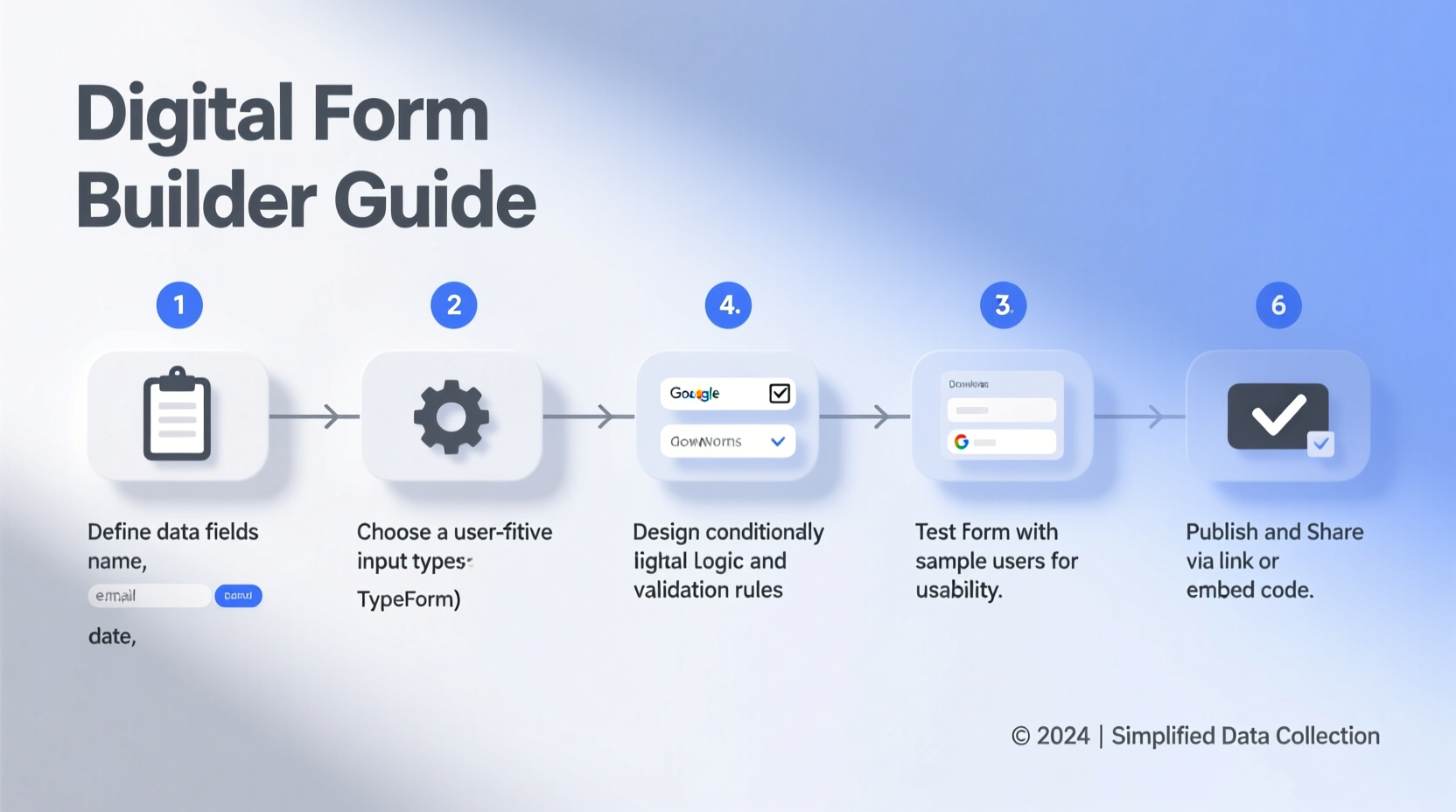
Before opening any form builder, clarify exactly what you want to achieve. A well-defined purpose guides every design decision—from which fields to include to how users will interact with the form.
Ask: What decisions will be made using this data? Who will use it? How will it be stored or analyzed? For example, if you're creating a job application form, your HR team needs structured data (like contact info, work history, and qualifications) that can be imported into an applicant tracking system.
- Identify the core objective (e.g., collect leads, gather feedback, process orders)
- List the minimum data points required to fulfill that objective
- Remove any \"nice-to-have\" fields that don’t directly support your goal
Resist the temptation to collect excessive information. Every additional field increases friction. Research shows that reducing form fields from 11 to 4 can increase conversion rates by up to 120%.
2. Choose the Right Form-Building Platform
Not all form tools are created equal. The right platform depends on your technical needs, budget, and integration requirements.
| Platform | Best For | Key Features | Limitations |
|---|---|---|---|
| Google Forms | Simple surveys, free use | Free, integrates with Google Sheets, real-time responses | Limited design control, no conditional logic in free version |
| Microsoft Forms | Teams users, internal surveys | Seamless with Office 365, good analytics | Fewer third-party integrations |
| Jotform | Custom branding, payments | Drag-and-drop builder, 10,000+ templates, HIPAA compliance available | Premium features require subscription |
| Typeform | User engagement, conversational flow | Interactive design, high completion rates | More expensive, limited logic jumps |
| HubSpot Forms | Marketing teams, CRM integration | Lead tracking, smart fields, automation workflows | Requires HubSpot account, learning curve |
“Simplicity wins. A clean form built on a reliable platform collects better data than a complex one with flashy features.” — Lena Patel, UX Researcher at FormFlow Labs
3. Design for User Experience
A technically functional form can still fail if users abandon it midway. Good design reduces cognitive load and keeps people engaged.
Structure and Flow
Organize fields logically. Start with easy, non-sensitive questions (name, email) before moving to more involved ones. Group related items under clear section headings. For example:
- Contact Information
- Employment History
- References
Use progress indicators for longer forms. A simple “Step 2 of 4” helps users estimate effort and reduces drop-offs.
Field Optimization
- Use appropriate input types (email, phone, date picker) to prevent invalid entries
- Mark required fields clearly (e.g., with an asterisk)
- Add placeholder text to clarify expectations (e.g., “Enter your full legal name”)
- Use dropdowns for standardized answers; open text only when necessary
4. Add Smart Functionality
Advanced features transform static forms into dynamic tools that adapt to user input and automate follow-up.
Conditional Logic
Also known as “skip logic,” this hides irrelevant questions based on previous answers. For example, if a user selects “No” to “Have you used our service before?”, the form skips the satisfaction rating section.
File Uploads and E-Signatures
For applications, contracts, or submissions requiring documentation, enable secure file uploads. Platforms like Jotform and Adobe Sign allow embedded e-signatures, turning your form into a legally binding process.
Automated Notifications and Integrations
Set up instant email confirmations to thank users and confirm receipt. Connect your form to tools like Google Sheets, Airtable, or Zapier to automatically route data to your CRM, project management tool, or database.
Real Example: Community Health Clinic Registration
A local clinic used a paper intake form that took 15 minutes to complete and often contained illegible handwriting. They switched to a digital form using Typeform with conditional logic. Patients on mobile devices could fill it out while waiting. Questions about allergies appeared only if the patient answered “Yes” to having a chronic condition. Responses auto-populated into their electronic health record system. Average intake time dropped to 6 minutes, and data accuracy improved by 90%.
5. Test, Launch, and Optimize
No form is perfect on the first try. Testing reveals usability issues before going live.
Pre-Launch Checklist
- ✅ Verify all required fields are marked
- ✅ Test conditional logic across different paths
- ✅ Confirm mobile responsiveness
- ✅ Send test submissions to ensure notifications and integrations work
- ✅ Review privacy policy and GDPR/CCPA compliance
Share the draft with 3–5 team members or trusted users. Ask them to complete it and report any confusion or technical glitches.
Post-Launch Monitoring
Track metrics such as:
- Completion rate
- Time to complete
- Drop-off points
- Data quality (e.g., number of invalid email entries)
Use this data to refine the form. Even small tweaks—like rewording a question or changing the button color—can significantly improve performance.
FAQ
How do I ensure my digital form is accessible?
Use platforms that support screen readers, provide labels for all form fields, ensure keyboard navigation, and maintain sufficient color contrast. Avoid relying solely on color to indicate required fields.
Can I password-protect my form?
Yes. Tools like Jotform, Google Forms (via Google Workspace settings), and Typeform allow access restrictions. You can limit responses to specific email domains or require a link with authentication.
What should I do if someone submits incorrect information?
Enable edit links so respondents can correct their submissions. Alternatively, set up a review workflow where admins can flag and request updates.
Conclusion
Creating a digital form that truly simplifies data collection isn’t just about replacing paper—it’s about rethinking the entire process. From defining a clear purpose to designing for usability and automating workflows, each step builds toward a tool that saves time, reduces errors, and enhances user experience.
The most effective forms feel effortless to complete because they’re built with empathy and precision. Now that you’ve learned how to design one, take the next step: audit an existing form in your organization. Identify one friction point and redesign it using these principles. Small improvements compound into major gains in efficiency and data quality.




 浙公网安备
33010002000092号
浙公网安备
33010002000092号 浙B2-20120091-4
Comments
No comments yet. Why don't you start the discussion?