
Creating a Google Account is the first step to accessing a wide range of online tools, from Gmail and Google Drive to YouTube, Google Maps, and more. Whether you're new to smartphones, computers, or just want a reliable email address, setting up a Google Account is simple and free. This guide walks you through every step clearly and thoroughly—no tech jargon, no confusion. By the end, you’ll have a fully functional Google Account ready to use.
Why You Need a Google Account
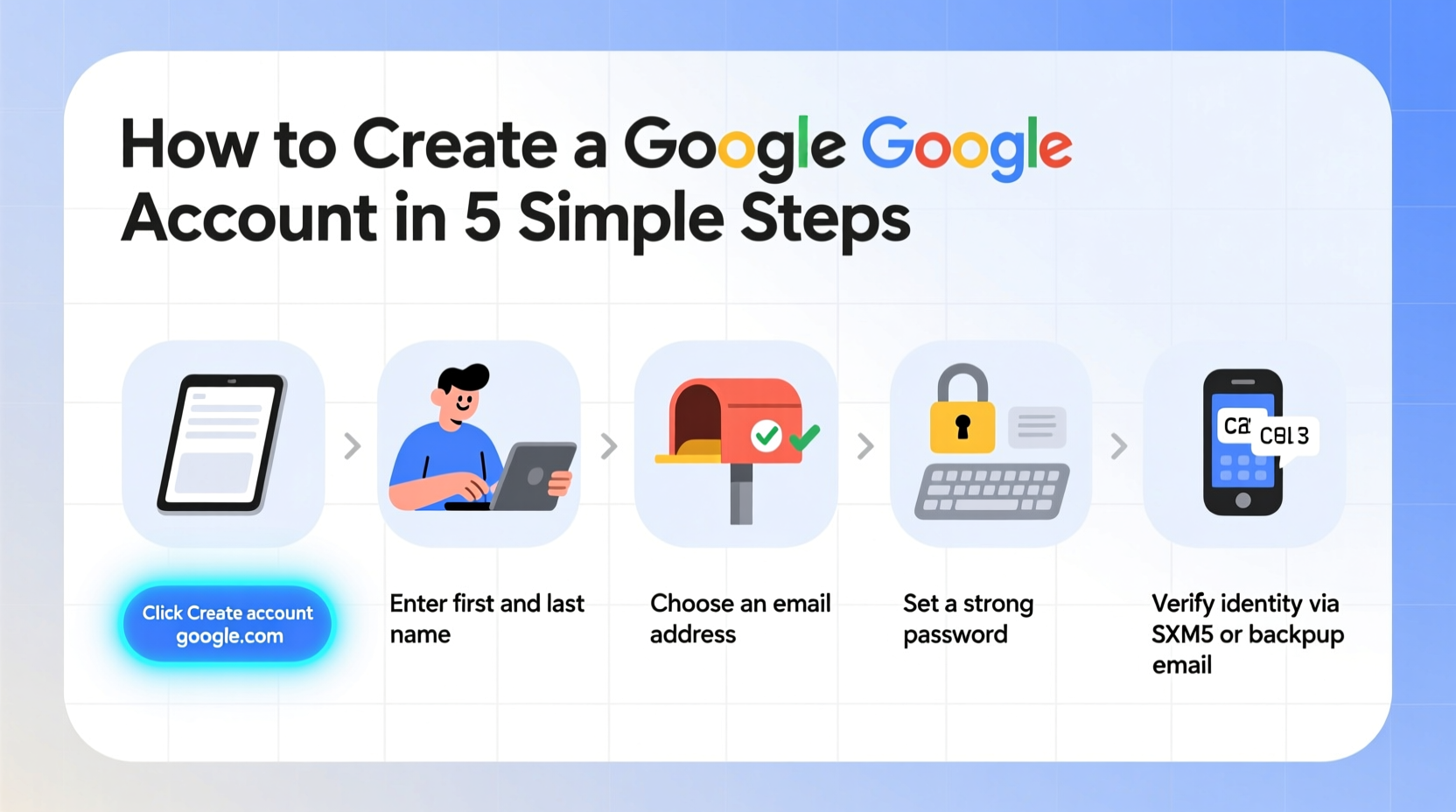
A Google Account isn’t just for email. It’s your gateway to dozens of essential digital services. With one account, you can save files in Google Drive, manage calendars, store photos in Google Photos, use navigation on Google Maps, and even set up smart home devices. If you own an Android phone, a Google Account is required to personalize your device and sync your data across platforms.
Google also offers strong security features like two-factor authentication, recovery options, and spam filtering, making it one of the most trusted platforms for personal and professional communication.
What You’ll Need Before Starting
Before you begin, gather a few basic pieces of information. Having them ready will speed up the process and reduce errors.
- A working internet connection
- Access to a smartphone or computer
- Your full name (as you'd like it displayed)
- A birth date (must be 13 or older)
- A recovery phone number or alternate email (optional but recommended)
Note: Google requires users to be at least 13 years old to create an account. If you’re under 13, a parent or guardian can set up a supervised Google Account through Family Link.
Step-by-Step Guide to Creating Your Google Account
Follow these steps carefully to create your account from any web browser or mobile device.
- Go to the Google Account Creation Page
Open your preferred browser (Chrome, Safari, Firefox, etc.) and visit https://accounts.google.com/signup. This is the official sign-up page. - Enter Your Name
Type your first and last name in the provided fields. This name will appear when you send emails or comment on YouTube. You can change it later if needed. - Choose a Username (Your Gmail Address)
In the “Choose your username” field, type the email address you want. For example:jane.doe@gmail.com.
Google will check availability instantly. If the name is taken, try variations like adding numbers or using dots (e.g.,jane.doe123@gmail.com).
Note: Once chosen, you cannot change your Gmail address, though you can add aliases or secondary addresses later. - Create a Strong Password
Enter a password that’s at least 8 characters long and includes a mix of uppercase letters, lowercase letters, numbers, and symbols.
Avoid common passwords like “password123” or your name. Google will show a strength indicator as you type. - Confirm Your Birth Date and Gender
Select your birth date from the dropdown menus. Choose your gender if you wish—this is optional and used only for personalization. - Add a Recovery Phone Number or Email
Enter a phone number where Google can reach you if you lose access. Alternatively, you can provide a backup email address.
This helps you recover your account if you forget your password or get locked out. - Review Privacy Settings
Google may suggest personalized ads or activity tracking. You can adjust these settings now or skip and change them later in your account dashboard. - Agree to Terms of Service
Read the “Terms of Service” and “Privacy Policy” links if desired, then click I agree.
By clicking, you confirm you’ve read and accept Google’s policies. - Complete Verification (If Prompted)
Occasionally, Google asks you to verify your identity via SMS or voice call, especially if multiple accounts are created from the same device.
Follow the instructions to enter the code sent to your phone. - Welcome to Your New Google Account!
You’ll be redirected to your Gmail inbox or Google homepage. You can now start using Gmail, Google Drive, and other services.
What to Do After Creating Your Account
Your account is active, but there are a few key steps to secure and optimize it right away.
Set Up Security Features
Security is crucial. Take a few extra minutes to protect your account from unauthorized access.
- Enable two-factor authentication (2FA) in your Google Account settings.
- Add both a recovery phone and email.
- Review recent account activity regularly.
Personalize Your Experience
Visit myaccount.google.com to:
- Update your profile picture
- Change your password
- Manage connected apps and devices
- Customize privacy controls
Common Issues and How to Fix Them
Even with clear instructions, some users encounter problems. Here’s how to handle frequent issues:
| Issue | Possible Cause | Solution |
|---|---|---|
| “Username is taken” | Someone else already has that email | Try adding numbers, middle initials, or dots between names |
| Can’t receive verification code | Network issue or wrong number entered | Check signal, re-enter number, or request a call instead |
| Password not accepted | Too short or too simple | Use at least 8 characters with mixed types (e.g., Aa1!) |
| Account creation blocked | Suspicious activity from your IP | Wait a few hours, use a different network, or contact Google Support |
“We see millions of new Google Accounts created every month. The most successful ones belong to users who set up recovery options early.” — Google Support Team, Account Security Division
Real Example: Maria Sets Up Her First Email
Maria, a 67-year-old retiree, never used email before but wanted to stay in touch with her grandchildren. She followed this guide on her tablet, using her local library’s Wi-Fi. At first, she was nervous about choosing a username, but after trying “maria.smith,” which was taken, she switched to “maria.smith1955” using her birth year. She added her daughter’s phone number as a recovery option. Within 15 minutes, she sent her first email—complete with a photo attachment. Now, she checks Gmail daily and uses Google Photos to save family pictures.
Frequently Asked Questions
Can I create a Google Account without a phone number?
Yes, you can skip the phone number field, but it’s strongly recommended to add one. Without a recovery option, regaining access to your account if you forget your password becomes very difficult.
Is Gmail the only email option with a Google Account?
While Gmail is the default, you can use your Google Account to sign in to third-party apps and websites without revealing your email. You can also create additional Gmail aliases under the same account later.
What if I forget my password?
Click “Forgot password?” on the login screen. Google will guide you through resetting it using your recovery phone, email, or security questions (if set up).
Final Checklist: Did You Complete These Steps?
- ✅ Created a unique username and strong password
- You’ve chosen a Gmail address and secured it with a complex password.
- ✅ Added a recovery phone or email
- This ensures you can regain access if locked out.
- ✅ Verified your identity (if prompted)
- You completed any SMS or call verification successfully.
- ✅ Enabled basic security settings
- You’ve turned on two-factor authentication or reviewed your privacy options.
- ✅ Signed in and tested your inbox
- You’ve sent or received a test email to confirm everything works.
Start Using Your Google Account Today
You now have a fully functional Google Account—your key to staying connected, organized, and productive online. From sending emails to storing documents and exploring the web, your digital journey begins here. Don’t rush; explore each service at your own pace. Over time, you’ll discover how much easier life becomes with Google’s tools at your fingertips.




 浙公网安备
33010002000092号
浙公网安备
33010002000092号 浙B2-20120091-4
Comments
No comments yet. Why don't you start the discussion?