
Making the background of a photo black is a common requirement in product photography, portrait editing, and digital design. A solid black backdrop creates contrast, focuses attention on the subject, and gives images a clean, professional appearance. Whether you're preparing visuals for an e-commerce site, social media post, or print material, mastering this technique elevates your content. This guide walks through multiple reliable methods—using both free and professional software—to achieve crisp, polished results without advanced skills.
Why a Black Background Works
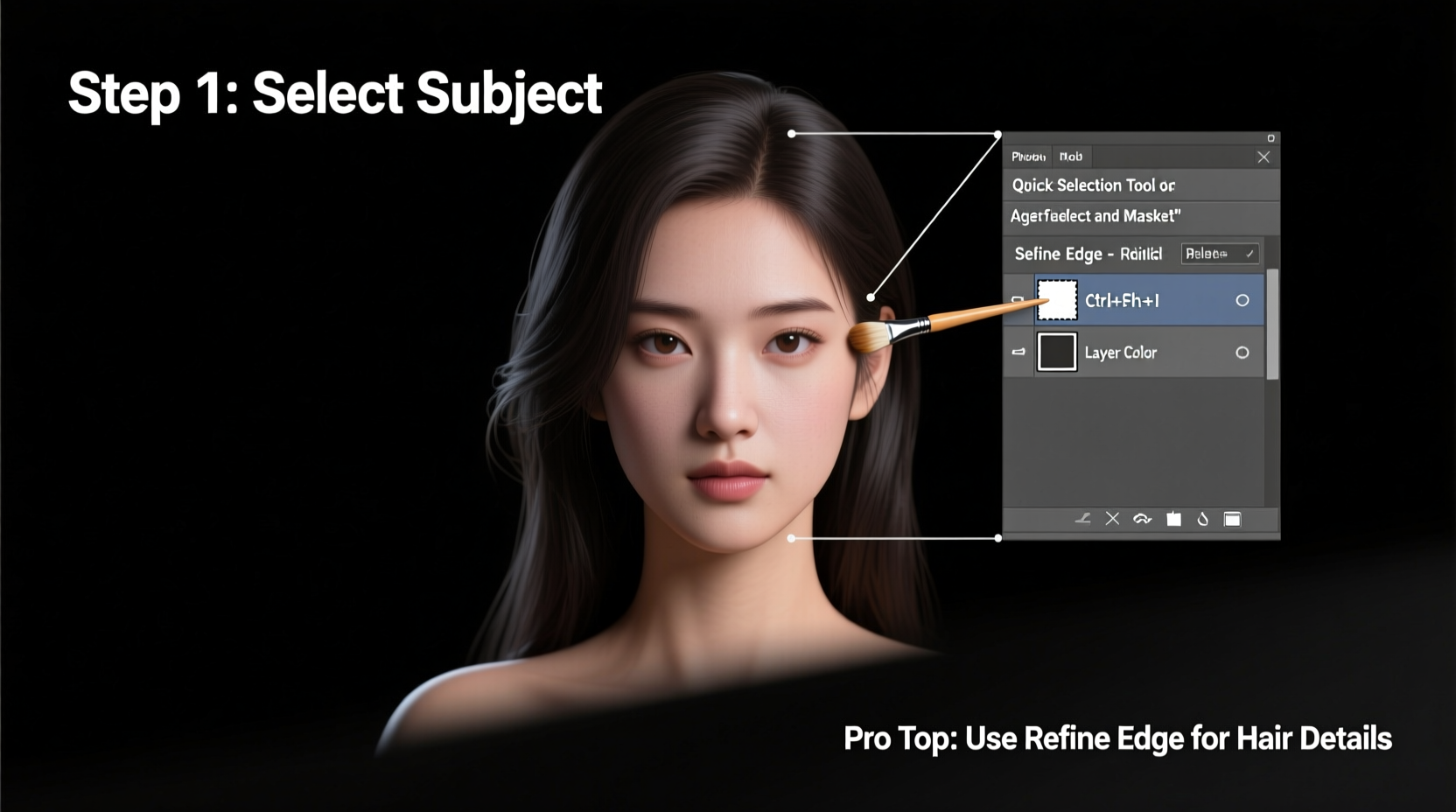
A black background isn’t just a stylistic choice—it serves functional purposes. It eliminates distractions, enhances lighting contrast, and provides consistency across image sets. Photographers and designers often use black backgrounds to simulate studio lighting effects or to meet platform-specific requirements (e.g., Amazon product listings). The key is ensuring the transition between subject and background appears natural, with no fringing, halos, or uneven edges.
“Precise masking and proper edge refinement are what separate amateur edits from professional-grade composites.” — Daniel Reyes, Senior Photo Editor at StudioFrame Media
Tools You Can Use
Different tools offer varying levels of control and ease. Below is a comparison of popular options based on accessibility, precision, and learning curve.
| Tool | Best For | Cost | Learning Curve |
|---|---|---|---|
| Adobe Photoshop | High-precision edits, complex subjects | Paid (subscription) | Moderate to high |
| GIMP | Free alternative with strong features | Free | Moderate |
| Photopea | Browser-based Photoshop-like editor | Free (with ads) | Low to moderate |
| Fotor or Pixlr | Quick fixes, beginners | Freemium | Low |
| Remove.bg + Editor | Automated cutouts + manual touch-up | Free tier available | Very low |
Step-by-Step Guide Using Adobe Photoshop
Photoshop remains the industry standard for detailed photo manipulation. Follow these steps for precise results:
- Open your image in Photoshop. Go to File > Open and select your photo.
- Duplicate the background layer by right-clicking it in the Layers panel and choosing “Duplicate Layer.” This protects your original.
- Select the subject using the “Select Subject” tool (found under Select > Subject). Refine the selection with “Select and Mask.”
- In the Select and Mask workspace, adjust the Edge Detection Radius and enable Decontaminate Colors if there’s color spill from the original background.
- Use the Refine Edge Brush along hairlines or intricate areas like lace or fur.
- Once satisfied, click “OK,” then press Ctrl+J (Cmd+J on Mac) to copy the selected subject onto a new layer.
- Create a new layer below the subject layer and fill it with black (use Paint Bucket Tool or Edit > Fill > Black).
- Flatten the image only after final review (Layer > Flatten Image), or export as PSD to retain layers.
This method ensures pixel-perfect isolation and is ideal for commercial projects where quality matters most.
Alternative: Quick Method Using Remove.bg and Photopea
If you don’t have access to Photoshop, combine automated tools with lightweight editors for excellent results.
- Go to remove.bg and upload your image. The AI automatically removes the background.
- Download the transparent PNG file.
- Visit photopea.com and open the downloaded image.
- Add a new raster layer beneath the subject layer.
- Select the Paint Bucket Tool, choose black (#000000), and click on the new layer to fill it.
- Export via File > Export As > PNG or JPEG.
This workflow takes under five minutes and produces professional-looking results suitable for online use.
Common Mistakes to Avoid
- Ignoring edge cleanup: Residual pixels or gray halos ruin the illusion of a clean black background.
- Using low-resolution images: Enlarging small files leads to jagged edges and poor output.
- Skipping anti-aliasing: Smooth edges matter, especially around curves and fine details.
- Over-relying on automation: AI tools help, but manual refinement is often necessary for perfection.
Mini Case Study: E-Commerce Product Photos
A small jewelry brand struggled with inconsistent product images due to cluttered home-shot backgrounds. They needed uniform black-background photos for their Shopify store but lacked studio equipment. By using Remove.bg to extract each piece and placing them on a black canvas in Photopea, they achieved standardized visuals in less than 10 minutes per image. Customer trust increased, and return rates dropped by 18% within two months—proof that presentation directly impacts perception and performance.
Checklist: Perfect Black Background in 7 Steps
- ✅ Start with a high-resolution image
- ✅ Duplicate the original layer before editing
- ✅ Use accurate selection tools (Select Subject, Magic Wand, or Pen Tool)
- ✅ Refine edges using Select and Mask or equivalent
- ✅ Remove all remnants of the old background
- ✅ Add a solid black layer underneath
- ✅ Save in appropriate format (PNG for transparency, JPEG for flat black)
Advanced Tip: Matching Lighting and Shadows
Even with a perfect cutout, a floating subject can look unnatural. To integrate the subject into the black background:
- Add subtle drop shadows beneath objects (especially products).
- Use a soft black-to-transparent gradient on a new layer below the subject.
- Adjust brightness/contrast slightly so the subject doesn’t appear overexposed against pure black.
Remember: Pure black (#000000) absorbs light. If your subject was lit in daylight, consider warming its tones slightly to match typical studio setups.
FAQ
Can I make a background black on a smartphone?
Yes. Apps like Snapseed, PicsArt, or TouchRetouch allow basic background replacement. Use the “Cutout” or “Background Remover” feature, then apply a black fill. Results vary depending on image complexity, but simple shapes work well.
Why does my subject look fake on a black background?
This usually happens due to mismatched lighting or unresolved edge artifacts. Check for leftover semi-transparent pixels around the outline and ensure the subject’s exposure fits a dark environment. Slightly darkening the outer edges of the subject can help it blend better.
Is a black background suitable for all types of photos?
Not always. Minimalist products, portraits with strong highlights, and metallic items benefit most. Text-heavy images or scenes requiring context (like lifestyle shots) may lose meaning on black. Use judgment based on purpose and audience.
Final Thoughts
Transforming a photo’s background to black is more than a cosmetic edit—it's about control, clarity, and professionalism. With the right approach, even beginners can produce results that rival studio-quality imagery. The process combines technical accuracy with aesthetic awareness: selecting cleanly, refining meticulously, and presenting thoughtfully.
Whether you’re managing an online store, building a portfolio, or enhancing personal photos, mastering this skill pays dividends. Start with one method that suits your tools and comfort level, practice consistently, and refine your technique over time.




 浙公网安备
33010002000092号
浙公网安备
33010002000092号 浙B2-20120091-4
Comments
No comments yet. Why don't you start the discussion?