
Navigating the digital world begins with one simple action: opening a web browser. Whether you're using a laptop, desktop, or tablet, the browser is your gateway to information, communication, shopping, and entertainment. Yet for many new users, even launching a browser can feel uncertain. This guide breaks down every step—from powering on your device to performing efficient searches—so you can browse confidently and efficiently, regardless of your technical background.
Understanding Web Browsers
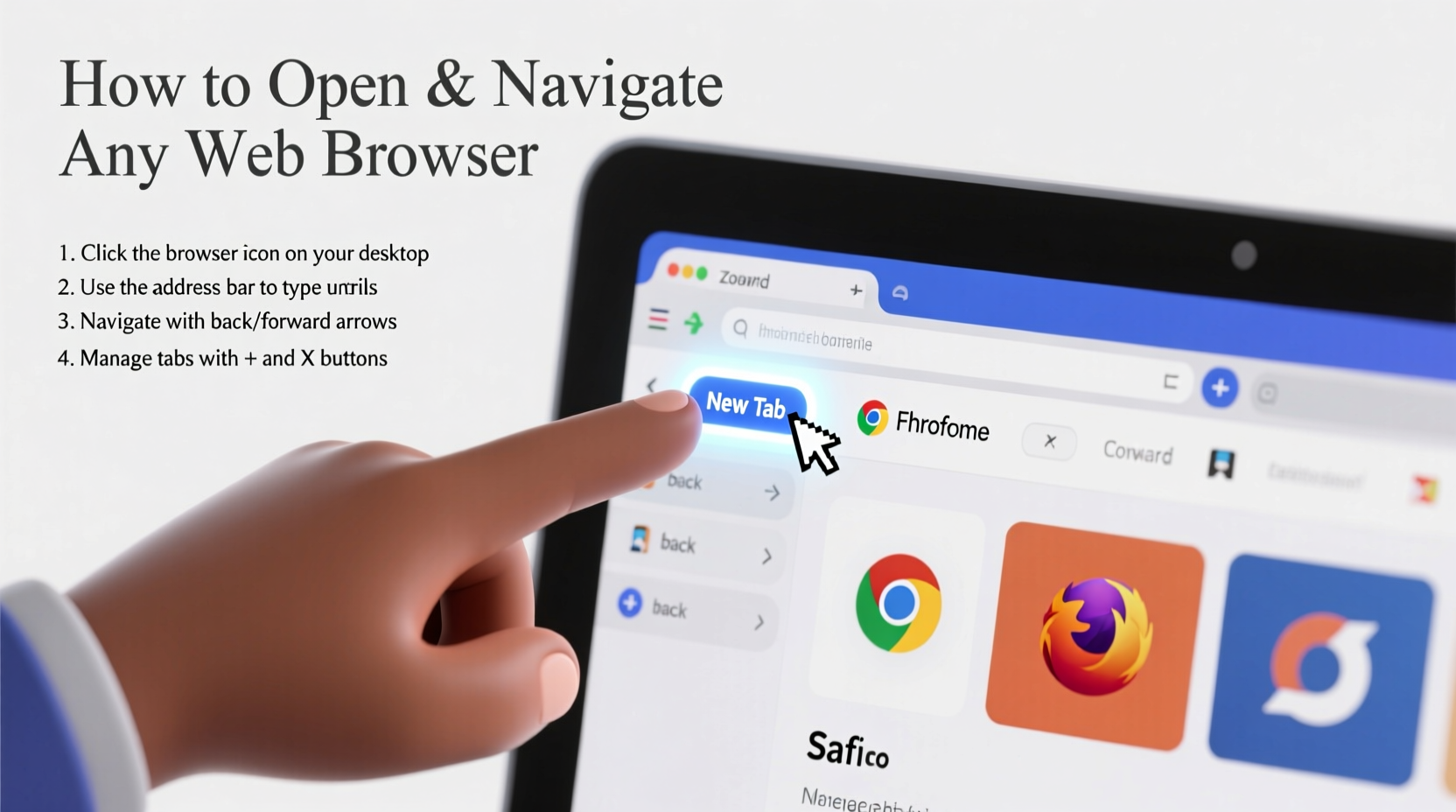
A web browser is a software application that retrieves and displays content from the World Wide Web. Common browsers include Google Chrome, Mozilla Firefox, Microsoft Edge, and Apple Safari. Each serves the same core purpose but may differ slightly in layout, features, and performance. The good news? Once you learn how to use one, you can easily adapt to others.
Browsers are typically pre-installed on devices. For example, Safari comes with Mac computers and iPhones, while Microsoft Edge is standard on Windows PCs. Chrome and Firefox can be downloaded freely and installed across multiple platforms.
“Mastering basic browser navigation is the foundation of digital literacy in today’s connected world.” — Dr. Linda Park, Digital Inclusion Researcher
Step-by-Step Guide to Opening a Web Browser
Follow this universal process to launch any browser, whether you're on a Windows PC, Mac, or mobile device.
- Power on your device: Press the power button and wait for the operating system to load completely.
- Locate the browser icon: Look for recognizable logos:
- Google Chrome: multicolored sphere (red, yellow, green, blue)
- Mozilla Firefox: orange fox wrapped around a globe
- Microsoft Edge: blue “e” with a gradient swirl
- Safari: compass with a blue face and white pointer
- Click or tap the icon: On desktops, double-click the icon on the desktop or taskbar. On laptops, click once if pinned to the dock or taskbar. On tablets or phones, tap the app icon once.
- Wait for the browser to launch: Most browsers open within seconds. If it's slow, ensure your device has adequate memory and internet connection.
- Verify connectivity: If a webpage doesn’t load, check your Wi-Fi or Ethernet connection. Try visiting a well-known site like
google.comto confirm access.
Navigating the Browser Interface
Once your browser is open, familiarize yourself with its primary components. Though designs vary, most share these key elements:
| Element | Function | Example Use |
|---|---|---|
| Address Bar (Omnibox) | Type URLs or search queries | Enter “weather.com” or “best coffee shops near me” |
| Back/Forward Buttons | Navigate browsing history | Return to the previous page after clicking a link |
| Refresh Button | Reload current page | Update a page that didn’t load properly |
| Tabs | Open multiple pages simultaneously | Keep email open in one tab, news in another |
| Bookmark Star | Save favorite websites | Add your bank’s login page for quick access |
| Menu (Three Dots or Lines) | Access settings, history, downloads | Find recently closed tabs or clear browsing data |
Use the address bar not just for website addresses but also as a search tool. Type a question like “how to bake banana bread” and press Enter—the browser will return search results instantly.
Essential Navigation Shortcuts
Speed up your browsing with keyboard shortcuts. These work across most browsers:
- Ctrl + T (Cmd + T on Mac): Open a new tab
- Ctrl + W (Cmd + W): Close current tab
- Ctrl + L (Cmd + L): Highlight text in the address bar
- Ctrl + D (Cmd + D): Bookmark the current page
- Ctrl + H (Cmd + Y): Open browsing history
- Ctrl + Shift + T (Cmd + Shift + T): Reopen last closed tab
Practical Tips for Efficient Browsing
Smooth navigation isn’t just about knowing where buttons are—it’s about building smart habits.
Organize Tabs Wisely
Too many open tabs slow down your browser and make it hard to find what you need. Close tabs you’re done with, or group related ones into windows (e.g., one window for research, another for messaging).
Use Bookmarks to Save Time
If you visit certain sites regularly—like your email, calendar, or news outlet—bookmark them. Click the star icon in the address bar, name the bookmark, and save it to a folder like “Work” or “Personal.”
Enable Pop-Up Blockers
Most browsers block pop-ups by default. Ensure this feature is active under Settings > Privacy and Security to avoid intrusive ads and potential scams.
Search Within Pages
On long webpages, press Ctrl + F (Cmd + F on Mac) to open the “Find” function. Type a keyword (e.g., “refund policy”) to jump directly to relevant sections.
Mini Case Study: Maria Learns to Browse Confidently
Maria, a retiree returning to part-time work, felt overwhelmed when asked to check her schedule online. She had never used a computer regularly. Her nephew sat with her and walked through opening Chrome on her Windows laptop. He showed her how to type the company’s portal URL, log in, and bookmark the page. Over the next week, Maria practiced daily: opening the browser, navigating to her schedule, and checking updates. She learned to use Ctrl + T to open a new tab for weather without losing her work page. Within ten days, she was managing her schedule independently—and even started reading news online during breaks.
This real-world example shows that consistent, guided practice turns uncertainty into confidence.
Frequently Asked Questions
What should I do if my browser won’t open?
First, restart your device. If the issue persists, check for software updates or reinstall the browser. You can also try opening an alternative browser—if available—to determine if the problem is system-wide.
How do I switch between open tabs?
Click on the tab directly, or use Ctrl + Tab (Cmd + Option + Right Arrow on Mac) to cycle forward through tabs. Press Ctrl + Shift + Tab to move backward.
Is it safe to stay logged into websites?
For personal devices, staying logged in to trusted sites (like email or banking) is generally safe—especially if your device uses a password or biometric lock. On shared computers, always log out after use.
Browser Navigation Checklist
Use this checklist to ensure you're browsing effectively and securely:
- ✅ Open your preferred browser using desktop icon or Start menu
- ✅ Verify internet connection by loading a known site
- ✅ Use the address bar to search or enter URLs
- ✅ Open new tabs for multitasking (Ctrl + T)
- ✅ Bookmark frequently visited sites
- ✅ Close unused tabs to improve performance
- ✅ Use Ctrl + F to find text on a page
- ✅ Clear browsing history periodically if using a shared device
Conclusion
Opening and navigating a web browser doesn’t require technical expertise—just a few foundational skills and a willingness to explore. From launching the application to mastering tabs, search, and shortcuts, each step builds your confidence and efficiency. The digital world is vast, but with the right tools and habits, it becomes accessible to everyone.




 浙公网安备
33010002000092号
浙公网安备
33010002000092号 浙B2-20120091-4
Comments
No comments yet. Why don't you start the discussion?