
Adding music to your cell phone doesn’t have to be complicated. Whether you're switching from a computer, downloading new tracks, or transferring personal recordings, there are several reliable ways to get any song onto your device in minutes. With the right method, you can enjoy offline listening anytime—no internet required. This guide covers the most effective techniques for both Android and iPhone users, including cloud services, direct transfers, and third-party tools.
1. Choose Your Method Based on Device Type
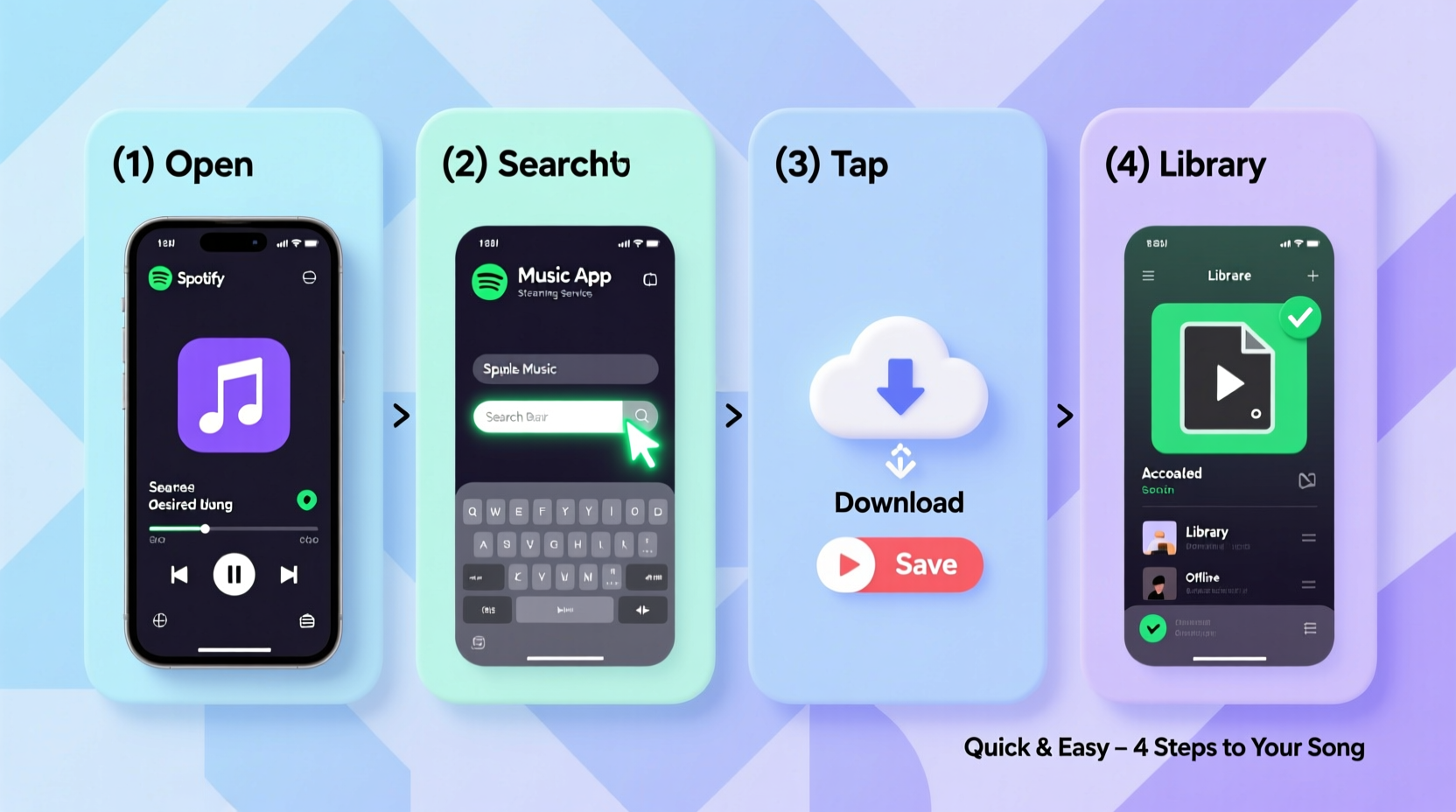
The process of adding songs depends largely on your phone’s operating system. While Android offers more flexibility with file management, iPhone requires specific software or apps due to iOS restrictions. Understanding your device's ecosystem is the first step toward seamless music integration.
Here are the primary options available:
- Android: Use USB transfer, Google Play Music (legacy), YouTube Music, or third-party file managers.
- iPhone: Sync via iTunes/Finder, use Apple Music, or leverage cloud storage like iCloud Drive or Dropbox.
2. Transfer Songs via USB Cable (Direct File Copy)
This method works best for users who already have MP3 or other audio files stored on their computer. It gives full control over which songs are added and where they’re saved.
For Android Users:
- Connect your Android phone to your computer using a USB cable.
- On your phone, tap the USB notification and select “File Transfer” (MTP mode).
- Open the device folder on your computer (usually appears as a portable device).
- Navigate to your music folder on the computer.
- Copy the desired song files and paste them into the “Music” folder on your phone.
- Safely eject the device and disconnect the cable.
Once transferred, open any music player app (like VLC, Poweramp, or Samsung Music) to locate and play the new tracks.
For iPhone Users:
iOS does not allow direct file access, but you can still transfer music through Finder (macOS Catalina and later) or iTunes (older systems).
- Install or open iTunes on Windows or older macOS versions; use Finder for newer Macs.
- Connect your iPhone via USB and trust the computer if prompted.
- Select your device in iTunes/Finder.
- Go to the “Music” section and check “Sync Music.”
- Choose specific playlists, artists, albums, or individual songs to sync.
- Click “Apply” or “Sync” to begin transferring.
Note: This method only works with DRM-free files. Purchased music from old iTunes accounts may require authorization.
3. Use Cloud-Based Services for Wireless Access
If you prefer wireless convenience, cloud platforms let you upload and stream music across devices without cables.
| Service | Best For | Free Option? | Offline Listening |
|---|---|---|---|
| YouTube Music | Personal uploads + streaming | Yes (ads, limited features) | Yes (Premium only) |
| Apple Music | iOS integration, large library | No (free trial only) | Yes (with subscription) |
| Spotify | Playlists, discovery | Yes (with ads) | Premium subscribers only |
| Google Drive / Dropbox | Storing personal recordings | Yes (limited storage) | Yes (download files manually) |
How to Upload a Song to YouTube Music (Example):
- Visit music.youtube.com on a desktop browser.
- Sign in with your Google account linked to your phone.
- Click the three dots near \"Library\" and select “Upload music.”
- Select the MP3 or M4A files from your computer (up to 100,000 songs).
- Wait for the upload to complete. Files appear under “Liked” or “Uploads” on mobile.
- Download songs for offline playback within the app.
“Cloud-based music services have eliminated the need for physical syncing. Once uploaded, your personal library follows you across devices.” — David Lin, Mobile Technology Analyst at TechPulse Insights
4. Real Example: Transferring a Home Recording to Share with Family
Sarah, a vocal coach, recorded a short performance on her laptop and wanted to share it with her daughter overseas. Instead of emailing large attachments, she used Dropbox:
- She uploaded the WAV file to her Dropbox account from her laptop.
- Opened the Dropbox app on her iPhone.
- Located the file, tapped the download icon to save it locally.
- Used the built-in Voice Memos app (after converting format via a free online tool) to play it during a family call.
This method saved time and avoided email size limits. For non-standard formats, conversion tools like Audacity or OnlineAudioConverter helped prepare files for mobile compatibility.
5. Quick Checklist: How to Get Any Song on Your Phone
✅ Action Checklist:
- Determine if the song is digital or physical (CD/audio file).
- Convert to compatible format (MP3, AAC, M4A) if needed.
- Choose transfer method: USB, cloud, or streaming service.
- Ensure sufficient storage space on your phone.
- Use a trusted music player app to verify playback.
Common Issues and How to Fix Them
Even simple transfers can run into problems. Here are frequent hurdles and solutions:
- Song doesn’t appear after transfer: Rescan media library using a file manager or restart the phone.
- Unsupported file format: Convert using free tools like CloudConvert or Freemake Audio Converter.
- Sync fails in iTunes/Finder: Update software, restart both devices, and reauthorize your Apple ID.
- Cloud upload stuck: Check internet connection and file size limits.
Frequently Asked Questions
Can I add songs from a CD to my phone?
Yes. Rip the CD to your computer using software like Windows Media Player (Windows) or iTunes (Mac/PC), saving tracks as MP3 or AAC. Then transfer using USB or upload to a cloud service.
Do I need a paid subscription to store my own music?
No. Free tiers of YouTube Music and cloud drives like Google Drive allow uploading personal files. However, offline access in apps like YouTube Music requires Premium for automatic syncing.
Why won’t my phone play the downloaded song?
The file may be in an unsupported format (e.g., FLAC on basic players). Try installing a universal player like VLC for Android or iOS, which supports nearly all audio formats.
Final Tips for Long-Term Music Management
As your collection grows, organization becomes crucial. Create folders by artist or genre on Android, or use smart playlists in Apple Music. Regularly back up important recordings to avoid data loss. Avoid storing music in temporary download folders—move them to a dedicated “Music” directory for easy access.
Also, consider metadata tagging. Editing song titles, artists, and album art improves navigation and ensures correct display in music apps. Tools like Mp3tag (Windows) or Kid3 (cross-platform) make this efficient.
Take Control of Your Mobile Music Library Today
You don’t need technical expertise to get any song on your phone. Whether you're reliving a favorite album, sharing a homemade track, or building a workout playlist, modern tools make it faster than ever. Pick the method that fits your device and lifestyle—direct transfer for full control, or cloud services for anytime access. Start organizing your personal soundtrack now and enjoy high-quality audio wherever you go.




 浙公网安备
33010002000092号
浙公网安备
33010002000092号 浙B2-20120091-4
Comments
No comments yet. Why don't you start the discussion?