
Getting started with a new smartwatch can feel overwhelming, especially if you're unfamiliar with wearable technology. The Samsung Watch, whether it's a Galaxy Watch6, Watch5, or an earlier model, combines sleek design with powerful health and connectivity features. But before you can track your steps, receive calls, or customize your watch face, you need to power it on and set it up correctly. This guide walks you through each stage—from first charge to full functionality—so you can begin using your Samsung Watch with confidence.
1. Charge Your Samsung Watch Before First Use
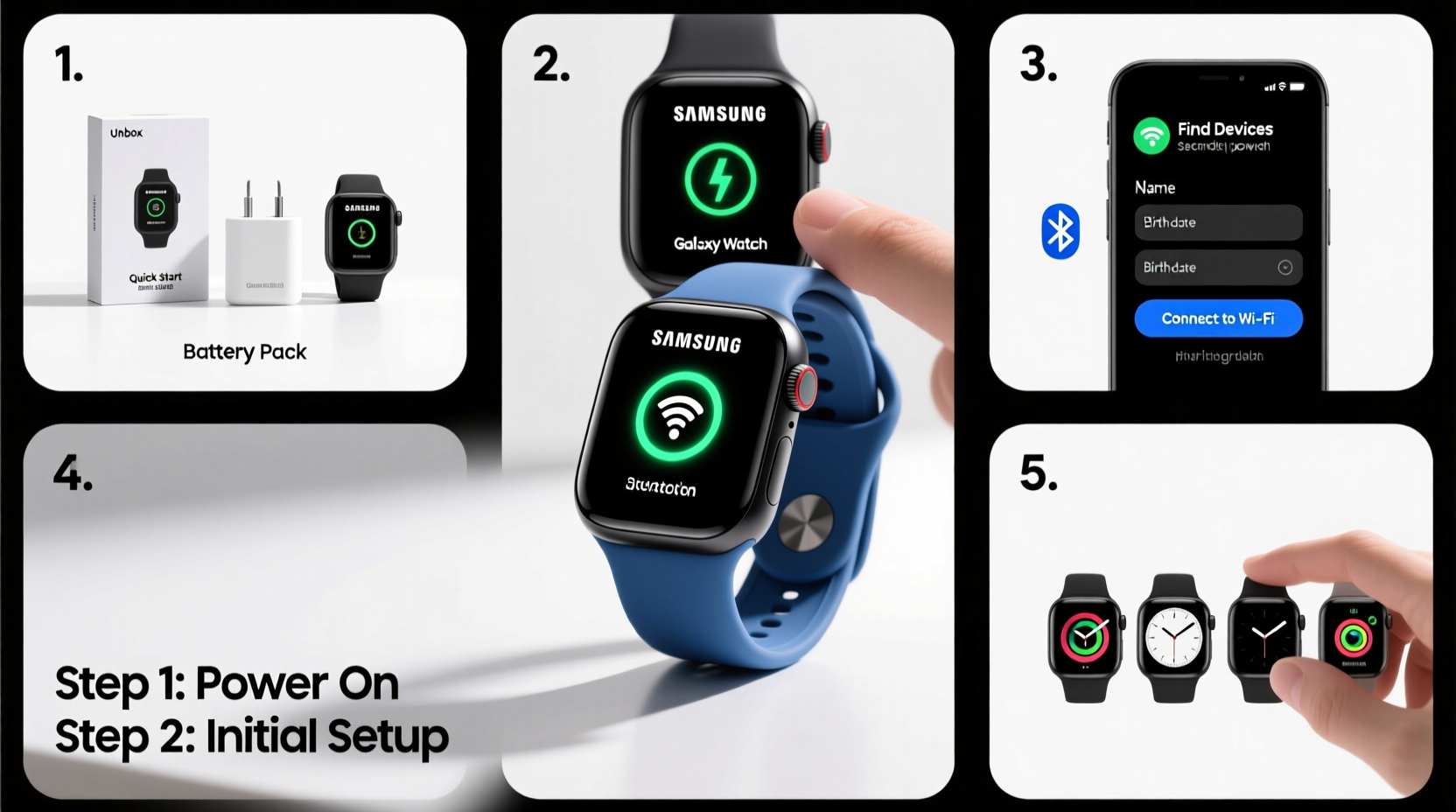
Even if the box says the device is pre-charged, it’s best to fully charge your Samsung Watch before turning it on. This ensures a stable startup and prevents interruptions during initial setup.
- Locate the magnetic charging dock that came with your watch.
- Connect the dock to a USB power adapter (preferably 5V/1A or higher).
- Align the back of the watch with the charger—magnets will snap it into place.
- Wait until the battery indicator on the screen reaches 100%. This typically takes 1.5 to 2 hours.
2. Power On Your Samsung Watch
Once fully charged, it’s time to turn on your device. The process is simple but varies slightly depending on the model.
For Galaxy Watch4, Watch5, Watch6, and newer models:
- Press and hold the **Power button** (on the right side of the watch) for 3–5 seconds.
- You’ll see the Samsung logo appear, followed by a welcome animation.
- Release the button when the animation starts.
- Select your preferred language and tap “Continue.”
For older models like Galaxy Watch3:
- Hold the Power button until the screen lights up.
- Swipe right or tap “Start” after selecting your language.
The watch will boot into its initial setup menu. At this point, the device is on and ready for pairing.
3. Pair Your Watch with a Smartphone
Your Samsung Watch works best when connected to a compatible smartphone via the Galaxy Wearable app. While Android phones are ideal, even some non-Samsung Android devices support core features.
Prerequisites:
- Your phone must run Android 8.0 or higher.
- Bluetooth and Location services must be enabled.
- Download the **Galaxy Wearable** app from the Google Play Store.
Pairing Steps:
- Open the Galaxy Wearable app on your phone.
- Tap “Start” and follow the prompts to scan for nearby watches.
- On your watch, confirm the pairing code matches the one shown on your phone.
- Tap “Accept” on both devices.
- Grant necessary permissions (notifications, health data, etc.).
- Wait for firmware updates to install—this may take several minutes.
4. Customize Your Watch Experience
After successful pairing, personalize your watch to match your lifestyle. Customization enhances usability and makes daily interactions more enjoyable.
Change the Watch Face
- Press the Home button or swipe up from the clock screen.
- Long-press the current watch face to enter edit mode.
- Browse available faces in the gallery or download new ones from the Galaxy Store.
- Select a design and adjust complications (date, heart rate, weather, etc.).
- Tap “Apply” to save.
Set Up Health & Fitness Features
- Add your height, weight, and activity goals in the Health app.
- Enable automatic workout detection under “Exercise” settings.
- Turn on continuous heart rate monitoring and sleep tracking.
Manage Notifications
In the Galaxy Wearable app, go to Notifications > App Notifications to choose which apps send alerts to your wrist. You can mute social media or prioritize messages from family.
| Feature | Recommended Setting | Why It Matters |
|---|---|---|
| Heart Rate Monitoring | Continuous | Tracks trends for health insights |
| Do Not Disturb | 9 PM – 7 AM | Reduces nighttime distractions |
| Always-On Display | Enabled | Quick glance at time and stats |
| Auto-Rotate | On | Improves readability when raising wrist |
“Personalizing your wearable increases long-term engagement. Users who customize their devices are 68% more likely to use them daily.” — Dr. Lena Park, Digital Health Researcher, Seoul National University
5. Daily Usage Tips and Real-World Example
Now that your watch is on and paired, here’s how to make the most of it every day.
Mini Case Study: Sarah’s Morning Routine
Sarah, a 34-year-old teacher in Austin, TX, uses her Galaxy Watch6 to streamline her mornings. After waking up, she checks her sleep score and resting heart rate. During her 7 AM walk, the watch automatically detects her workout and logs pace and distance. By the time she arrives at school, she’s reviewed calendar events and replied to urgent messages—all without touching her phone. Her secret? Proper initial setup and consistent use of voice commands and gesture controls.
Essential Daily Functions:
- Swipe Gestures: Swipe left for apps, right for notifications, up for quick settings.
- Rotating Bezel: Scroll through menus smoothly using the physical or digital bezel.
- Voice Assistant: Say “Hi Bixby” to set reminders, control music, or check the weather.
- Emergency Features: Hold the Power button for 5 seconds to access SOS or fall detection (on supported models).
Frequently Asked Questions
What should I do if my Samsung Watch won’t turn on?
First, ensure it’s properly seated on the charger. Try a different cable or adapter if needed. If still unresponsive, press and hold the Power and Volume Down buttons together for 10 seconds to force a restart.
Can I use my Samsung Watch without a phone?
Yes, but functionality is limited. You can track workouts, monitor heart rate, and play stored music. However, receiving calls, texts, or app notifications requires a connected phone or LTE model with active service.
How often should I charge my Samsung Watch?
Most models last 2–3 days on a single charge with moderate use. Charging nightly ensures you never miss important alerts or health tracking data.
Final Checklist: Getting Started Successfully
- ✅ Fully charge the watch before first use.
- ✅ Press and hold the Power button to turn it on.
- ✅ Install and open the Galaxy Wearable app on your phone.
- ✅ Pair the watch via Bluetooth and confirm the security code.
- ✅ Update the software to the latest version.
- ✅ Customize the watch face and enable key health features.
- ✅ Test basic functions: notifications, voice assistant, and fitness tracking.
Conclusion: Make Your Samsung Watch Work for You
Turning on and setting up your Samsung Watch doesn’t have to be complicated. With the right steps, you can go from unboxing to full functionality in under 30 minutes. Once configured, your watch becomes more than just a timepiece—it’s a personal health coach, communication hub, and productivity tool wrapped around your wrist. Take the time to explore its features, tailor settings to your habits, and let it simplify your daily routine. The investment isn’t just in the device, but in the healthier, more connected life it helps you build.




 浙公网安备
33010002000092号
浙公网安备
33010002000092号 浙B2-20120091-4
Comments
No comments yet. Why don't you start the discussion?