
Mobile network connectivity is essential for calls, texts, and data access. Yet, even the most reliable phones can lose signal or fail to connect. Whether you’ve just switched carriers, restarted your device, or encountered a sudden outage, knowing how to activate and troubleshoot your mobile network saves time and frustration. This comprehensive guide walks you through every stage—from initial setup to diagnosing persistent issues—so you can stay connected with confidence.
Understanding Mobile Network Activation
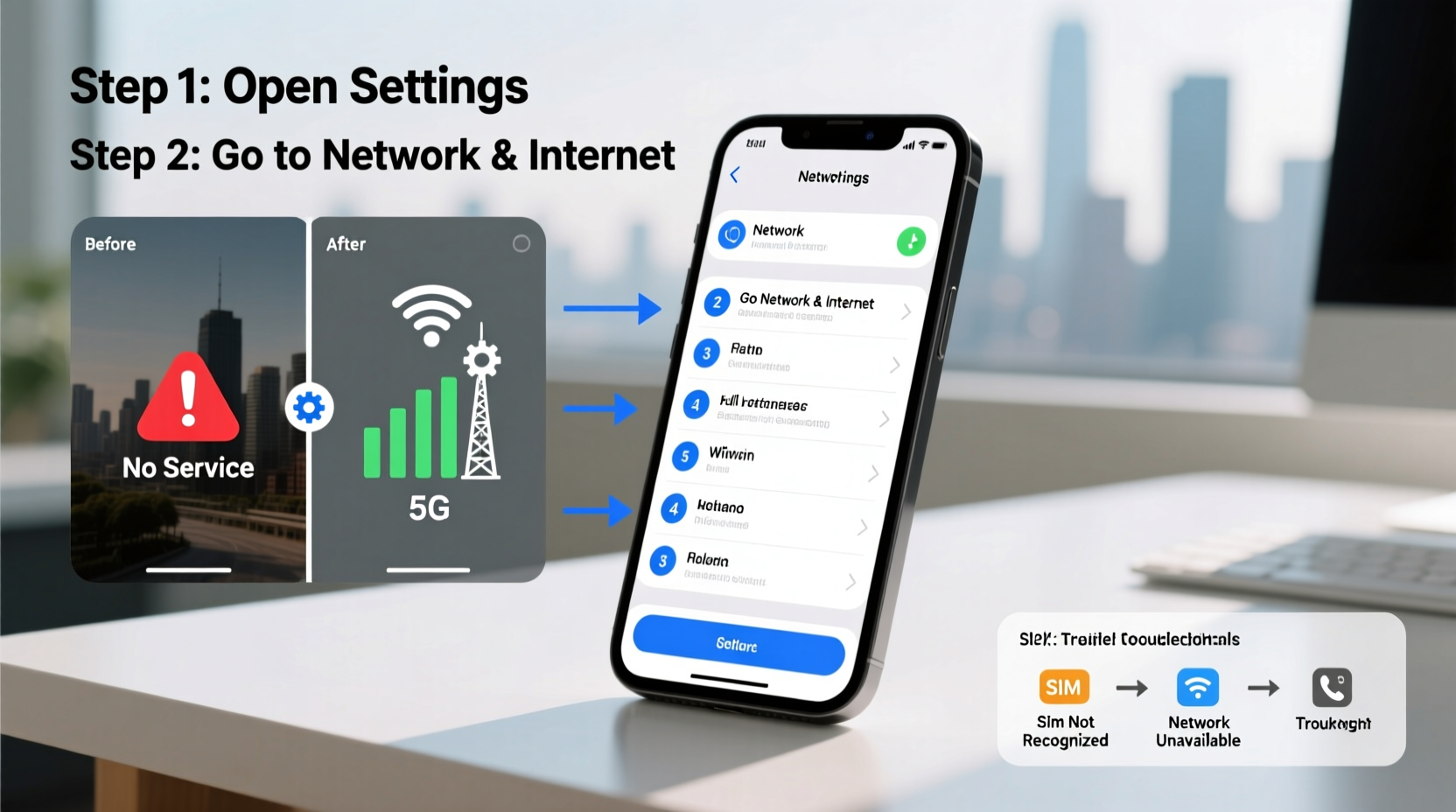
Before troubleshooting, it's important to understand what mobile network activation entails. When you insert a SIM card into your phone, the device communicates with your carrier’s network to authenticate your account and assign network access. This process enables voice, SMS, and data services. If activation fails, your phone may display “No Service,” “Emergency Calls Only,” or show a persistent “Searching…” message.
Activation depends on several factors: a valid SIM card, correct carrier settings, enabled cellular features, and network availability in your area. Most modern smartphones automate much of this process, but manual intervention is sometimes required—especially after switching providers or traveling internationally.
Step-by-Step Guide to Activate Mobile Network
- Insert the SIM card properly: Use the eject tool to open the tray, align the SIM correctly (notch-first), and reinsert the tray. Ensure it’s fully seated.
- Power on the device: Turn on your phone. It should detect the SIM within 30 seconds.
- Check for carrier prompt: Some phones display a notification asking to activate service. Follow the on-screen steps.
- Verify APN settings: Go to Settings > Network & Internet > Mobile Network > Access Point Names. If empty or incorrect, contact your carrier for the correct APN.
- Enable mobile data: Navigate to Settings > Network & Internet > Mobile Data and toggle it on.
- Restart the phone: A reboot often completes the handshake between your phone and the carrier’s network.
- Test connectivity: Make a test call, send a text, or load a webpage to confirm full functionality.
If the network still doesn’t activate, proceed to troubleshooting.
Common Causes of Mobile Network Failure
Network issues are rarely random. They stem from identifiable causes, many of which are user-fixable. Below is a breakdown of the most frequent culprits:
| Issue | Description | Solution |
|---|---|---|
| SIM Not Detected | Phone doesn't recognize the SIM card | Reinsert SIM, clean contacts, try another device |
| Incorrect Network Mode | Phone set to 2G only or airplane mode | Set to LTE/5G auto mode; disable airplane mode |
| Outdated Carrier Settings | Missing profile updates after carrier switch | Update via Settings or contact carrier |
| Poor Signal Area | Physical location limits reception | Move to open space or near windows |
| Software Glitch | OS bug affecting radio module | Restart, update OS, reset network settings |
Troubleshooting Persistent Connectivity Issues
When basic activation steps fail, deeper diagnostics are needed. Follow this checklist to isolate and resolve the problem.
Troubleshooting Checklist
- ✅ Confirm SIM card is active (contact carrier)
- ✅ Toggle Airplane mode on/off
- ✅ Manually select network operator under Network Settings
- ✅ Check for software updates (Settings > System > Software Update)
- ✅ Reset network settings (erases Wi-Fi passwords and Bluetooth pairs)
- ✅ Test SIM in another phone
- ✅ Clean SIM card with soft cloth if dirty
- ✅ Verify account status (no suspension or overdue payments)
If the SIM works in another device but not yours, the issue likely lies with your phone’s hardware or firmware. In such cases, a factory reset may help—but back up data first.
“Over 70% of reported ‘no signal’ issues are resolved by resetting network settings or updating carrier profiles.” — James Lin, Senior Network Technician at GlobalConnect Wireless
Mini Case Study: Maria’s Post-Travel Network Failure
Maria returned from a trip abroad and found her phone wouldn’t connect to her home network. Despite showing full signal bars, she couldn’t make calls or use data. She tried restarting and toggling airplane mode, but nothing worked.
After checking her account online, she confirmed her service was active. She then navigated to Settings > Network & Internet > Mobile Network > Advanced > Access Point Names and noticed the APN was set to a foreign carrier. She reset it to her provider’s default settings, and connectivity was restored immediately.
The root cause? Her phone had locked onto international roaming configurations that didn’t deactivate automatically. A simple APN correction fixed the issue—no need for customer support or repairs.
Advanced Fixes and When to Seek Help
For stubborn problems, consider these advanced solutions:
- Update PRL (Preferred Roaming List): On CDMA networks (like older Verizon or Sprint), outdated PRL can block service. Dial
*#*#7264#*#*or check carrier instructions. - Flash firmware: Advanced users can reflash modem firmware using tools like ODIN (Samsung) or iTunes (iPhone), though this carries risk.
- Contact carrier support: Request a network refresh or SIM replacement if all else fails.
If none of these steps work and the SIM functions in another phone, your device may have a damaged antenna or baseband processor. Visit an authorized repair center for diagnosis.
Frequently Asked Questions
Why does my phone say “No Service” even with a SIM card?
This usually means the phone isn’t communicating with the carrier. Causes include deactivated SIM, incorrect network settings, hardware damage, or being outside coverage. Try restarting, checking airplane mode, or testing the SIM in another phone.
Can a software update fix mobile network issues?
Yes. Updates often include improved carrier profiles, modem firmware fixes, and bug patches that restore connectivity. Always install the latest OS version available for your device.
What does “Emergency Calls Only” mean?
Your phone detects a network tower but cannot authenticate your SIM. This may happen with expired plans, unactivated SIMs, or temporary outages. Contact your carrier to verify account status.
Conclusion: Stay Connected with Confidence
Mobile network issues are common but rarely permanent. With the right approach, most problems can be diagnosed and resolved in under 20 minutes. From proper SIM insertion to resetting network settings and verifying carrier configurations, each step brings you closer to reliable connectivity. Don’t rush to replace your phone or cancel your plan—most glitches are fixable with patience and precision.




 浙公网安备
33010002000092号
浙公网安备
33010002000092号 浙B2-20120091-4
Comments
No comments yet. Why don't you start the discussion?