
Wireless convenience begins with a single connection—Bluetooth. Whether you're commuting, working out, or taking calls from home, pairing your headset to your smartphone should be quick and reliable. Yet many users face delays, failed attempts, or confusion during setup. This comprehensive guide walks you through every stage of activating Bluetooth on your cell phone headset, ensuring a smooth, lasting connection without technical hiccups.
Understanding Bluetooth Technology Basics
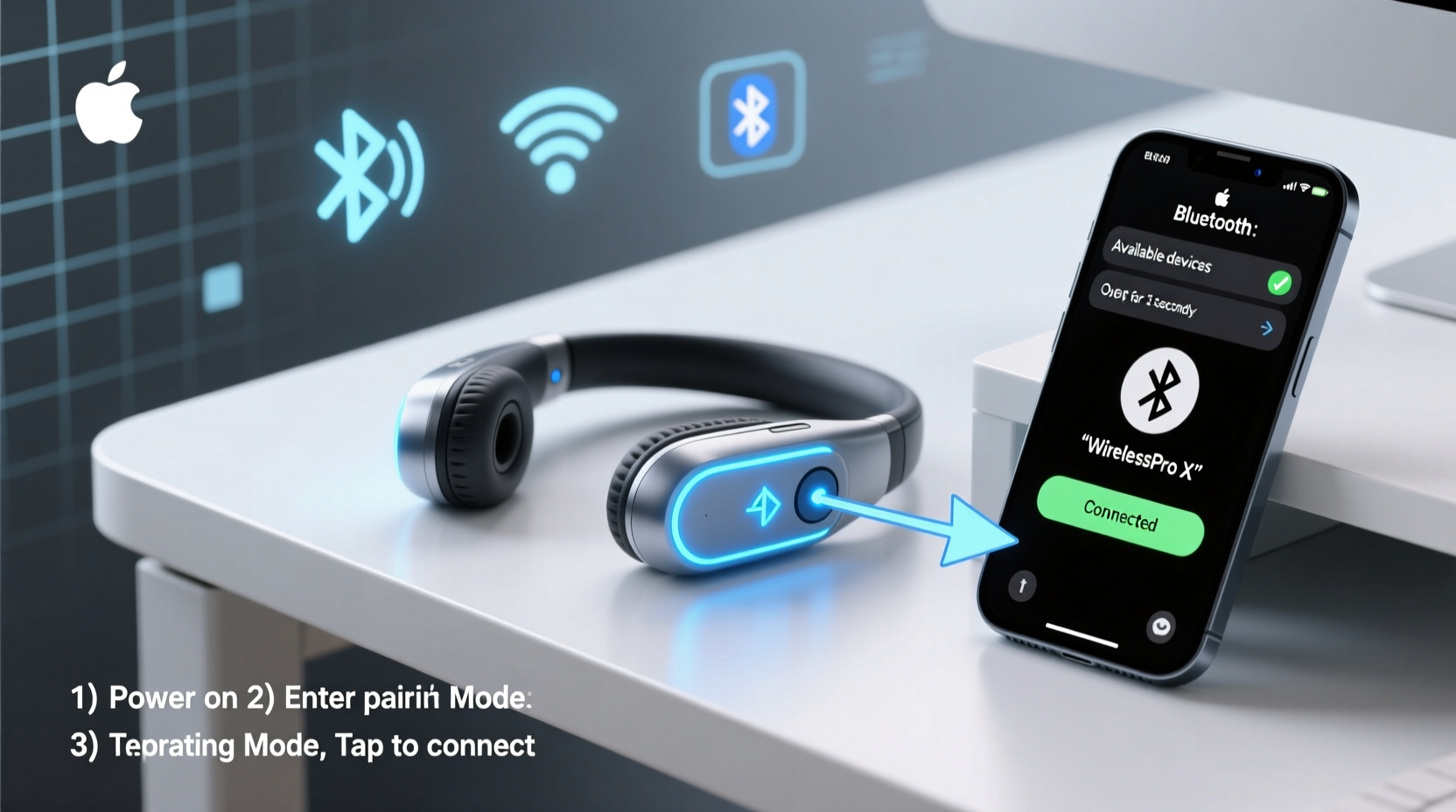
Before diving into activation steps, it’s important to understand what Bluetooth does and why it matters. Bluetooth is a short-range wireless communication protocol that allows devices like headsets, speakers, and phones to exchange data over distances of up to 30 feet (10 meters). Modern Bluetooth versions (5.0 and above) offer faster pairing, improved range, and lower power consumption.
Your cell phone headset uses Bluetooth to transmit audio signals—music, voice calls, voice assistant prompts—from your smartphone directly to your ears, eliminating tangled wires and offering freedom of movement. However, successful pairing depends on correct device settings, compatibility, and proper activation sequences.
Step-by-Step Guide to Activating Bluetooth on Your Headset
- Power On Your Headset: Press and hold the power button on your headset (usually located on the earcup or stem) for 3–5 seconds until an LED light flashes blue and red or you hear a voice prompt saying “Power on” or “Ready to pair.”
- Enter Pairing Mode: If the device doesn’t automatically enter pairing mode after powering on, press and hold the multifunction button (often the play/pause button) for 5–7 seconds. Look for alternating blue-red flashing lights or a verbal cue like “Pairing mode.”
- Enable Bluetooth on Your Phone: Open the Settings app on your smartphone, tap “Bluetooth,” and toggle it ON. Make sure Airplane Mode is disabled.
- Scan for Devices: Wait a few seconds for your phone to detect nearby Bluetooth devices. Your headset should appear in the list under “Available Devices.” The name typically includes the brand and model (e.g., “Sony WH-CH720N”).
- Select and Pair: Tap the name of your headset. Some models may require you to confirm a passcode (commonly 0000 or 1234), though most modern headsets connect automatically.
- Confirm Connection: Once paired, the LED on your headset will turn solid blue or announce “Connected.” You’ll also see a confirmation on your phone screen.
- Test Audio: Play a song or make a test call to ensure sound is routed correctly through the headset.
Common Compatibility and Setup Issues
Not all Bluetooth headsets work seamlessly with every phone. While most follow universal standards, variations in Bluetooth profiles (like A2DP for stereo audio or HFP for hands-free calling) can affect performance. Older headsets might not support newer codecs such as aptX or LDAC, leading to lower audio quality on compatible devices.
| Issue | Possible Cause | Solution |
|---|---|---|
| Device not showing up | Headset not in pairing mode | Restart headset and re-enter pairing mode |
| Connection drops frequently | Obstructions or interference | Stay within 30 feet; avoid microwaves or Wi-Fi routers |
| Poor sound quality | Incompatible audio codec | Check phone settings for advanced Bluetooth options |
| Can't reconnect automatically | Device forgotten or priority lost | Re-pair or set as \"priority\" in Bluetooth settings |
“Over 70% of Bluetooth issues stem from incorrect initial pairing or outdated firmware. Taking time to pair properly sets the foundation for long-term reliability.” — Dr. Lena Torres, Wireless Connectivity Engineer at MobileSync Labs
Best Practices for Maintaining Stable Connections
Once connected, maintaining a consistent link requires ongoing care. Here are proven strategies to keep your headset performing optimally:
- Keep Firmware Updated: Manufacturers release updates to fix bugs and improve compatibility. Check the companion app (e.g., Sony Headphones Connect, Jabra Sound+).
- Limit Interference: Avoid placing your phone near metal objects, microwaves, or crowded 2.4 GHz Wi-Fi networks.
- Clear Old Pairings: Remove unused devices from your phone’s Bluetooth list to reduce confusion during auto-reconnection.
- Use One Device at a Time: Simultaneous connections to multiple phones/tablets can cause conflicts unless explicitly supported.
- Store Paired Correctly: When folding or storing your headset, avoid pressing buttons accidentally, which could turn it on and drain battery.
Real-World Example: Solving Daily Commute Frustrations
Consider Mark, a project manager who commutes daily via train. He bought premium noise-canceling headphones but struggled with inconsistent Bluetooth connections each morning. His phone would sometimes connect to his smartwatch instead of his headset, and other times wouldn’t recognize the device at all.
After reviewing his routine, he realized he was turning on the headset too late—while already boarding the train—and often had Bluetooth off on his phone. He also discovered that his phone remembered seven other Bluetooth devices, creating confusion.
He implemented a simple change: each night, he powered down the headset completely. In the morning, he turned on Bluetooth on his phone first, then activated the headset. He also removed old devices like rental bike locks and a friend’s speaker. Result? Reliable, one-click connections within 10 seconds every day.
Essential Checklist Before First Use
Follow this checklist every time you set up a new or reset headset:
- ✅ Charge both phone and headset fully
- ✅ Power on the headset and enter pairing mode
- ✅ Enable Bluetooth on your phone
- ✅ Disable Airplane Mode and Wi-Fi if experiencing interference
- ✅ Locate your headset in the available devices list
- ✅ Complete pairing and test audio output
- ✅ Set as default audio device if needed
- ✅ Install manufacturer’s app for firmware and customization
Frequently Asked Questions
Why won’t my phone find my headset even though Bluetooth is on?
The most common reason is that the headset isn’t in pairing mode. Ensure it's flashing blue/red or indicating readiness. Also, check if the headset is already connected to another device. Try resetting the headset by holding the power button for 10+ seconds.
Can I use my Bluetooth headset with more than one phone?
Yes, many modern headsets support multi-point pairing, allowing connections to two devices simultaneously (e.g., phone and laptop). However, only one can stream audio at a time. Consult your user manual to enable this feature.
How do I know when my headset is fully charged?
Most headsets have an LED indicator that turns green or shuts off when charging is complete. Charging times vary but typically range from 1 to 2 hours. Overcharging is generally safe due to built-in circuit protection.
Final Thoughts: Mastering Wireless Freedom
Activating Bluetooth on your cell phone headset isn’t just about pressing buttons—it’s about understanding the rhythm between devices. With the right sequence, awareness of environmental factors, and regular maintenance, you can enjoy uninterrupted music, clear calls, and true mobility.
Don’t let minor glitches discourage you. Most issues are preventable with preparation and consistency. Now that you’ve learned the full process—from initial pairing to long-term optimization—you’re equipped to make your wireless experience truly seamless.




 浙公网安备
33010002000092号
浙公网安备
33010002000092号 浙B2-20120091-4
Comments
No comments yet. Why don't you start the discussion?