
Getting a new phone is exciting, but the activation process can feel overwhelming if you're not sure where to start. Whether you bought your device directly from Verizon, through their website, or from a third-party retailer, activating it doesn’t have to be complicated. With the right preparation and a clear understanding of the steps involved, you can get your new Verizon phone up and running in under 15 minutes. This guide walks you through every stage—from checking compatibility to making your first call—so you can enjoy your new device without delays.
Check Your Phone’s Compatibility First
Before beginning activation, confirm that your new phone works on Verizon’s network. Most modern smartphones are compatible, especially if they’re carrier-unlocked or purchased directly from Verizon. However, if you’re bringing your own device (BYOD), extra caution is required.
Verizon supports phones that meet these criteria:
- GSM, CDMA, and LTE/5G-capable devices
- IMEI number that isn't blacklisted or reported lost/stolen
- No active carrier locks (unless unlocked for Verizon)
To verify compatibility, visit verizon.com/byod and enter your phone’s IMEI number. You’ll receive instant confirmation whether your device can be activated on their network.
Prepare Everything You Need Before Starting
Activation moves quickly when you have all necessary information ready. Gather the following items before proceeding:
- Your Verizon account login – Username and password for My Verizon
- Account PIN or passcode – Required for security verification
- New phone’s IMEI or MEID number – Found in settings or on the box
- Verizon SIM card – Either pre-installed or included with your purchase
- Old phone (if transferring service) – For data transfer and number porting
If you're upgrading from an older device, back up your contacts, photos, and apps using Google Drive, iCloud, or Verizon Cloud. This ensures a smooth transition after activation.
Step-by-Step Activation Process
Follow this timeline-tested sequence to activate your phone successfully:
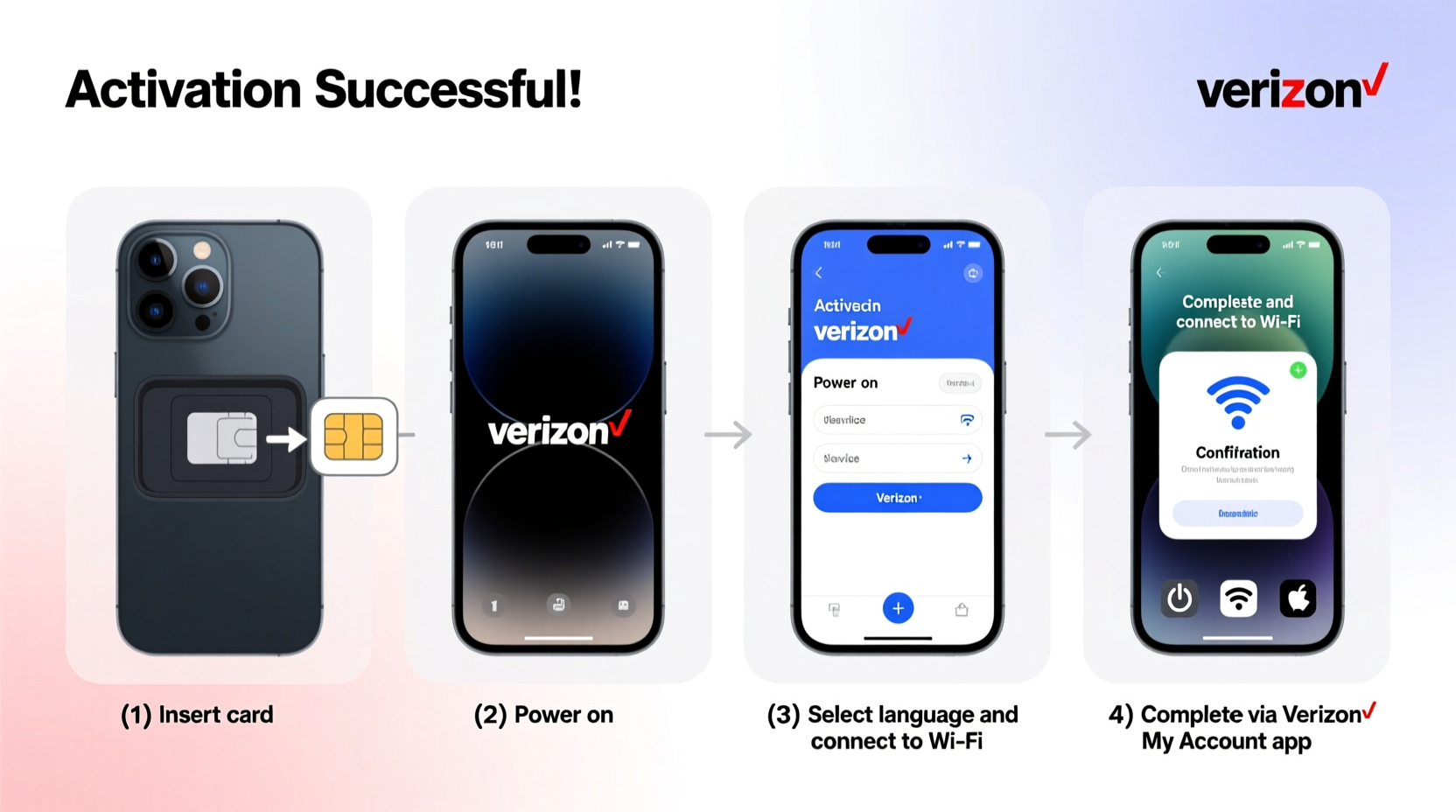
- Insert the SIM card – Power off your phone, insert the Verizon SIM into the tray, then power it back on.
- Connect to Wi-Fi – During initial setup, choose a secure Wi-Fi network to avoid data usage.
- Select your language and region – Follow on-screen prompts until you reach the “Set Up Your Apps & Data” screen.
- Choose “Restore from Backup” or “Set Up as New” – Recommended: Restore from backup if available.
- Open a browser and go to verizon.com/activate – Alternatively, use the My Verizon app.
- Log in to your My Verizon account – Use your username and password.
- Select your device from the list – Or manually enter the IMEI/MEID if prompted.
- Confirm your billing information – Verify plan details and payment method.
- Wait for confirmation – The system will send a signal to your phone; this takes 1–5 minutes.
- Reboot when prompted – After activation completes, restart your phone to finalize settings.
Once rebooted, check for signal bars, open Messages to send a test text, and make a short call to ensure voice and data are working.
Troubleshooting Common Activation Issues
Even with careful preparation, hiccups can occur. Here’s how to resolve frequent problems:
| Issue | Possible Cause | Solution |
|---|---|---|
| “Device Not Eligible” Error | Blacklisted IMEI or unpaid balance | Contact Verizon support with proof of ownership |
| No Service After Activation | Wrong SIM, poor signal, or delayed provisioning | Try manual network selection or wait 10 minutes |
| Can’t Log In to My Verizon | Forgotten password or locked account | Use “Forgot Password” or call customer service |
| Wi-Fi Works But No Data | APN settings incorrect | Verify APN: vzwinternet, leave username/password blank |
“We recommend customers complete activation within 90 days of purchasing a new device to avoid service interruptions.” — Verizon Wireless Support Team
Real-Life Example: Sarah’s Smooth Upgrade
Sarah bought a new Samsung Galaxy S24 online and wanted to upgrade from her old iPhone 12. She followed these steps:
- Backed up her iPhone to iCloud and saved her Android transfer code.
- Removed the SIM from her old phone and placed it in the new device.
- Connected to home Wi-Fi during setup and chose “Restore from Backup” using her Google account.
- Visited verizon.com/activate, logged in, selected her new phone, and confirmed her Unlimited Plus plan.
The entire process took less than 12 minutes. Within 5 minutes of rebooting, her texts, contacts, and apps synced automatically. Her number transferred seamlessly, and she made her first call without issues.
Quick Activation Checklist
Print or bookmark this checklist to ensure nothing is missed:
- ☐ Back up old phone data
- ☐ Confirm device compatibility via verizon.com/byod
- ☐ Obtain correct Verizon SIM card
- ☐ Charge new phone to at least 50%
- ☐ Have My Verizon login and account PIN ready
- ☐ Connect to stable Wi-Fi
- ☐ Visit verizon.com/activate or use My Verizon app
- ☐ Enter IMEI and confirm plan details
- ☐ Wait for activation confirmation and reboot
- ☐ Test calls, texts, and mobile data
Frequently Asked Questions
Can I activate my Verizon phone without calling customer service?
Yes. Over 95% of activations are completed online at verizon.com/activate or through the My Verizon app without needing to speak to a representative.
How long does Verizon phone activation take?
Typically 5 to 10 minutes. Delays may occur if there's high server traffic, incorrect account info, or SIM provisioning issues.
What should I do if my phone won’t activate even after following all steps?
First, restart your phone and retry activation. If the error persists, contact Verizon at 800-922-0204 or visit a store. Bring your phone, SIM, and government-issued ID for faster resolution.
Final Steps and Getting the Most From Your New Phone
After successful activation, take a few extra moments to optimize your experience:
- Update your phone’s operating system to the latest version.
- Install essential apps like My Verizon, Message+ (for texting across devices), and Call Filter.
- Enable 5G if supported and available in your area (Settings > Network & Internet > Mobile Network).
- Set up visual voicemail and enable spam protection features.
Also, consider enabling Auto Pay and Paperless Billing through My Verizon to avoid late fees and streamline account management.
Conclusion: Start Using Your New Phone Today
Activating your new Verizon phone doesn’t require technical expertise—just attention to detail and a few minutes of your time. By preparing ahead, following the correct sequence, and knowing what to do if problems arise, you can avoid frustration and enjoy your upgraded device right away. Millions of customers activate their phones independently each year, and now you have the exact roadmap to join them.




 浙公网安备
33010002000092号
浙公网安备
33010002000092号 浙B2-20120091-4
Comments
No comments yet. Why don't you start the discussion?